

Scenario
Your team has recently been given the responsibility to manage the name entries in the network 172.16.0.0/16. Please make the appropriate configurations in the Grid.
Estimate Completion Time
-
15 to 20 minutes
Credentials
|
Description |
Username |
Password |
URL or IP |
|---|---|---|---|
|
Grid Manager UI |
admin |
infoblox |
Requirements
-
Administrative DNS access to the Grid
-
(Optional) Administrative IPAM access to the Grid
Learning Content
Lab Initiation
Access jump-desktop
Once the lab is deployed, you can access the virtual machines required for this activity. To begin, select VM List from the navigation bar at the top, locate jump-desktop, and click the green play icon to open its console. Log in to the Linux UI.

Username: training
Password: infoblox
Initiate lab
To initiate the lab, double-click the Launch Lab icon on the Desktop.

Choose the lab number from the list and click OK.
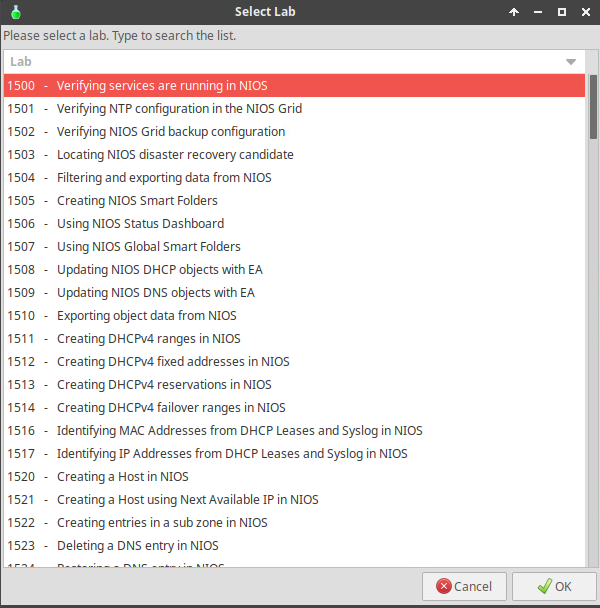
After clicking OK, you will see a pop-up message with a brief description of the lab task. If the description looks correct, click Yes to continue lab initiation.
Lab initiation will take a couple of minutes to finish.
Once complete, you will see another pop-up message with the login credentials and the URL for the Grid Manager’s User Interface. Note that the credentials may differ from those from prior labs.
Tasks
-
Creating an IPv4 authoritative reverse-mapping zone.
-
(Bonus) Creating a corresponding IPv4 network in IPAM.
Task 1: Creating an IPv4 authoritative reverse-mapping zone
Create 172.16.0.0/16 as an authoritative reverse-mapping zone, served by the name server group Internal NSG.
Bonus Task: Creating both reverse-mapping zone and network
If you are using the Grid for both DNS and IPAM, you should create a corresponding network in IPAM that matches the reverse-mapping zone in DNS. There is a way to create both the authoritative IPv4 reverse-mapping zone and the IPv4 network if they happen to be a certain size (such as /16 or /24). Create an IPAM network object for 192.168.0.0/16 and check the option during creation to automatically create the IPv4 reverse-mapping zone.
Solutions
Task 1 Solution: Creating an IPv4 authoritative reverse-mapping zone
-
Navigate to Data Management → DNS → Zones
-
Click the Add dropdown menu and select Authoritative Zone
-
At Step 1 of 6, select the radio button for Add an authoritative IPv4 reverse-mapping zone
-
Click Next
-
At Step 2 of 6, select the radio button for IPv4 Network
-
For the network, enter 172.16.0.0
-
Change the Netmask to 16
-
For Comment, enter TechBlue Branch Networks
-
Click Next
-
At Step 3 of 6, select the radio button for Use this name server group
-
Select Name Server Group Internal NSG
-
Click Save & Close
-
The Zones table now displays the new 16.172.in-addr.arpa authoritative zone