

Scenario
During routine network monitoring, you noticed that the testing-windows device has been repeatedly requesting and receiving DHCP leases. However, this device is no longer authorized to access the network. To resolve this, you will implement a MAC address filter to block this device from obtaining further IP addresses.
You will begin by identifying the testing-windows device’s MAC address, configure a MAC address filter in NIOS to block it, and then verify that the device can no longer acquire a DHCP lease from the range.
Estimate Completion Time
-
15 to 20 minutes
Credentials
|
Description |
Username |
Password |
URL or IP |
|---|---|---|---|
|
Grid Manager UI |
admin |
infoblox |
Requirements
-
Administrative DNS access to the Grid
Learning Content
Lab Initiation
Access jump-desktop
Once the lab is deployed, you can access the virtual machines required for this activity. To begin, select VM List from the navigation bar at the top, locate jump-desktop, and click the green play icon to open its console. Log in to the Linux UI.

Username: training
Password: infoblox
Initiate lab
To initiate the lab, double-click the Launch Lab icon on the Desktop.

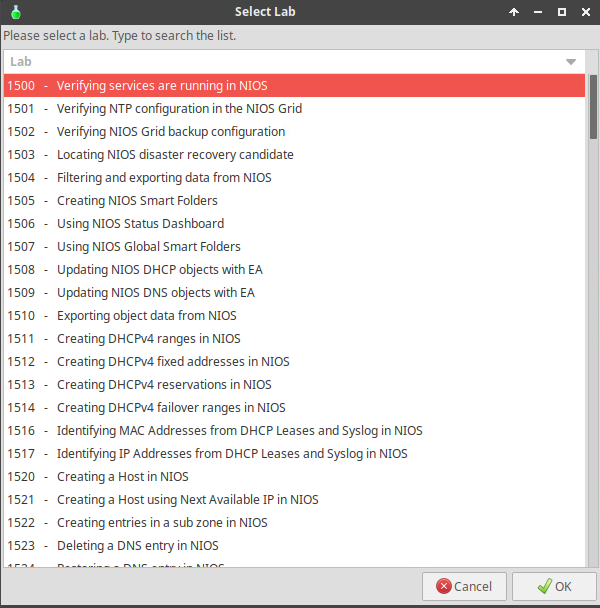
Choose the lab number from the list and click OK.
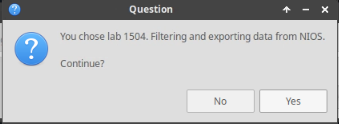
After clicking OK, you will see a pop-up message with a brief description of the lab task. If the description looks correct, click Yes to continue lab initiation.
Lab initiation will take a couple of minutes to finish.
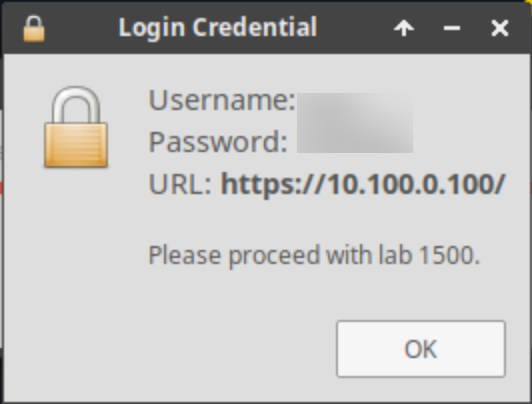
Once complete, you will see another pop-up message with the login credentials and the URL for the Grid Manager’s User Interface. Note that the credentials may differ from those from prior labs.
Tasks
Task 1: Request a DHCP Address
-
Use Command Prompt on the testing-windows VM to request a DHCP address using
ipconfig /renewcommand. -
Verify that the client has obtained an IP address using the command:
ipconfig
Task 2: Find the MAC Address of the Client
-
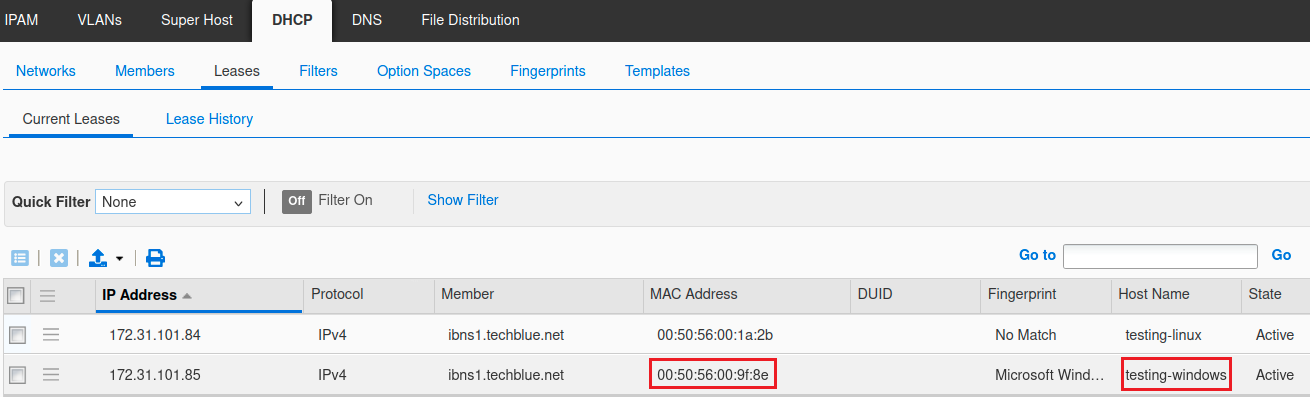
From the Grid Manager UI locate the lease details of the testing-windows client and note down its MAC address.
Task 3: Define and Apply a MAC Address Filter to the DHCP Range
-
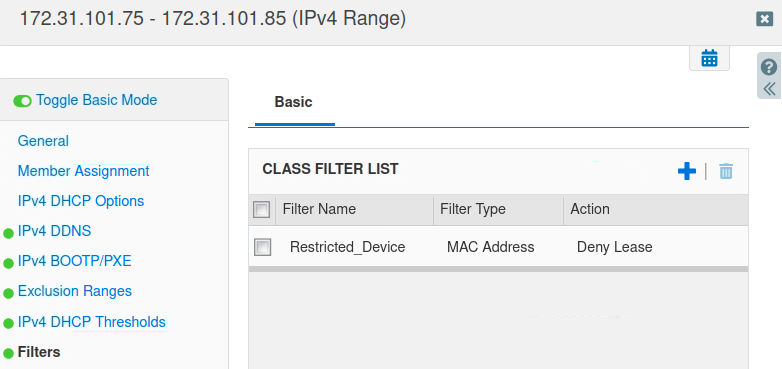
Create a MAC address filter named Restricted_Device for the noted MAC address.
-
Apply the MAC filter to the DHCP range 172.31.101.75-172.31.101.85.
Task 4: Confirm the Client Does Not Receive a DHCP Lease
-
Use Command Prompt on the testing-windows VM to attempt to renew the IP address using the command:
ipconfig /renew -
Verify that the client no longer receives a lease.
Solutions
Task 1 Solution: Request a DHCP Address
To complete this task, follow these steps to request a DHCP address on the testing-Windows VM:
-
Log in to the VM testing-windows.
-
Click the Command Prompt icon from the taskbar to open it.
-
Type the command:
ipconfig /renew -
After the process completes, verify the new IP address by typing:
ipconfig.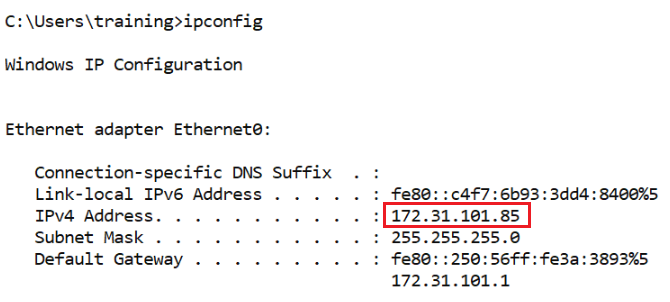
Note: The IP address shown in the screenshot may differ from the IP address that the DHCP server provides to the Windows client during this lab.
Task 2 Solution: Find the MAC Address of the Client
To find the MAC address of the client, use the following steps:
-
Switch to jump-desktop and open a browser to access Grid Manager UI at
10.100.0.100. -
Navigate to Data Management > DHCP > Leases > Current Leases
-
Find the lease assigned to the testing-windows client in the table.
-
Note down the MAC address displayed in the table for use in the next task.
Task 3 Solution: Define and Apply a MAC Address Filter to the DHCP Range
While still in the Grid Manager UI, follow these steps:
-
Navigate to Data Management > DHCP > Filters.
-
Click
icon to select IPv4 MAC Address Filter.
-
In the Add IPv4 MAC Filter Wizard:
-
For Name, enter:
Restricted_Device. -
Click Save & Close.
-
-
From the filter list, click the newly created Restricted_Device filter.
-
Add the noted MAC address to the filter:
-
Click
-
For MAC address, enter:
00:50:56:00:9f:8e. -
Click Save & Close.
-
-
Navigate to Data Management > DHCP > Networks > 172.31.101.0/24.
-
Select the range 172.31.101.75-172.31.101.85 and click Edit.
-
Toggle Advanced Mode if it's not already enabled.
-
Go to Filters > Basic and in the CLASS FILTER LIST, click the
-
Select the Restricted_Device MAC filter and change the action to Deny Lease from the drop-down menu.
-
Click Save & Close.
-
Restart services when prompted.
Task 4 Solution: Confirm the Client Does Not Receive a DHCP Lease
To test the effectiveness of the MAC filter, follow these steps:
-
Switch back to the testing-windows VM.
-
In Command Prompt, release the current IP address by using the following command:
ipconfig /release -
Then, attempt to obtain a new IP address by using:
ipconfig /renew
Expected Output
After executing the ipconfig /release command, the current IP address will be released. When you attempt to obtain a new IP address with the ipconfig /renew command, the client will not receive an IP address because the MAC Address filter prevents the DHCP server from assigning a lease.
The ipconfig /renew command will eventually time out, displaying the following message:
