
Scenario
Techblue is strengthening the protection of its public-facing authoritative DNS infrastructure. The organization is preparing to enable DNS Infrastructure Protection on extibns.techblue.net, an external-facing Grid member located outside the firewall and exposed to Internet traffic. Before placing the service into production, the environment must be prepared with the external DNS zone techblue.io, the appropriate license, and an initial ruleset. The service will first operate in monitor-mode so the team can establish a normal DNS-usage baseline and confirm that legitimate traffic is not affected.
As the organization prepares to expand DNS Infrastructure Protection to additional authoritative servers, the team needs a consistent way to manage its configuration. A profile named Authoritative – Initial Configuration will provide a shared foundation, while later tuning will address noisy clients and expected business traffic.
One important customer, using the IP address 203.0.113.254, requires uninterrupted support. A custom Allowlist (Whitelist) rule will be used for that customer’s traffic to guarantee continuous service, as the organization had a legal obligation to provide 24/7 support.
After tuning the ruleset 20250702-16, which contains custom rules and all the adjustments you developed over time. A newer ruleset, 20251209-16, is now available with updated protections. The team must combine the two versions without losing its existing tuning and apply the resulting ruleset through the Authoritative - Tuned profile.
After the configuration has been running in production, monitoring tools detect an unusual increase in DNS queries from 203.0.113.254. The security team suspects that the customer’s system has been compromised and may be attacking the organization. Using the NIOS Security Dashboard, syslog, and Reporting Server, the team investigates the event, confirms whether Rate-Limiting rule 120201001 took the expected action, identifies the sources and rules involved, and determines whether any other rules were triggered unexpectedly. The investigation concludes with an exported PDF summary dashboard for management.
Estimate Completion Time
-
150 to 180 Minutes
Credentials
|
Description |
Username |
Password |
URL or IP |
|---|---|---|---|
|
Grid Manager UI |
admin |
infoblox |
|
|
NIOS-4 VM |
admin |
infoblox |
|
|
Support-Server |
training |
infoblox |
|
Requirements
-
Administrative access to the Grid
-
Usage of the NIOS Lab Environment (with Advanced DNS Protection) Lab environment
Learning Content
Lab Initiation
Use Lab 2546 - Setting up NIOS for DNS Infrastructure Protection as your starting point
Access jump-desktop
Once the lab is deployed, you can access the virtual machines required for this activity. To begin, select VM List from the navigation bar at the top, locate jump-desktop, and click the green play icon to open its console. Log in to the Linux UI.

Username: training
Password: infoblox
Initiate lab
To initiate the lab, double-click the Launch Lab icon on the Desktop.

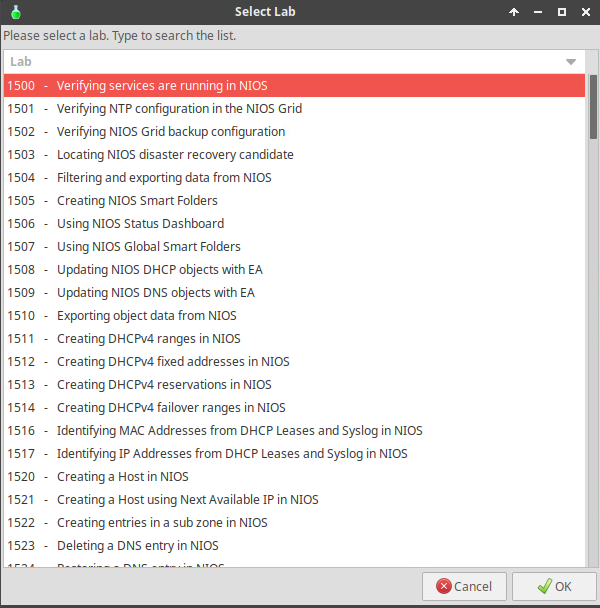
Choose the lab number from the list and click OK.
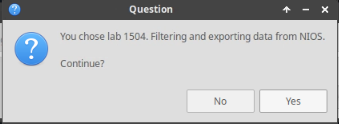
After clicking OK, you will see a pop-up message with a brief description of the lab task. If the description looks correct, click Yes to continue lab initiation.
Lab initiation will take a couple of minutes to finish.
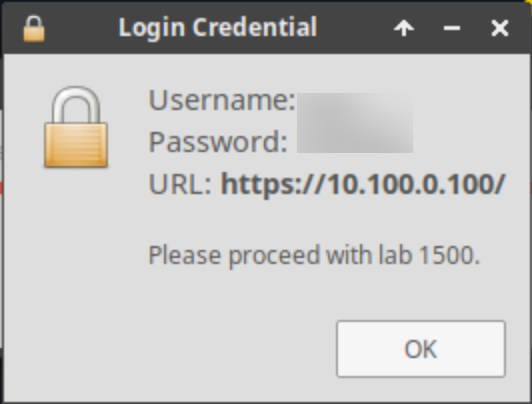
Once complete, you will see another pop-up message with the login credentials and the URL for the Grid Manager’s User Interface. Note that the credentials may differ from those from prior labs.
Tasks
-
Set up a new management interface for Grid Member extibns.techblue.net
-
Change LAN1 interface setting to its public address for Grid Member extibns.techblue.net
-
Verify extibns.techblue.net successfully rejoined the Grid after the restart
-
Update extibns.techblue.net Reporting Settings
-
Import the DNS-techblue.io.csv file and verify that the DNS service is running on extibns.techblue.net
-
Load DNS Infrastructure Protection License Files to the Grid
-
Upload an Initial Ruleset
-
Configure Rule Update and Ruleset Download Policies
-
Set DNS Infrastructure Protection Service to monitor-mode
-
Start the DNS Infrastructure Protection Service
-
Create a DNS Infrastructure Protection Profile
-
Assign Profile to Grid Member
-
Set up the Reporting Server
-
Identify and Investigate Outliers
-
Establish a Baseline
-
Create a Profile for Tuned Rulesets
-
Manage Rule Categories
-
Tune Default Rules in the Authoritative - Tuned Profile
-
Test the new Configuration with monitor-mode Enabled
-
Test the new Configuration with monitor-mode Disabled
-
Create and test a custom Allowlist (Whitelist) rule
-
Create and test a custom Rate-Limiting rule
-
Create and test a custom Denylist (Blacklist) rule
-
Merge the currently active ruleset 20250702-16 with the new 20251209-16 ruleset
-
Modify the Authoritative - Tuned profile to use the newly merged 20251209-16 ruleset
-
Simulate a Misbehaving/Infected Client
-
Analyze the Grid Status and Health using NIOS Security Dashboard
-
Investigate Action Taken and Matched Rule for the Recent Incident Using Syslog
-
Investigate Incident History using Reporting Server Dashboards and Reports
Use Lab 2546 - Setting up NIOS for DNS Infrastructure Protection as your starting point
Task 1: Set up a new management interface for Grid Member extibns.techblue.net
Use the following information to configure a new IPv4 management port on the Grid member extibns.techblue.net, and configure the VPN services (Infoblox Grid communication) to run over that management port. Use the following information:
|
IP Address |
10.35.22.105 |
|
Netmask |
255.255.255.0 |
|
Gateway |
10.35.22.1 |
Task 2: Change LAN1 interface setting for Grid Member extibns.techblue.net
Change the LAN1 interface (the DNS service interface) on the Grid member extibns.techblue.net to its new public IP address. Use the following information:
|
IP Address |
203.0.113.105 |
|
Netmask |
255.255.255.0 |
|
Gateway |
203.0.113.1 |
Task 3: Verify extibns.techblue.net successfully joined the Grid after the restart
After an address change, the Grid member extibns.techblue.net will disconnect from the Grid and rejoin. We need to verify that it has successfully rejoined before moving on. This process can take several minutes.
Task 4: Configure extibns.techblue.net Reporting Settings
Update the reporting configuration to use the management interface to send data to the reporting server.
Task 5: Import the DNS-techblue.io.csv file and verify the DNS service is running on extibns.techblue.net
Finally, we will configure the external-facing Grid member with DNS data by importing the file DNS-techblue.io.csv. This import does the following:
-
Create a DNS View called External
-
Create a Name Server Group called External NSG, and assign extibns.techblue.net to the group
-
Create and populate the techblue.io zone and assign it to extibns.techblue.net
After the import, verify that the DNS service is running on extibns.techblue.net.
Task 6: Load DNS Infrastructure Protection License Files to the Grid
Advanced DNS Protection (ADP) is an older name for the DNS Infrastructure Protection (DNS-IP) service; some system files still use the old name.
Add the DNS Infrastructure Protection license by navigating to Shared Drive/Licenses. Select the ADP.lic file
Task 7: Upload an Initial Ruleset
In this task, you upload a ruleset. Initially, an older ruleset is uploaded, allowing you to update to the latest ruleset later. Use the ruleset ruleset-20260113.bin2 from the Shared Drive file from the Shared Drive/NIOS-Imports folder.
Task 8: Configure Rule Update and Ruleset Download Policies
Set the Rule Update Policy to Manual, Enable Automatic Ruleset Downloads, and test the connection to ensure it works.
Task 9: Set DNS Infrastructure Protection Service to monitor-mode
Advanced DNS Protection (ADP) is an older name for the DNS Infrastructure Protection (DNS-IP) service; some system commands still use the old name.
Configure the DNS Infrastructure Protection service to use monitor-mode.
Task 10: Start the DNS Infrastructure Protection Service
Start the DNS Infrastructure Protection service on the extibns.techblue.net member, and restart the service if required
Task 11: Create a DNS Infrastructure Protection Profile
Create a DNS Infrastructure Protection Profile named Authoritative – Initial Configuration, with default settings.
Task 12: Assign Profile to Grid Member
Assign the profile created in Task 1 to the Grid member extibns.techblue.net.
Task 13: Set up the Reporting Server
Set up the Reporting Server with the following information:
|
Configuration |
Value |
|
Username |
training |
|
Password |
infoblox |
|
Protocol |
SCP |
|
Host/ IP Address |
10.100.0.205 |
|
Port |
22 |
|
Path |
/home/training/Documents/ReportingData |
Task 14: Identify and Investigate Outliers
Leave the Grid running passively for 30 to 35 minutes to allow enough traffic to flow through the Grid and populate its dashboards and reports
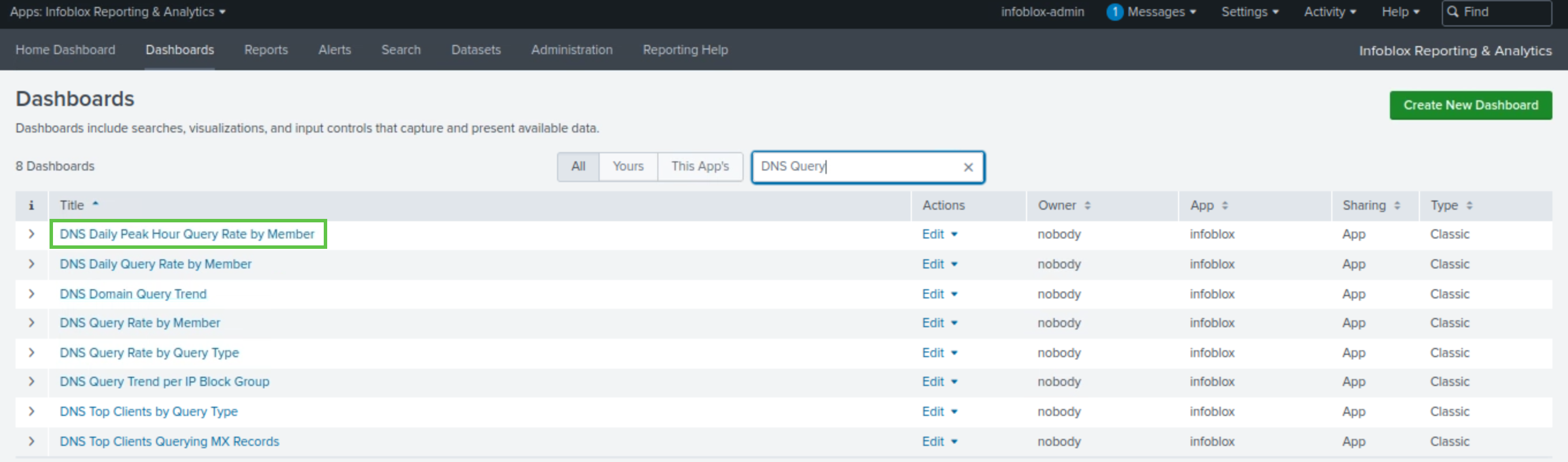
Use the Reporting Server dashboards to identify noisy clients (outliers). The DNS Infrastructure Protection service hasn’t been running long enough, so dashboards that show daily trends, such as DNS Daily Peak Hour Query Rate by Member, will not be accurate or useful in this instance. However, this is an important dashboard to check in a production system where the DNS Infrastructure Protection service has been running for several days or weeks.
Task 15: Establish a Baseline
Use the Reporting Server dashboards to establish the normal rate of DNS Queries Per Second (QPS) or a baseline. The information you want to gather here can also be found under DNS Query Rate by Member, or Daily Peak Hour Query Rate by Member dashboards. However, since the DNS Infrastructure Protection service hasn’t been running long enough, dashboards showing daily trends will not be accurate or useful in this instance.
Task 16: Create a Profile for Tuned Rulesets
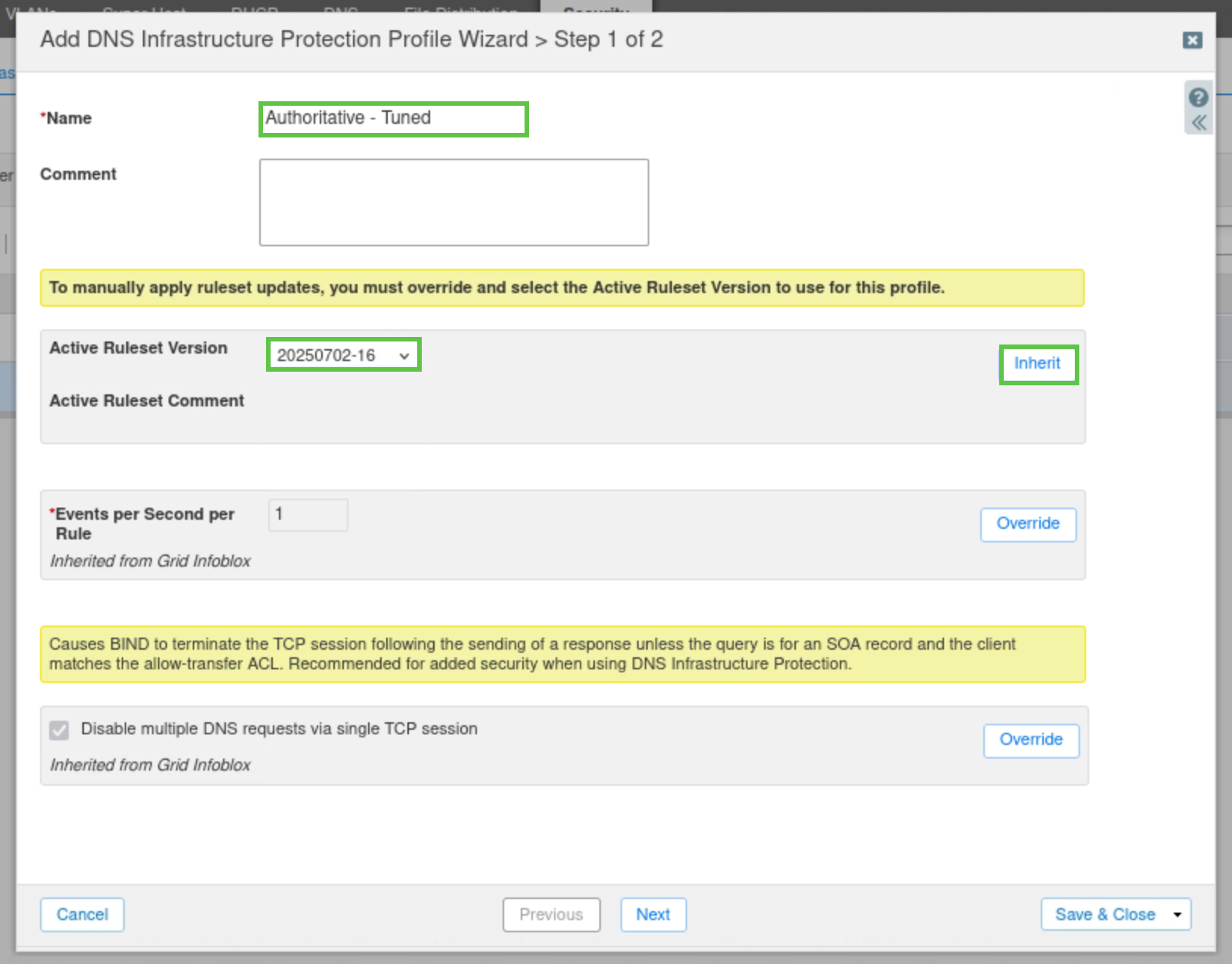
Create a DNS Infrastructure Protection profile named Authoritative - Tuned. In this process, override the Active Ruleset and select the 20250702-16 ruleset for the new profile, and assign this profile to extibns.techblue.net.
Task 17: Manage Rule Categories
Since extibns.techblue.net is an authoritative-only DNS server, certain rule categories are not required. Disable the following rule categories:
-
DNS Malware
-
DNS DDoS
-
DNS Tunneling
Task 18: Tune Default Rules in the Authoritative - Tuned Profile
The values used in this task are specific to the lab and do not reflect the values you should use in a production environment
You will tune three rules to suit your current lab environment; these rules are to protect against TCP and UDP flood attacks.
-
Tune the rule ID 130000100 (WARN about high rate inbound UDP DNS queries) as follows:
-
Log Severity: Warning
-
Packets per second: 250
-
Enable the rule
-
-
Tune the rule ID 130000200 (WARN & BLOCK about high rate inbound UDP DNS queries) as follows:
-
Log Severity: Critical
-
Packets per second: 500
-
Enable the rule
-
-
Tune the rule ID 100000100 (EARLY PASS UDP response traffic) as follows:
-
Log Severity: Critical
-
Packets per second: 15000
-
Task 19: Test the new Configuration with monitor-mode Enabled
Test the Authoritative - Tuned Profile’s newly tuned rules, keeping extibns.techblue.net in monitor-mode.
-
Use the bmon monitoring tool, installed on the support-server virtual machine, to monitor the eth2 interface.
-
Use the queryperf tool, installed on the support-server virtual machine, to send DNS queries to the extibns.techblue.net DNS server at the following rates:
-
Set the query rate to 350
-
This will exceed the threshold for rule ID 130000100 and trigger it.
-
-
Set the query rate to 600
-
This will exceed the threshold for rule ID 130000200 and trigger it.
-
-
Monitor the eth2 interface health using bmon.
-
Use NIOS syslogs to verify your observations.
-
Task 20: Test the new Configuration with monitor-mode Disabled
-
Disable monitor-mode on NIOS-4 (extibns.techblue.net), then repeat your tests with the same query rates (350 then 600) and observe the difference in the eth2 interface health. Use NIOS syslogs to verify your observations.
Task 21: Create and test a custom Allowlist (Whitelist) rule
After completing the task, disable the rule and publish changes. This is to allow you to test upcoming rules in later steps, as they all affect the same IP address.
Create a custom Allowlist (Whitelist) rule under the 20250702-16 ruleset, to allow traffic from the IP Address 203.0.113.254, which is the IP Address of an important customer your organization has a legal obligation to support 24/7. Use the queryperf and bmon tools on the support-server VM to test your rule gets triggered by sending 1000 QPS to extibns.techblue.net, which is over the threshold for the system rule threshold for rule ID 130000200 (WARN & BLOCK about high rate inbound UDP DNS queries) in the 20250702-16 ruleset.
Task 22: Create and test a custom Rate-Limiting rule
After completing the task, disable the rule and publish changes. This is to allow you to test upcoming rules in later steps, as they all affect the same IP address.
Create a custom Rate-Limiting rule under the 20250702-16 ruleset, to control traffic from the IP Address 203.0.113.254, as it is sending an excessive amount of traffic, and we want to reduce the QPS to 100 before it gets rate-limited. Use the following parameters for the rule:
-
Log Severity: Critical
-
Packets per second: 100
-
Drop interval: 5
-
Events per second: 1
-
IP address: 203.0.113.254
-
Rate algorithm: Rate_Limiting
Use the queryperf and bmon tools on the support-server VM to test your configuration: use a number below the threshold (< 100), then one above the threshold (> 100) to verify that the rule gets activated only after the threshold is exceeded.
Task 23: Create and test a custom Denylist (Blacklist) rule
After completing the task, disable the rule and publish changes. This IP address cannot be blocked as it will be used in later DNS Infrastructure Protection labs.
Create a custom Denylist (Blacklist) rule under the Authoritative - Tuned profile, to block traffic from the IP Address 203.0.113.254, as it has been compromised and was attempting to launch an attack on the organization. Use the queryperf and bmon tools on the support-server VM to verify that traffic will be blocked.
Task 24: Merge the currently active ruleset 20250702-16 with the new 20251209-16 ruleset
In this task, you will merge your active ruleset, 20250702-16, including all custom rules and tuning adjustments created in earlier labs, into the newly released ruleset, 20251209-16. This approach prevents the loss of your organization‑specific tuning and ensures that Infoblox’s latest updates, thresholds, and rule improvements are incorporated into your environment. You will compare differences between the two rulesets, select the custom rules to migrate, and complete the merge process.
Task 25: Modify the Authoritative - Tuned profile to use the newly merged 20251209-16 ruleset
After creating the merged ruleset, 20251209-16, you will apply it to the Authoritative – Tuned profile used by your authoritative DNS servers. Since this profile was created in earlier labs to unify tuning across all authoritative Grid members, updating it ensures that every assigned server benefits from the latest protections and your preserved customizations.
Task 26: Simulate a Misbehaving/Infected Client
Use the queryperf tool on the support-server VM to send DNS queries to the extibns.techblue.net DNS server with the DNS-IP service enabled. We want to trigger a custom Rate-Limiting rule is set to 100 queries per second. Use a query rate of 200.
Use the bmon tool on the support-server VM to monitor traffic on the eth2 interface, as it is connected to the 203.0.113.0 network.
Task 27: Analyze the Grid Status and Health using NIOS Security Dashboard
Use the NIOS Security Dashboard to analyze the Security Status for Grid, Security Status for all Members, and DNS Infrastructure Protection status widgets, identify which member is affected by the recent incedent, and examine the event severity, top rules, clients, and events over time for the incident.
Task 28: Investigate Action Taken and Matched Rule for the Recent Incident Using Syslog
Use the syslog viewer to display Threat Detection Event Logs, filter entries for the client IP address 203.0.113.254, and find the rule ID that the traffic has triggered.
Task 29: Investigate Incident History using Reporting Server Dashboards and Reports
It can take up to 15 minutes for the Reporting Server to pull data from the Grid and populate its dashboards and reports. This delay applies only to this simulated lab environment because the Grid and Reporting Server haven't had enough time to sync.
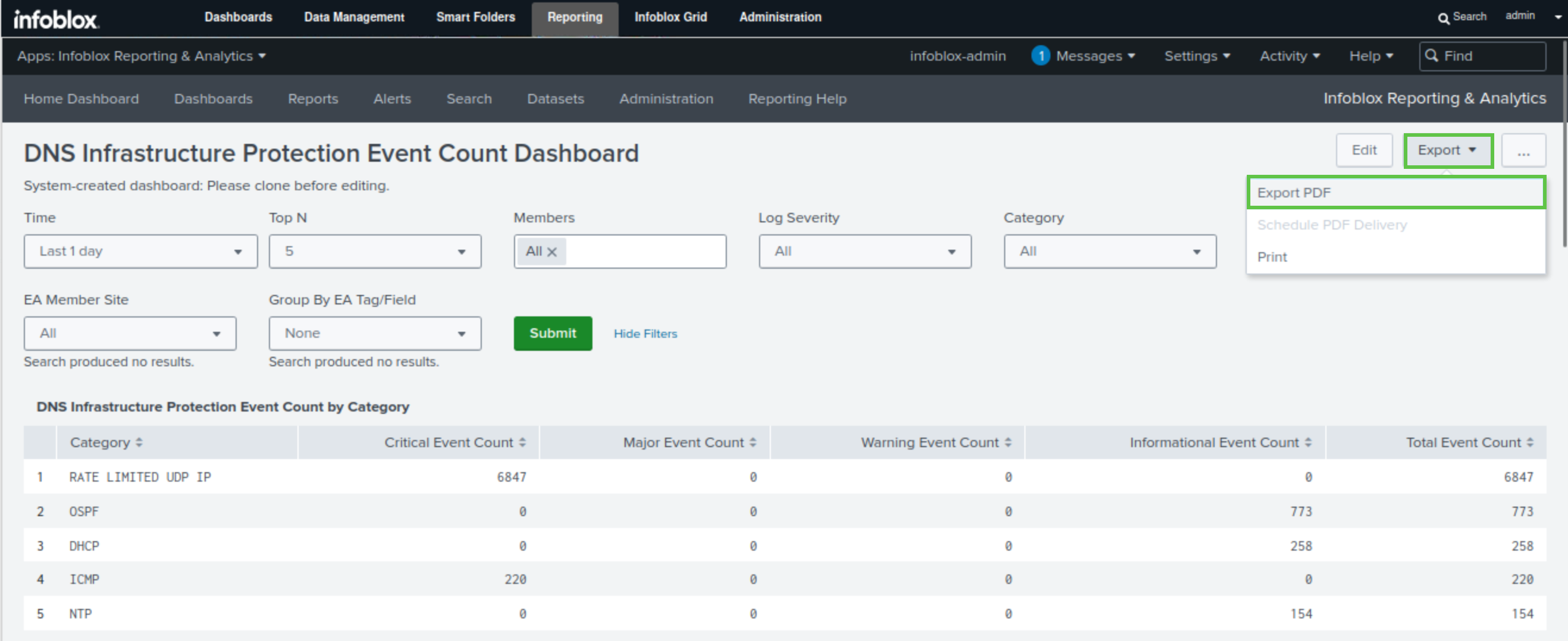
Use the Reporting Server’s DNS Infrastructure Protection reports (Event Count by member, Event Count by category, Event Count by rule, and Top Rules Logged by Source) and the DNS Infrastructure Protection Event Count dashboard to review historical DNS-IP activity for the Grid, correlate events for rule (Rule ID identified in the previous task) and source IP 203.0.113.254, and export the summary dashboard as a PDF.
Solutions
Task 1 Solution: Set up a new management interface for Grid Member extibns.techblue.net
In this task, we configure a new IPv4 management interface on extibns.techblue.net. The port will be used as an out-of-band management port for the grid member, as it is strongly recommended to use a management interface for Grid traffic. Since extibns.techblue.net is assumed to be exposed to the Internet without a firewall, we need to configure it with a dedicated management interface. This way, the DNS service runs on one interface, and management runs on another.
-
On the jump-desktop machine, open a browser window to https://10.100.0.100.
-
Navigate to Infoblox Grid → Grid Manager → Members.
-
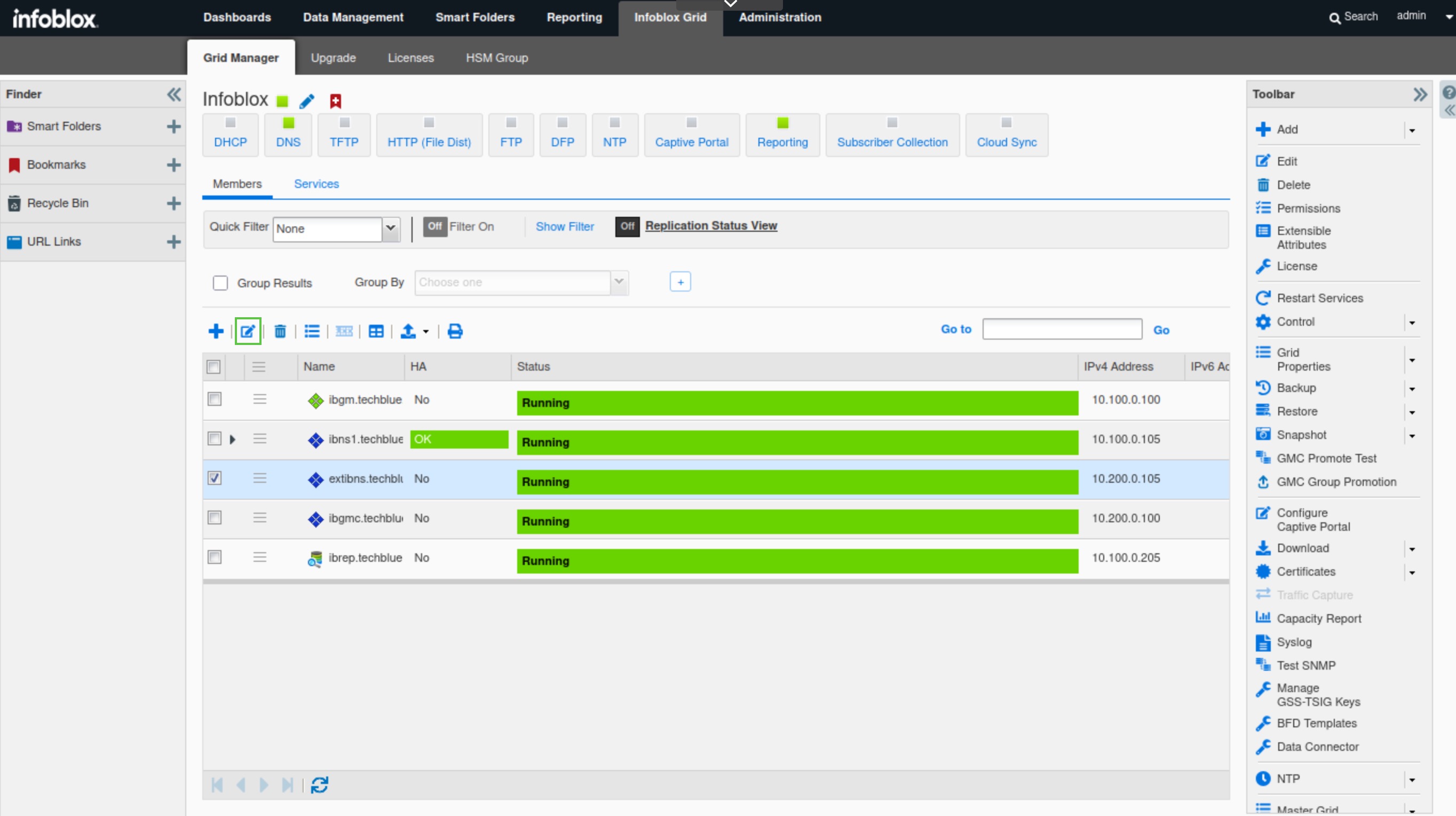
Select extibns.techblue.net and click the Edit button.
-
Click Toggle Advanced Mode.
-
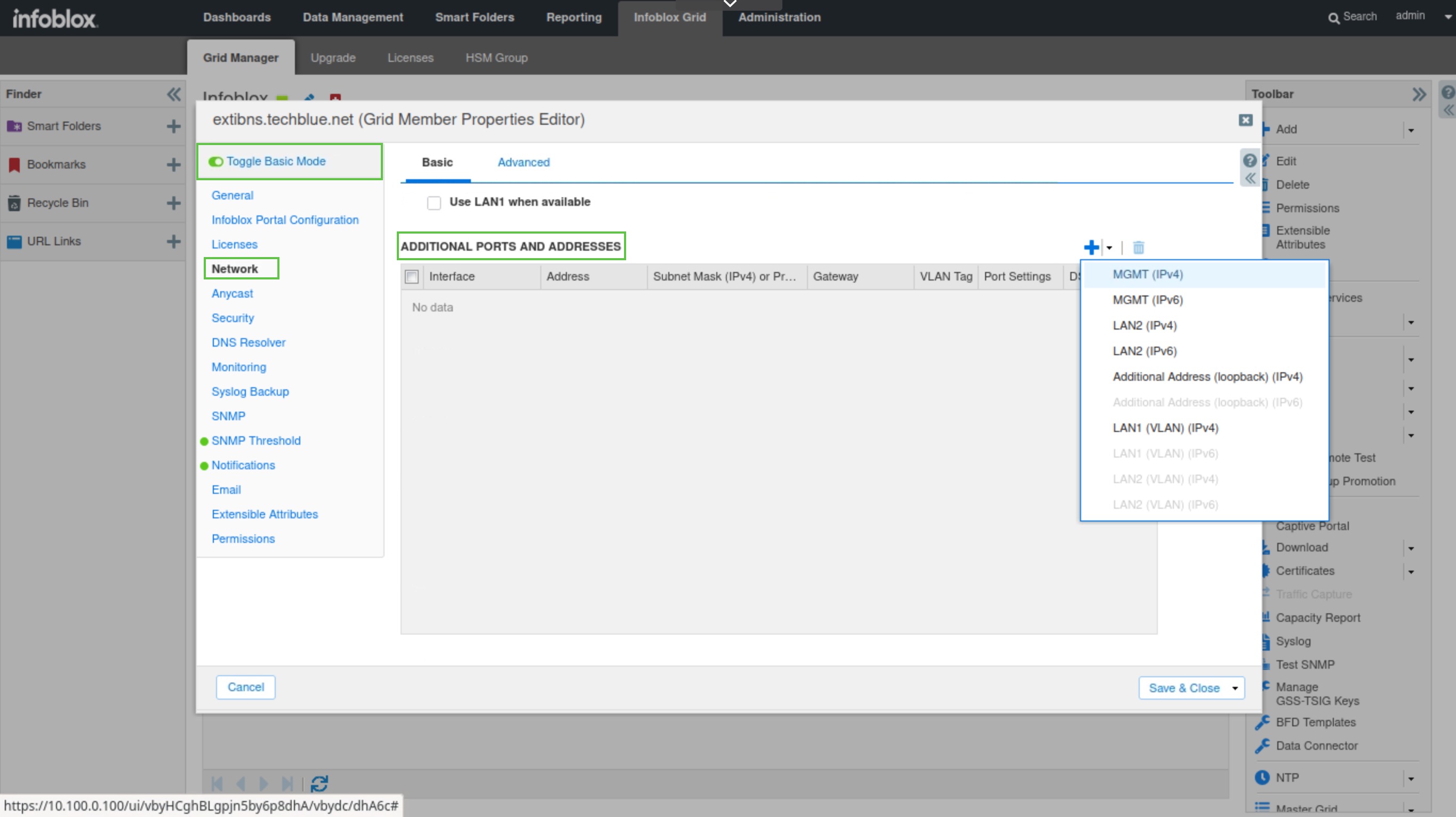
Select the Network tab.
-
Scroll down the page to the Additional Ports and Addresses section.
-
Click the plus (+) symbol, and add a MGMT(IPv4) port.
-
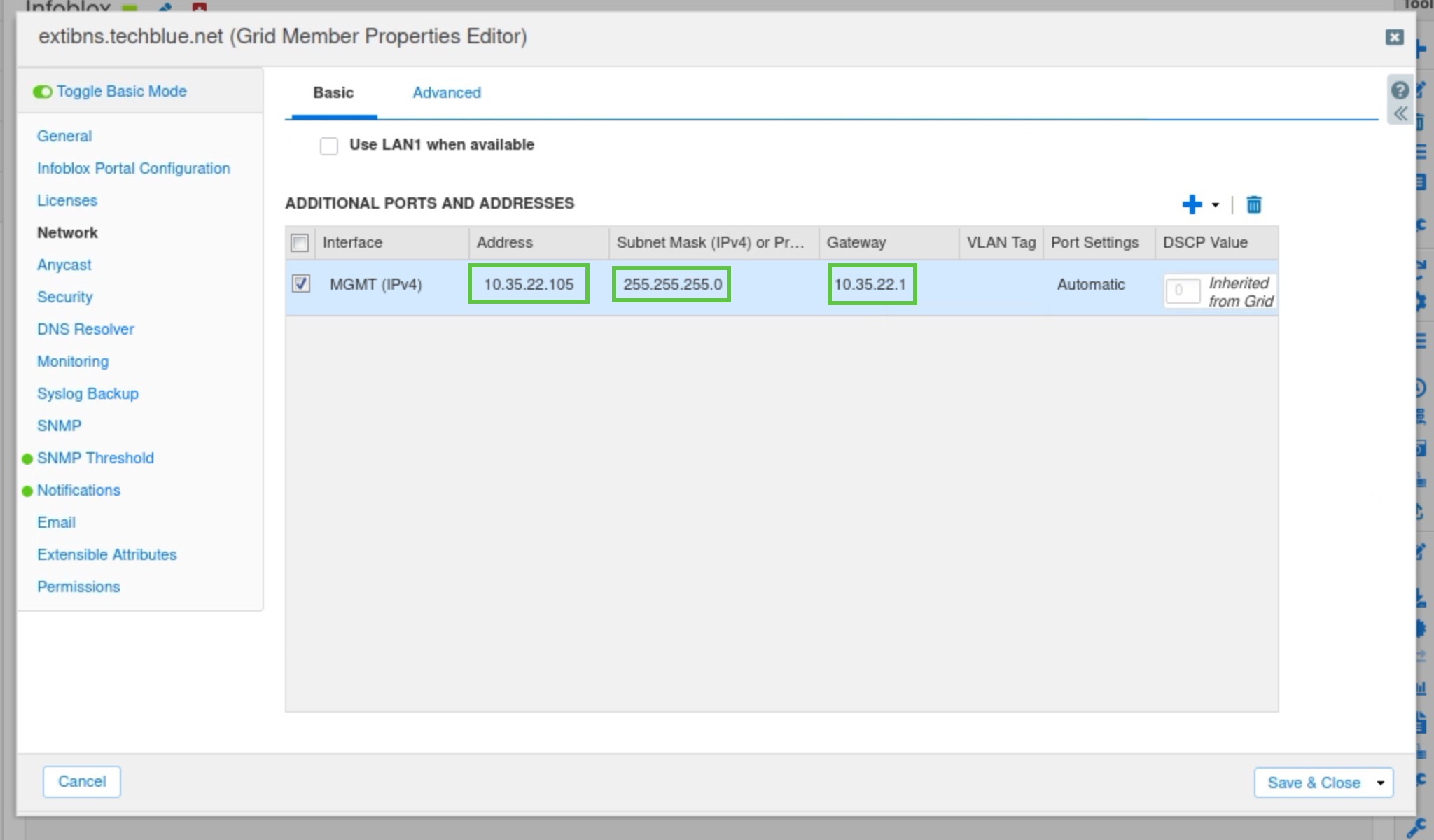
Set the address to 10.35.22.105, the subnet mask to 255.255.255.0, and the Gateway to 10.35.22.1.
-
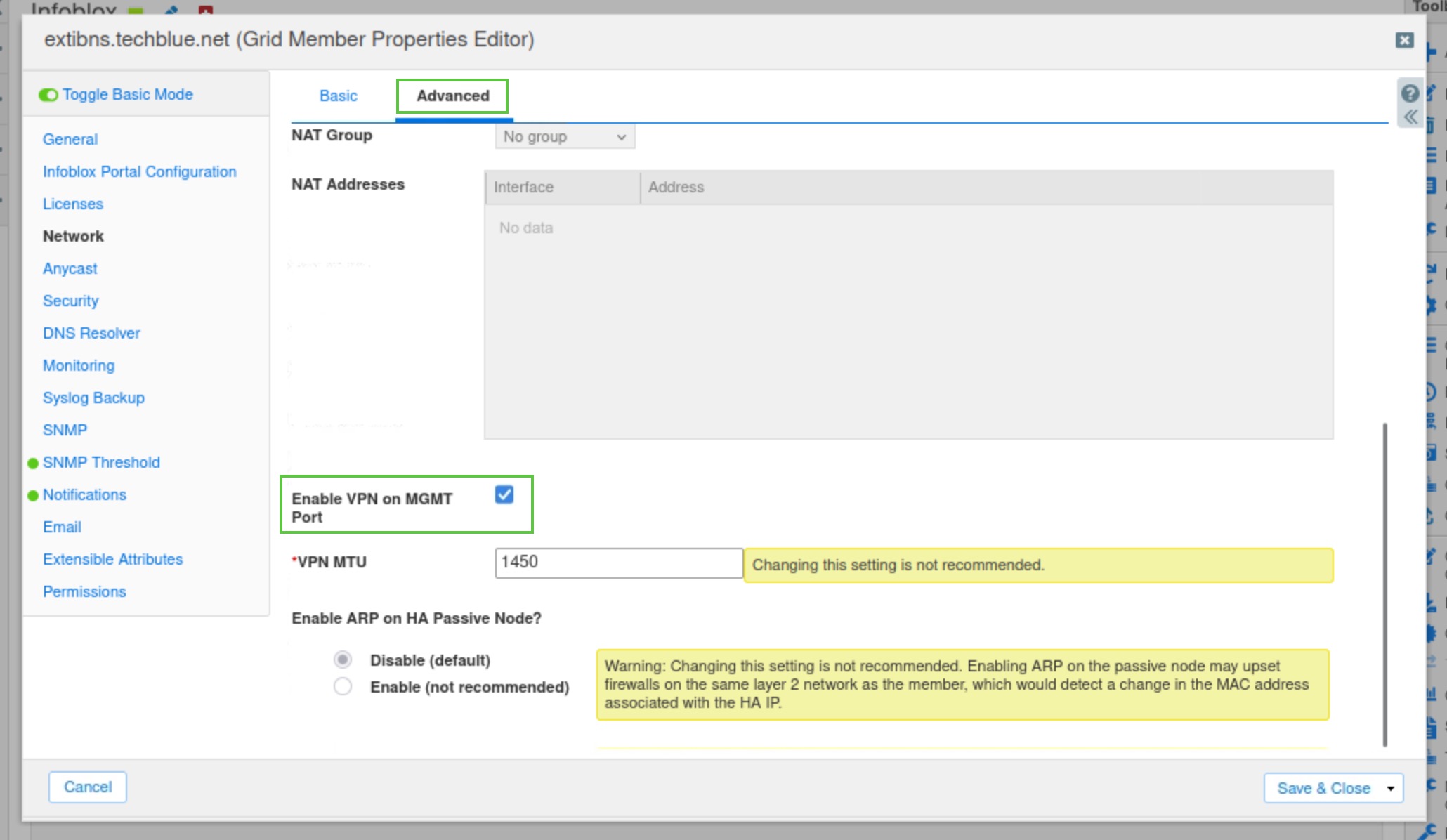
Select the Advanced tab at the top of the screen.
-
Scroll down and check the Enable VPN on the MGMT port checkbox.
-
Click Save & Close to save the configuration settings. The grid member will restart and disconnect briefly after this change.
Task 2 Solution: Change LAN1 interface setting for Grid Member extibns.techblue.net
In this task, we will modify the configuration of the LAN1 interface on extibns.techblue.net to use a public IP address, allowing the Grid member to serve the zone techblue.io for external clients. The zone techblue.io will be imported in the next task of the lab guide.
We are separating the creation of the MGMT interface and the adjustment of the LAN1 setting into two separate steps as a precaution to maintain management access to the Grid in case we misconfigure the IP address of one of the interfaces.
-
Select extibns.techblue.net and click the Edit button.
-
Select the Network tab
-
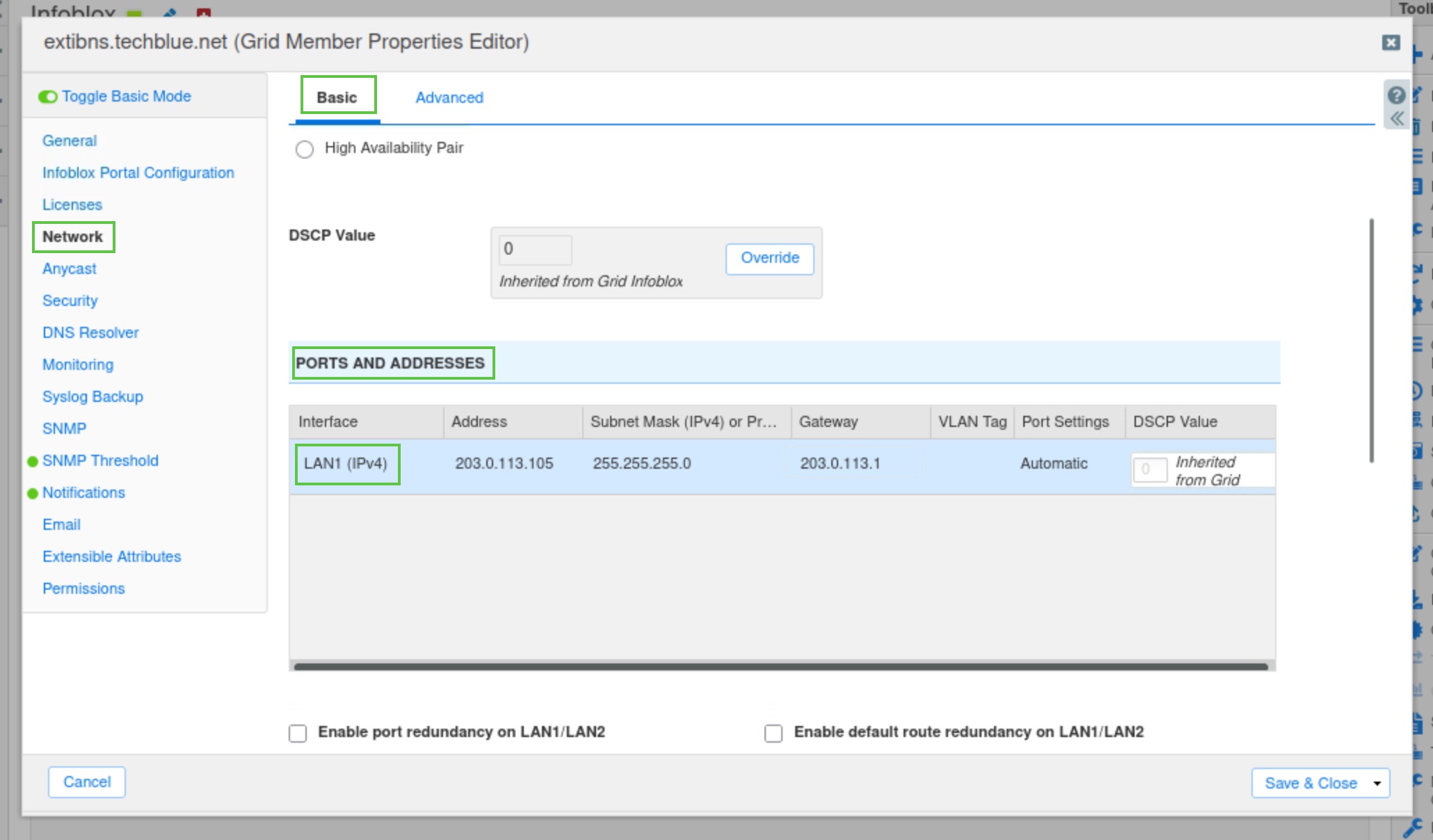
Under the Ports and Addresses section, edit the LAN1 interface’s settings. Set the address to 203.0.113.105, the subnet mask to 255.255.255.0, and the Gateway to 203.0.113.1
-
Click Save & Close.
-
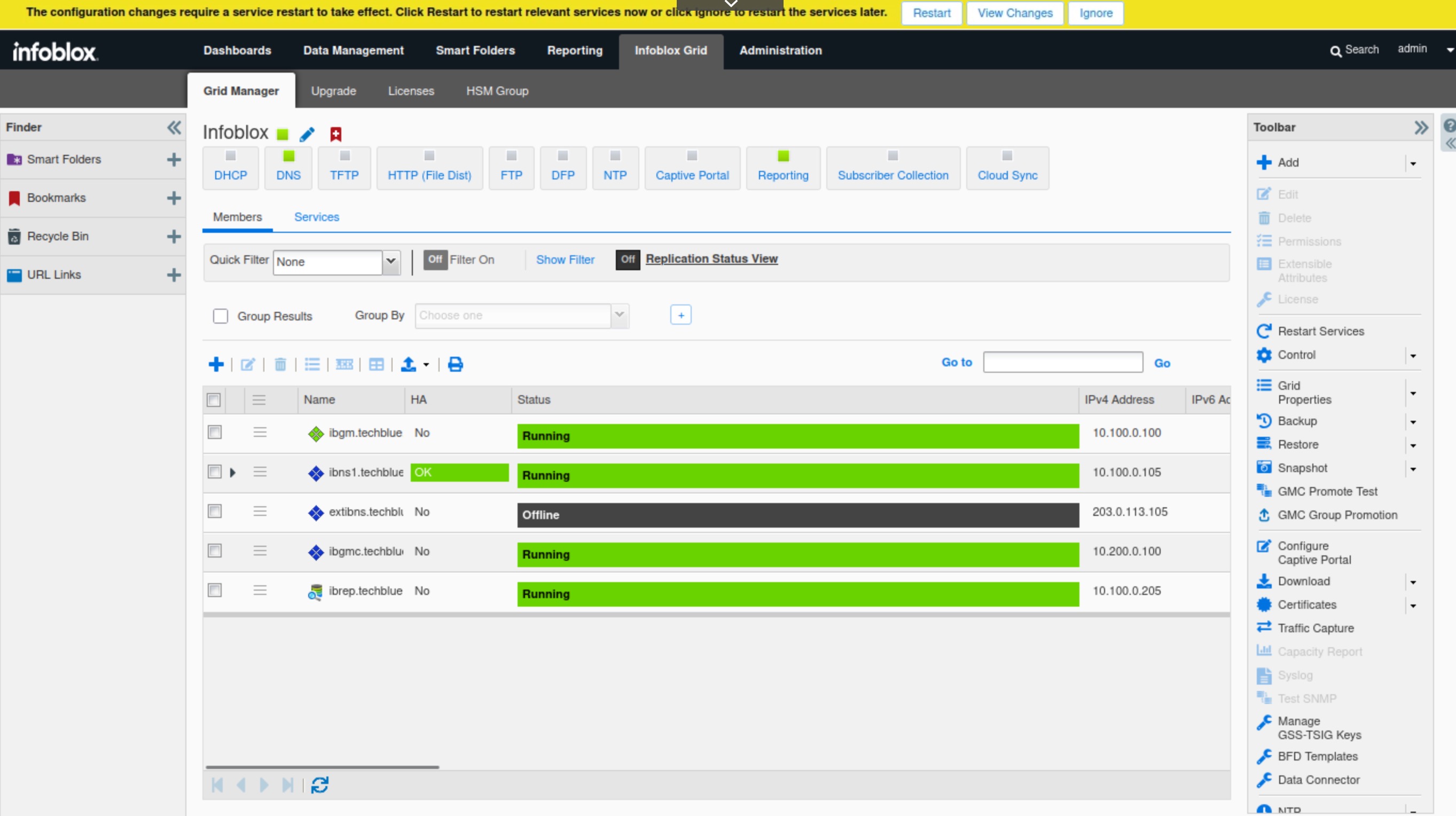
Restart the services when prompted.
Task 3 Solution: Verify extibns.techblue.net successfully joined the Grid after the restart
In this task, we will wait for extibns.techblue.net to successfully rejoin the grid with the new interface configurations we added in the previous two steps.
-
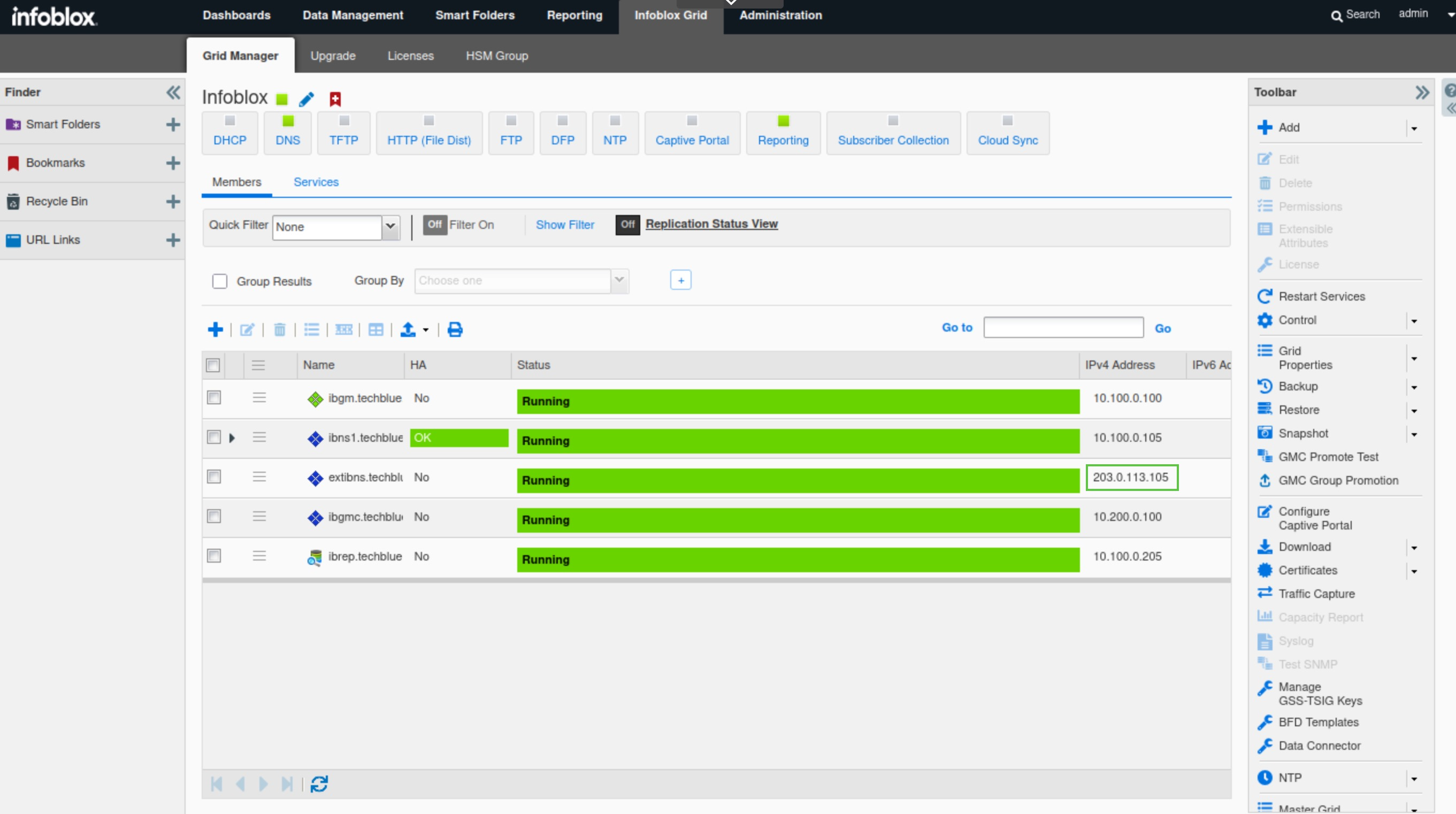
Click the Refresh icon under Infoblox Grid → Grid Manager → Members to validate that extibns.techblue.net has successfully rejoined the Grid and is running.
-
It may take several minutes for extibns.techblue.net to rejoin the grid.
-
Task 4 Solution: Configure extibns.techblue.net Reporting Settings
In this task, we update the reporting configuration to allow extibns.techblue.net to use its management interface MGMT to send data to the reporting server.
-
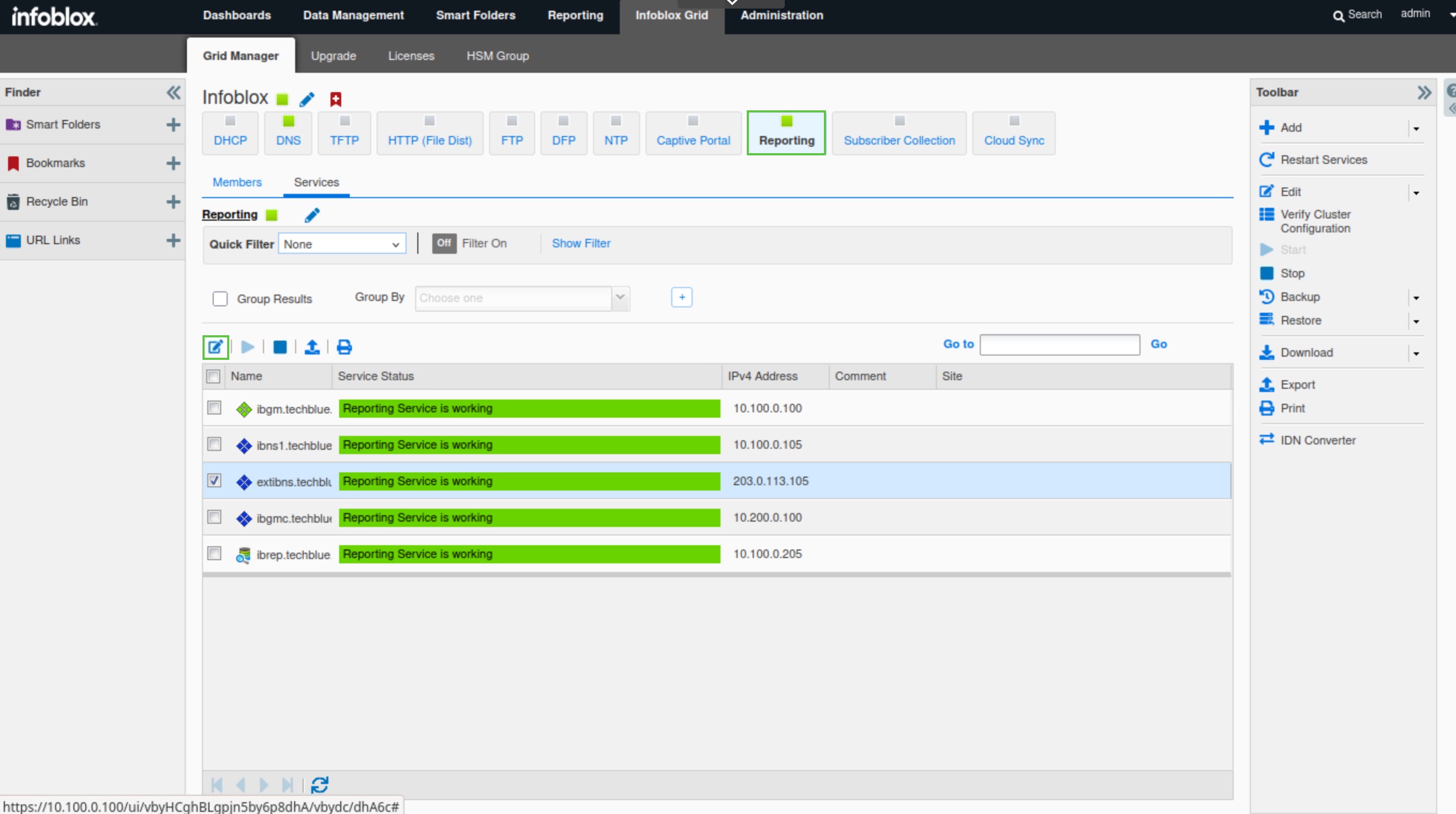
Navigate to Infoblox Grid → Grid Manager → Reporting.
-
Select extibns.techblue.net and click the Edit button.
-
Under General, select the Advanced tab.
-
From the Forwarding Interface drop-down menu, select MGMT.
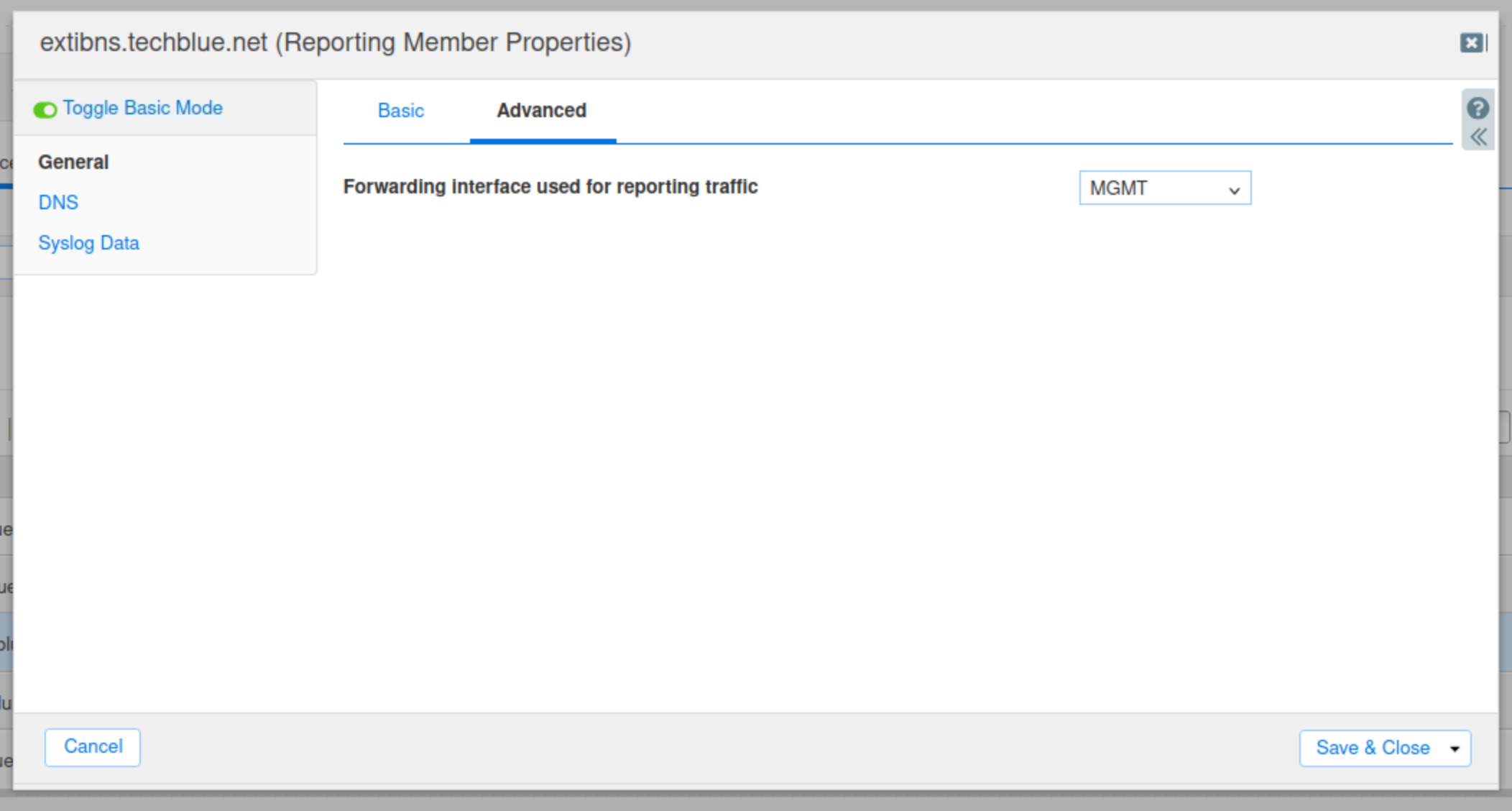
-
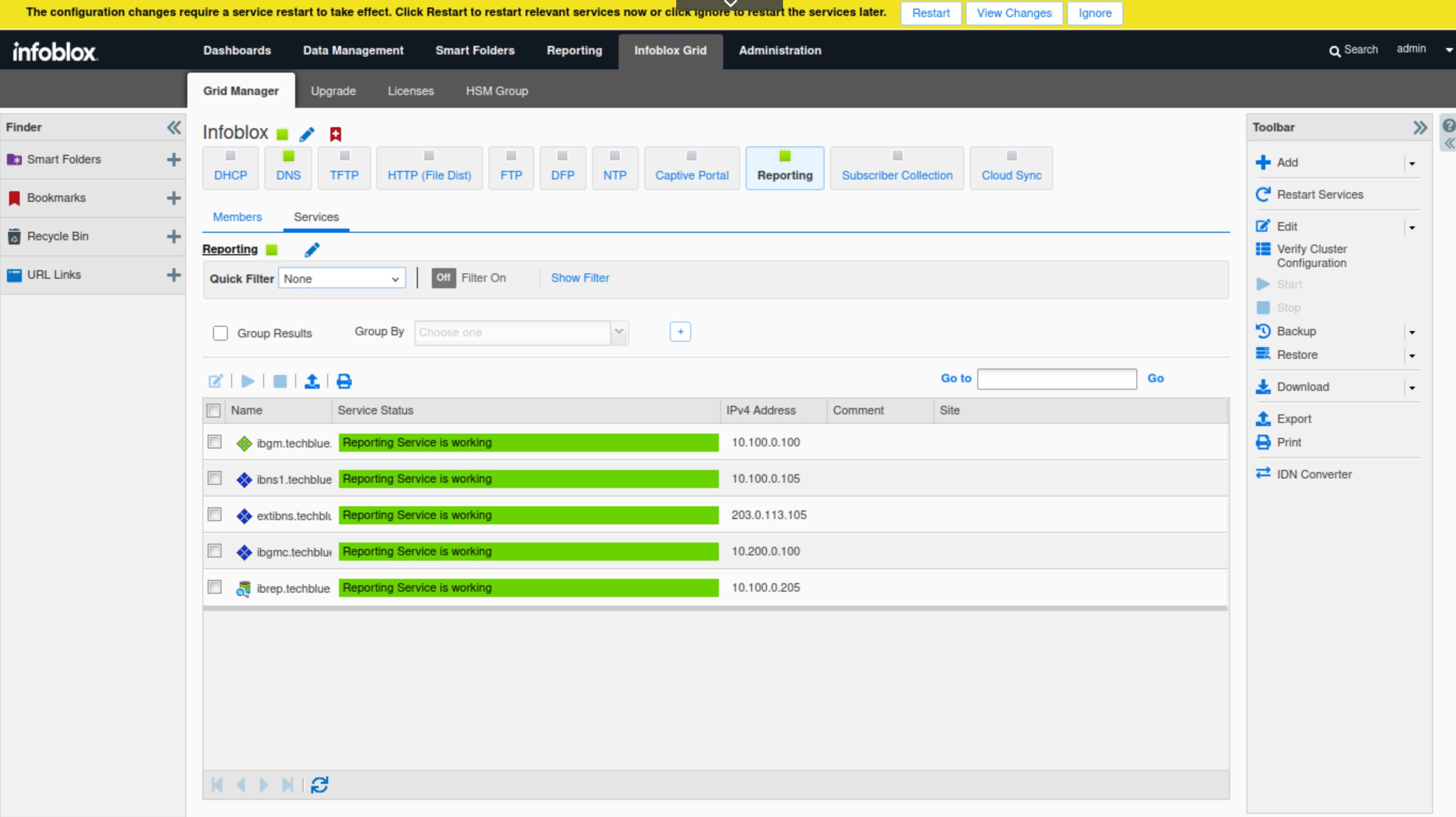
Click Save & Close.
-
Restart Services when prompted.
Task 5 Solution: Import the DNS-techblue.io.csv file and verify the DNS service is running on extibns.techblue.net
In this task, we will import a CSV file, DNS-techblue.io.csv. The file adds a new DNS view, External, containing a new DNS zone, techblue.io, which is a public DNS zone accessible to external users. The file will also assign extibns.techblue.net to the zone through a Name Server Group (NSG) called External NSG.
The zone techblue.io will be used as a target for malicious actors in later labs to test and tune DNS Infrastructure Protections rules.
-
Navigate to Infoblox Grid → Grid Manager → Members.
-
Click CSV Import on the Toolbar.
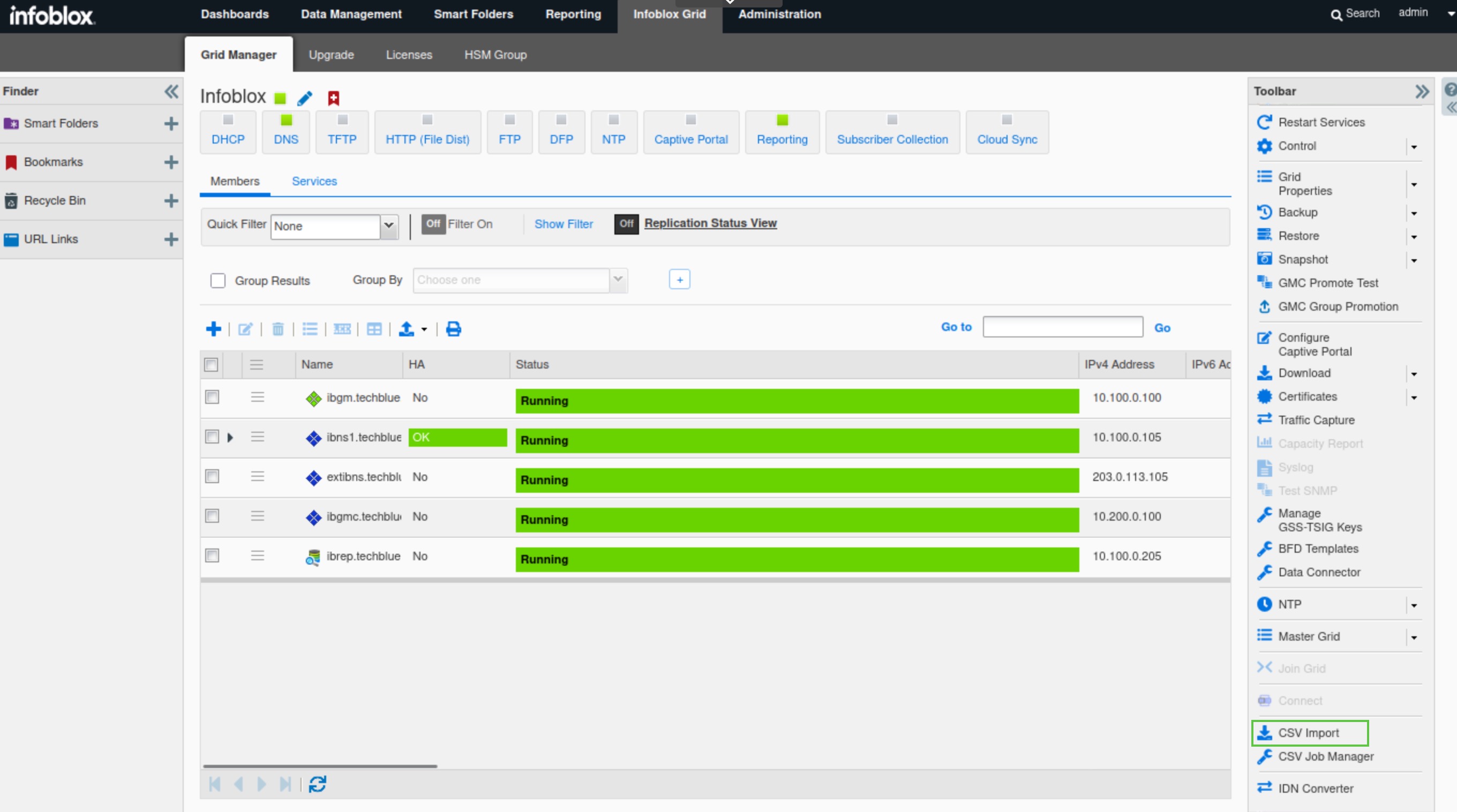
-
Select Add, then click Next.
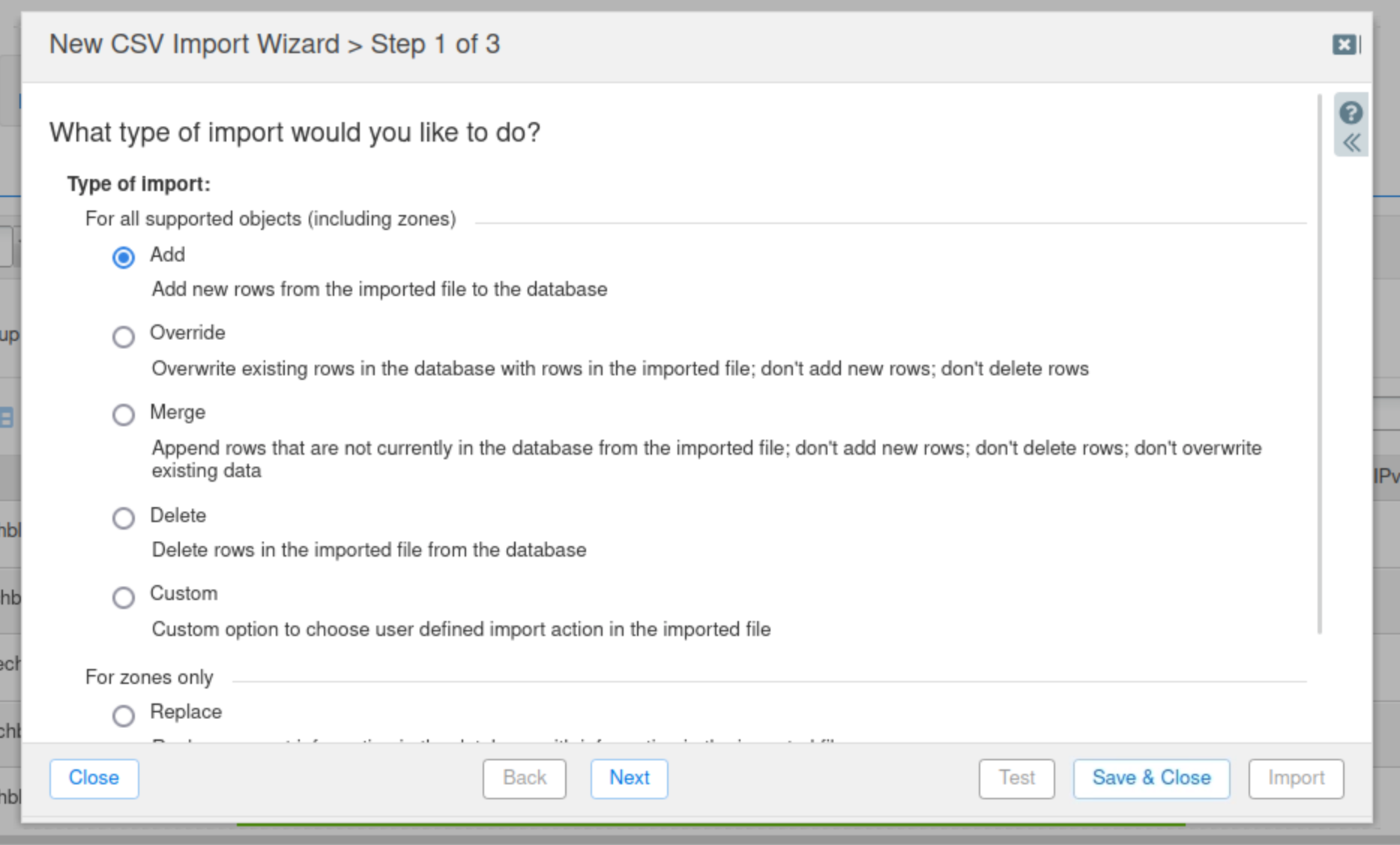
-
Select Choose.
-
Navigate to the
Shared Drive/nios-importsfolder and select the DNS-techblue.io.csv file.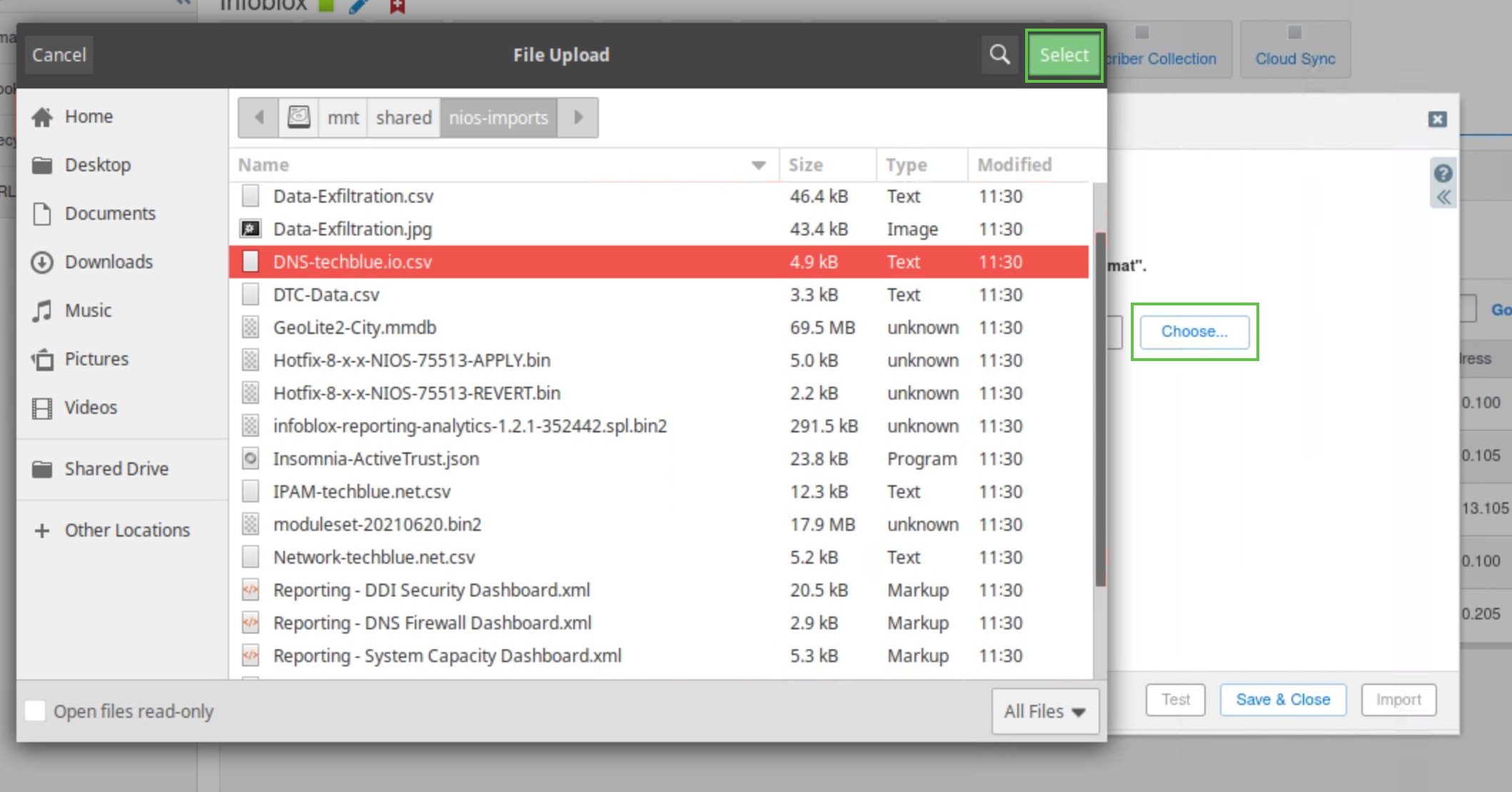
-
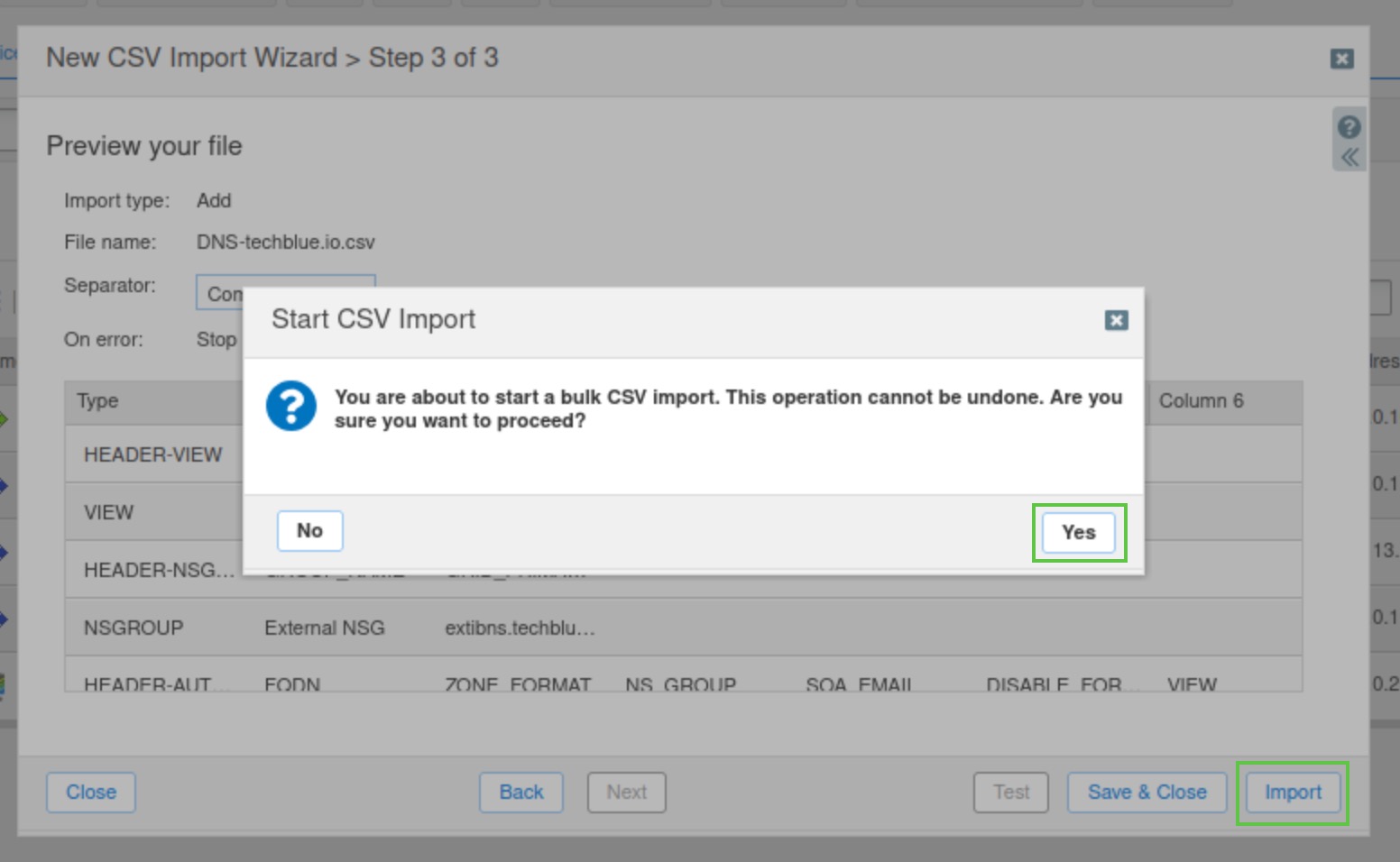
Click Next to go to Step 3 of the Import wizard, then click Import to start importing.
-
Click Yes to confirm the import.
-
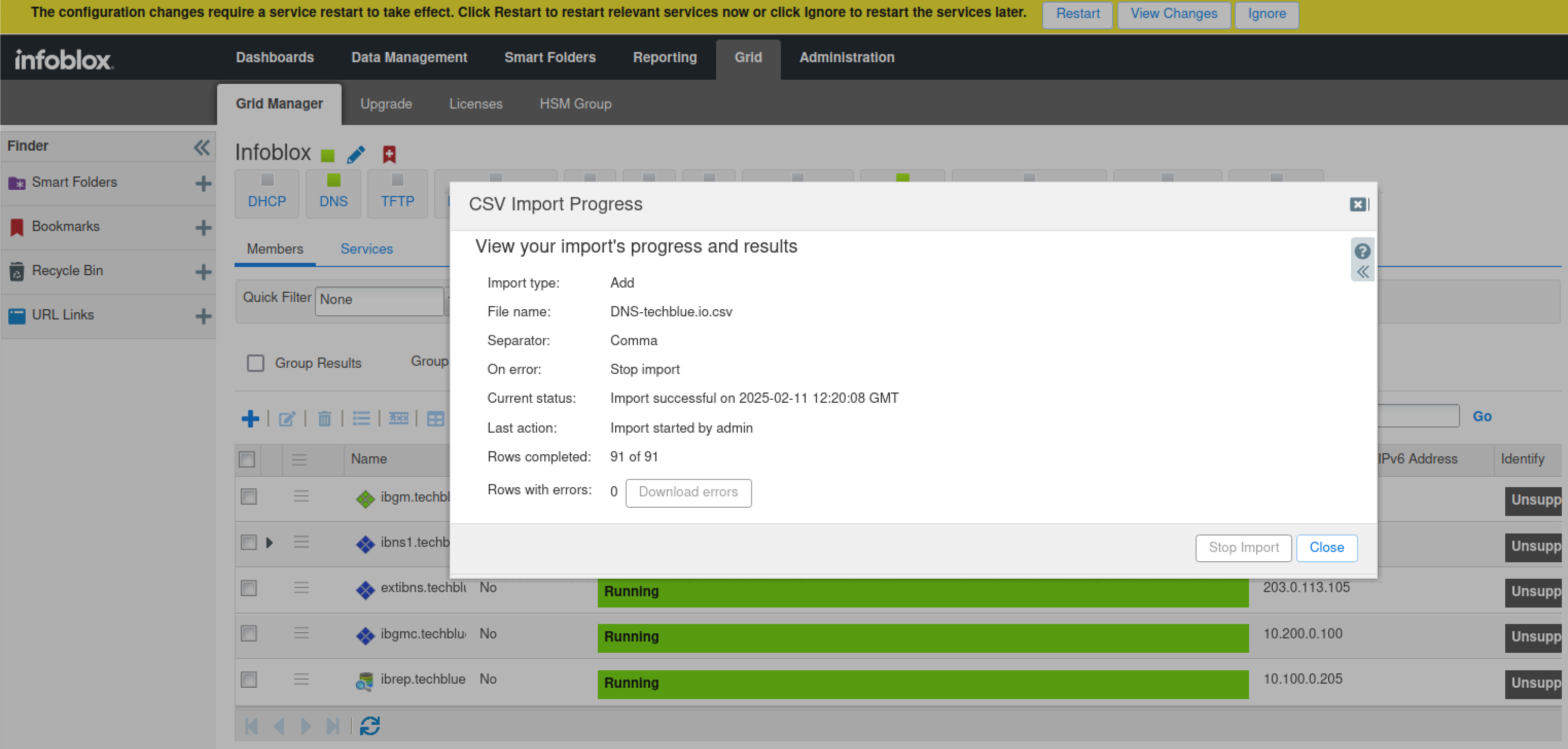
Click Close once the import is successfully completed.
-
Restart services when prompted.
-
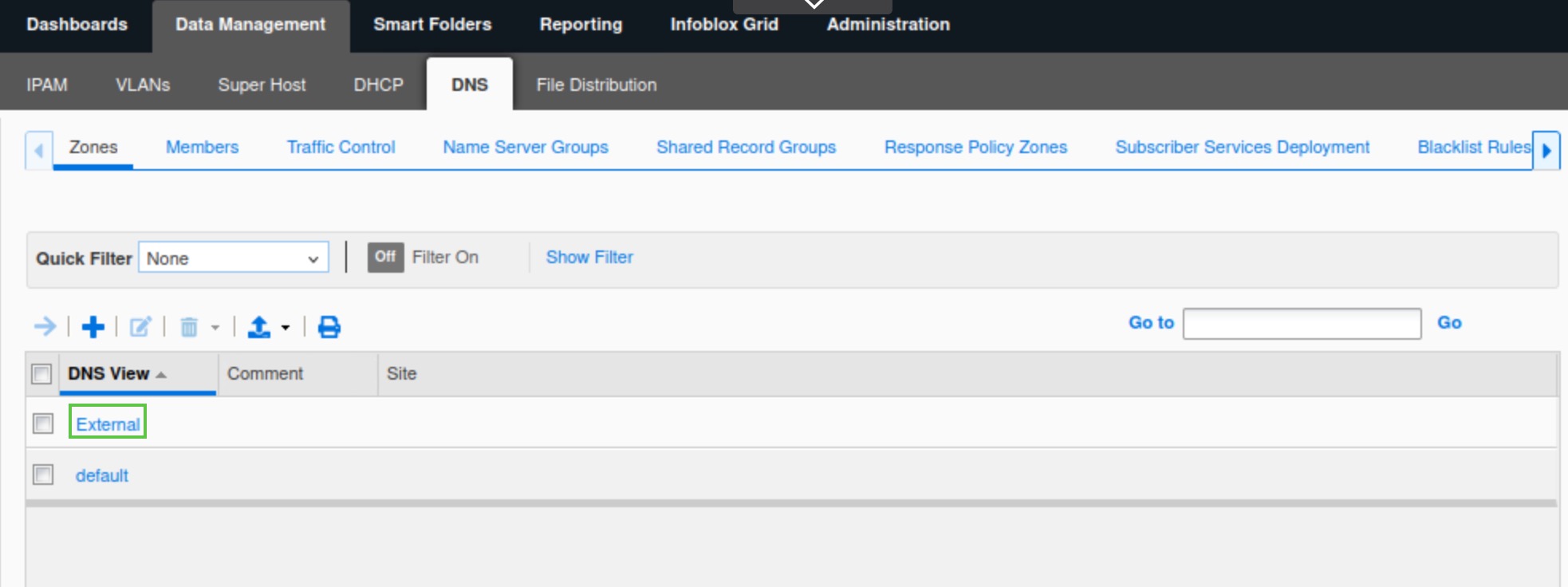
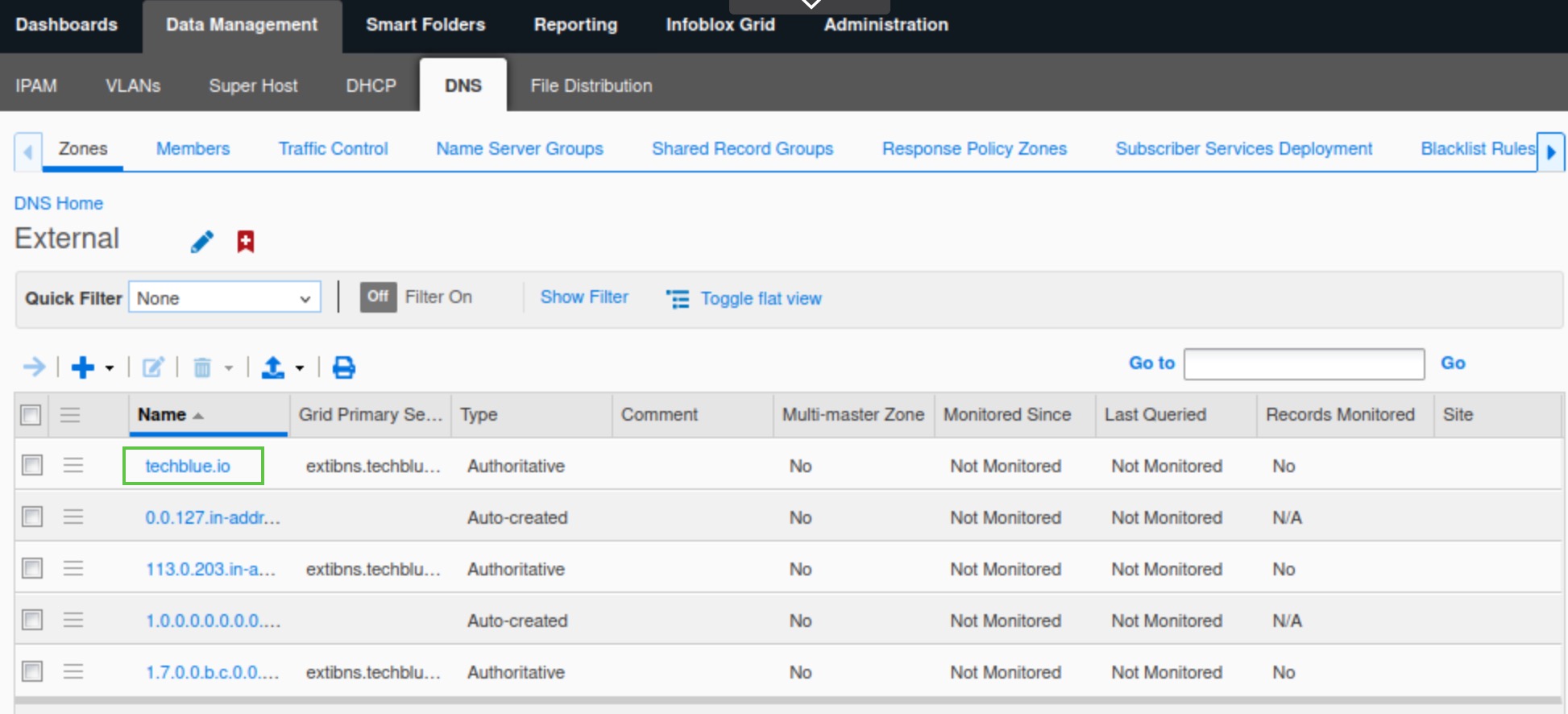
Confirm that the DNS view External is created by navigating to Data Management → DNS → Zones.
-
Click the External view name to see the zones.
-
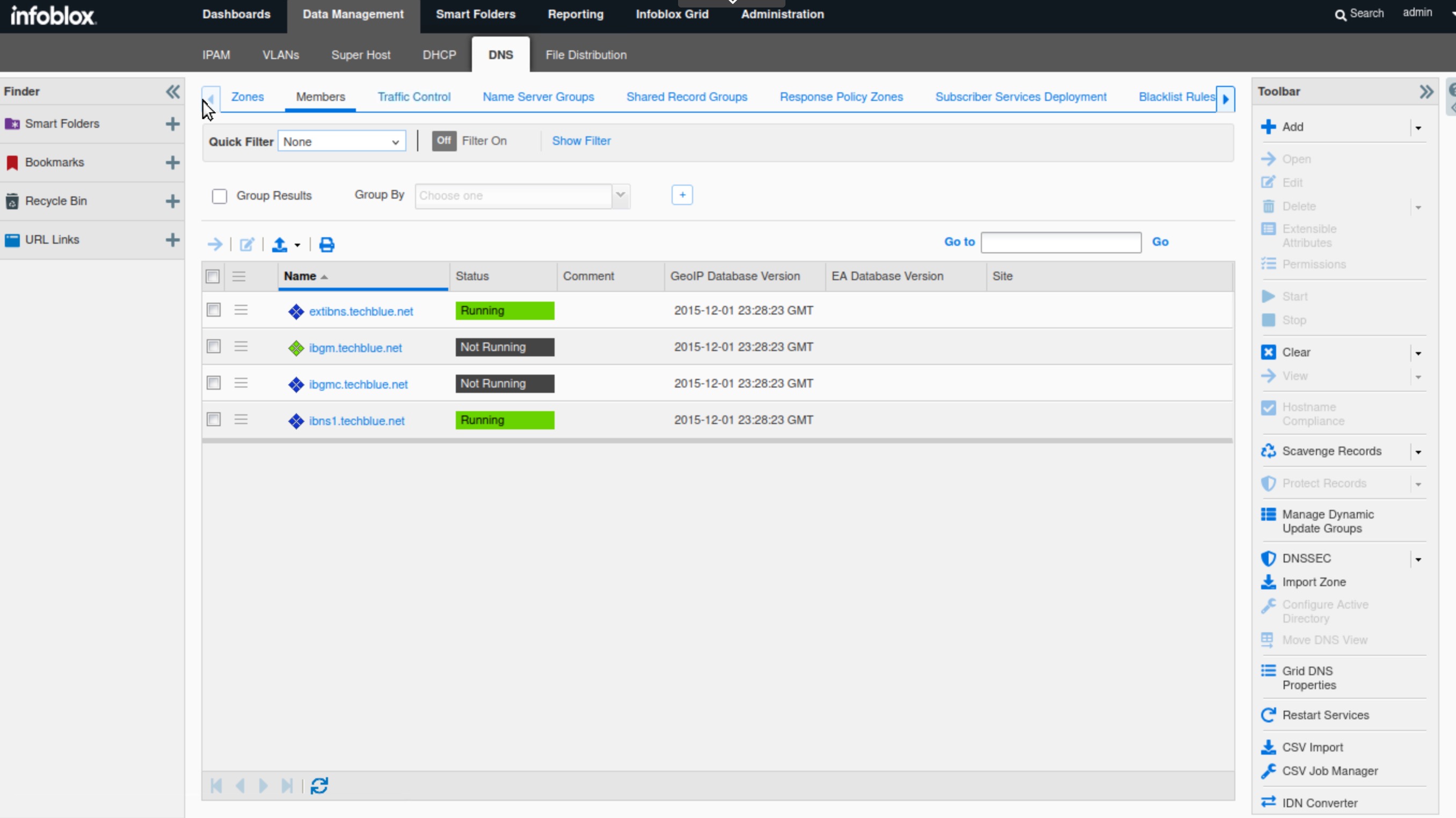
Navigate to Data Management → DNS → Members.
-
Verify that the service is started/green and is showing as Running.
Task 6 Solution: Load DNS Infrastructure Protection License Files to the Grid
In this task, we will load the DNS Infrastructure Protection license into the Grid. There should be two licenses bundled into the file. The first “DNS Infrastructure Protection” license enables the service on the Grid, while the second “DNS Infrastructure Protection Update” license allows the Grid to download and install the latest rule sets.
-
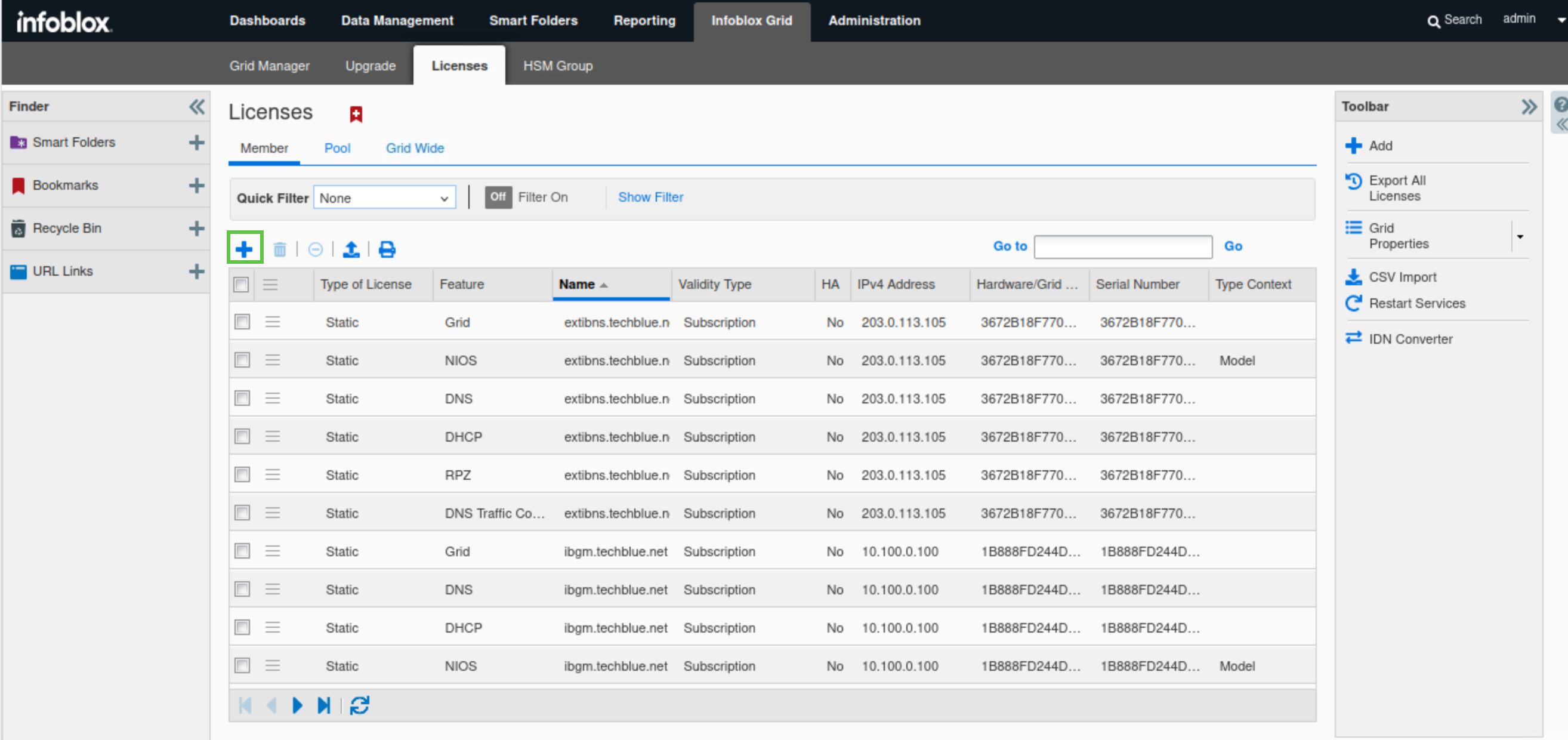
Navigate to Infoblox Grid → Licenses → Members.
-
Click the plus (+) symbol to add a new license.
-
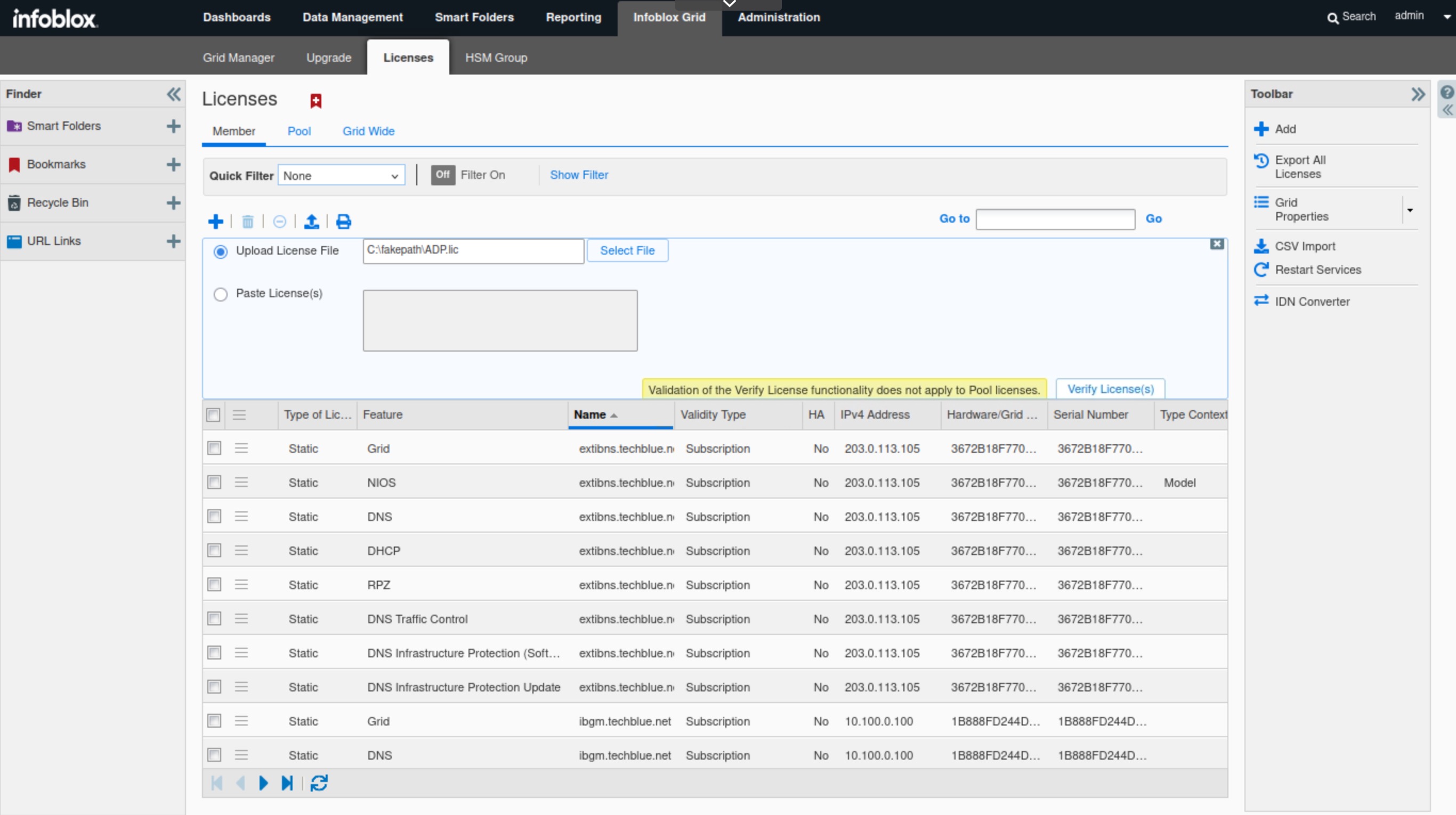
Click Select File to upload the license file.
-
Navigate to
Shared Drive/Licenses/9.0. -
Select the ADP.lic file and click Open.
-
Advanced DNS Protection (ADP) is an older name for the DNS Infrastructure Protection (DNS-IP) service; some system files still use the old name.
-
-
Click Verify License(s), then Save All Valid Licenses.
-
Click on the Show Filter link
-
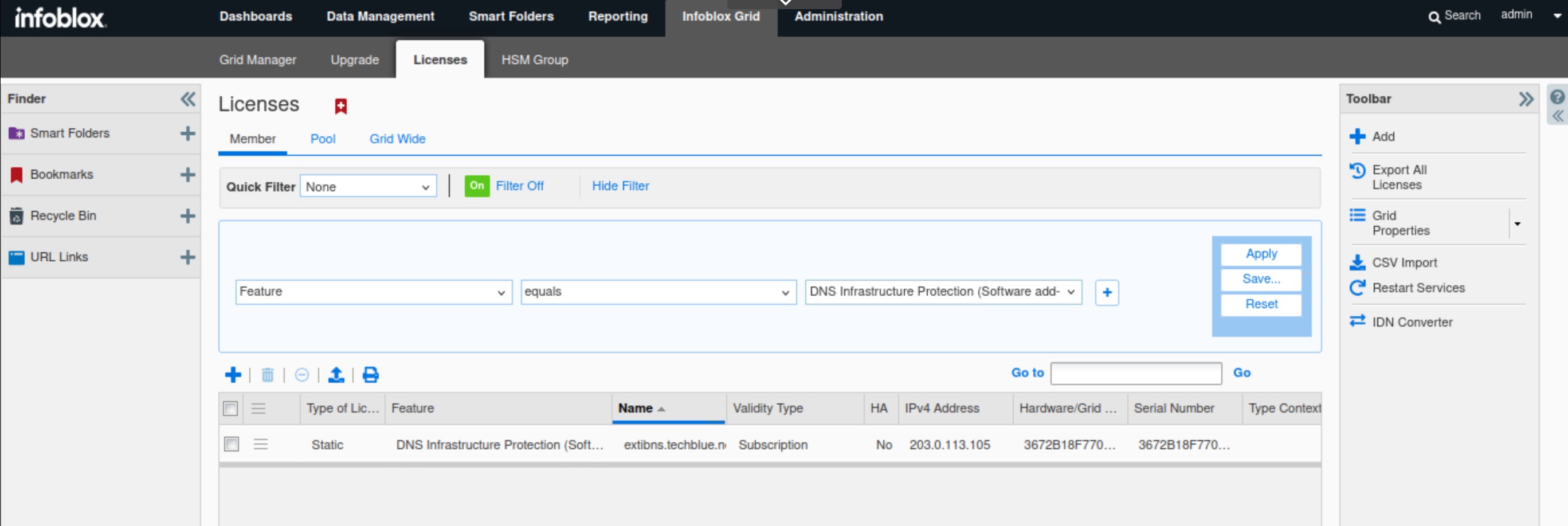
Select Feature equals DNS Infrastructure Protection (software add-on), then click Apply.
-
Since DNS Infrastructure Protection in this lab runs on a virtual machine rather than a physical appliance, it is a software add-on rather than dedicated hardware.
-
-
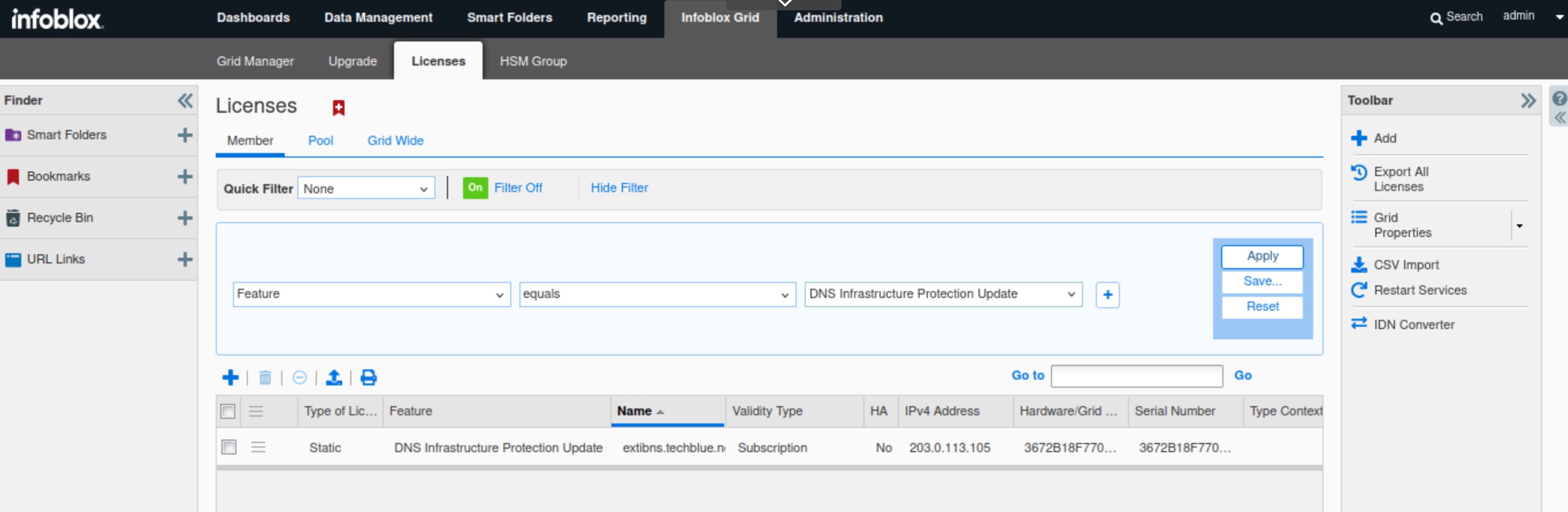
Select Feature equals DNS Infrastructure Protection update, then click Apply.
-
This license allows DNS Infrastructure Protection rulesets to be automatically updated when configured.
-
Task 7 Solution: Upload Initial Ruleset
In this task, we will start by manually uploading an older ruleset. This is done to demonstrate how it can be done and to allow for the automatic download of the latest ruleset in a later task.
For the DNS Infrastructure Protection service to start, at least one ruleset must be active. We can either manually download the latest ruleset from the Infoblox support portal or set the Grid to automatically download it and wait for it to finish downloading before we can start the service.
-
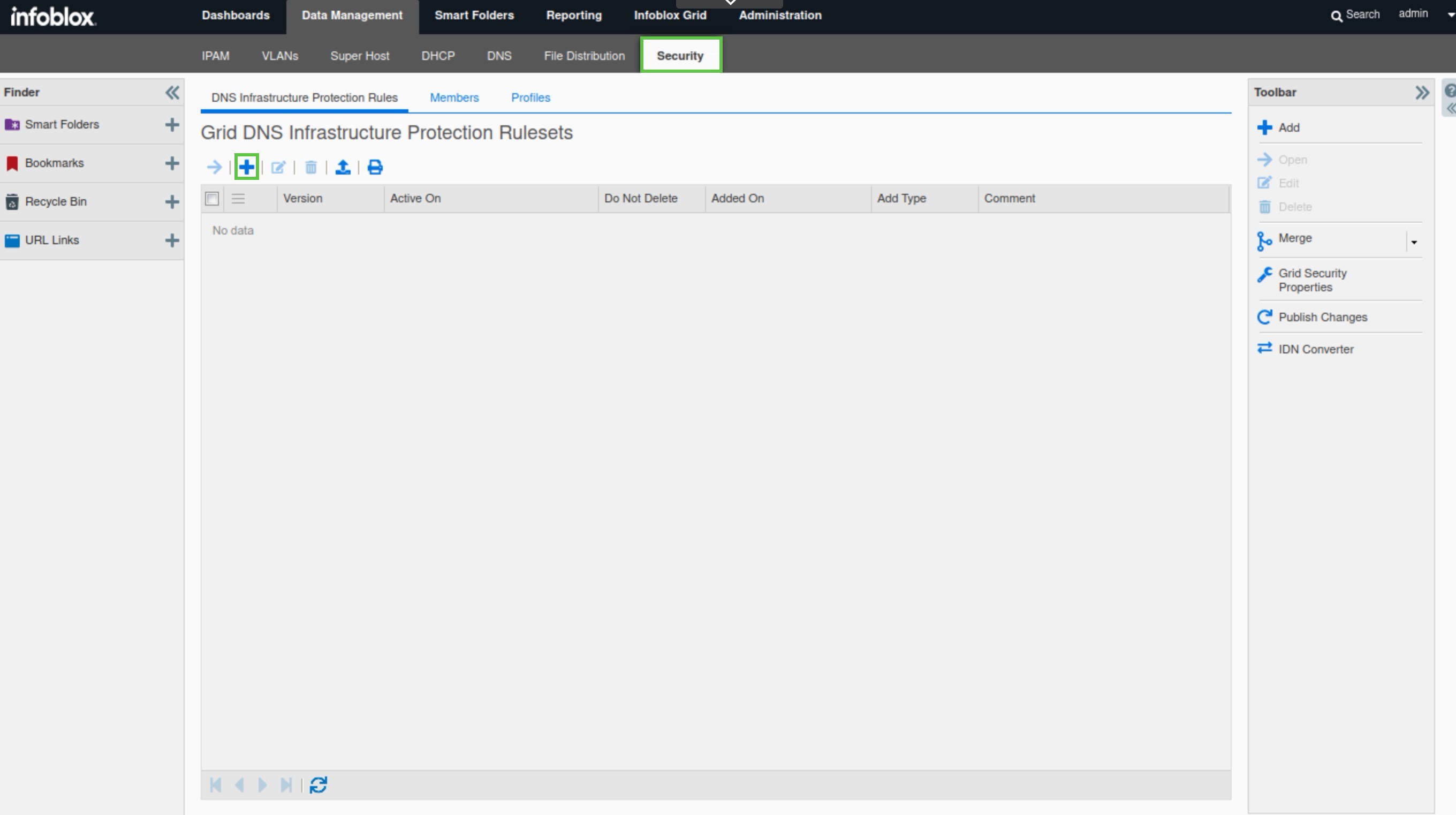
Navigate to Data Management → Security → DNS Infrastructure Protection Rules.
-
Click the plus (+) symbol to add a ruleset.
-
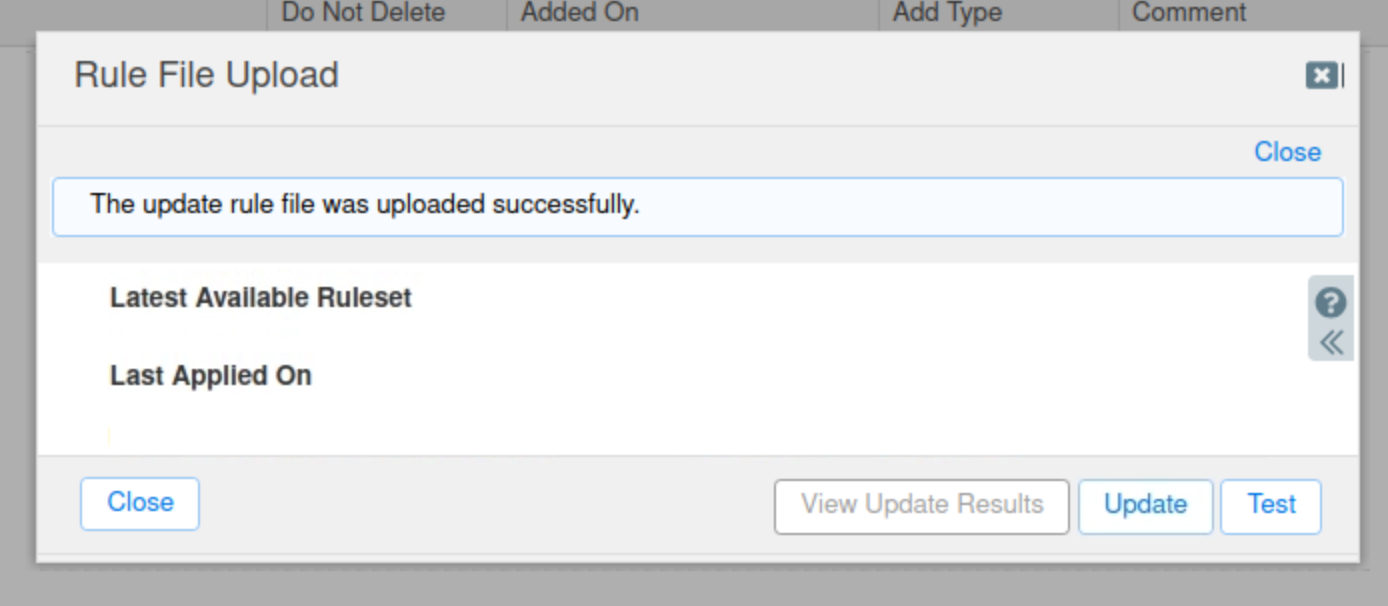
Click Select to upload a file.
-
Select the ruleset-20260113.bin2 file from the
Shared Drive/NIOS-Importsfolder. -
Click Upload.
-
Click Test to verify that the ruleset file is not corrupted.
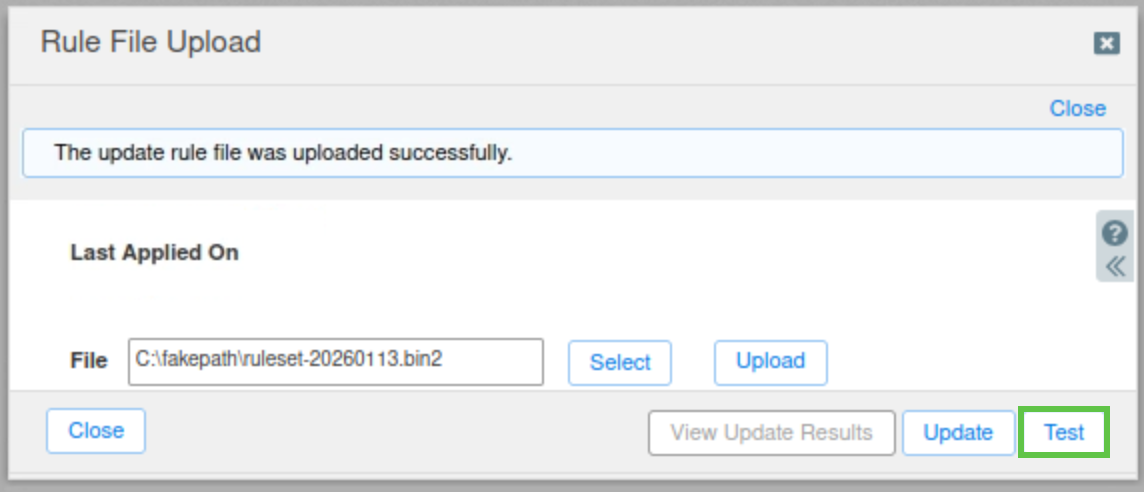
-
Click Update to update the rules.
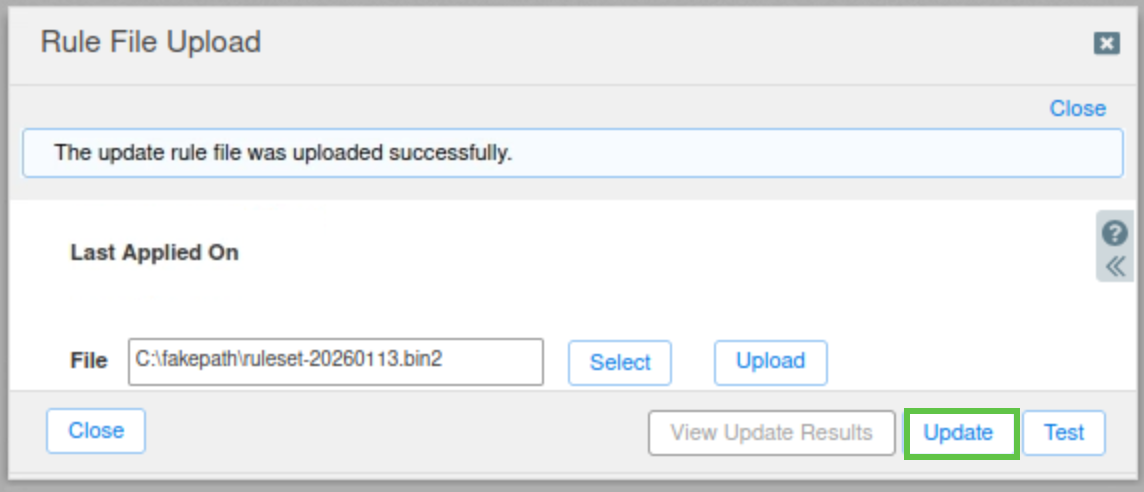
-
Close the Rule File Upload window.
-
The uploaded ruleset has become the active ruleset.
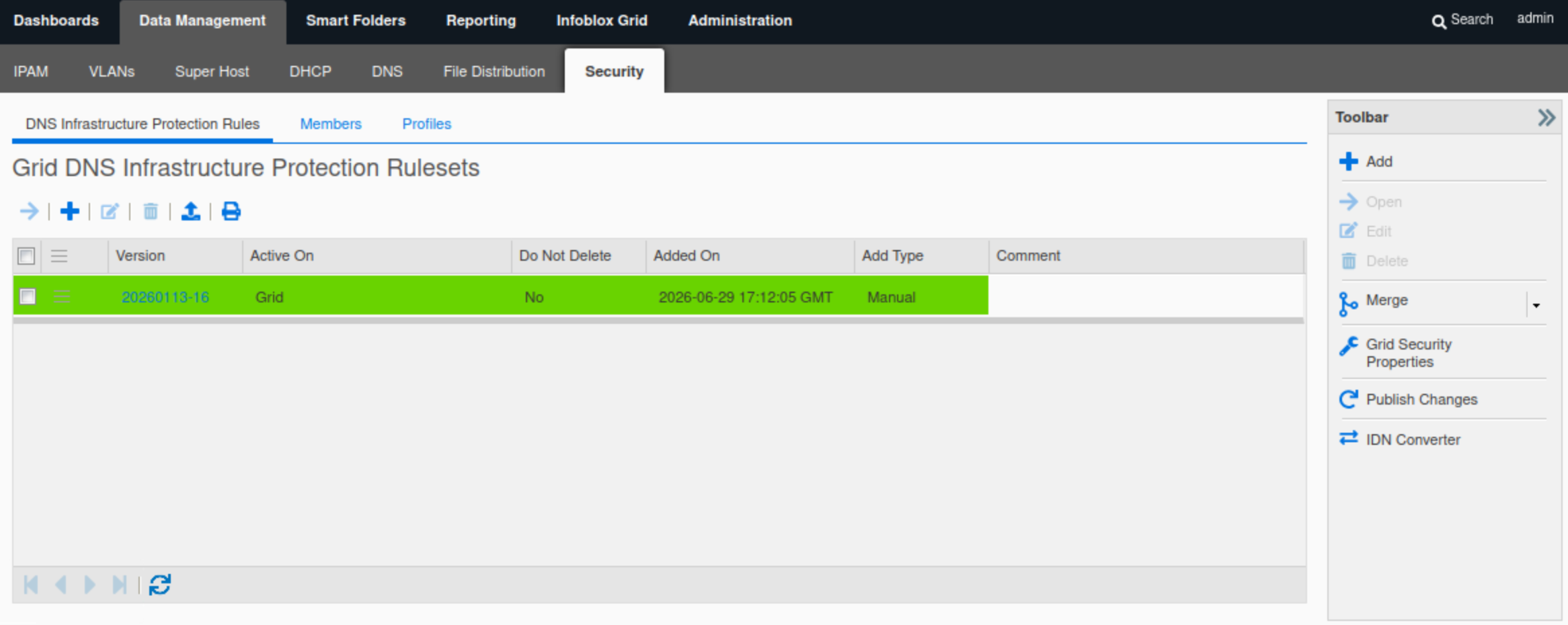
-
Task 8 Solution: Configure Rule Update and Ruleset Download Policies
In this task, we will test our Grid’s connection to the DNS Infrastructure Protection ruleset update servers and download the latest available ruleset for our use. We won't be activating it yet.
-
Navigate to Data Management → Security → DNS Infrastructure Protection Rules.
-
Select Grid Security Properties from the Toolbar.
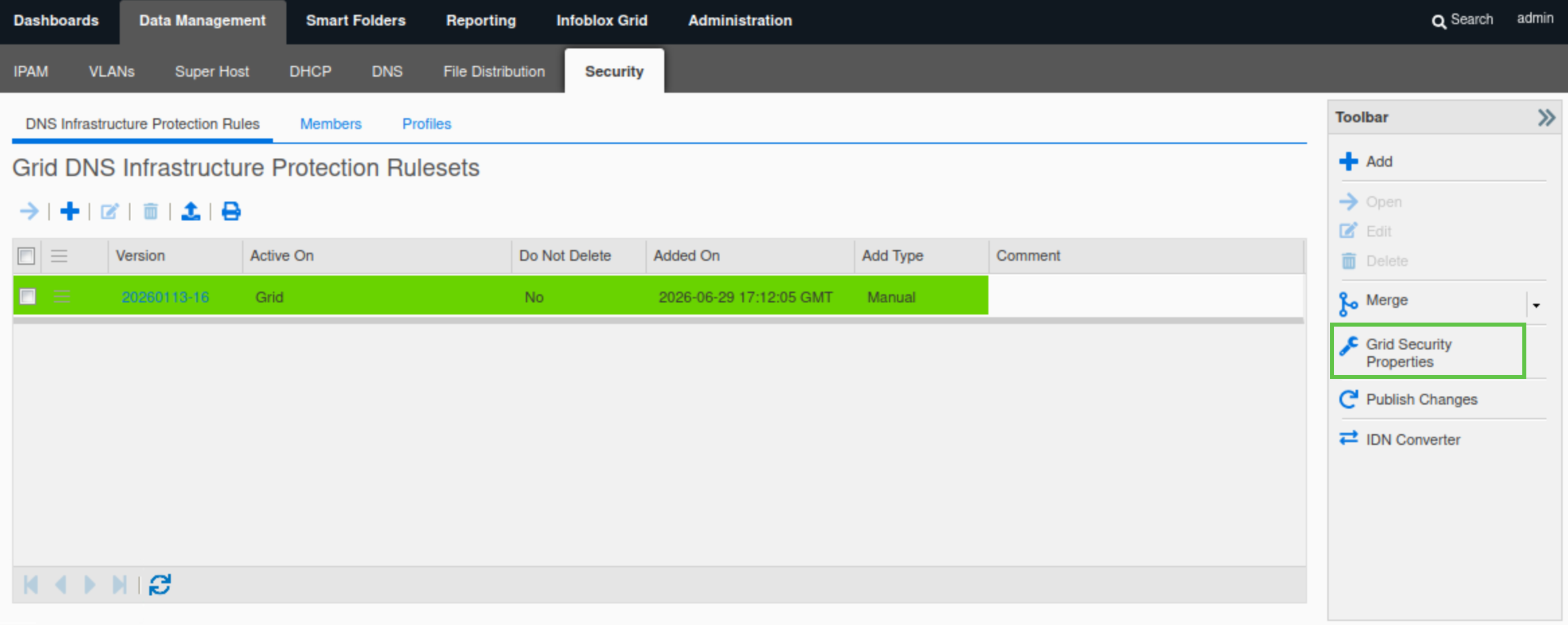
-
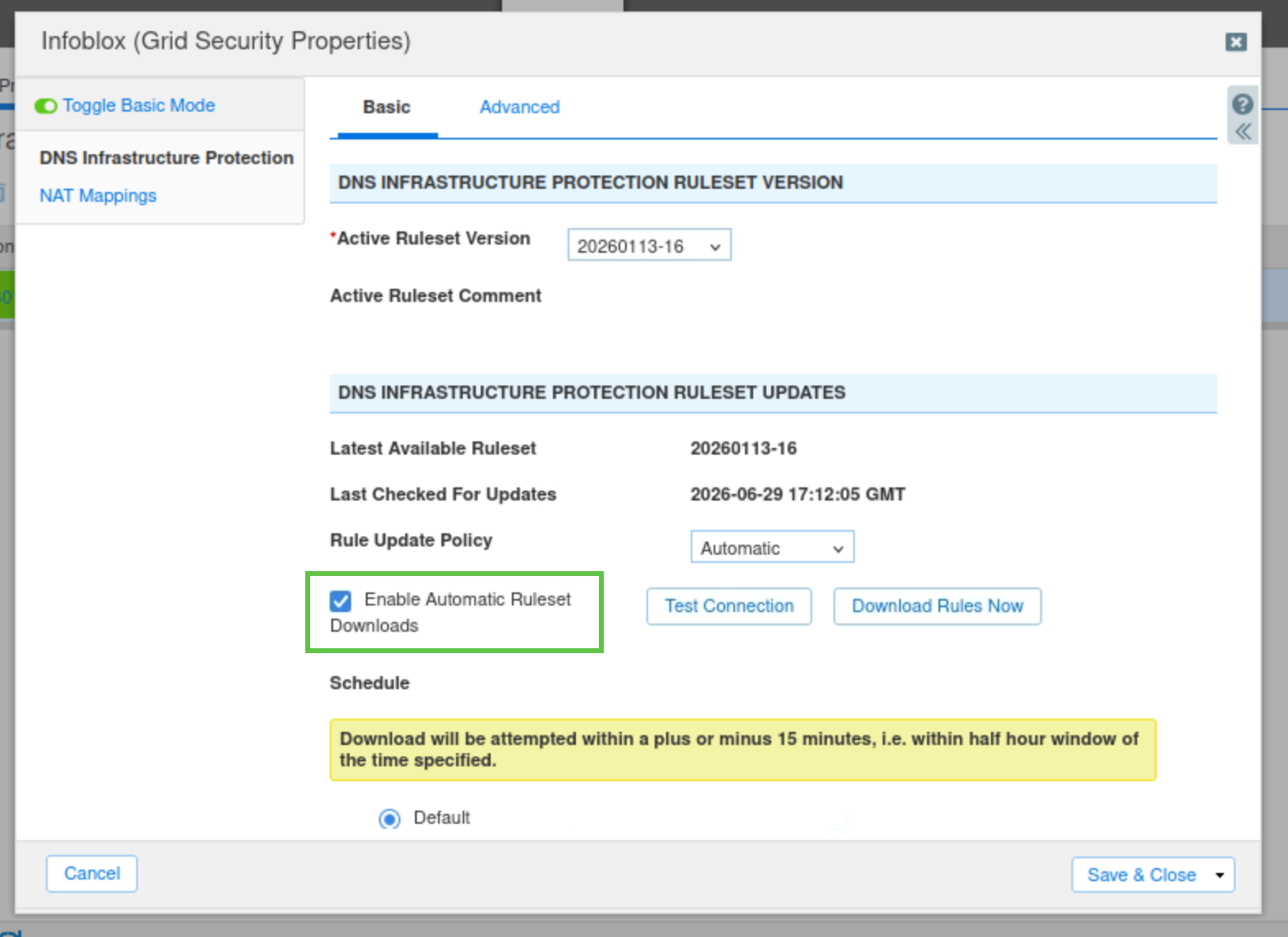
Under DNS Infrastructure Protection → Basic, Set the Rule Update Policy to Manual.
-
Select the checkbox labeled "Enable Automatic Ruleset Downloads”.
-
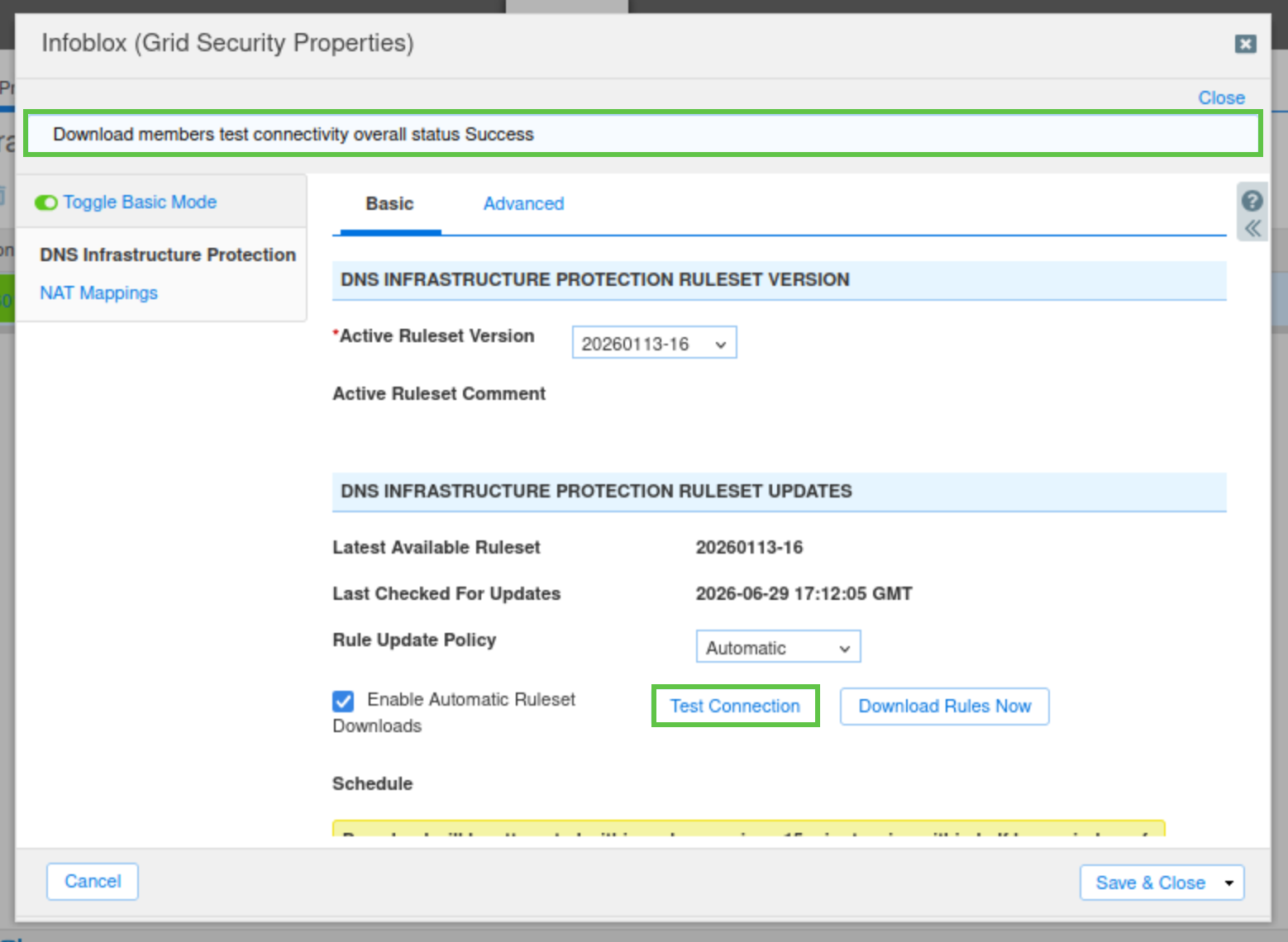
Click Test Connection. When the test is successful, a blue banner displays at the top of the current window. Ensure the connection works.
-
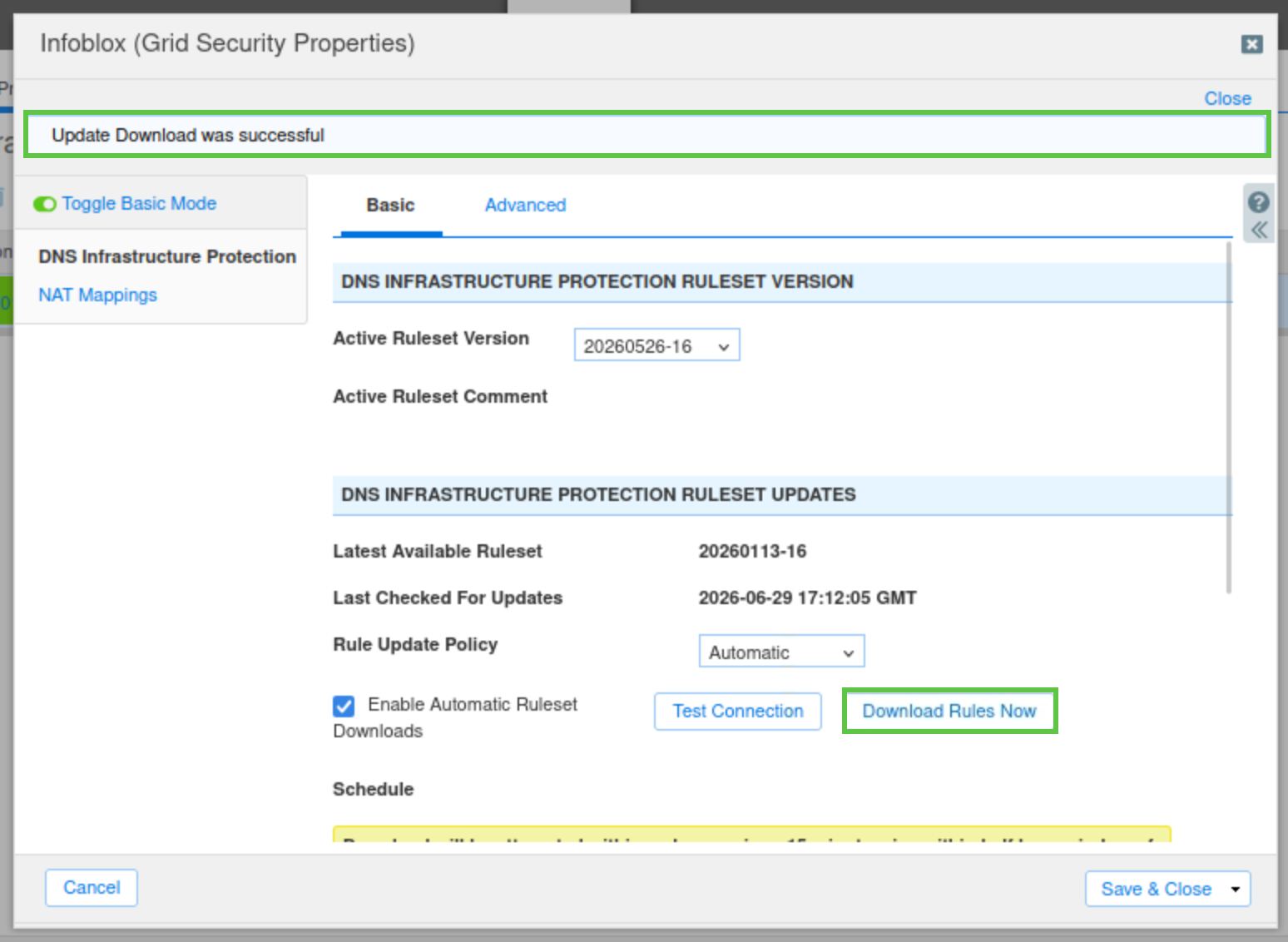
Click Download Rules Now.
-
Click Save & Close.
-
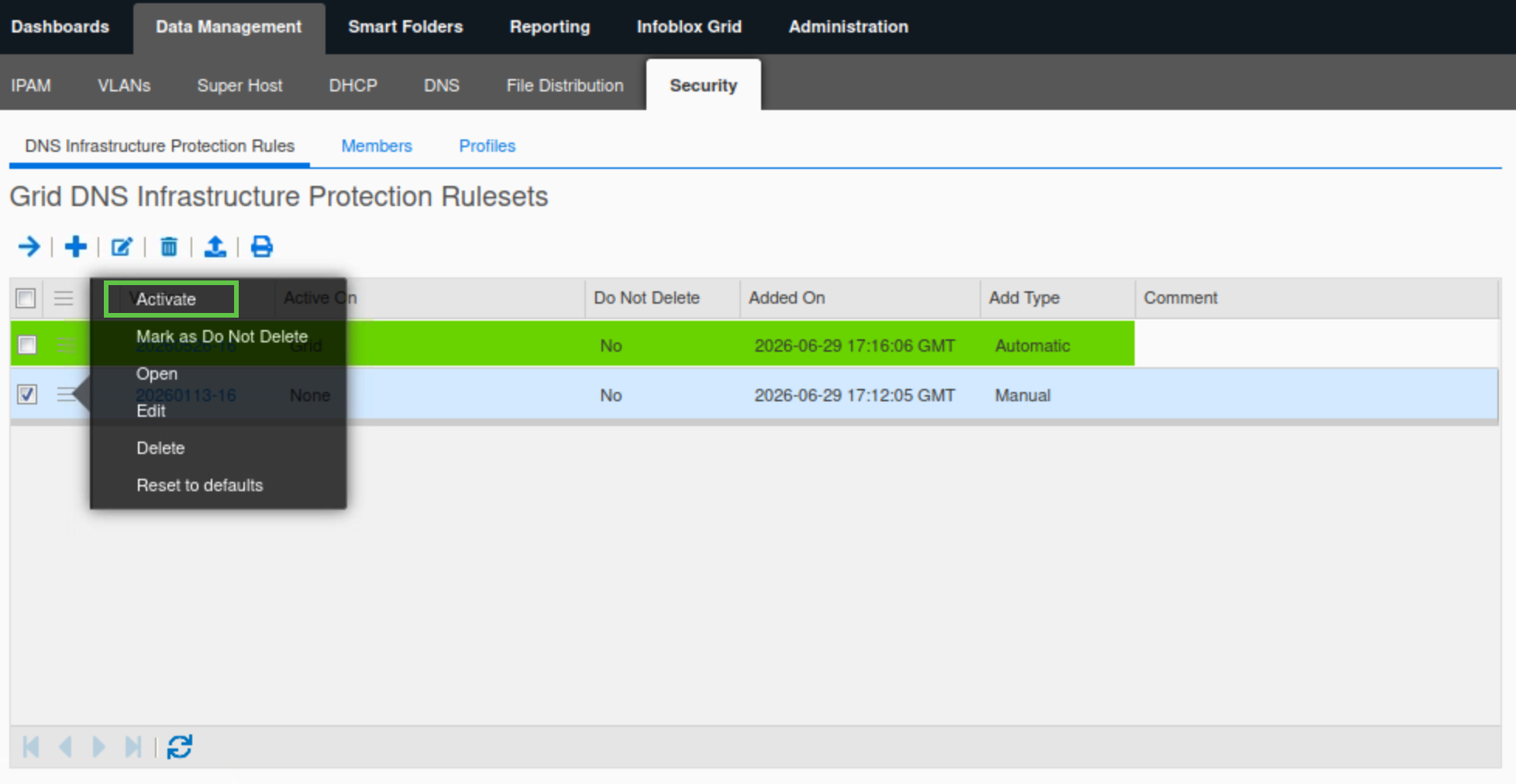
There should be two rulesets.
-
Click the hamburger icon next to the old ruleset 20260113-16 and choose Activate from the list.
-
The system will use the latest ruleset version by default. We will manually change the active ruleset in this lab because in a later lab, we will use other rulesets and profiles after customizing and tuning them.
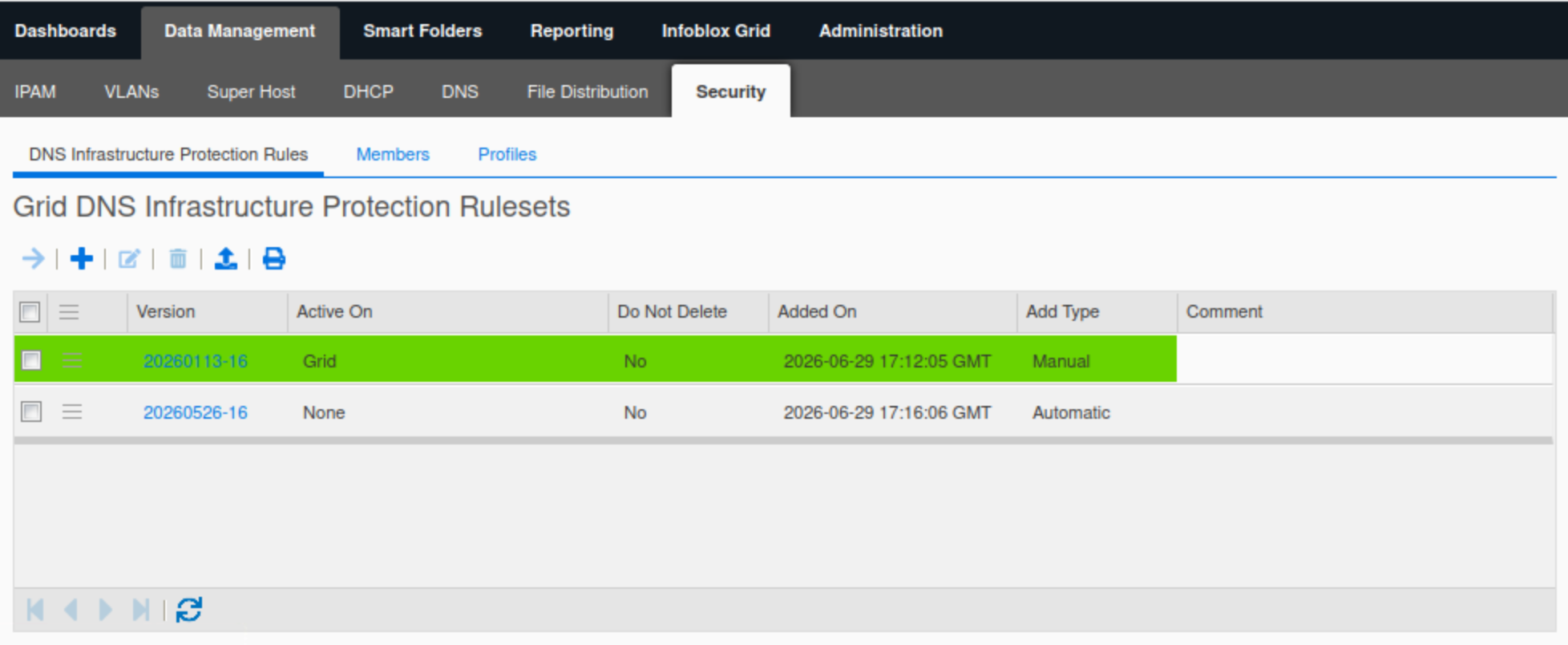
-
Task 9 Solution: Set DNS Infrastructure Protection Service to monitor-mode
In this task, we configure the DNS Infrastructure Protection service to use monitor-mode. This enables us to establish a baseline for our environment and ensure that there are no unintended effects on network traffic.
The best practice is to always run DNS Infrastructure Protection in monitor mode for at least a week to establish traffic patterns.
-
Switch to nios-4 VM to access its console
-
Log in using the default username admin, default password infoblox
-
Issue the set adp monitor-mode on command.
-
This command will switch the DNS Infrastructure Protection service mode on extibns.techbue.net to monitor mode.
-
Advanced DNS Protection (ADP) is an older name for the DNS Infrastructure Protection (DNS-IP) service; some CLI commands still use the old name.
-
-
Issue the show adp monitor-mode command.
-
You should see that monitor mode is enabled, but the DNS Infrastructure Protection service is disabled. This is because we have not yet started the service on extibns.techblue.net.
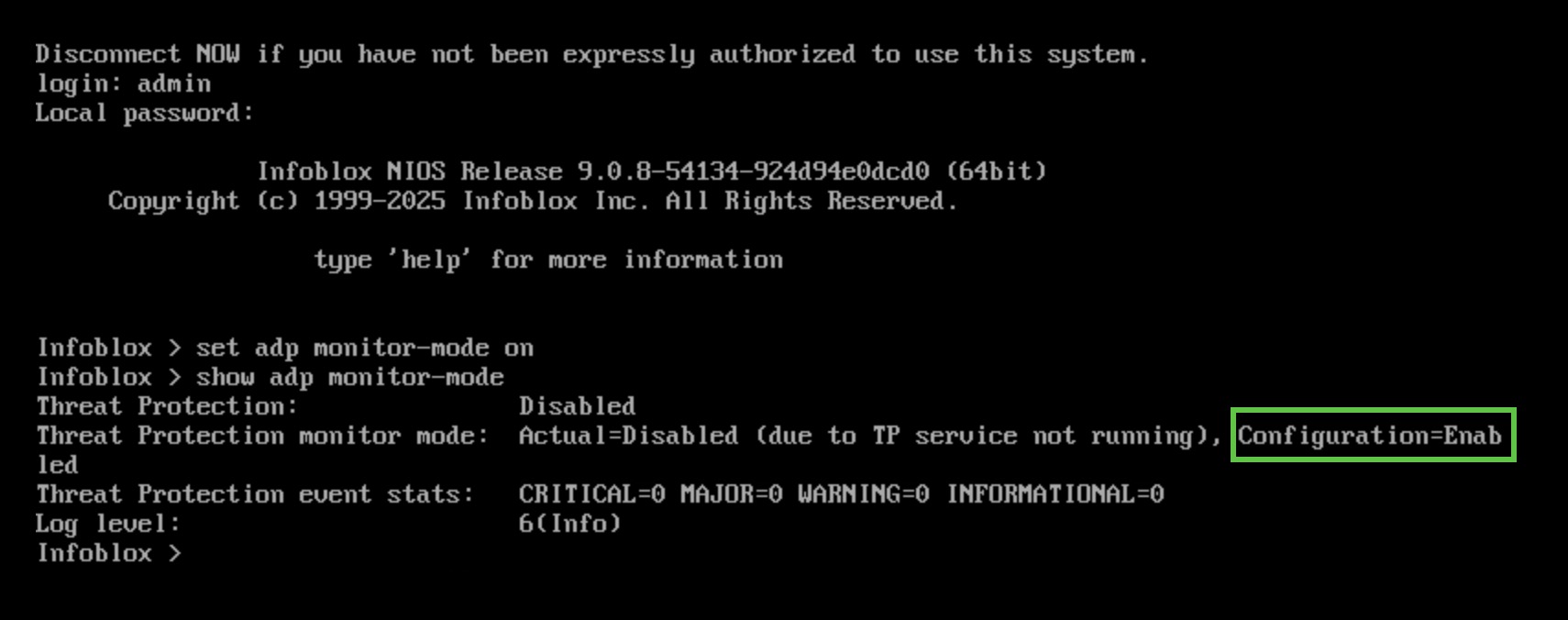
-
Task 10 Solution: Start the DNS Infrastructure Protection Service
In this task, we will start the DNS Infrastructure Protection service on extibns.techblue.net. This process will take several minutes.
-
Switch back to jump-desktop.
-
Navigate to Data Management → Security → Members.
-
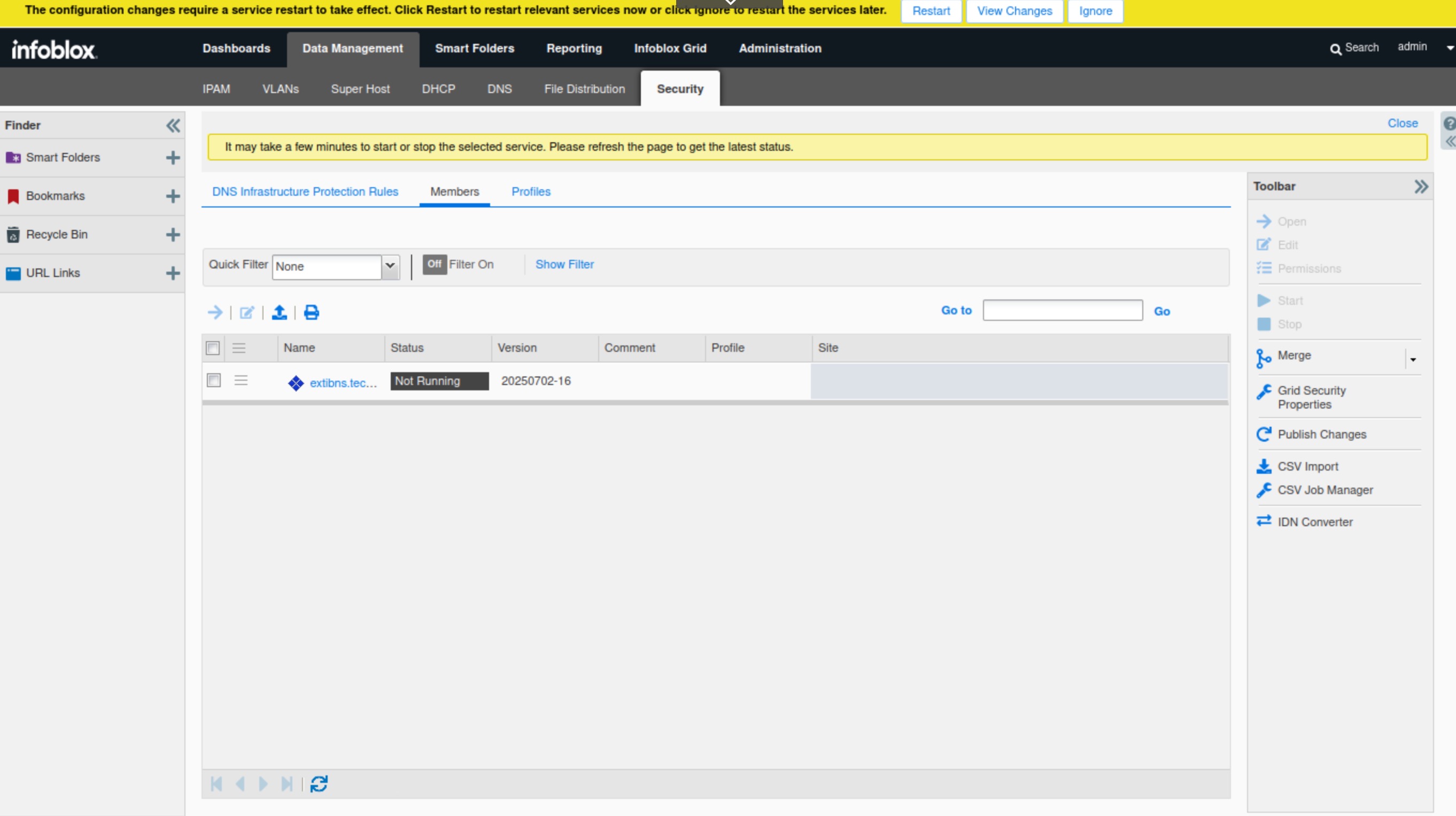
Select extibns.techblue.net and click Start in the Toolbar.
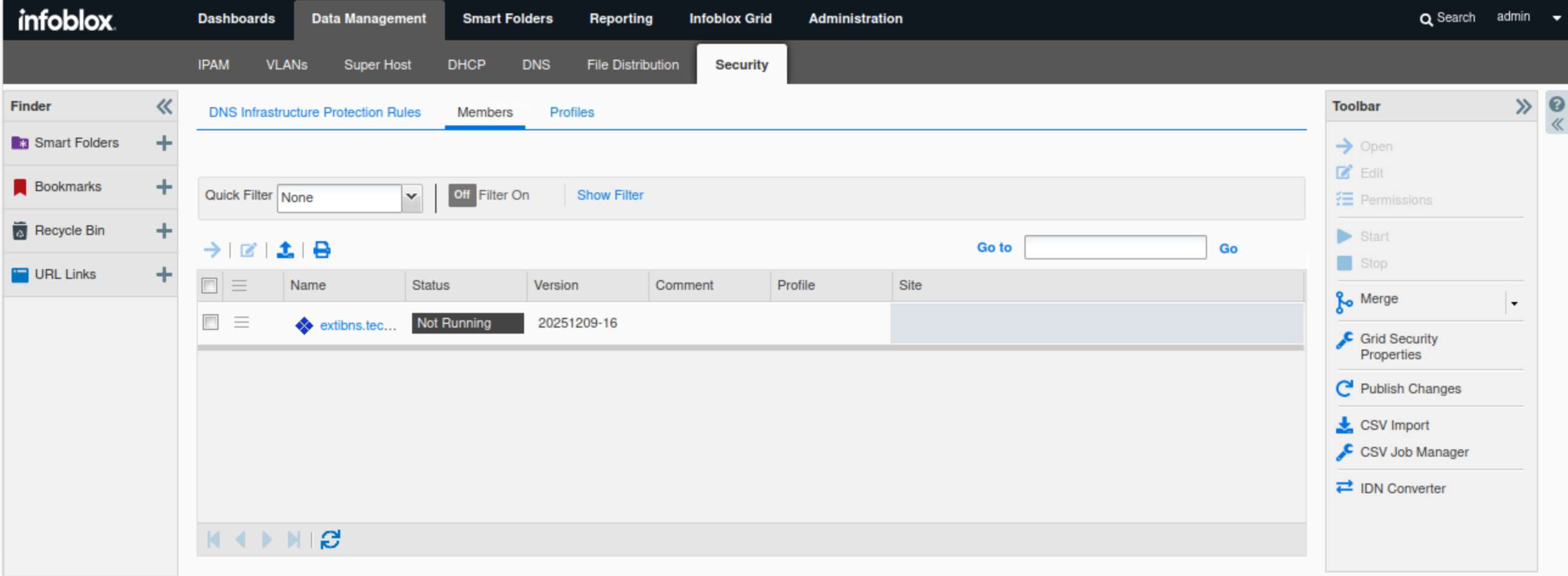
-
Click Yes to confirm starting the service.
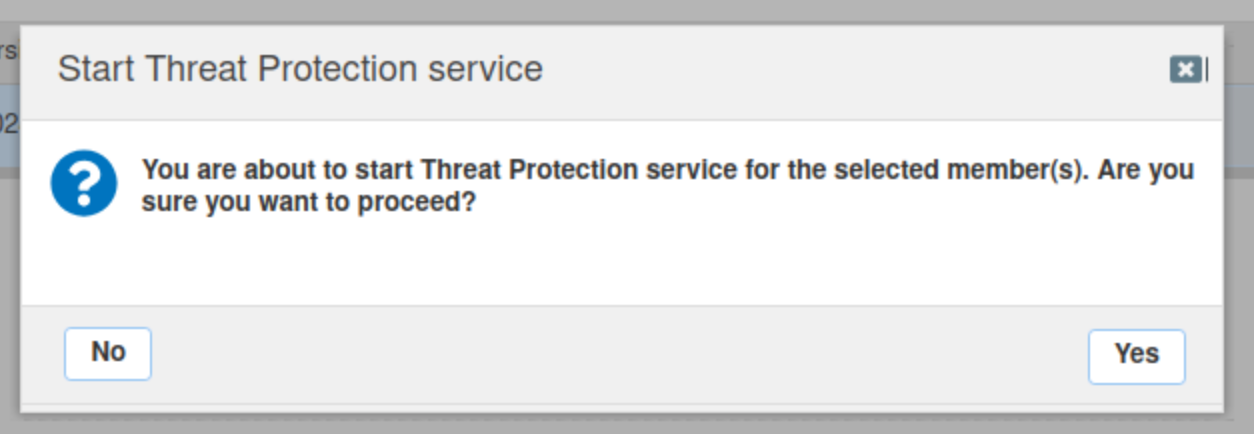
-
Restart services when prompted.
-
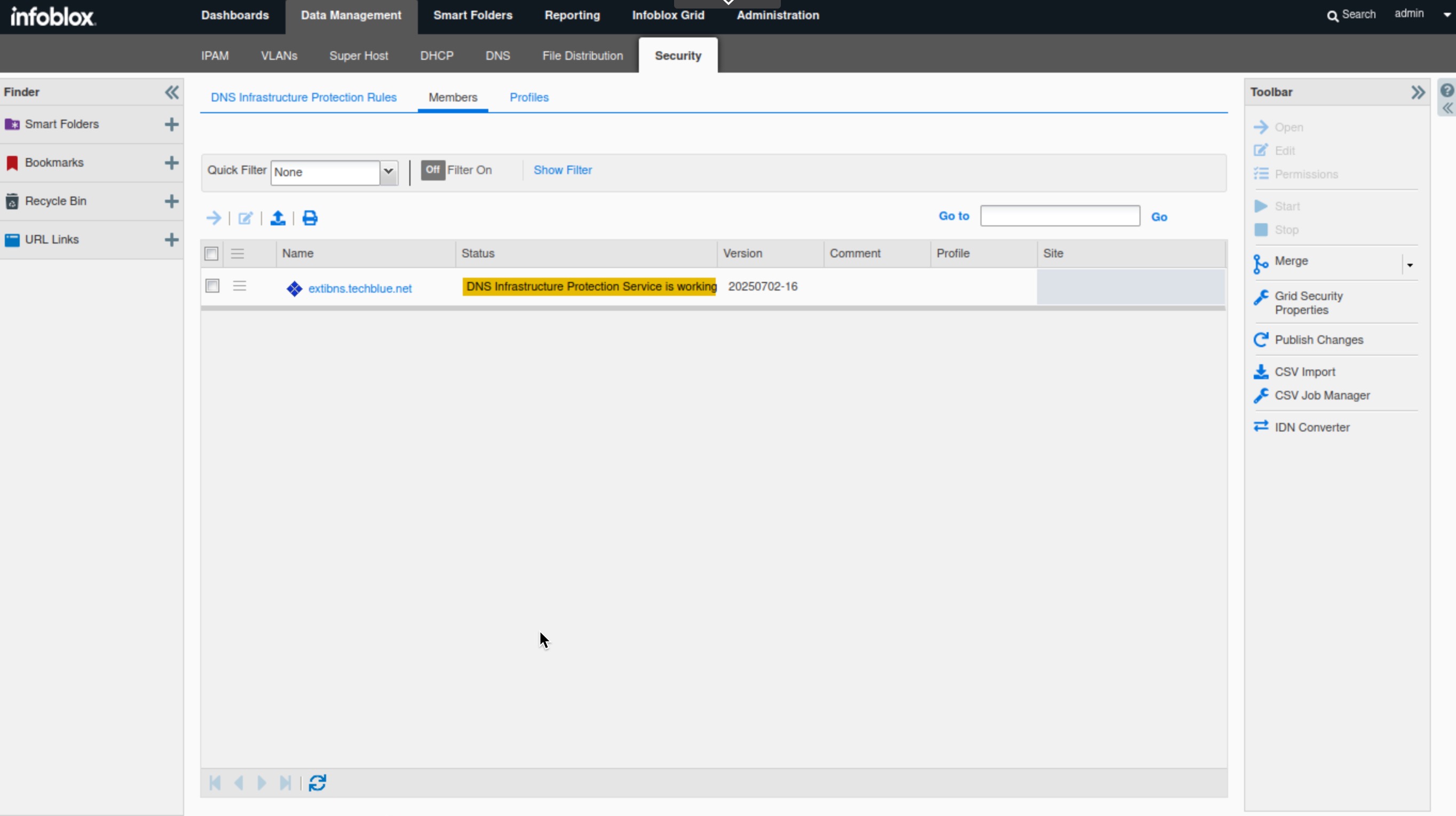
Refresh the page to view the latest status for extibns.techblue.net.
-
The status is in yellow, because extibns.techblue.net is in monitoring mode.
-
It takes several minutes for the DNS Infrastructure Protection service to start
-
Task 11 Solution: Create a DNS Infrastructure Protection Profile
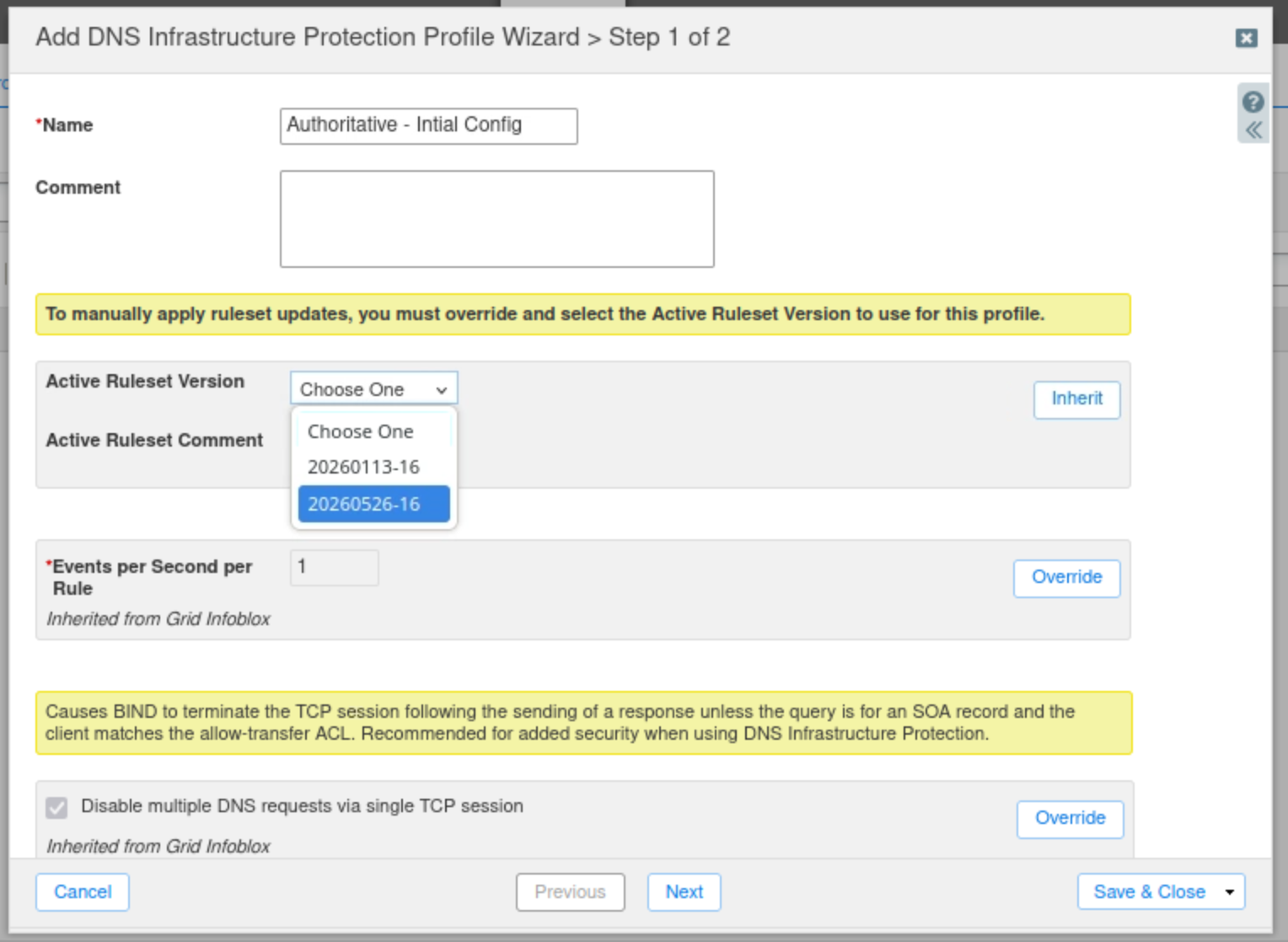
In this task, we will be creating a DNS Infrastructure Protection profile named “Authoritative – Initial Configuration“. This profile will use the ruleset 20260113-16 as its baseline. 20260526-16 is the most recent ruleset downloaded to the Grid. The profile will be assigned to extibns.techblue.net in a later step.
-
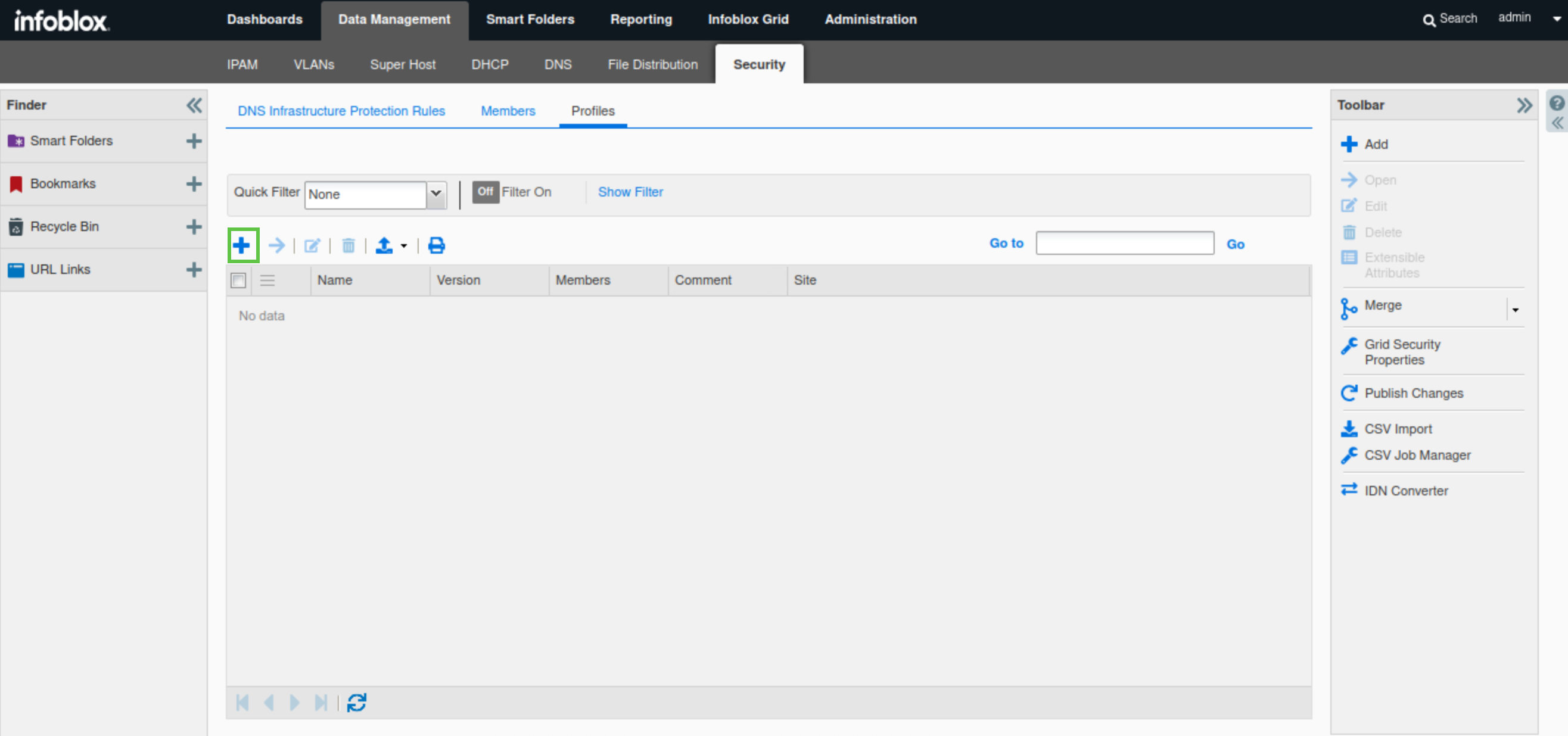
Navigate to Data Management → Security → Profiles.
-
Click the plus (+) symbol to add a new profile.
-
Create a new profile named Authoritative – Initial Configuration.
-
Click Override next to the Active Ruleset Version and select the oldest ruleset 20260526-16.
-
Click Save & Close.
Task 12 Solution: Assign Profile to Grid Member
In this task, we will apply the previously configured profile “Authoritative – Initial Configuration“ to Grid member extibns.techblue.net.
-
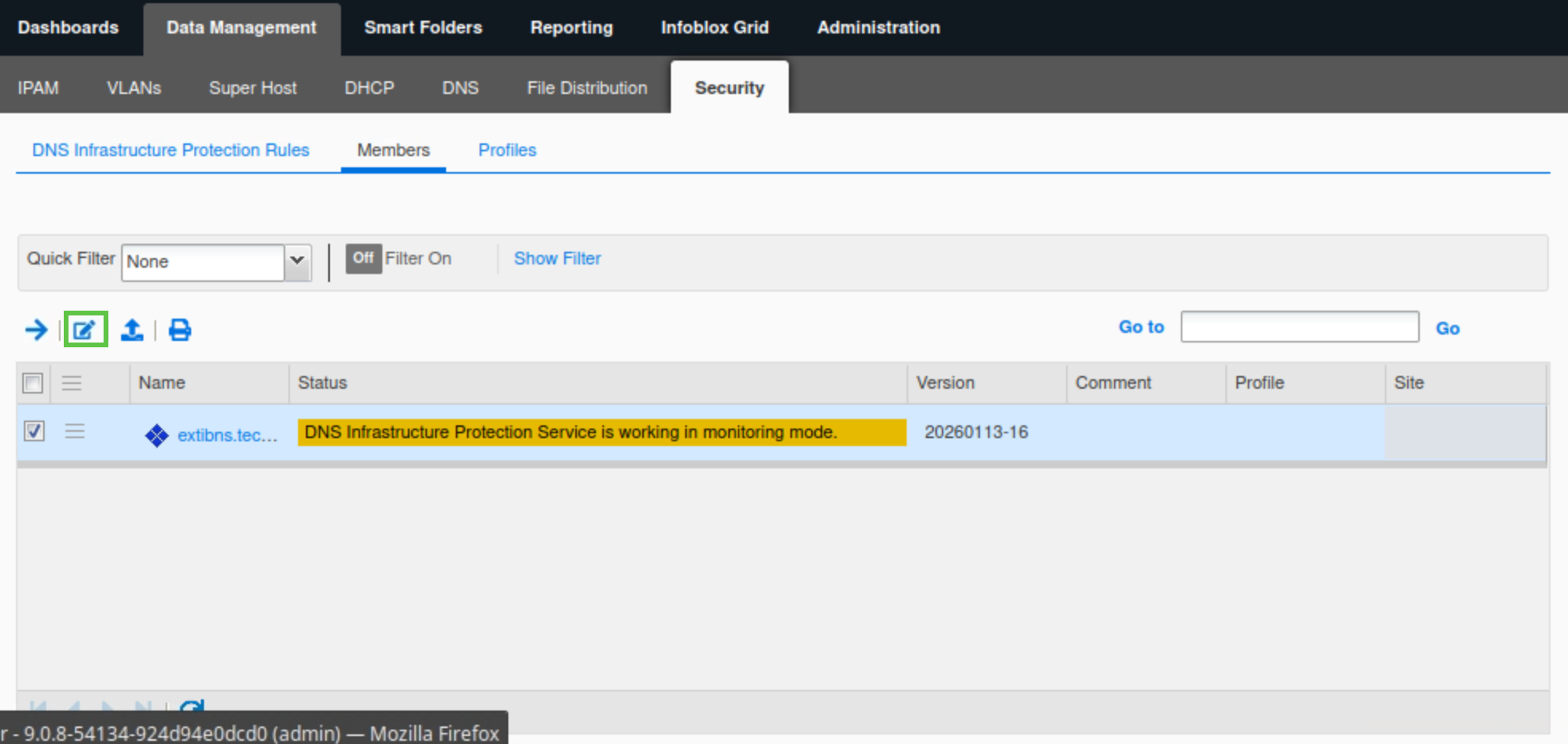
Navigate to Data Management → Security → Members.
-
Select the extibns.techblue.net member and click Edit.
-
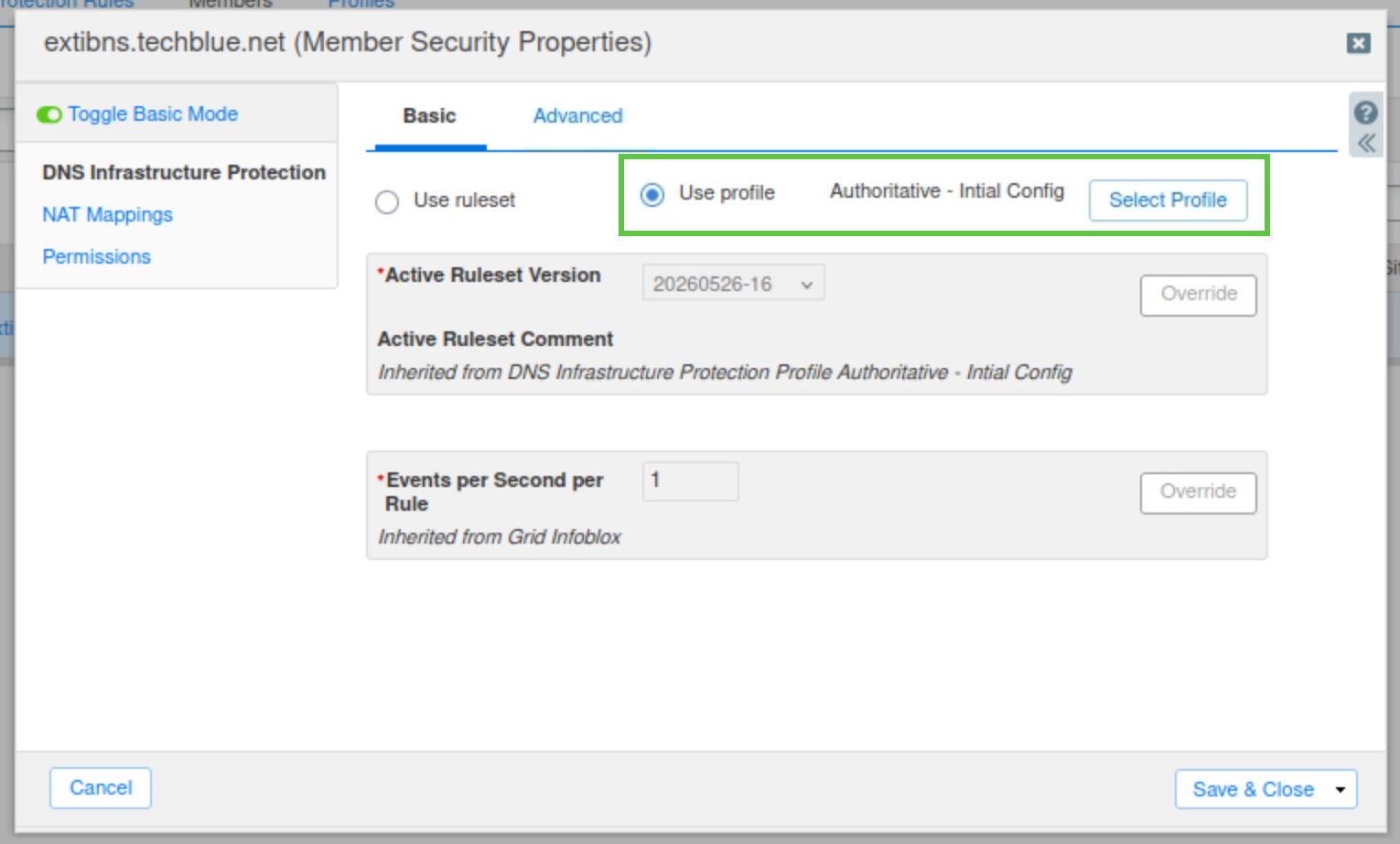
Under the Basic tab of the DNS Infrastructure Protection section.
-
Select the Use profile radio button.
-
Click Select Profile and select the Authoritative – Initial Configuration profile.
-
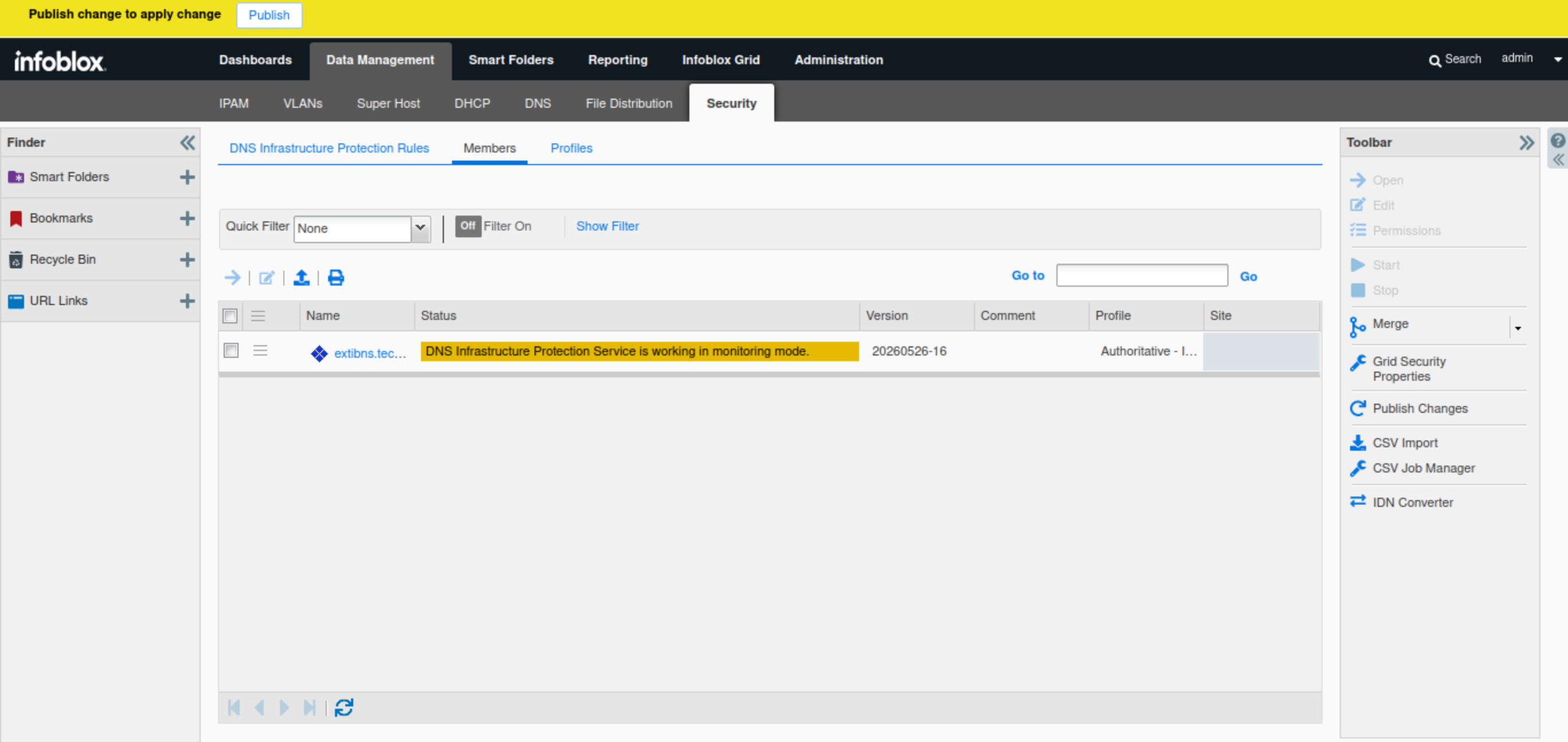
Click Save & Close to save the profile setting.
-
Publish changes when prompted.
-
Publishing involves applying new or updated rules and configurations, including profiles or downloaded rulesets, from the Grid Master to the Grid members.
-
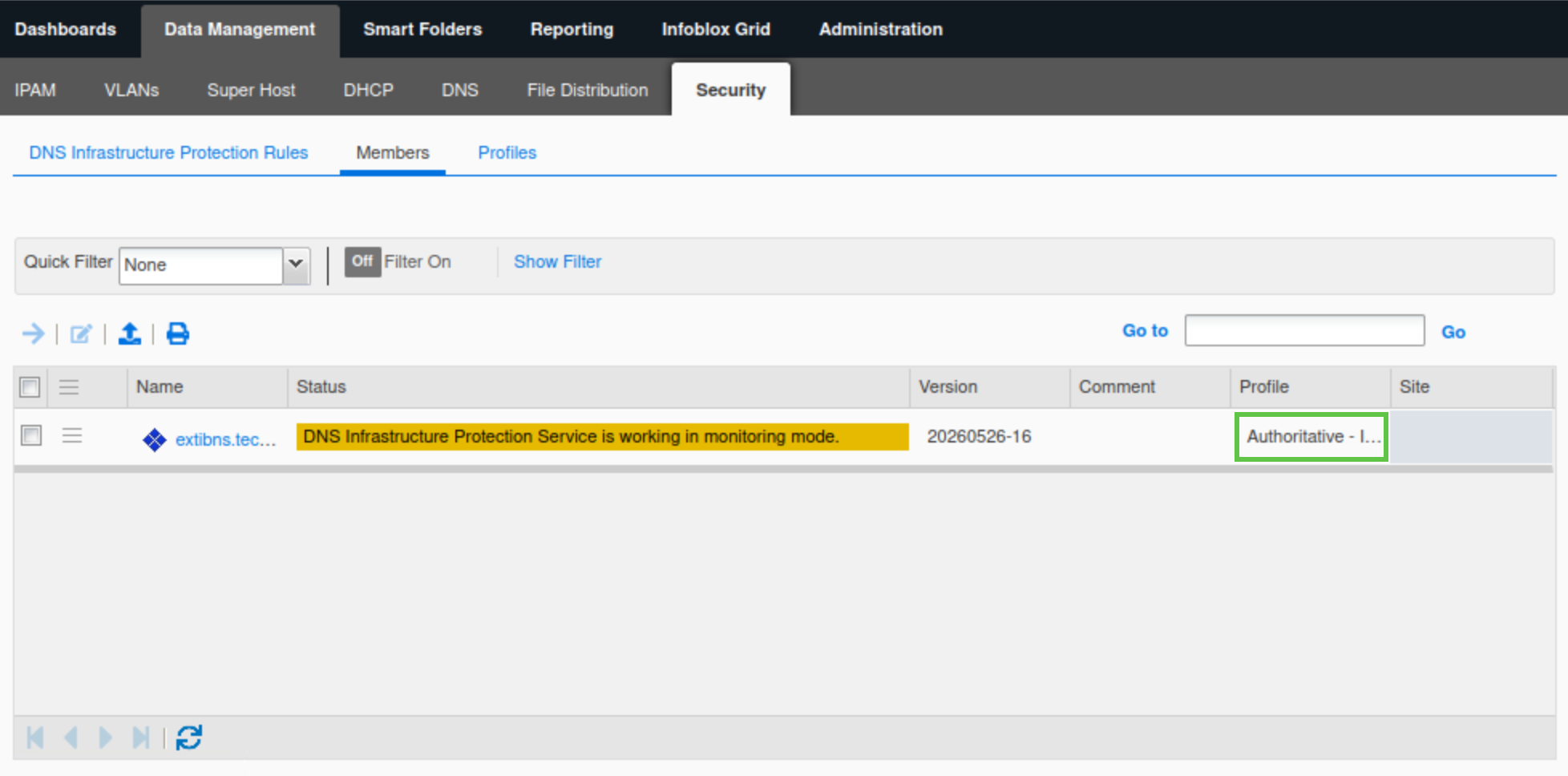
-
The Authoritative – Initial Configuration profile is listed for extibns.techblue.net
Task 13 Solution: Set up the Reporting Server
In this task, we will set up the Grid’s Reporting Server so we can view and analyse its DNS Infrastructure Protection dashboards and reports in later steps. These reports will be used to identify noisy clients and establish a baseline for DNS traffic flow.
-
Navigate to Reporting
-
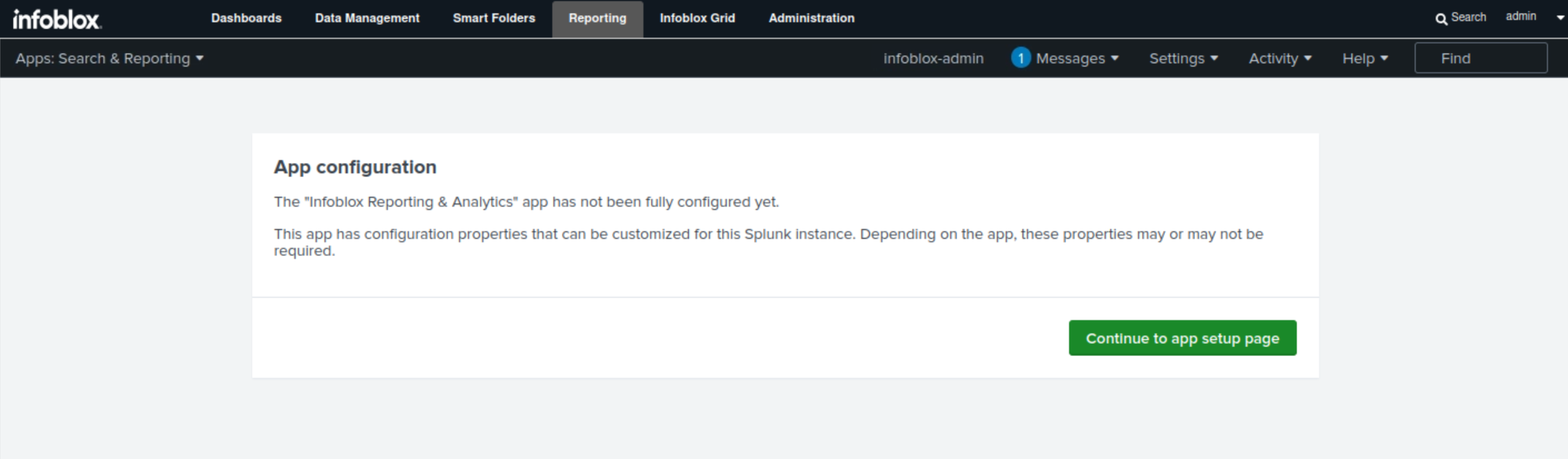
Click Continue to app setup page.
-
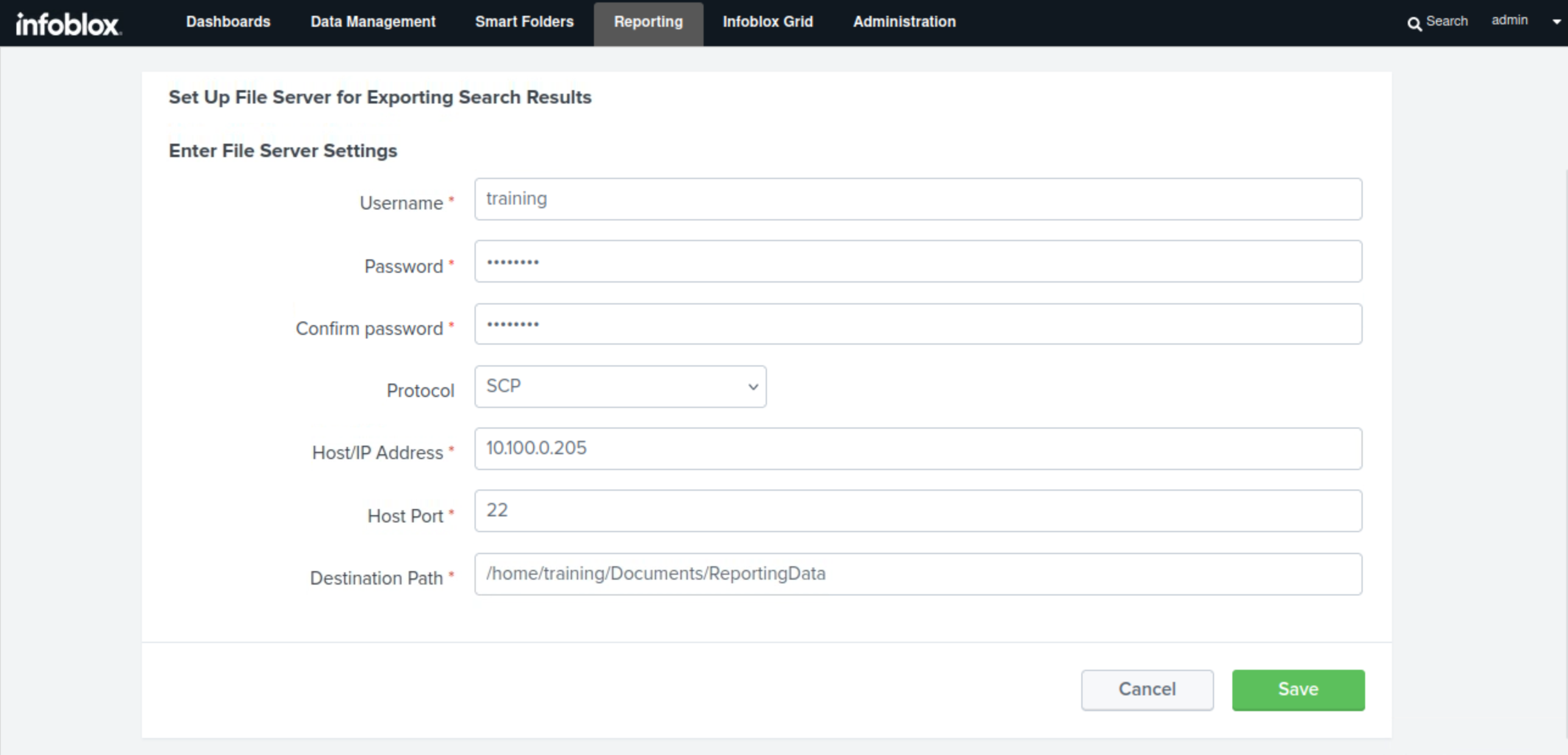
Use the information from this table to set up the reporting server:
|
Configuration |
Value |
|
Username |
training |
|
Password |
infoblox |
|
Protocol |
SCP |
|
Host/ IP Address |
10.100.0.205 |
|
Port |
22 |
|
Path |
/home/training/Documents/ReportingData |
-
Click Save.
Task 14 Solution: Identify and Investigate Outliers
Leave the Grid running passively for 30 to 35 minutes to allow enough traffic to flow through the Grid and populate its dashboards and reports
In this task, we will use the Reporting Server dashboards, specifically the DNS Top Clients dashboard, to identify noisy clients or outliers. Noisy clients or outliers are hosts or IP addresses that make significantly more queries per second than the average. After identifying the outliers, we will investigate them. Some clients might have valid reasons for making more queries per second than the average; for example, an IP address might be a NAT address used by multiple devices.
Identifying and investigating noisy clients is important, as when we start tuning DNS Infrastructure Protection rules, we will run them to align with the traffic patterns of the majority of clients. So by identifying them, we can decide whether we need to create custom rules to allow, block, or rate-limit their specific traffic patterns.
Since the DNS Infrastructure Protection service hasn’t been running long enough, dashboards that show daily trends, such as the DNS Daily Peak Hour Query Rate by Member dashboard, will not be accurate or useful in this instance. However, this is an important dashboard to check in a production system where DNS Infrastructure Protection has been running for several days or weeks.
-
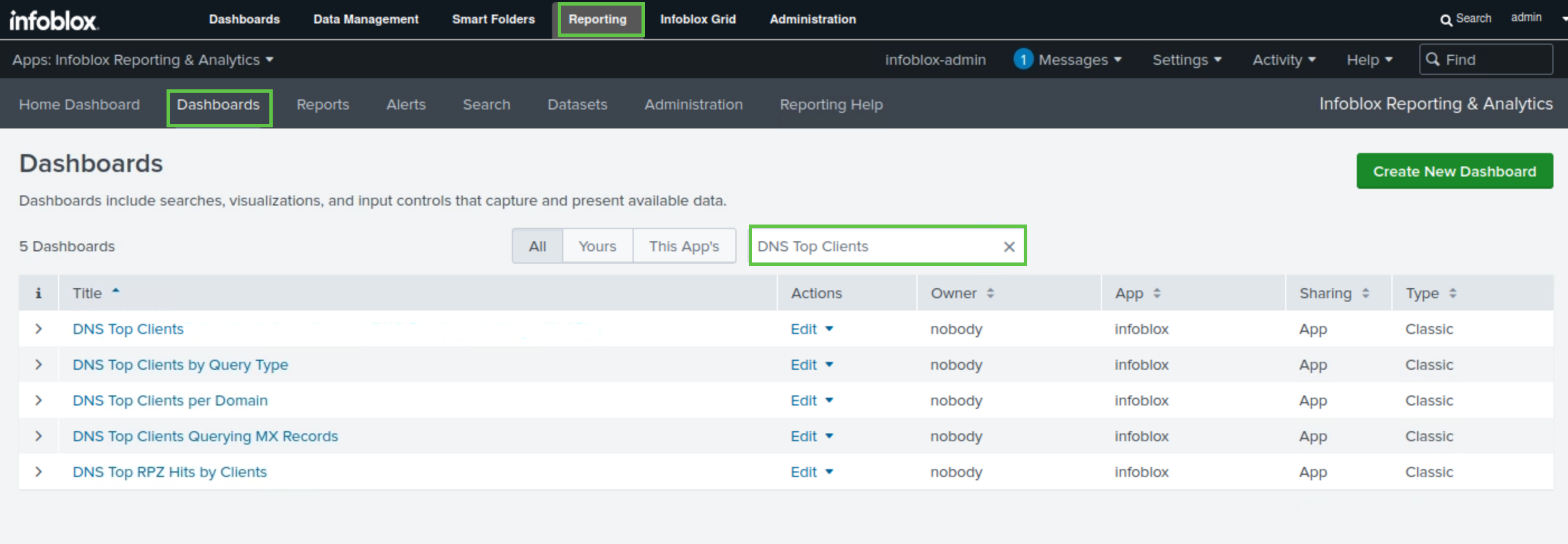
Navigate to Reporting → Dashboards.
-
Type DNS Top Clients in the search bar.
-
Select the DNS Top Clients dashboard.
-
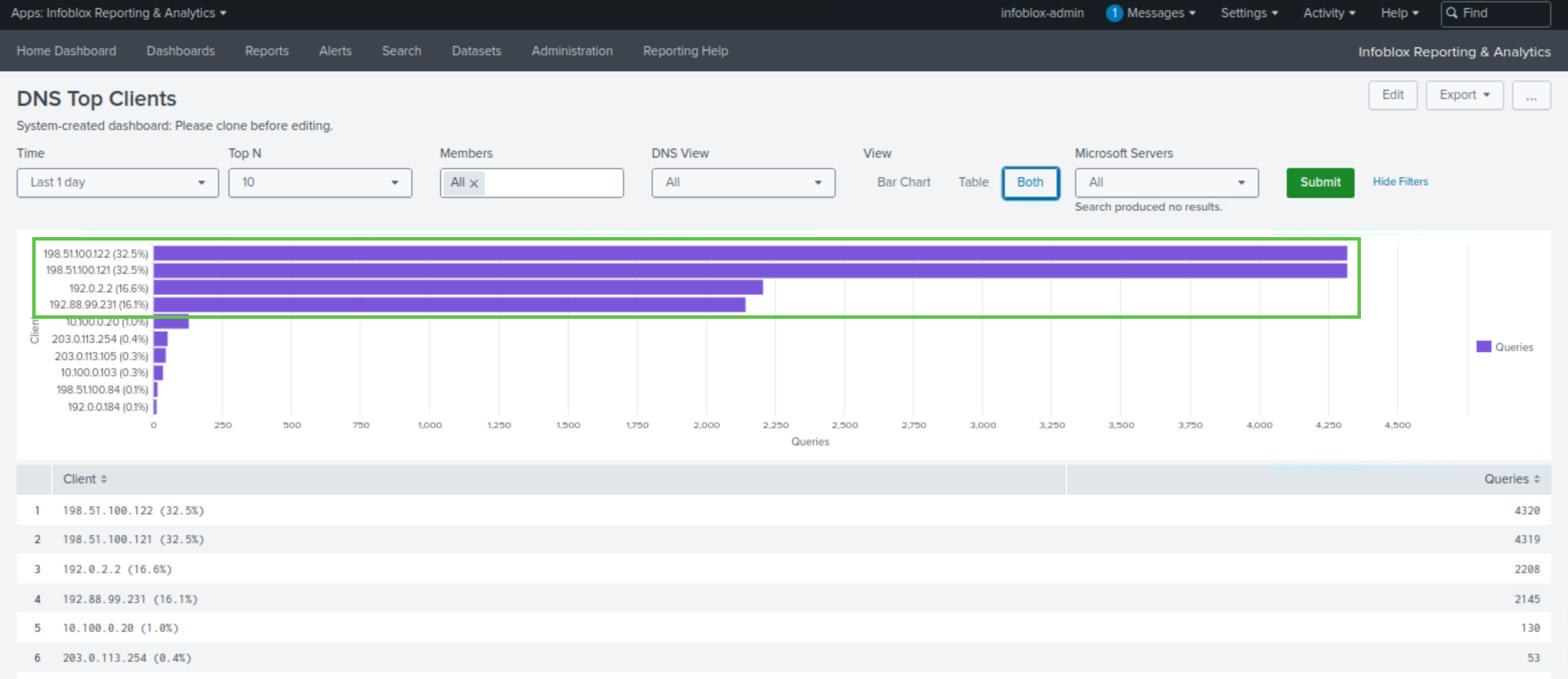
Click the Both button under the View section.
-
This will display both views of the dashboard, the Bar Chart and the Table.
-
-
Observe that four clients have significantly more queries than the majority.
-
The Client IP addresses are 198.51.100.121, 198.51.100.122, 192.88.99.231, and 192.0.2.2.
-
-
These hosts require further investigation. The investigation establishes that:
-
The hosts 192.0.2.2 and 192.88.99.231 belong to local companies with which our organization does business. The hosts are using NAT, and a large number of clients are behind those two IP addresses, accessing our services. As a result, we expect these hosts to make a higher-than-average number of queries. As a result, we can clear them from the outliers list.
-
The hosts 198.51.100.121 and 198.51.100.122 are the local ISP’s caching servers. They provide services to both home and business broadband users. As a result, they are also expected to make more queries than the average client. As a result, they should also be cleared from the outliers list.
-
In this lab environment, we will not act on this information due to technical limitations. However, in a production system, we need to decide whether to create custom rules to cater to the identified clients during the tuning process. If you are unsure about how to tune your production DNS Infrastructure Protection-enabled appliances, we recommend engaging Infoblox Professional Services
-
Task 15 Solution: Establish a Baseline
In this task, we will use the DNS Query Rate By Member dashboard to establish the normal DNS query rate per second. This value will be used by various rules, either directly or indirectly, to set them appropriately so they trigger at the right time without negatively affecting our environment’s operation.
In a production system, we would also use the DNS Query Rate by Member and the Daily Peak Hour Query Rate by Member dashboards. However, since the DNS Infrastructure Protection service hasn’t been running long enough, dashboards that show daily trends will not be accurate or useful in this instance.
-
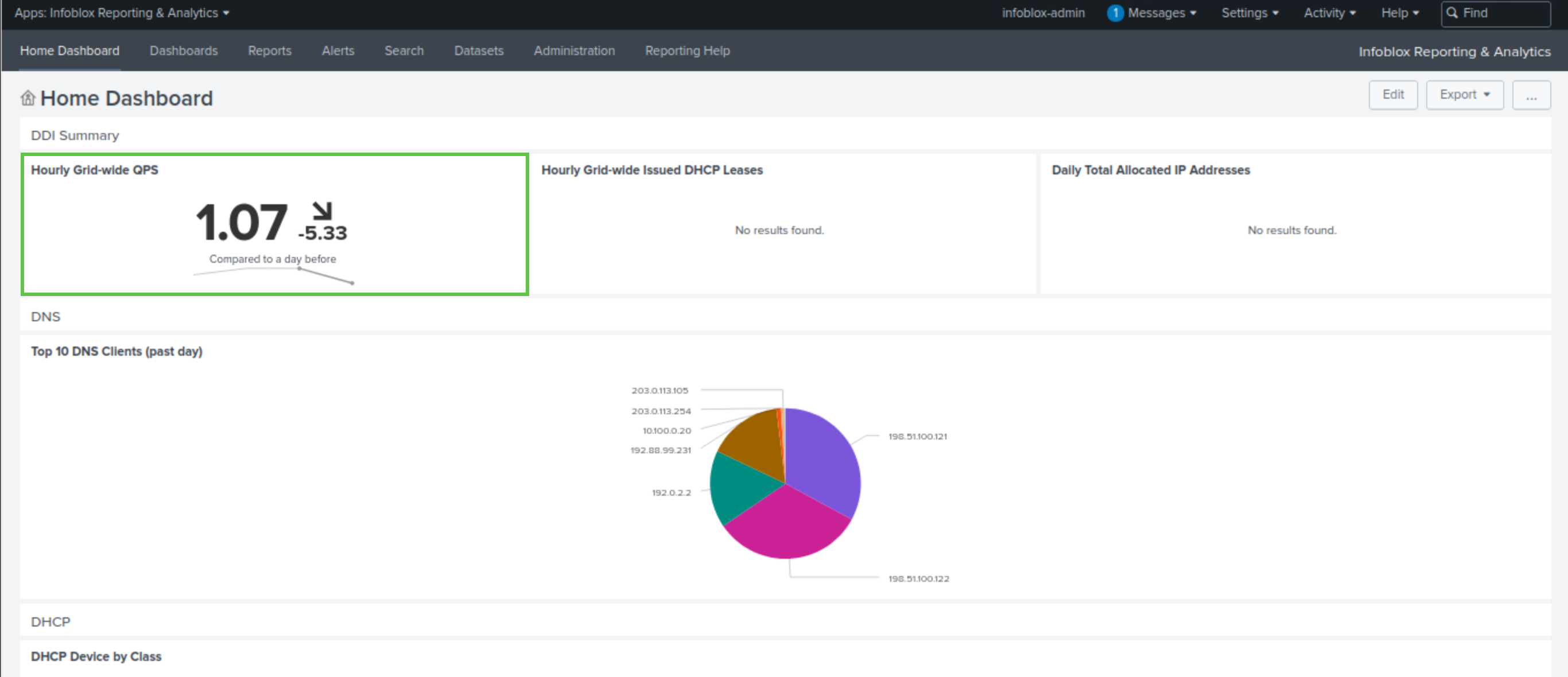
Navigate to Reporting → Home Dashboard
-
Click on the Hourly Grid-wide QPS widget, which will take us to the DNS Query Rate By Member dashboard.
-
Alternatively, you can navigate to Reporting → Dashboards
-
Type DNS Query Rate By Member in the search bar.
-
Select the DNS Query Rate By Member dashboard.
-
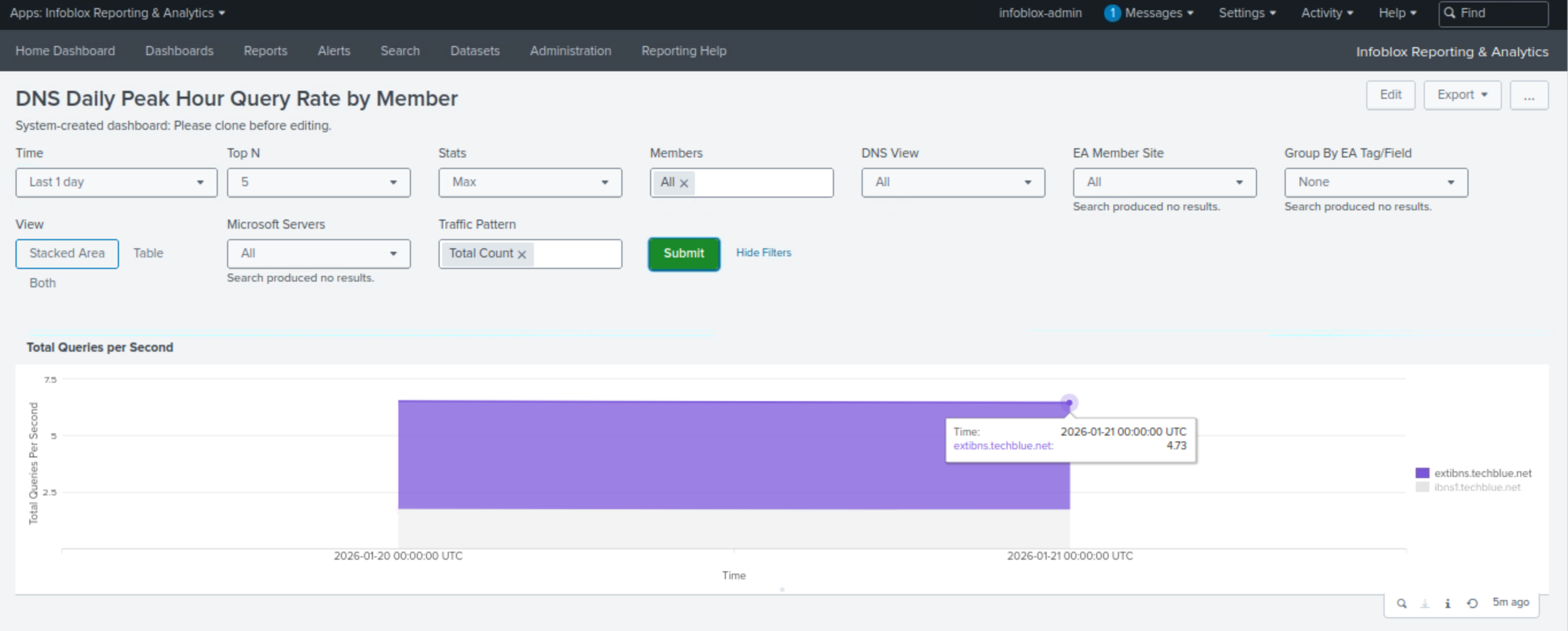
The graph shows the trend in our DNS Queries Per Second over the past 24 hours.
-
The graph will display the average query rate for all DNS-enabled Grid members in a stacked area format. Our system includes two DNS-enabled members: ibns1.techblue.net and extibns.techblue.net. However, only extibns.techblue.net offers DNS Infrastructure Protection services, so we will focus on its average DNS Queries Per Second value.
-
By analysing the graph, we can conclude that:
-
extibns.techblue.net’s average QPS for the past 24 hours is approximately 4.7 queries per second.
-
As this is a lab environment, this value is very low. Infoblox DNS servers can easily handle thousands of queries per second. For the purposes of this lab and testing, we will use higher values so you can see what happens when rules are triggered.
-
If you are unsure about how to tune your production DNS Infrastructure Protection-enabled appliances, we recommend engaging Infoblox Professional Services.
-
-
Task 16 Solution: Create a Profile for Tuned Rulesets
In this task, we will create an additional profile named Authoritative - Tuned and assign it to extibns.techblue.net. The new profile is used to customize and tune the DNS Infrastructure Protection service provided by extibns.techblue.net.
It is recommended to use profiles when tuning DNS Infrastructure Protection, as they simplify grouping and tuning NIOS grid members that perform similar functions.
The Authoritative - Initial Config profile we created in the previous lab will be left alone just as a precaution, in case we need to quickly rollback extibns.techblue.net to a profile with a base ruleset at any time now or in the future.
-
Navigate to Data Management → Security → Profiles.
-
Click the Add button to create a new profile.
-
Use Authoritative - Tuned as the name.
-
Click Override for the Active Ruleset section.
-
Select the 20250702-16 ruleset.
-
Click Save & Close.
-
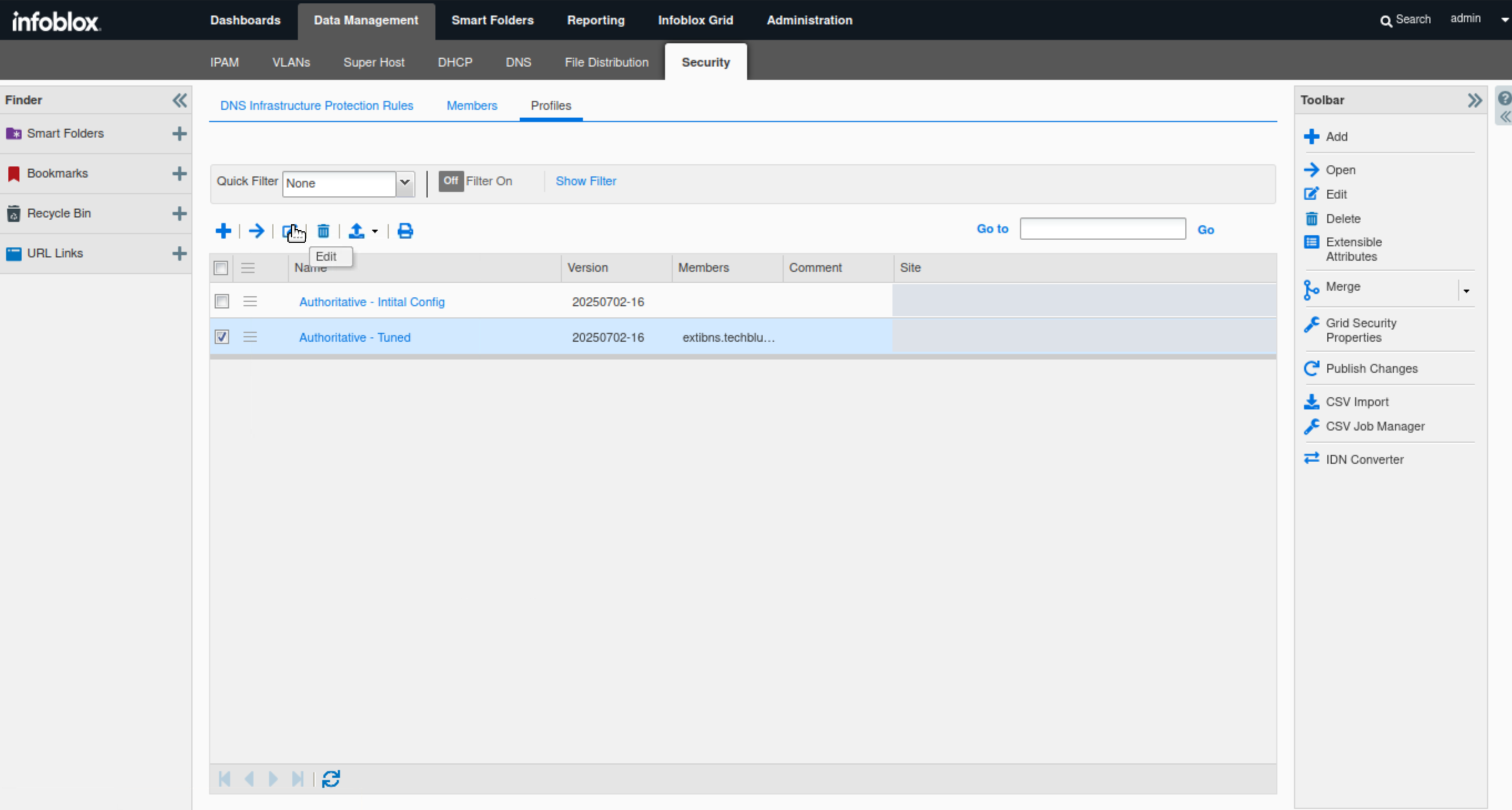
Select the checkbox for the new profile we created
-
Click Edit.
-
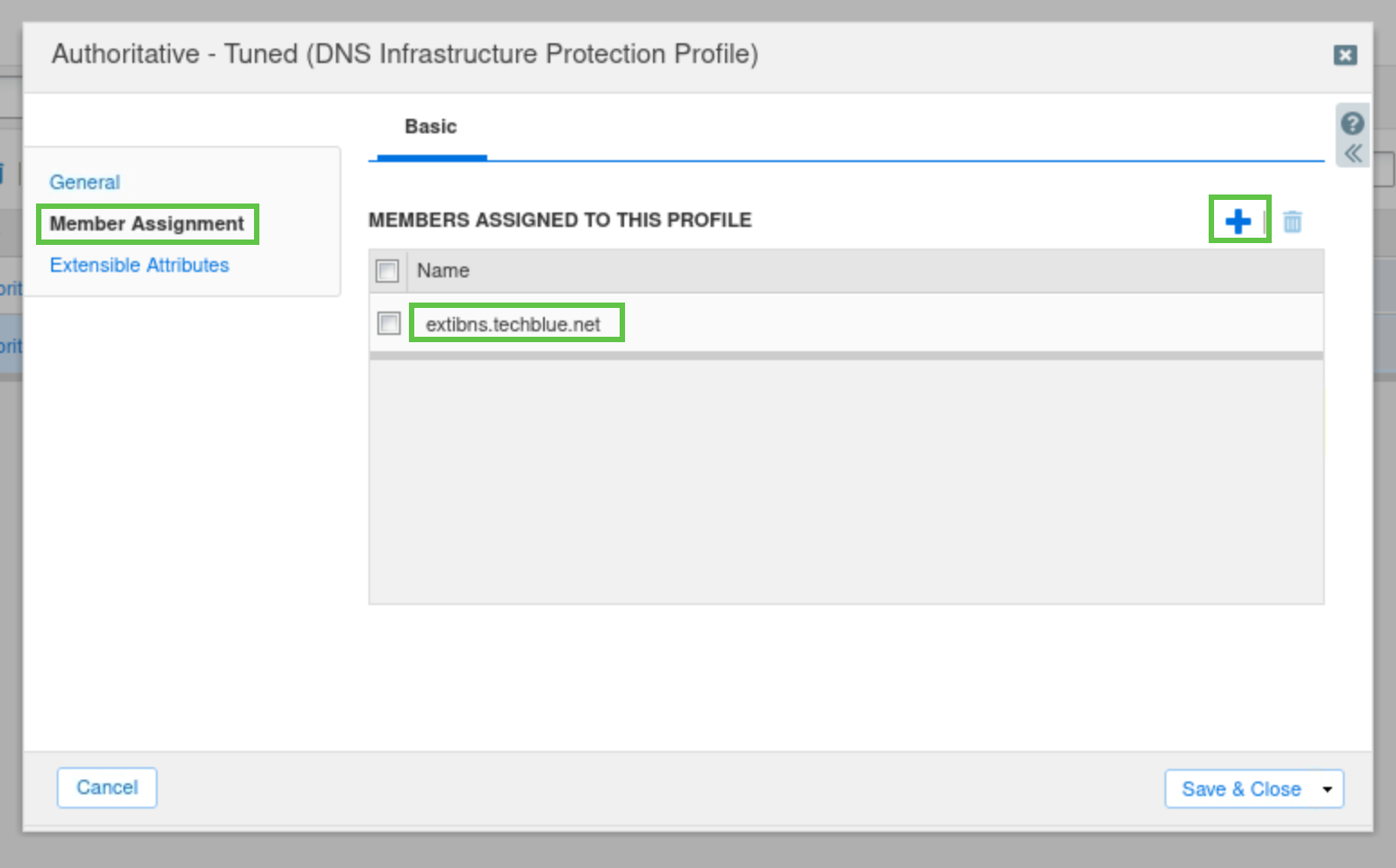
Navigate to the Member Assignment tab.
-
Click the + icon to assign the profile to extibns.techblue.net.
-
Click Save & Close.
-
DO NOT click Publish yet. We will have more changes to make before we publish this change.
Task 17 Solution: Manage Rule Categories
Since extibns.techblue.net is an authoritative-only DNS server. Certain rule categories are not required. No DNS traffic is recursed by the server. Disabling unnecessary categories and rules prevents the DNS Infrastructure Protection engine from having to interrogate against rules that aren’t applicable.
For this reason, we will be disabling the following rule categories:
-
DNS Malware
-
DNS DDoS
-
DNS Tunneling
-
Navigate to Data Management → Security → Profiles.
-
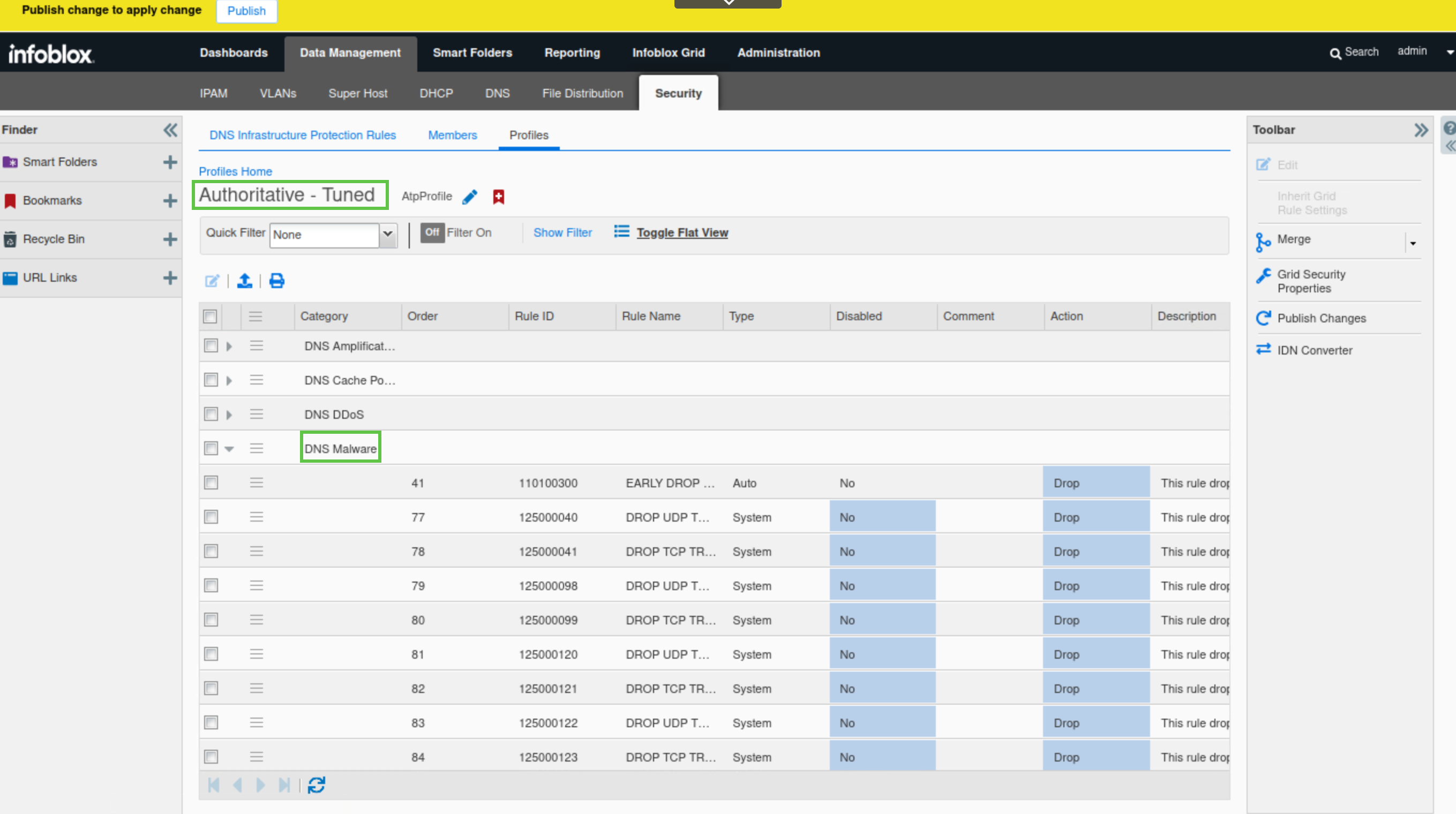
Click on the link to the Authoritative - Tuned profile.
-
Scroll down to the DNS Malware category.
-
Click the arrow to view the rules in the category.
-
You can see that the rules are enabled; Disabled rules will have a gray highlight over the Rule ID field.
-
-
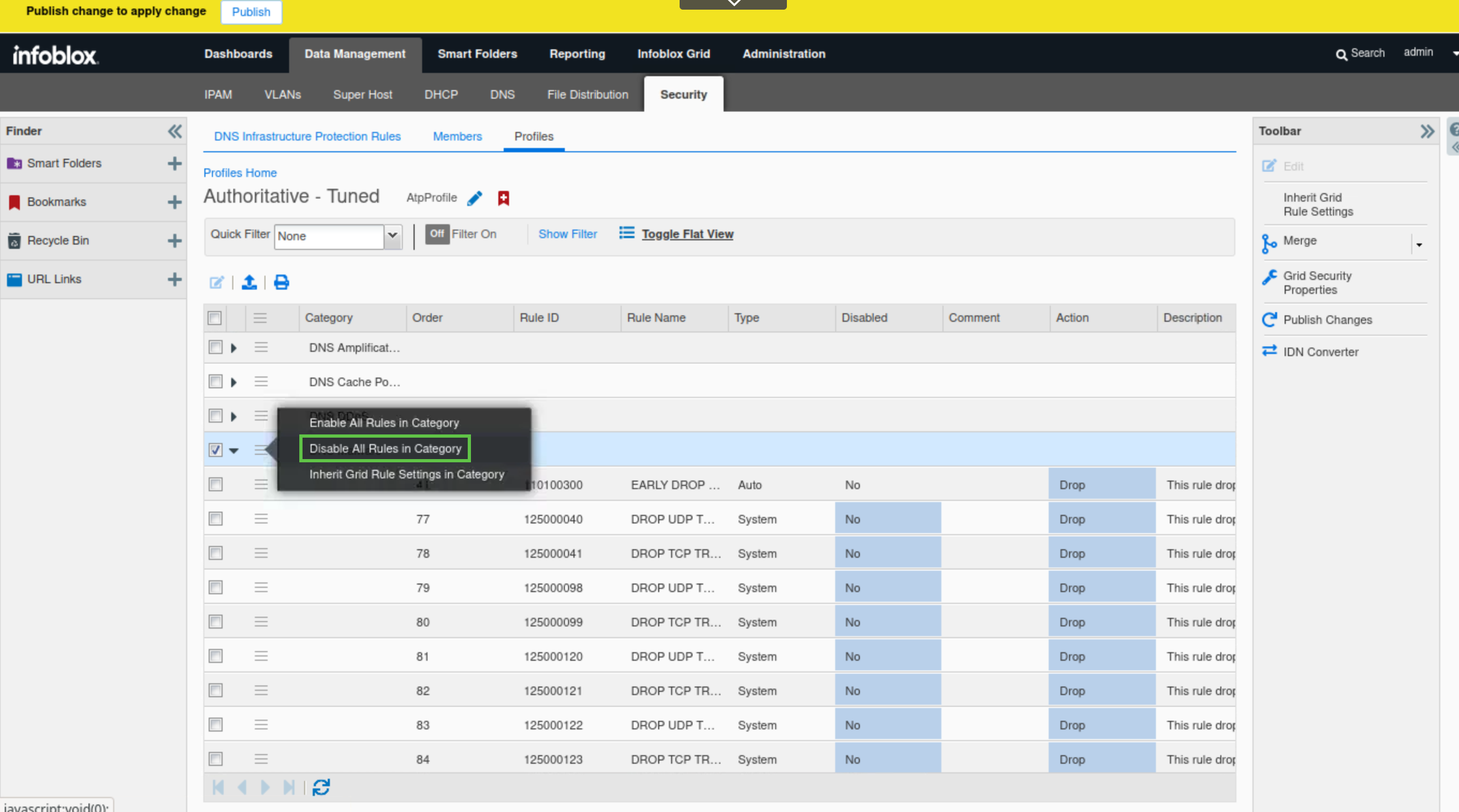
Click the hamburger icon for the DNS Malware category.
-
Select the Disable all Rules in Category option.
-
Click Yes to proceed.
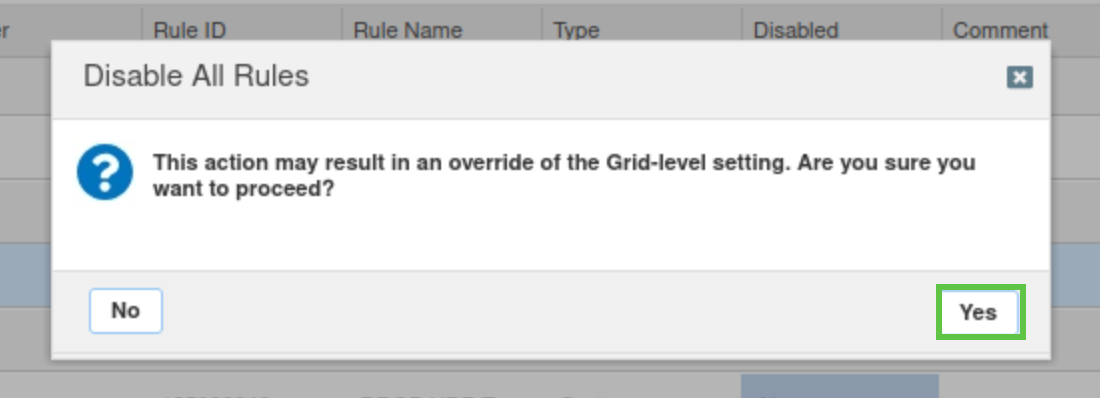
-
Disable the DNS DDoS and DNS Tunneling categories in the profile by repeating the same steps (steps 3 through 7) for each category.
-
Publish the changes when finished.
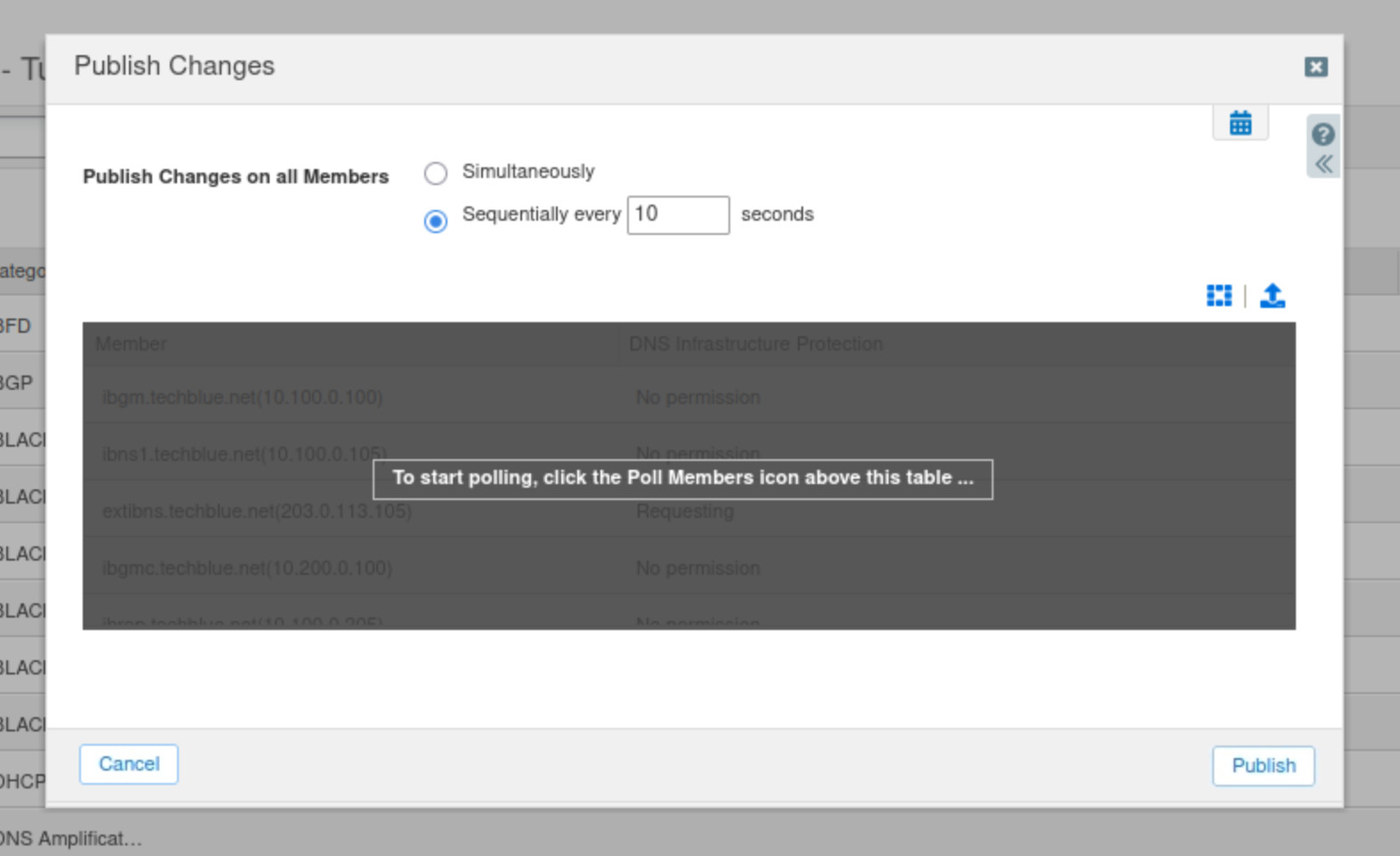
Task 18 Solution: Tune Default Rules in the Authoritative - Tuned Profile
The values used in this task are specific to the lab and do not reflect the values you should use in a production environment
In this task, you will tune three rules: rule ID 130000100 (WARN about high rate inbound UDP DNS queries), rule ID 130000200 (WARN & BLOCK about high rate inbound UDP DNS queries), and rule ID 100000100 (EARLY PASS UDP response traffic) to suit your current lab environment. These rules are intended to protect against TCP and UDP flood attacks.
TCP and UDP flood attacks are volumetric attacks that send massive numbers of packets, consuming network bandwidth and resources. They exploit TCP and UDP.
As you remember from an earlier task, our lab system’s DNS Query Rate Per Second for extibns.techblue.net was approximately 4.7 QPS, which is very low. For testing purposes, we will use higher values so you can see what happens when rules are triggered.
-
Click Show filter.
-
Choose Rule ID as the filter.
-
Set the operator to equals.
-
Enter the rule ID 130000100 in the last field
-
Click Apply.
-
Check the Rule and click Edit.
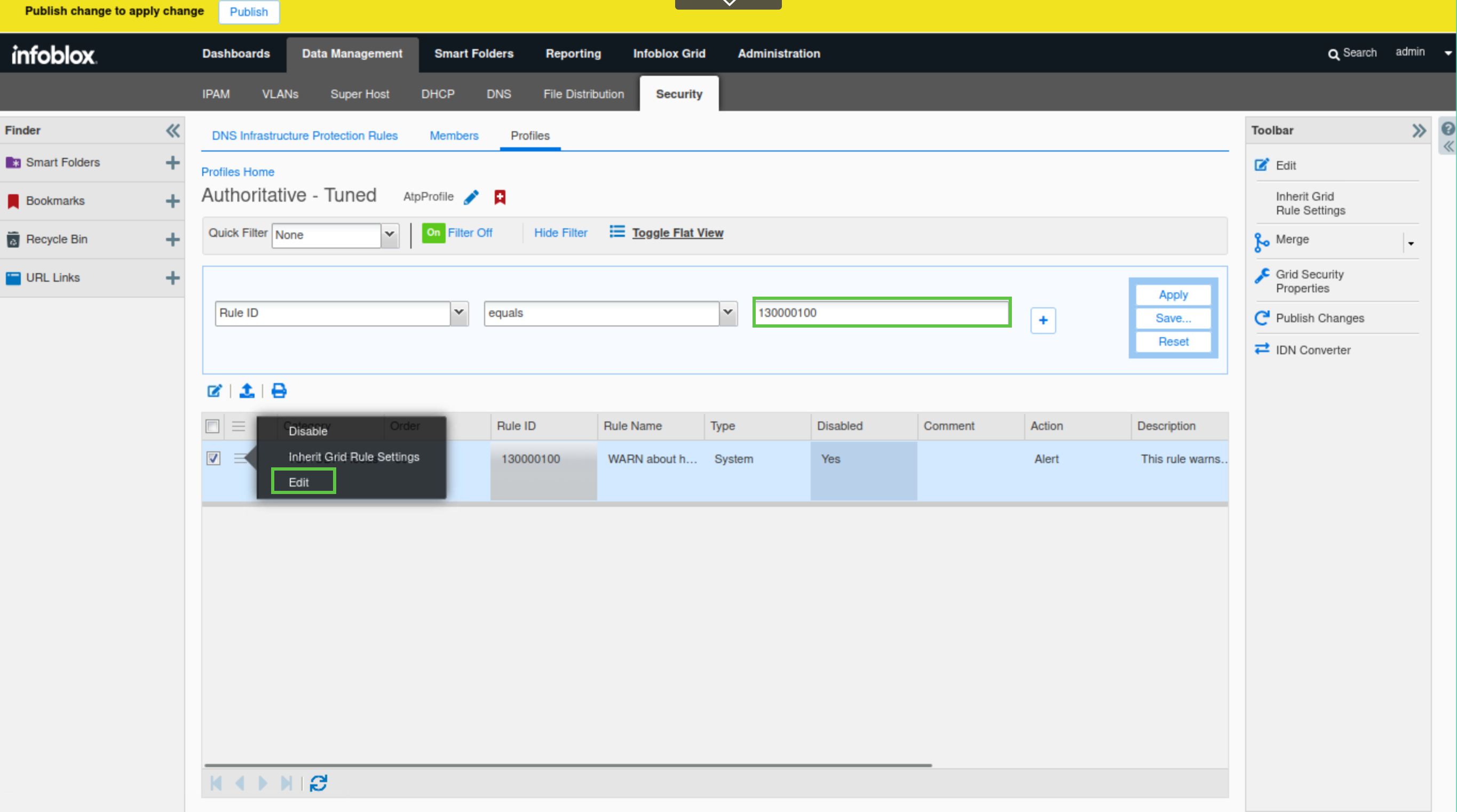
-
Select the Settings tab and click Override.
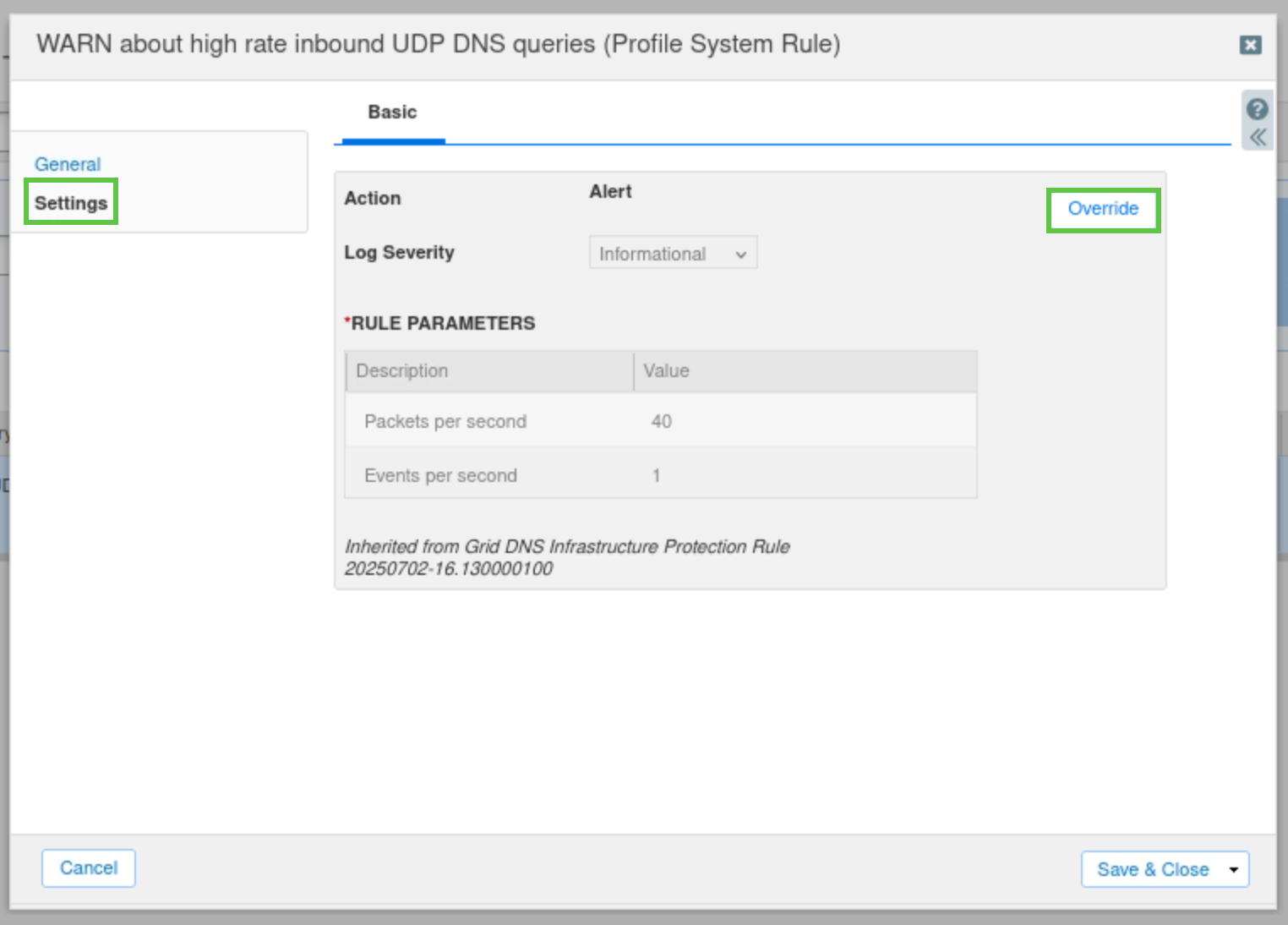
-
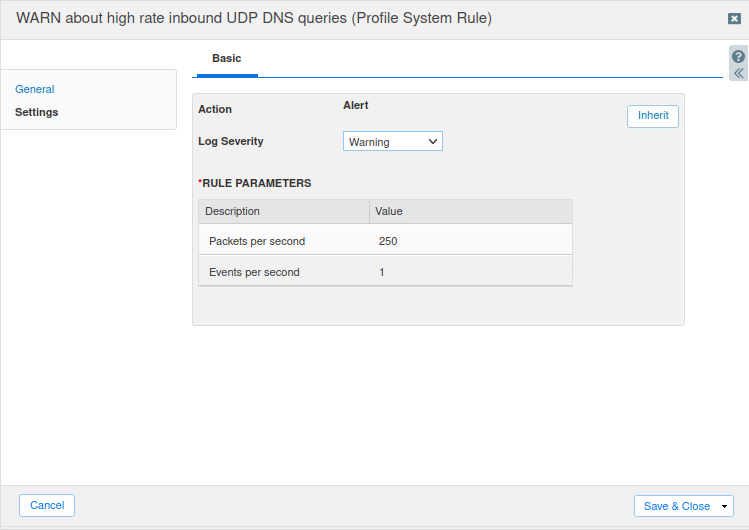
Change the Log Severity level to Warning.
-
Change the Packets per Second value to 250.
-
Click Save & Close.
-
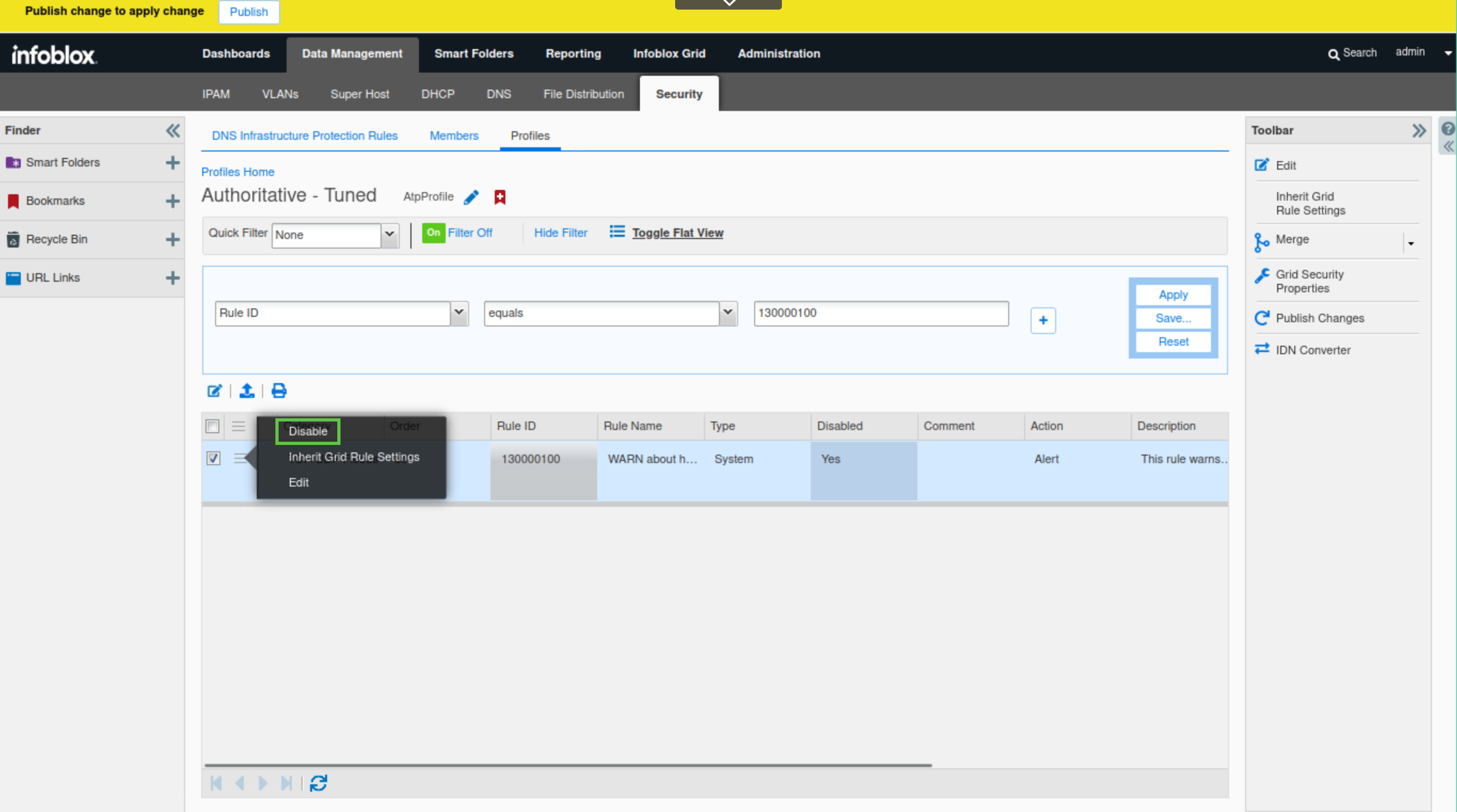
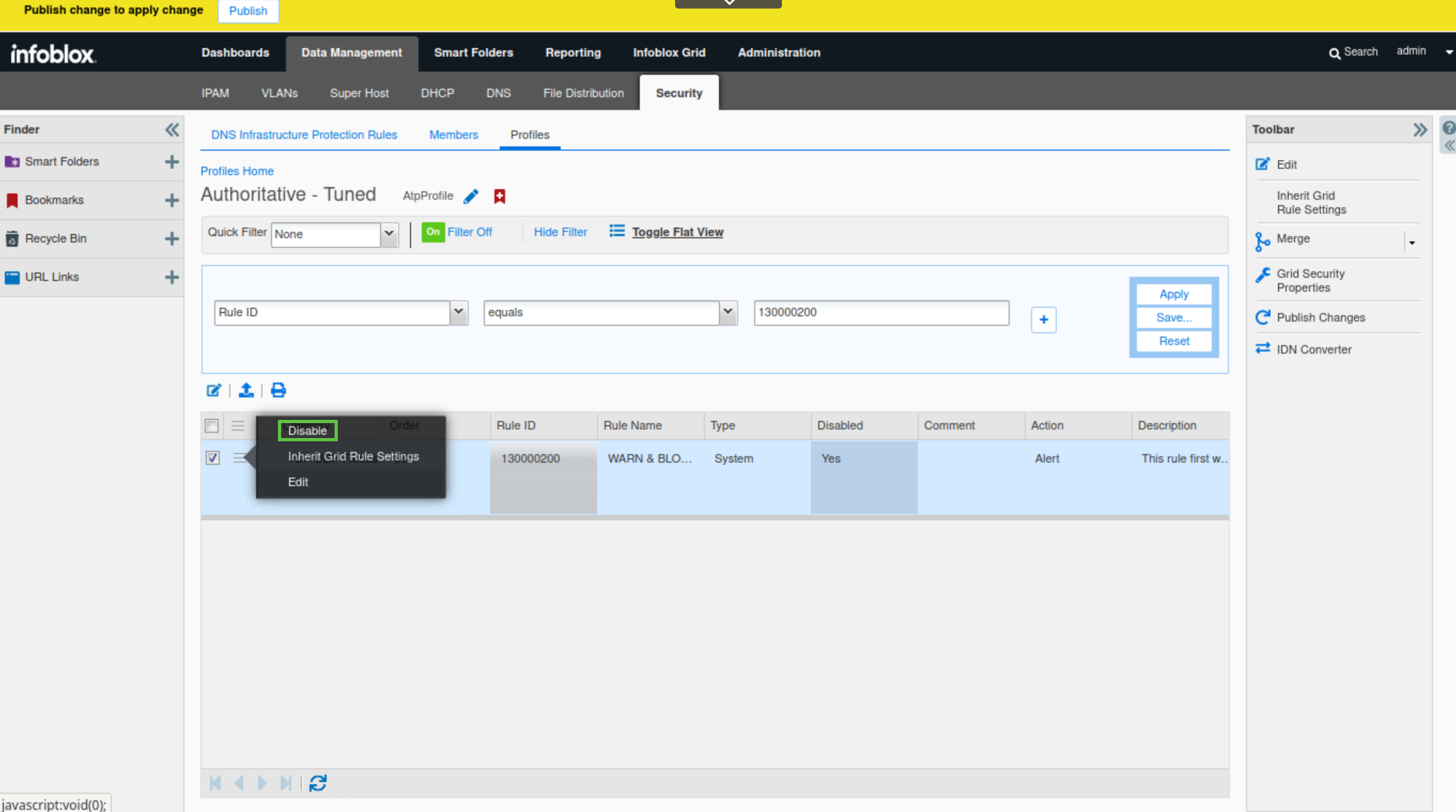
Click the hamburger icon next to the rule and select Disable.
-
This will toggle the disable option on.
-
Don't publish yet.
-
-
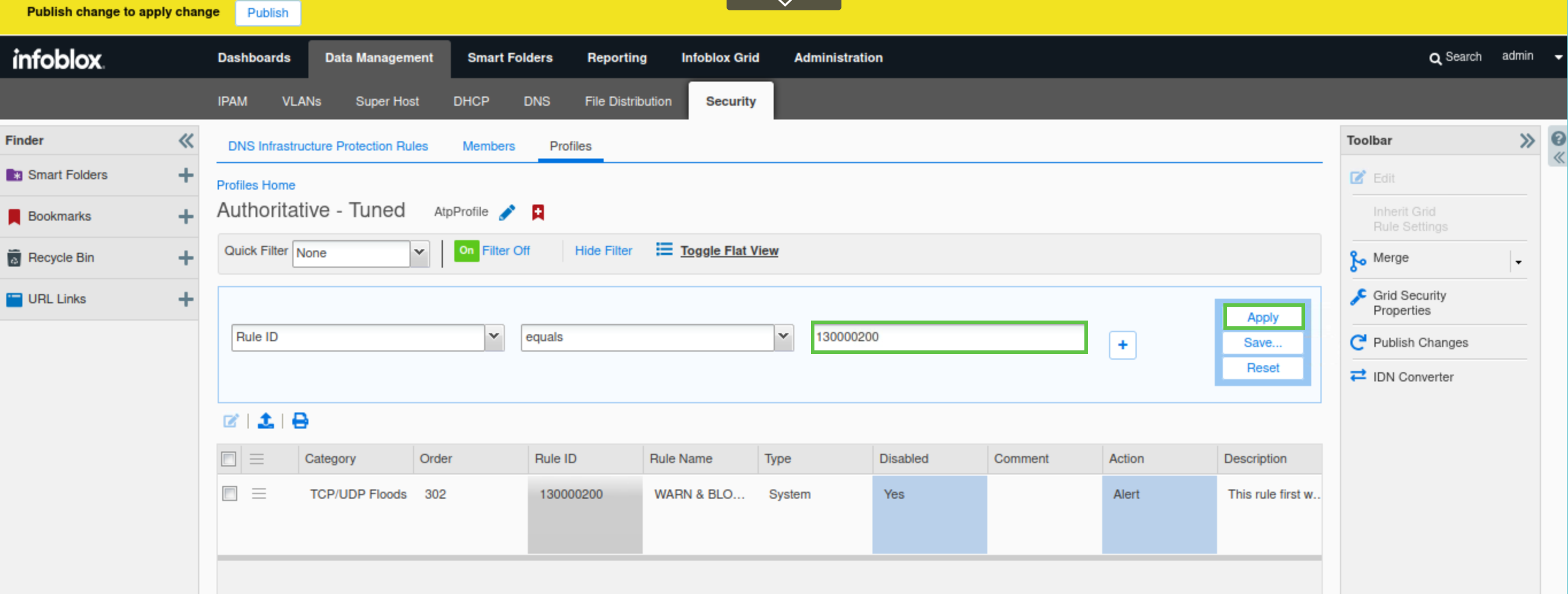
In the filter value field, enter the rule ID 130000200.
-
Click Apply.
-
Check the Rule and click Edit.
-
Select the Settings tab and click Override.
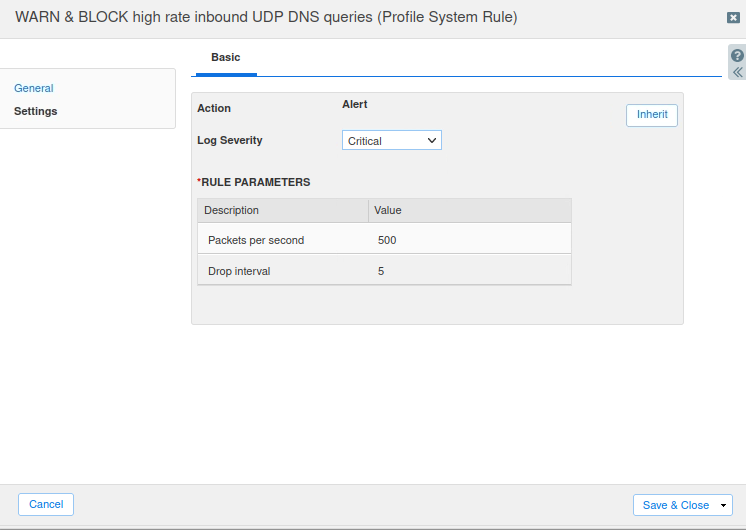
-
Change the Log Severity to Critical.
-
Change the Packets per second value to 500.
-
Click the hamburger icon next to the rule and select Disable.
-
This will toggle the disable option on.
-
Don't publish yet.
-
-
In the filter value field, enter the rule ID 100000100.
-
Click Apply.
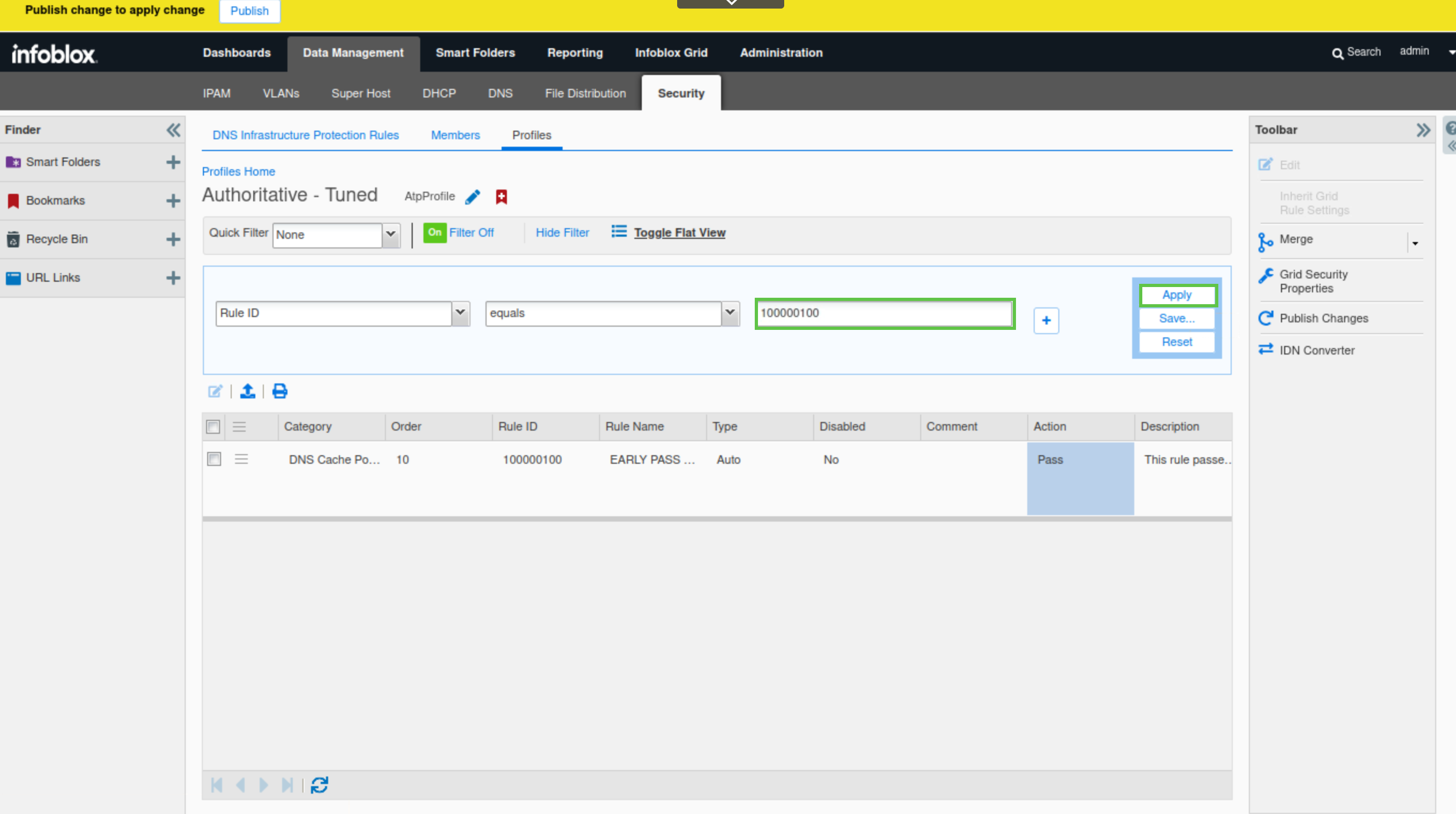
-
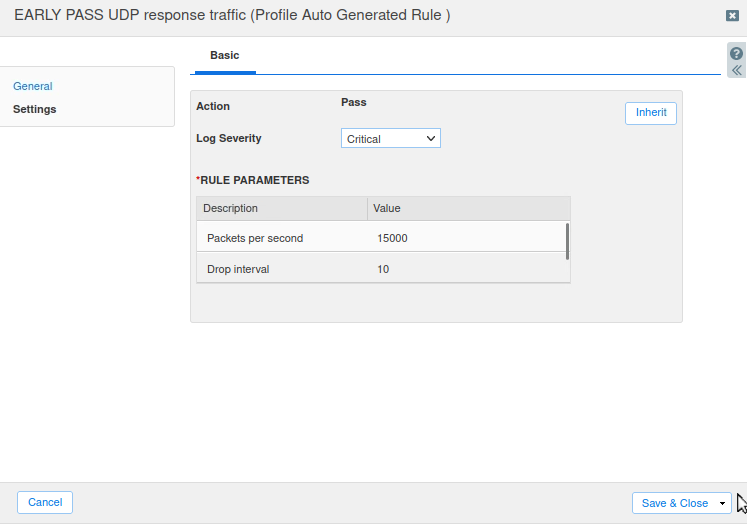
Check the Rule and click Edit.
-
Select the Settings tab and click Override.
-
Change the Log Severity to Critical.
-
Change the Packets per second value to 15000.
-
This rule should already be enabled.
-
-
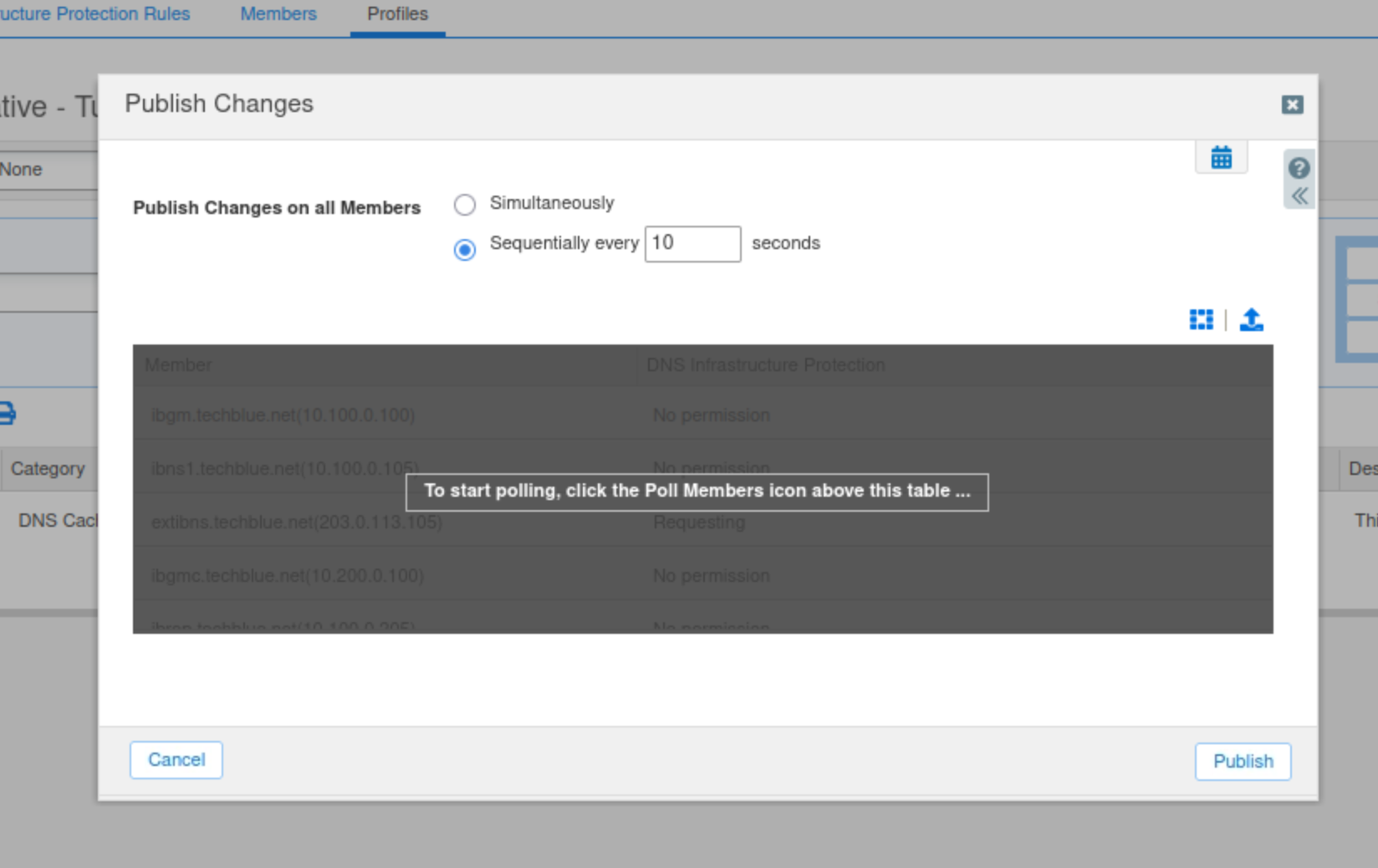
Publish the changes when you’re done.

Task 19 Solution: Test the new Configuration with monitor-mode Enabled
In this task, we test our tuned rules under the Authoritative - Tuned Profile. We tuned three rules: rule ID 130000100 (WARN about high rate inbound UDP DNS queries), rule ID 130000200 (WARN & BLOCK about high rate inbound UDP DNS queries), and rule ID 100000100 (EARLY PASS UDP response traffic) to protect against TCP and UDP flood attacks.
We have not yet disabled monitor-mode, so none of our tests should result in packet drops. We will start our tests in monitor-mode as an extra precaution, and to visualize the difference between having monitor-mode enabled and disabled.
A monitoring tool called bmon is installed on the support-server. The tool is used to monitor traffic on the 203.0.113.0 network, which simulates an interface connected to the outside world.
Another tool, queryperf, installed on the support server, sends DNS queries to the extibns.techblue.net DNS server at the rate we specify, simulating the behavior of bad actors.
-
Switch to the support-server virtual machine and log in using the credentials: training/infoblox.
-
Open the bmon tool.
-
Expand the terminal window so you can see the colored charts that visualize DNS traffic flow during our tests.
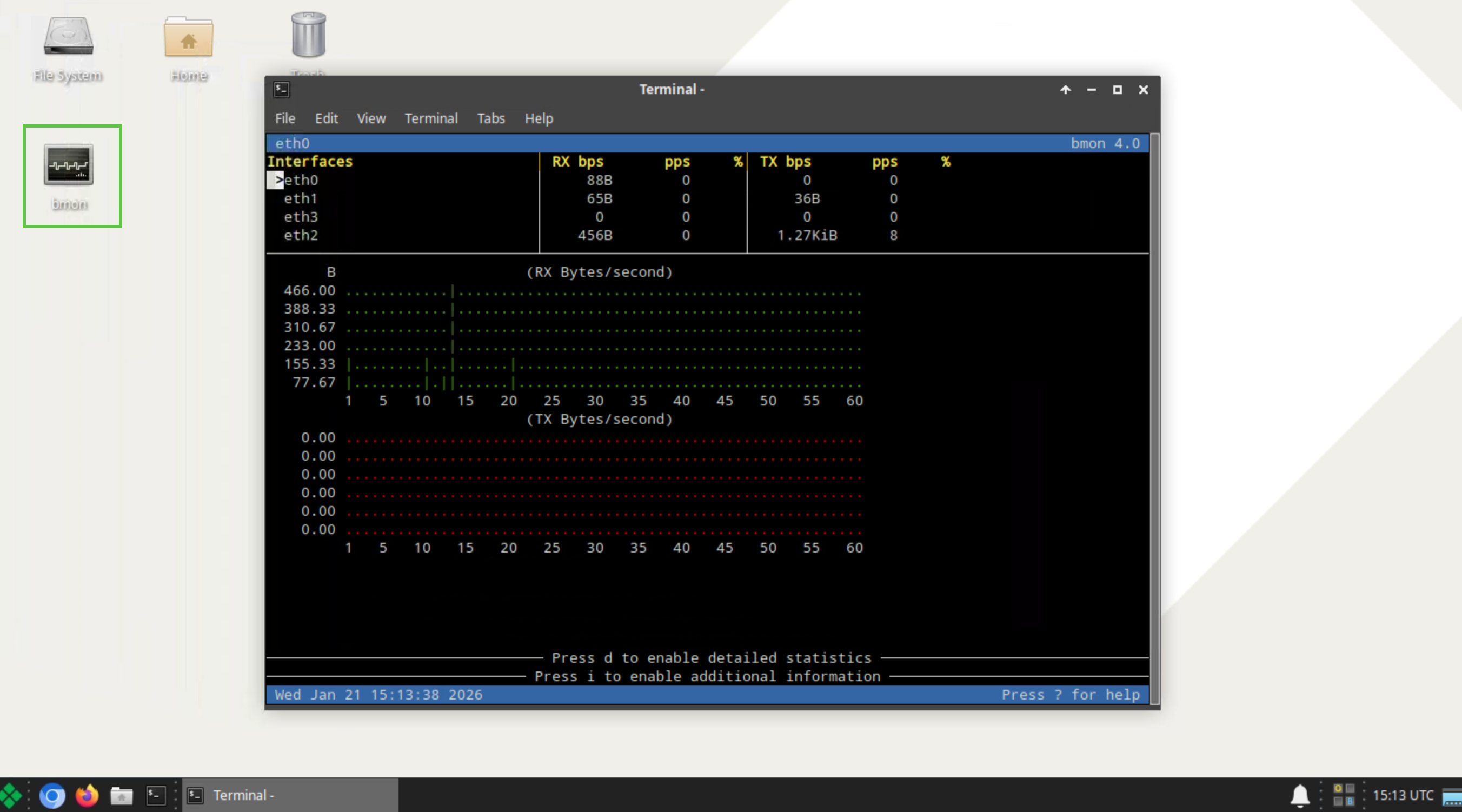
-
-
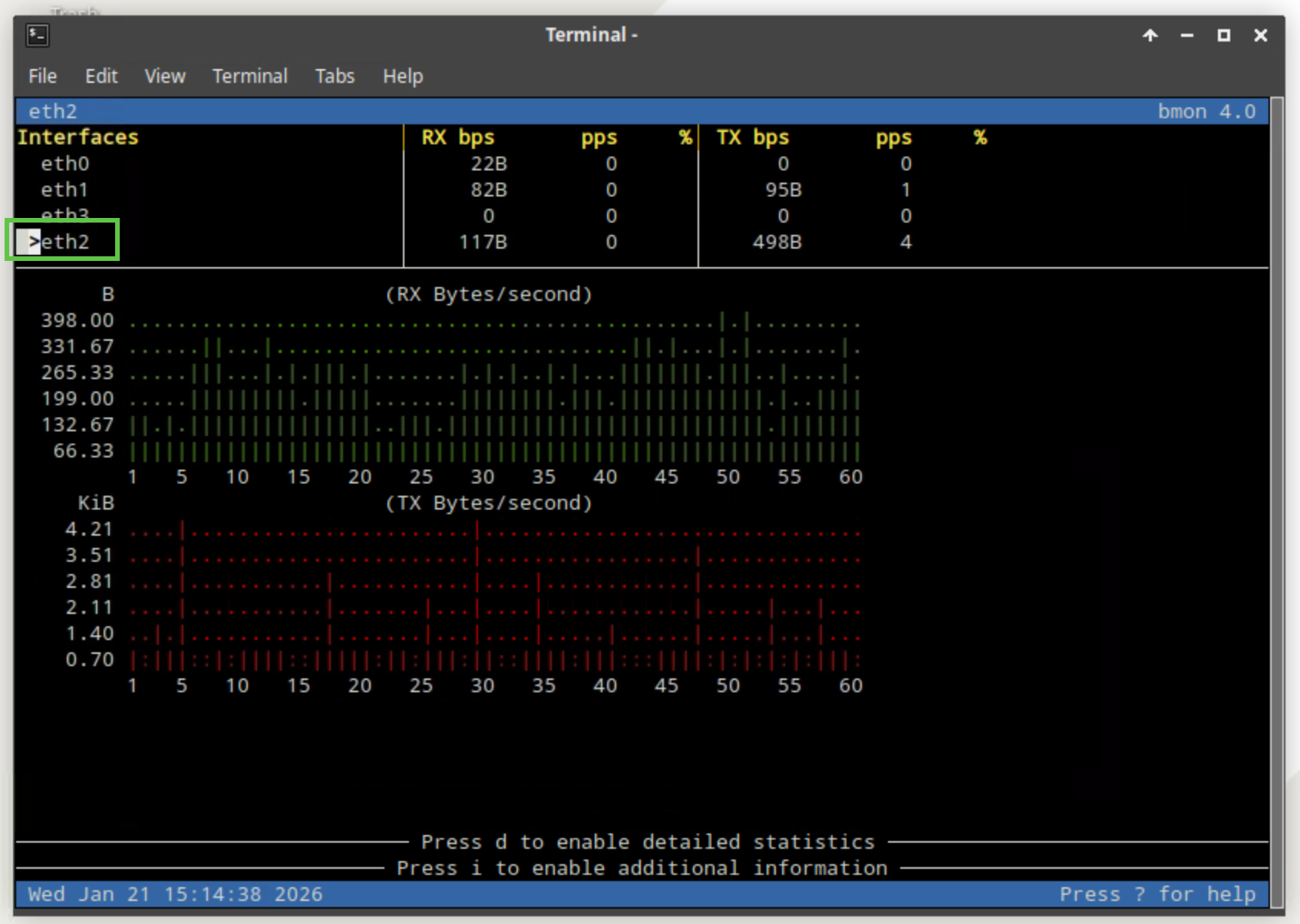
Press the down arrow key on your keyboard to select the eth2 interface.
-
This indicates that you are monitoring traffic on the eth2 interface, which is connected to the 203.0.113.0 network.
-
-
Open another terminal window.
-
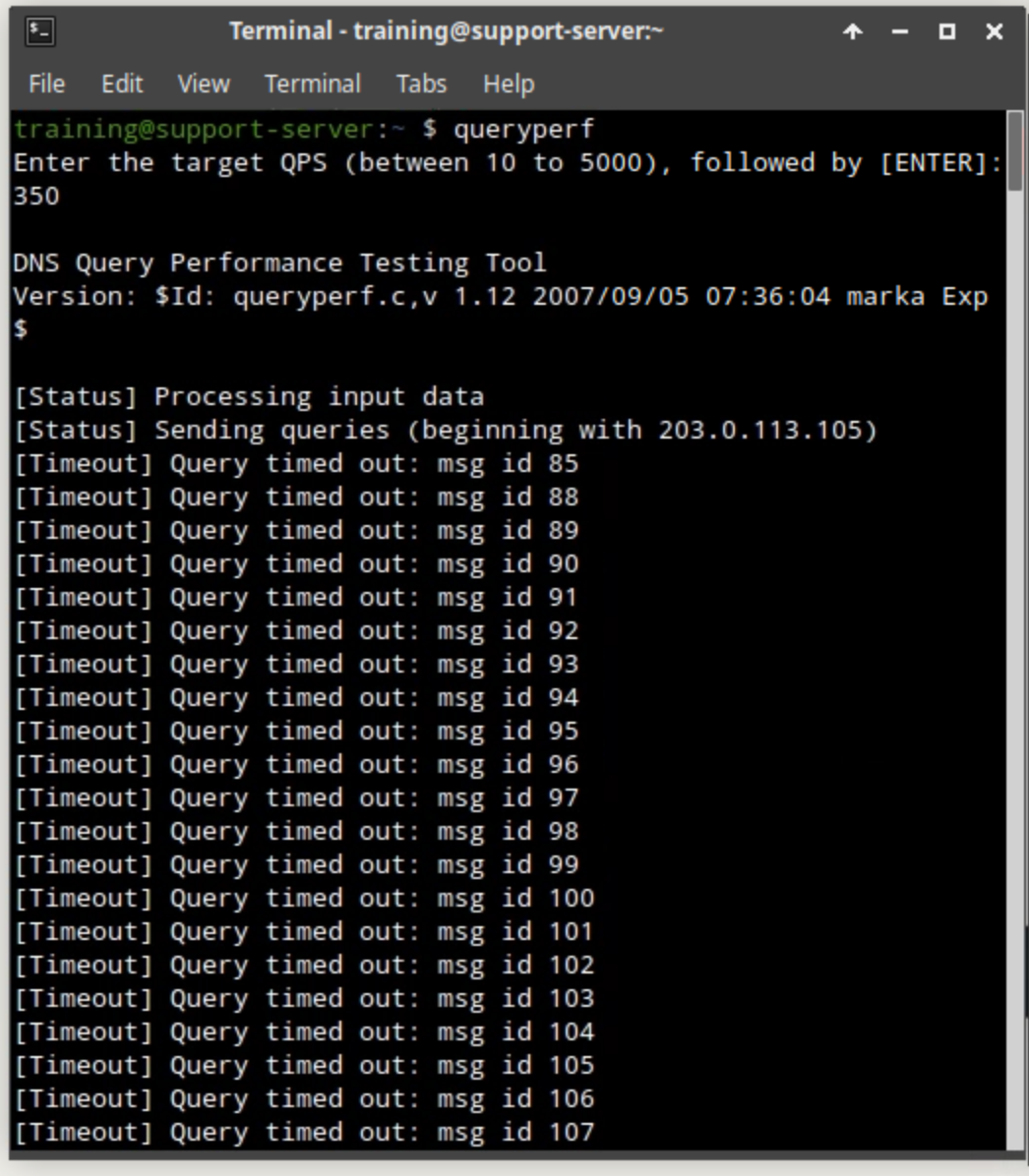
Type the command queryperf.
-
Enter a QPS value of 350.
-
The value should fall between the QPS settings for rule ID 130000100 (250) and rule ID 130000200 (500) to trigger the first rule but not the second.
-
-
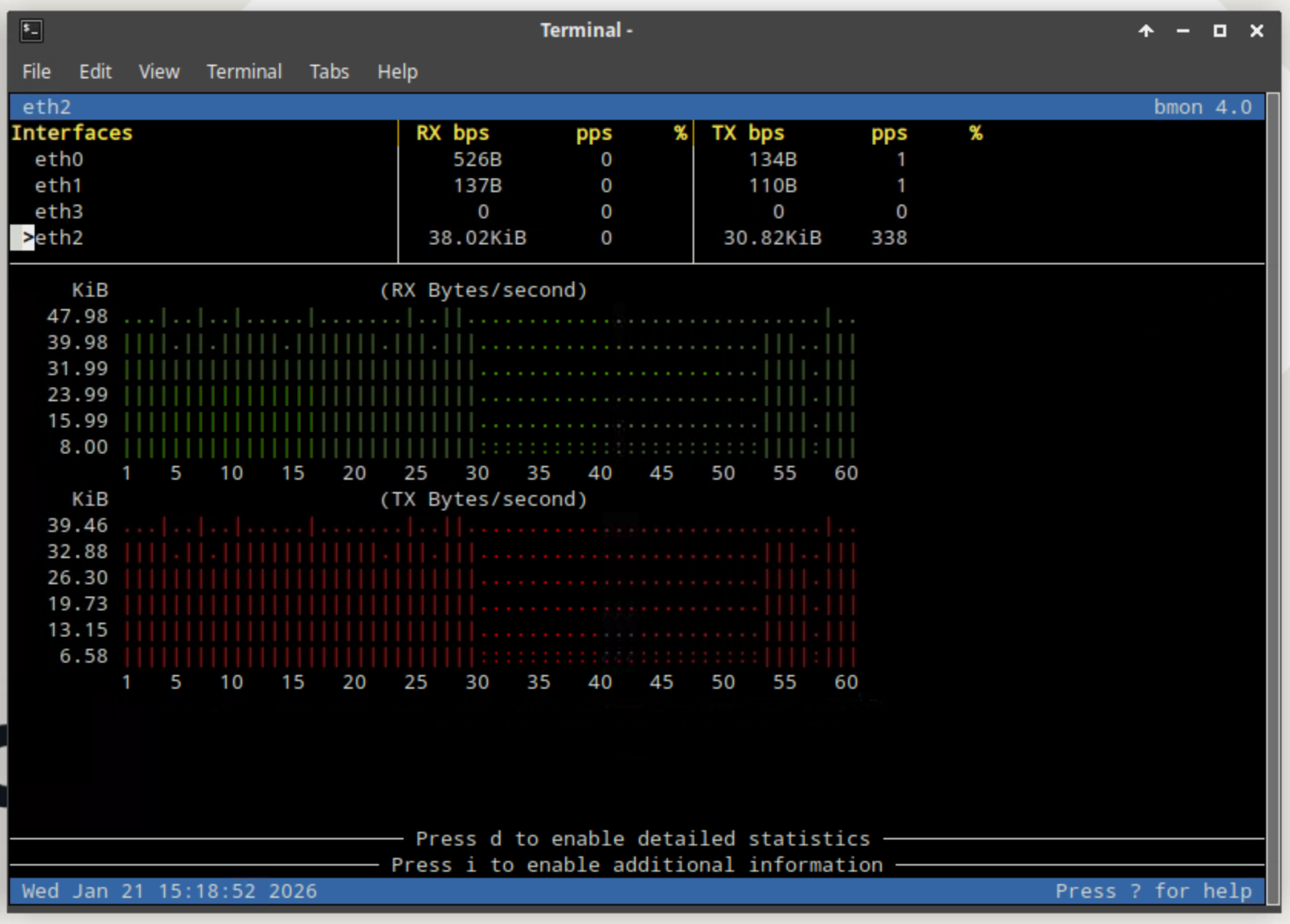
The bmon window should show a spike in RX (Bytes/second) or received traffic.
-
Navigate back to jump-desktop.
-
On the Grid Manager UI, navigate to Administration → Logs → Syslog
-
Choose extibns.techblue.net from the Log Viewer drop-down menu.
-
Click the Toggle multi-line view link.
-
Select Threat Detection Event Logs from the Quick Filter drop-down list.
-
You should also see syslog WARN messages for rule ID 130000100 being triggered, indicating that 203.0.113.254 is exceeding 250 QPS.
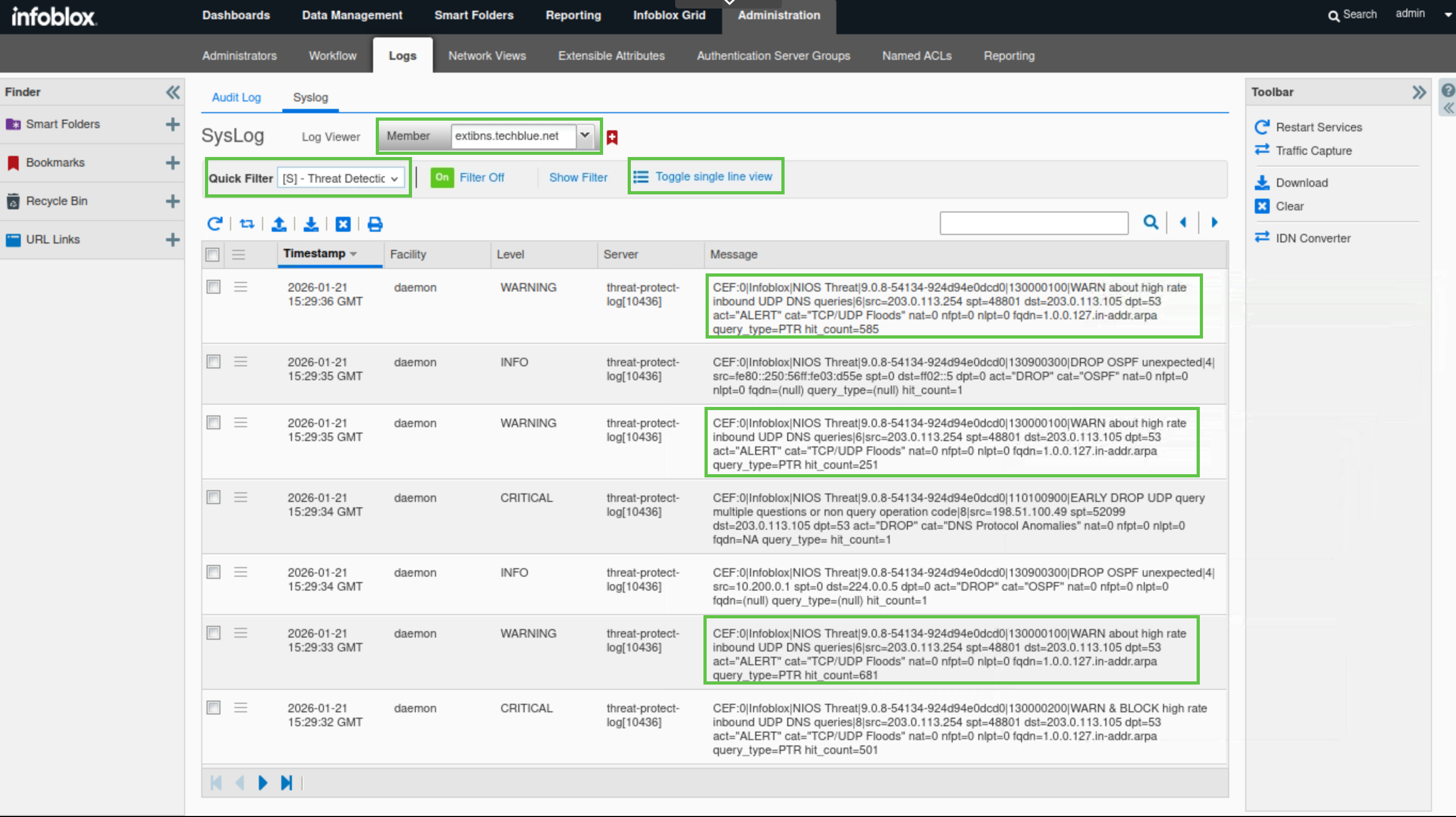
-
Switch back to support-server.
-
Rerun the queryperf command.
-
Enter the value of 600 QPS.
-
The value must be greater than the QPS setting for rule ID 130000200 (500).
-
-
The bmon window should show the spike of RX (Bytes/second) or received traffic.
-
Since we are still in monitor-mode, the packets won’t actually be dropped, which is why the bmon window shows a steady spike in traffic.
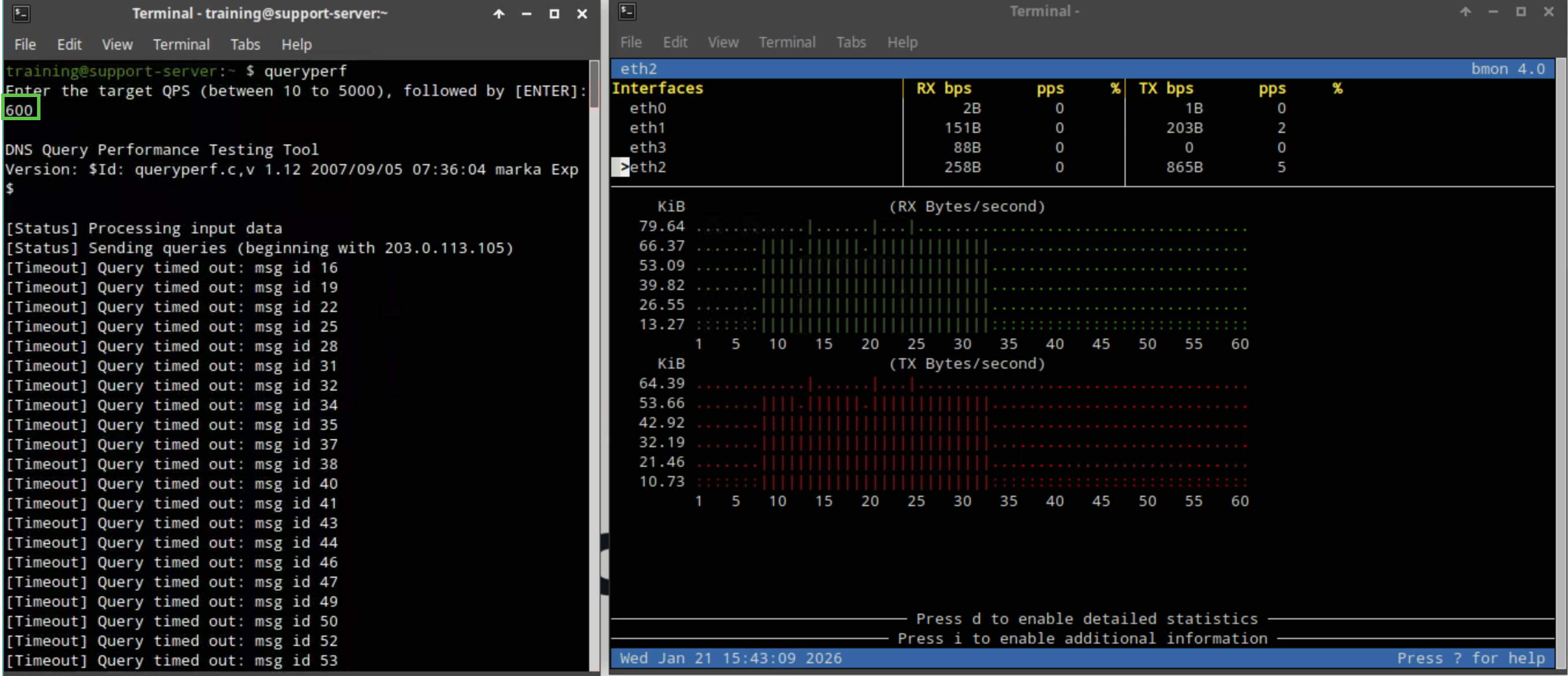
-
-
Switch back to jump-desktop.
-
On the Grid Manager UI, navigate to Administration → Logs → Syslog
-
Choose extibns.techblue.net from the Log Viewer drop-down menu.
-
Click the Toggle multi-line view link.
-
Select Threat Detection Event Logs from the Quick Filter drop-down list.
-
This time, you should see syslog WARN & BLOCK alerts for rule ID 130000200 being triggered, indicating that 203.0.113.254 is sending more than 500 QPS. Since we are still in monitor-mode, the packets won’t actually be blocked yet.
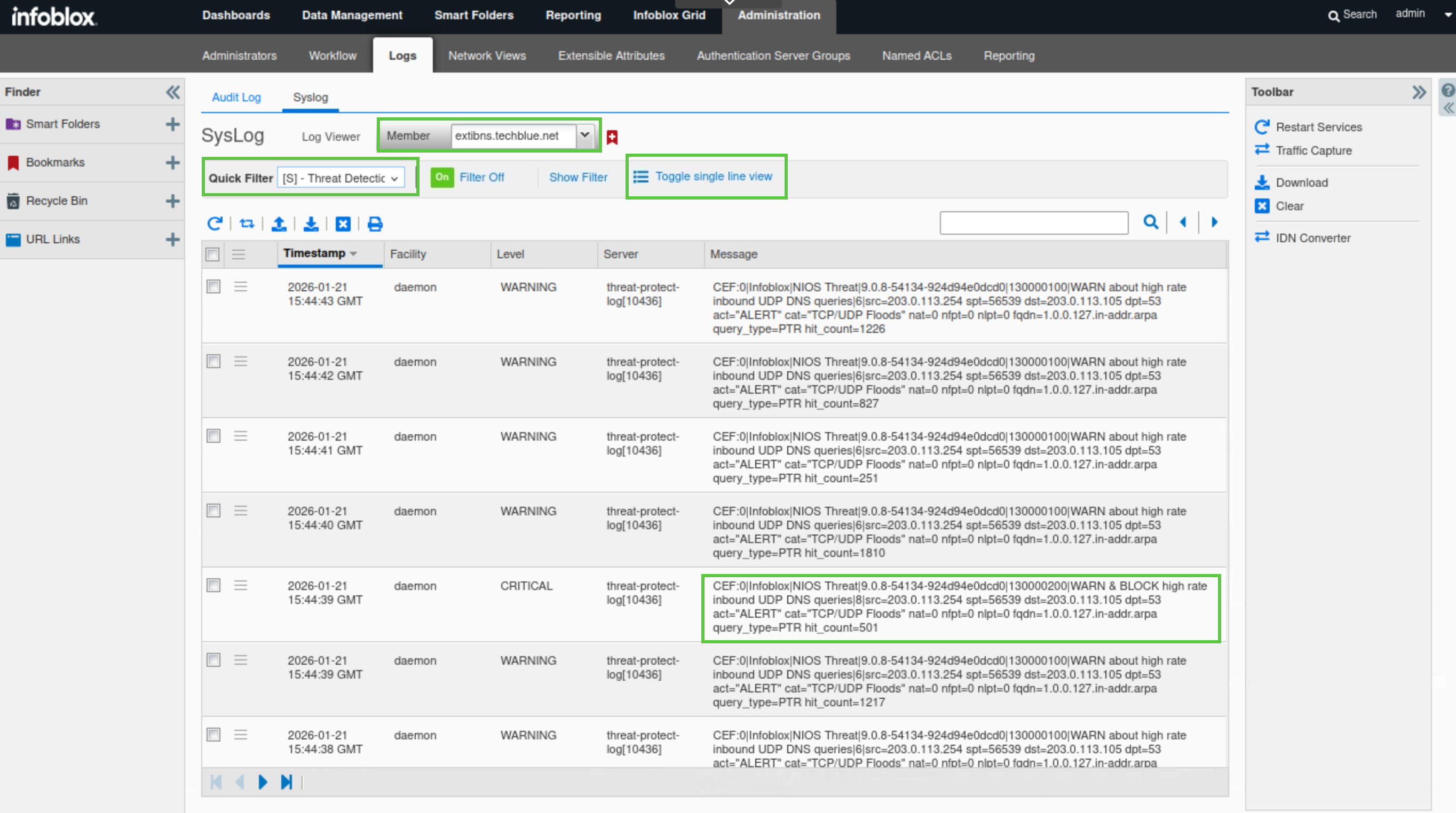
Task 20 Solution: Test the new Configuration with monitor-mode Disabled
In this task, we will disable monitor mode so extibns.techblue.net can drop packets when necessary, and we will rerun the same tests once at 350 QPS and once at 600 QPS.
-
Log in to the CLI of the NIOS-4 virtual machine (admin/infoblox).
-
This is the command-line interface for extibns.techblue.net.
-
-
Issue the set adp monitor-mode off command.
-
This command will disable monitor-mode off allowing the Grid member to drop packets when triggered.
-
-
Issue the show adp monitor-mode command.
-
This command will display the current DNS Infrastructure Protection settings configured on the Grid member.
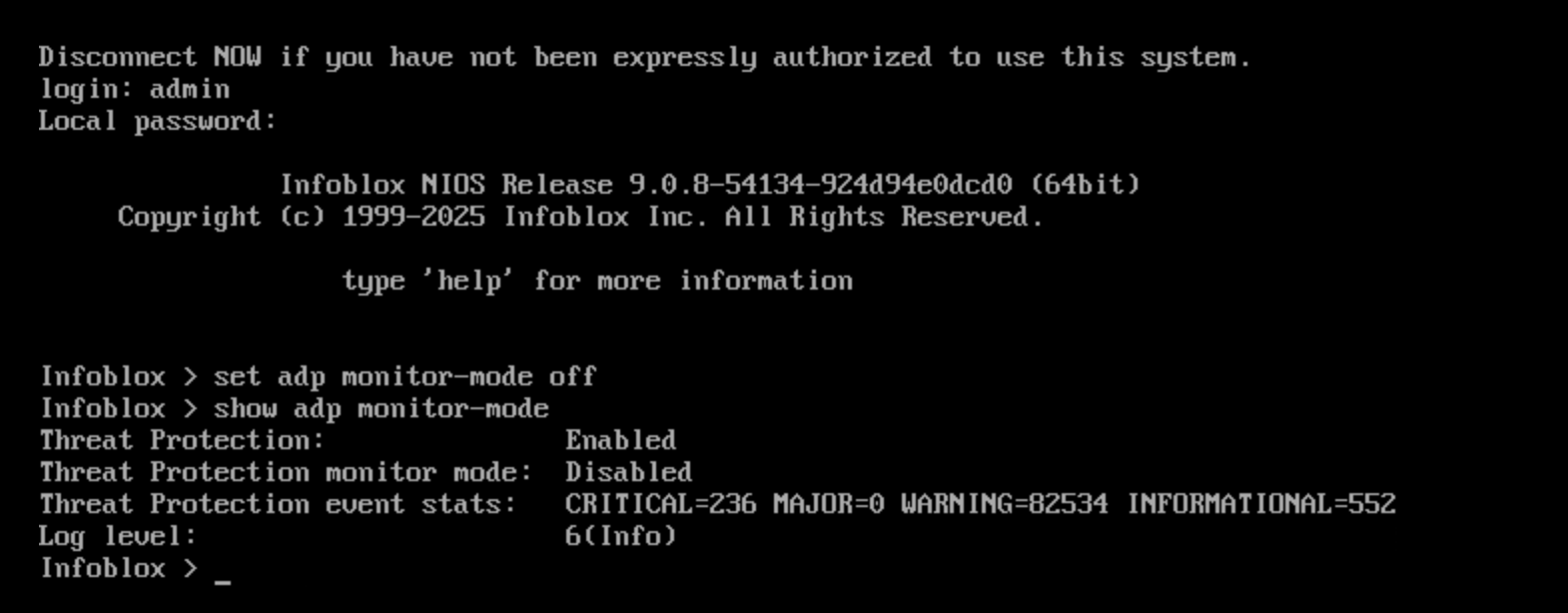
-
-
Switch back to the support-server VM.
-
Rerun the queryperf command once more.
-
Set the query rate to 350.
-
The bmon window should show the spike of RX (Bytes/second) or received traffic. This should be almost identical to what we observed with monitor-mode disabled. This is because rule ID 130000100 is a WARN rule; it will not drop any packets when triggered, only generate syslog messages.
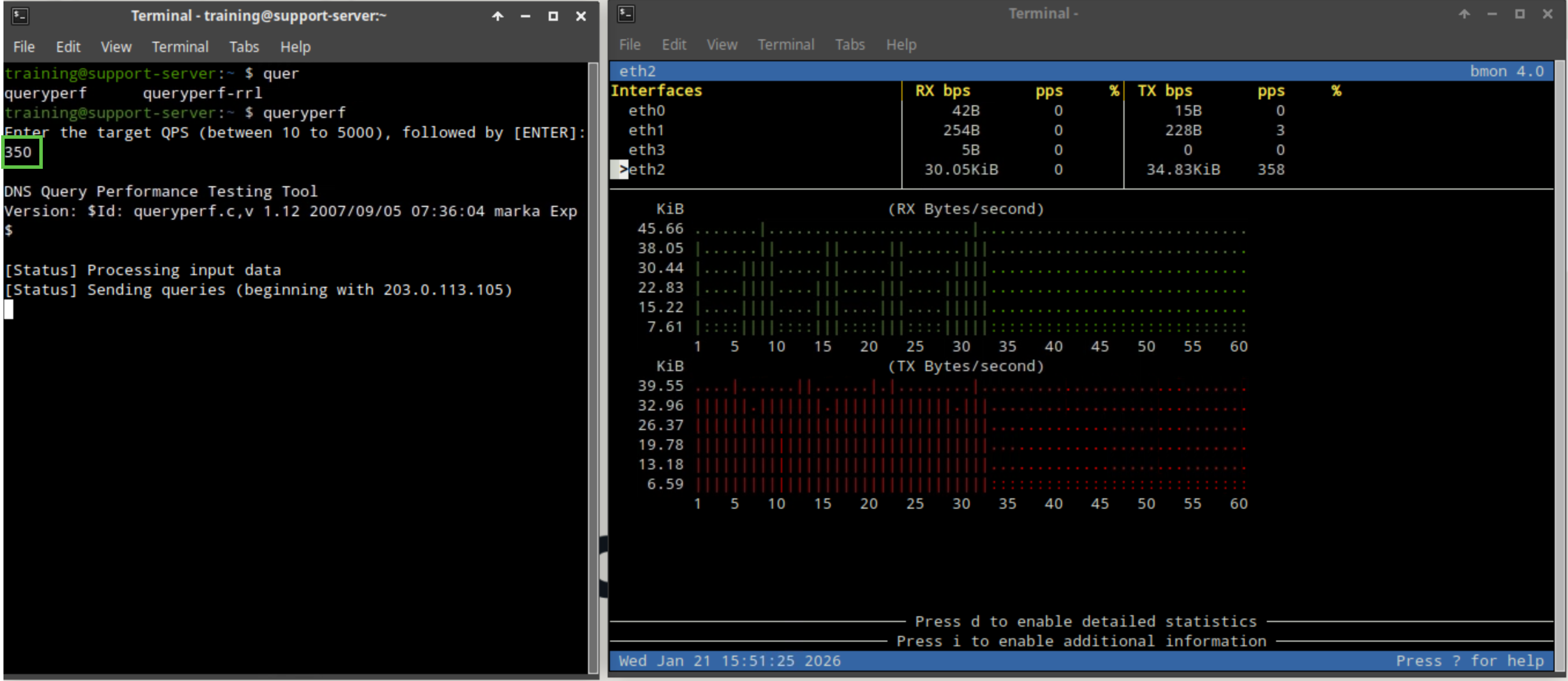
-
-
Switch back to jump-desktop.
-
On the Grid Manager UI, navigate to Administration → Logs → Syslog
-
Choose extibns.techblue.net from the Log Viewer drop-down menu.
-
Click the Toggle multi-line view link.
-
Select Threat Detection Event Logs from the Quick Filter drop-down list.
-
You should see the same syslog WARN alerts of rule ID 130000100 being triggered.
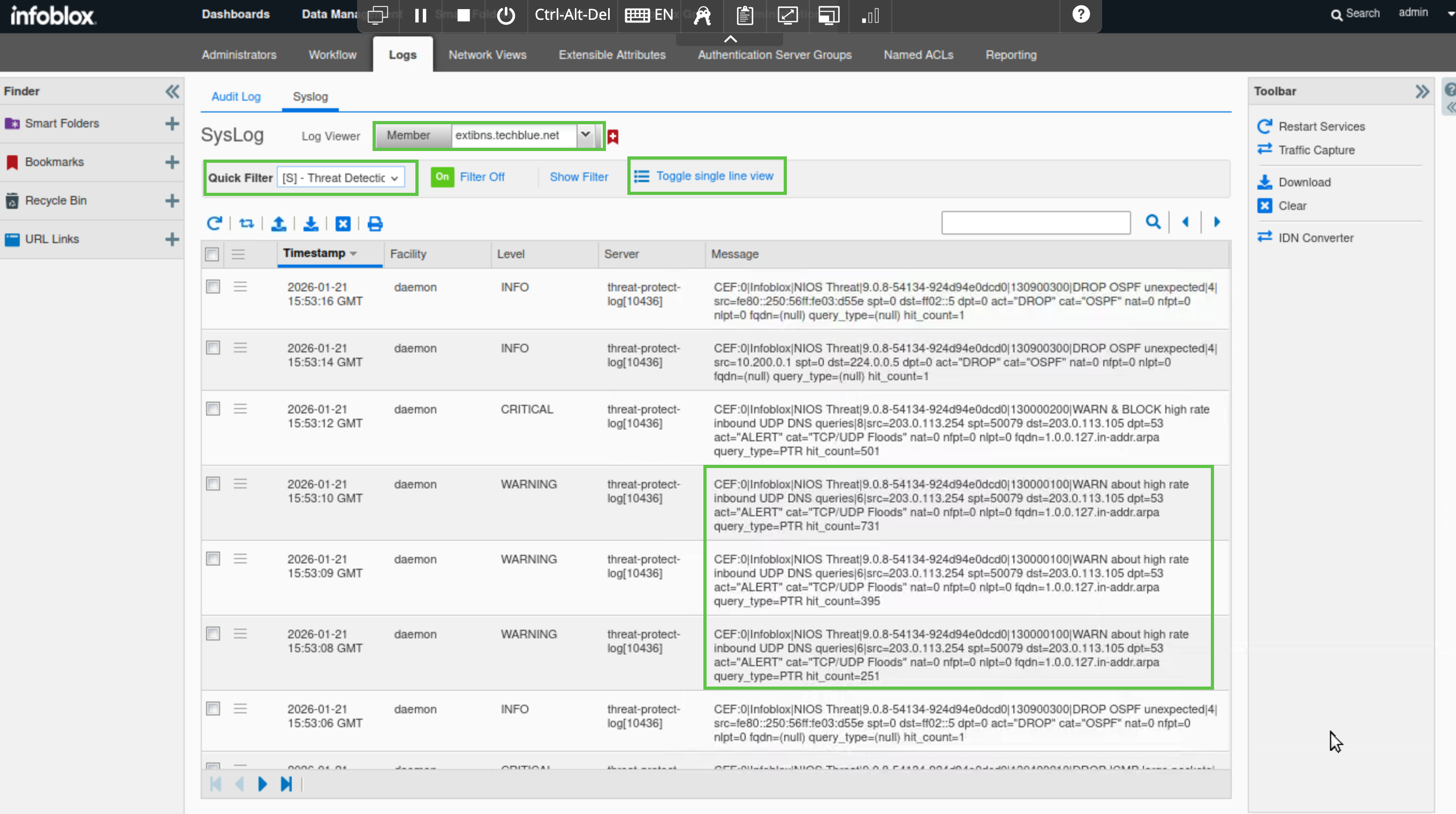
-
Switch back to support-server.
-
Rerun the queryperf command once more.
-
Set the query rate to 600, which exceeds the threshold for rule ID 130000200.
-
Packets will start to drop, and the bmon window will show RX (Bytes/second) traffic spikes, then drop for 5 seconds, then spike again until the queryperf script completes, verifying that monitor-mode has been switched off.
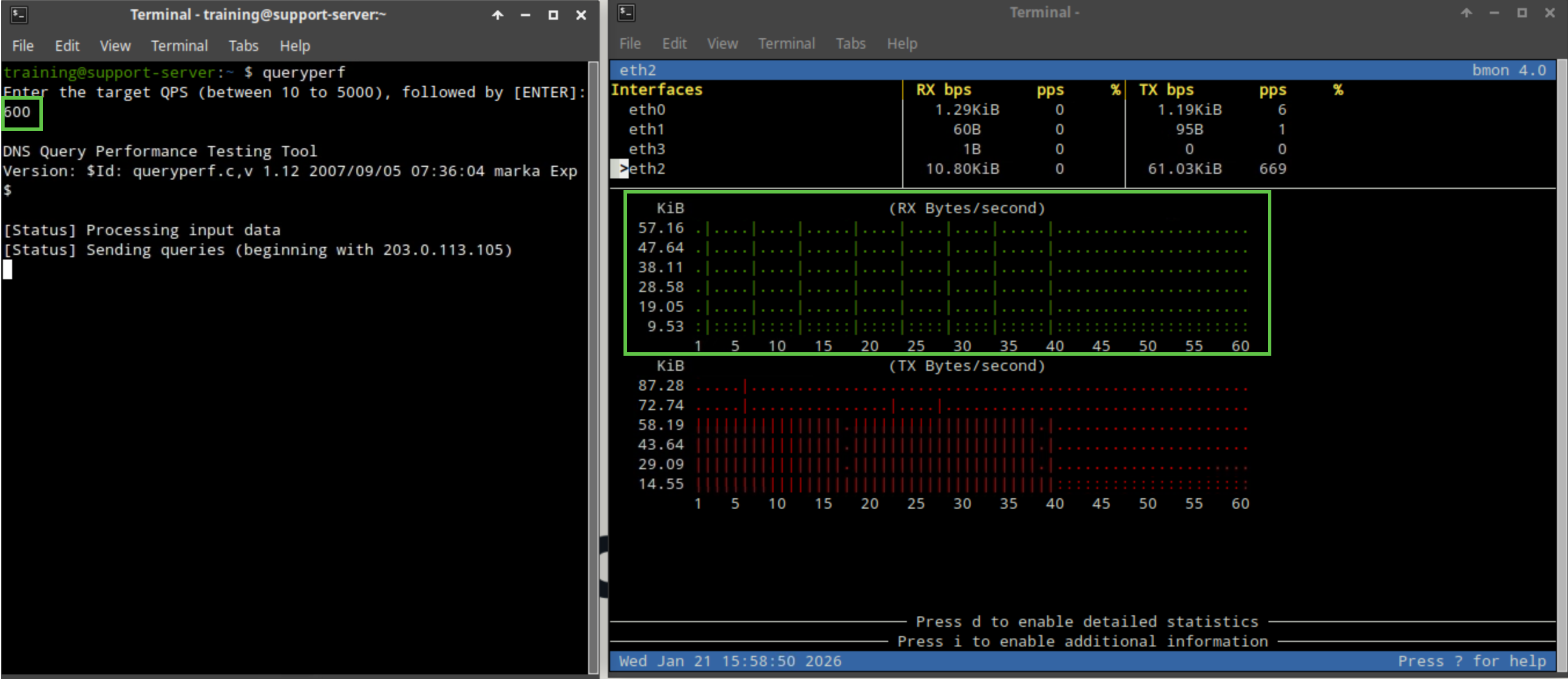
-
-
Switch back to jump-desktop.
-
On the Grid Manager UI, navigate to Administration → Logs → Syslog
-
Choose extibns.techblue.net from the Log Viewer drop-down menu.
-
Click the Toggle multi-line view link.
-
Select Threat Detection Event Logs from the Quick Filter drop-down list.
-
This time, you should see syslog WARN & BLOCK alerts for rule ID 130000200 being triggered, indicating that 203.0.113.254 is sending more than 500 QPS.
-
With monitor mode turned off, we have noticed using bmon that packets are indeed dropped. However, rule ID 130000200 is set to the action ALERT and cannot be changed because it is a system rule. As a result, the action recorded in the syslog will remain as ALERT. This is because the rule is designed to first generate an ALERT if any source IP sends inbound UDP DNS packets at a rate equal to the configured limit (500 packets per second in our example). When the packet rate exceeds this threshold, the rule begins blocking all such packets for a specified duration (5 seconds in our example).
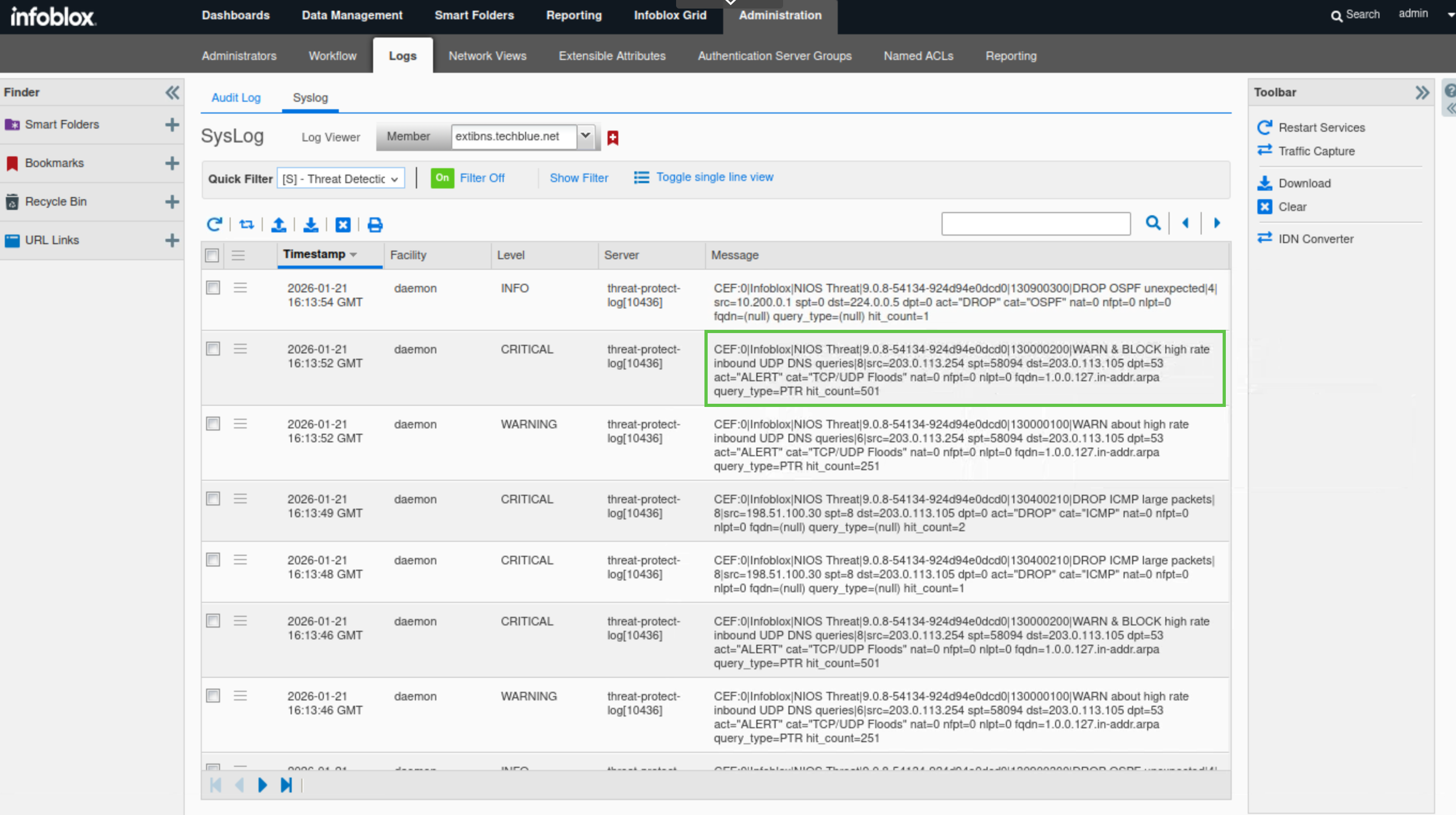
-
Task 21 Solution: Create and test a custom Allowlist (Whitelist) rule
In this task, you will create a custom Allowlist (whitelist) rule for the customer's IP address, 203.0.113.254, to ensure continuous service, as the organization must provide 24/7 support. Without this rule, system rule ID 130000200 (WARN & BLOCK about high rate inbound UDP DNS queries) in the 20250702-16 ruleset would block this customer’s traffic if it exceeds the threshold of 500 QPS. Currently, the customer’s average QPS does not exceed 100, but given their importance, you will create a custom Allowlist (whitelist) rule while monitoring their traffic patterns for abnormalities.
You will implement the WHITELIST PASS UDP IP rule to allow UDP traffic from the IP address 203.0.113.254. This is sufficient for testing in a lab environment. However, in a production environment, consider pairing this rule with a WHITELIST PASS TCP IP rule, as some DNS traffic uses TCP alongside UDP. Carefully investigate this pairing, as it can significantly impact the volume of allowed traffic.
After creating the rule, you will use the lab’s support-server VM to simulate the client sending DNS traffic using the queryperf tool and monitor the Grid’s behaviour towards the traffic using the bmon tool. The traffic should be allowed to pass.
After completing the task, we will disable the rule and publish the changes. This is to allow us to test upcoming rules in later steps, as they all affect the same IP address.
-
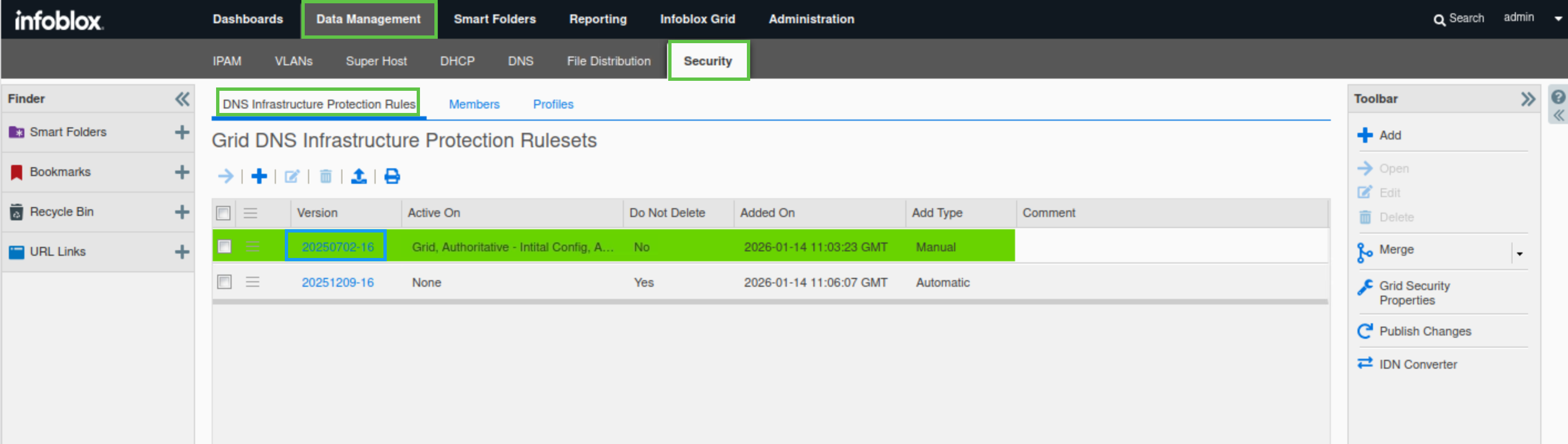
Navigate to Data Management → Security → DNS Infrastructure Protection Rules.
-
Click on the link for the 20250702-16 rule.
-
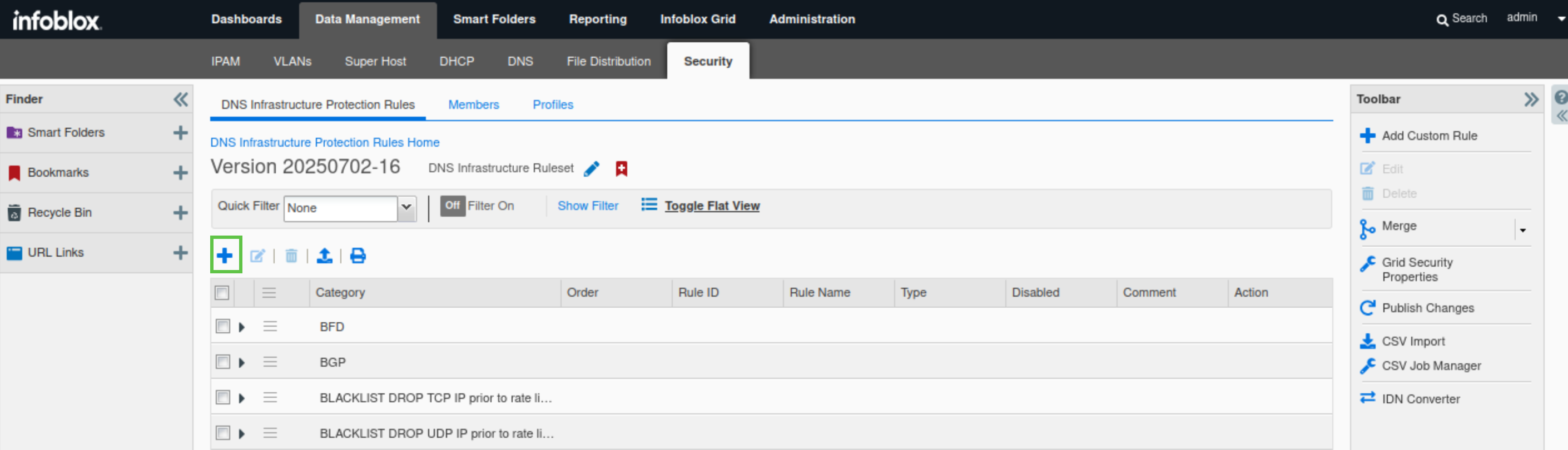
Click the plus (+) symbol to add a custom rule.
-
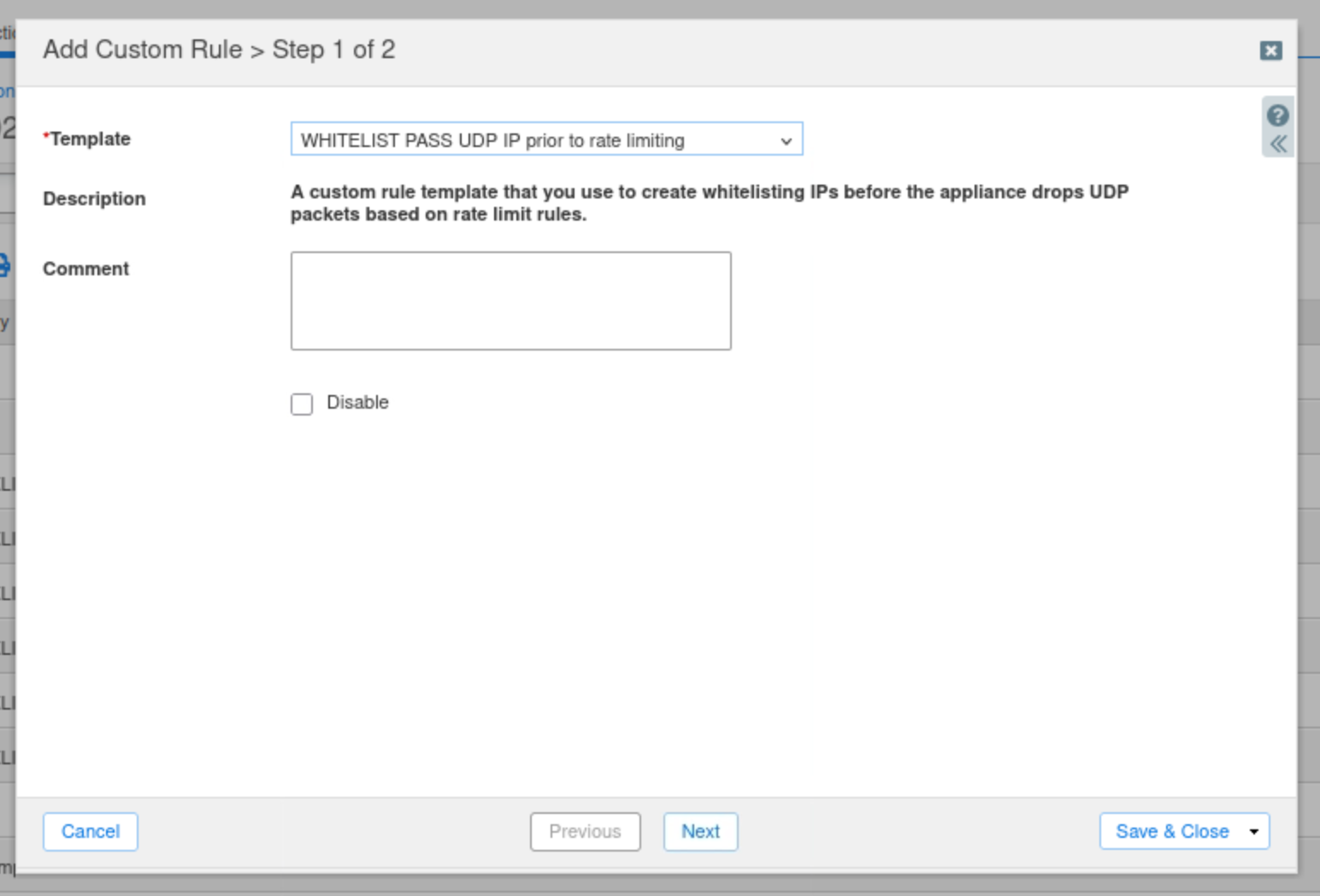
Choose the Allowlist WHITELIST PASS UDP IP prior to rate limiting from the drop-down template list.
-
Click Next to configure the rule parameters.
-
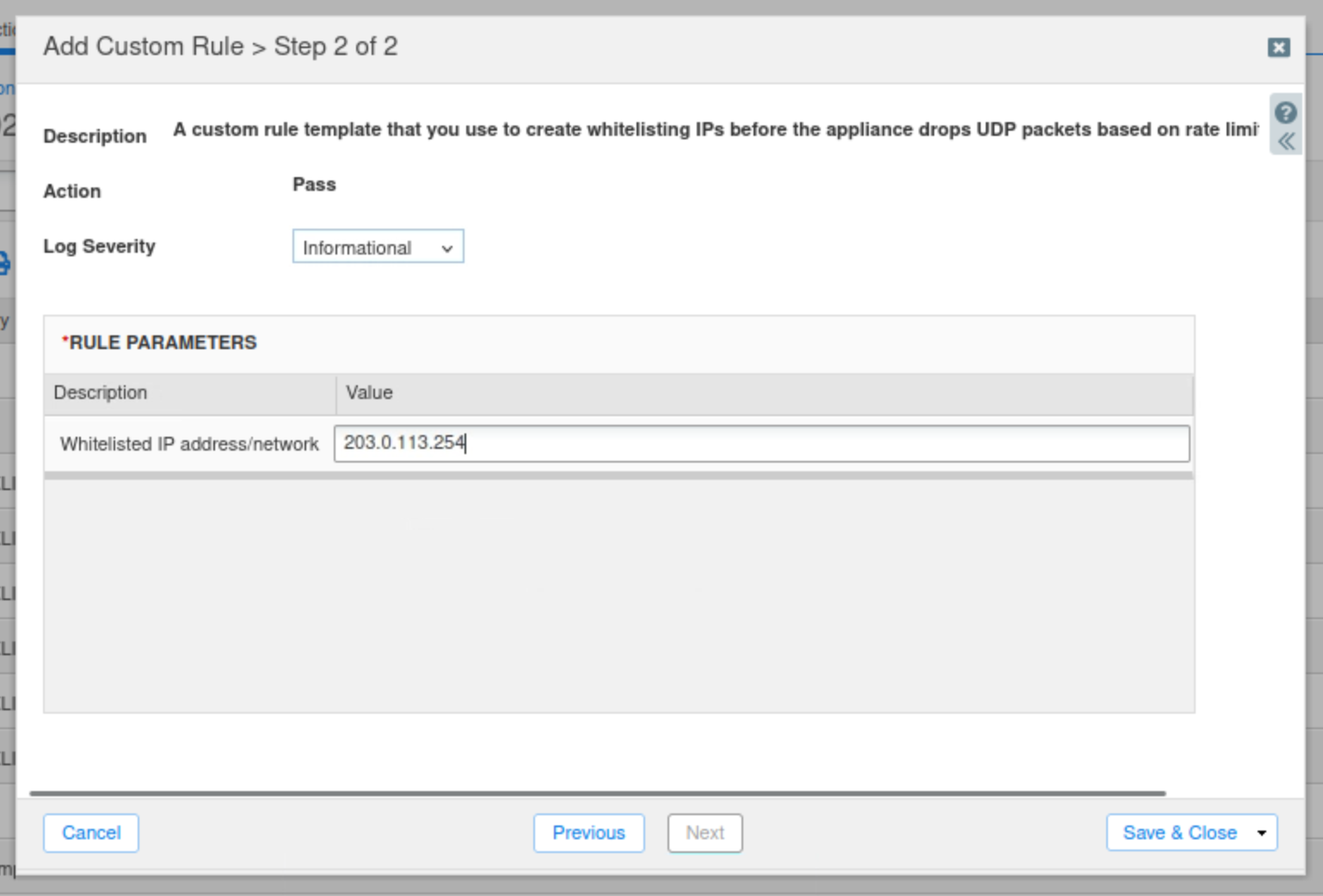
Enter the IP Address 203.0.113.254 as the value for the Whitelisted IP address/network field.
-
Click Save and Close.
-
Click the Quick Filter drop-down list.
-
Select All Custom Rules.
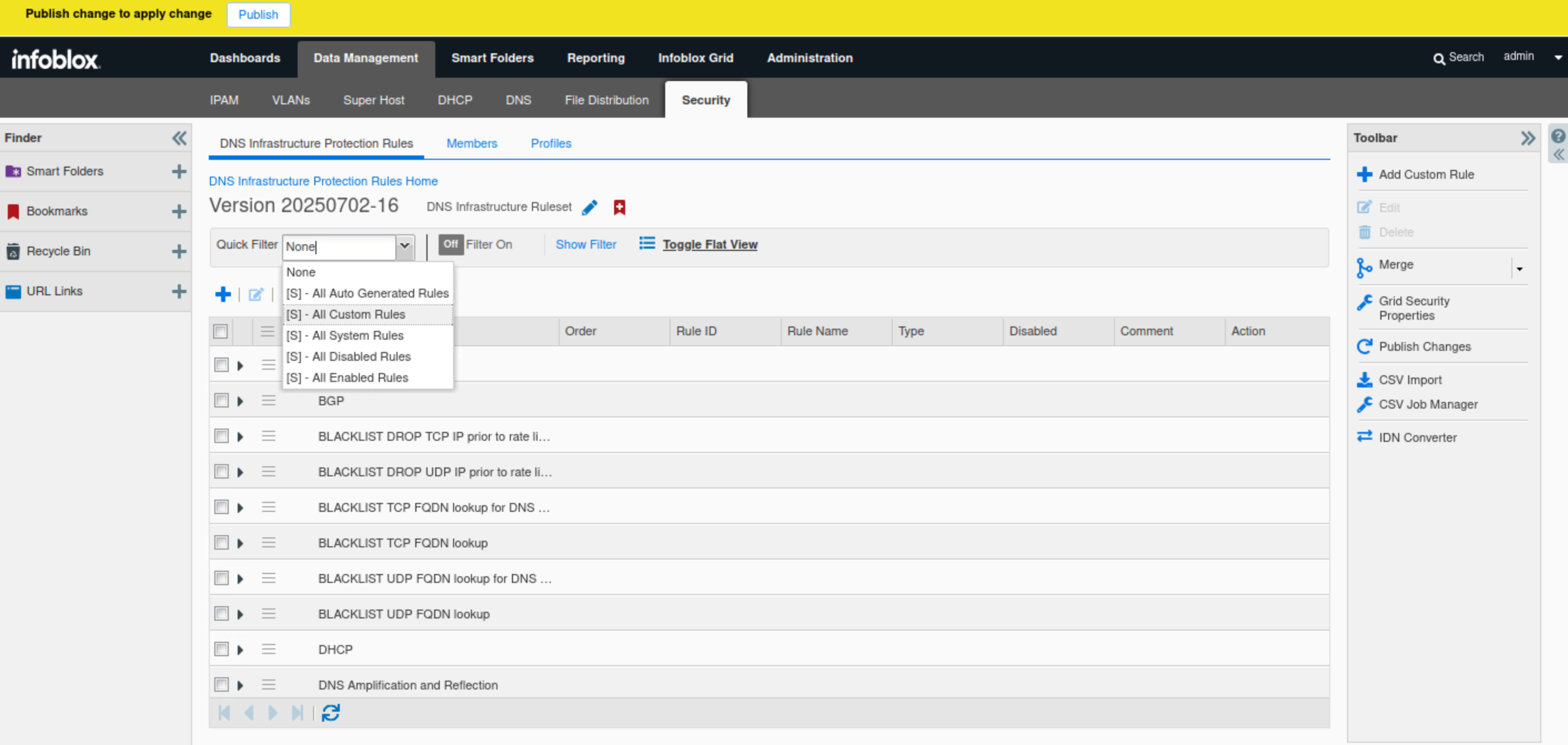
-
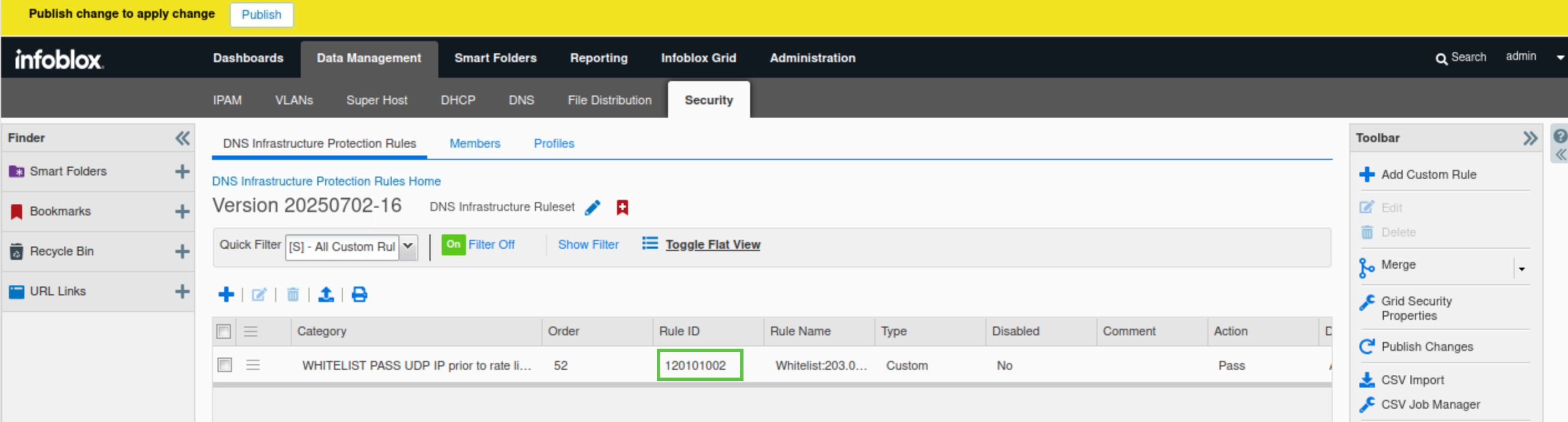
Note the rule ID for the newly created rule (120101002).
-
You can use the text editor Geany under Application List -> Geany on jump-desktop to save your rule ID.
-
-
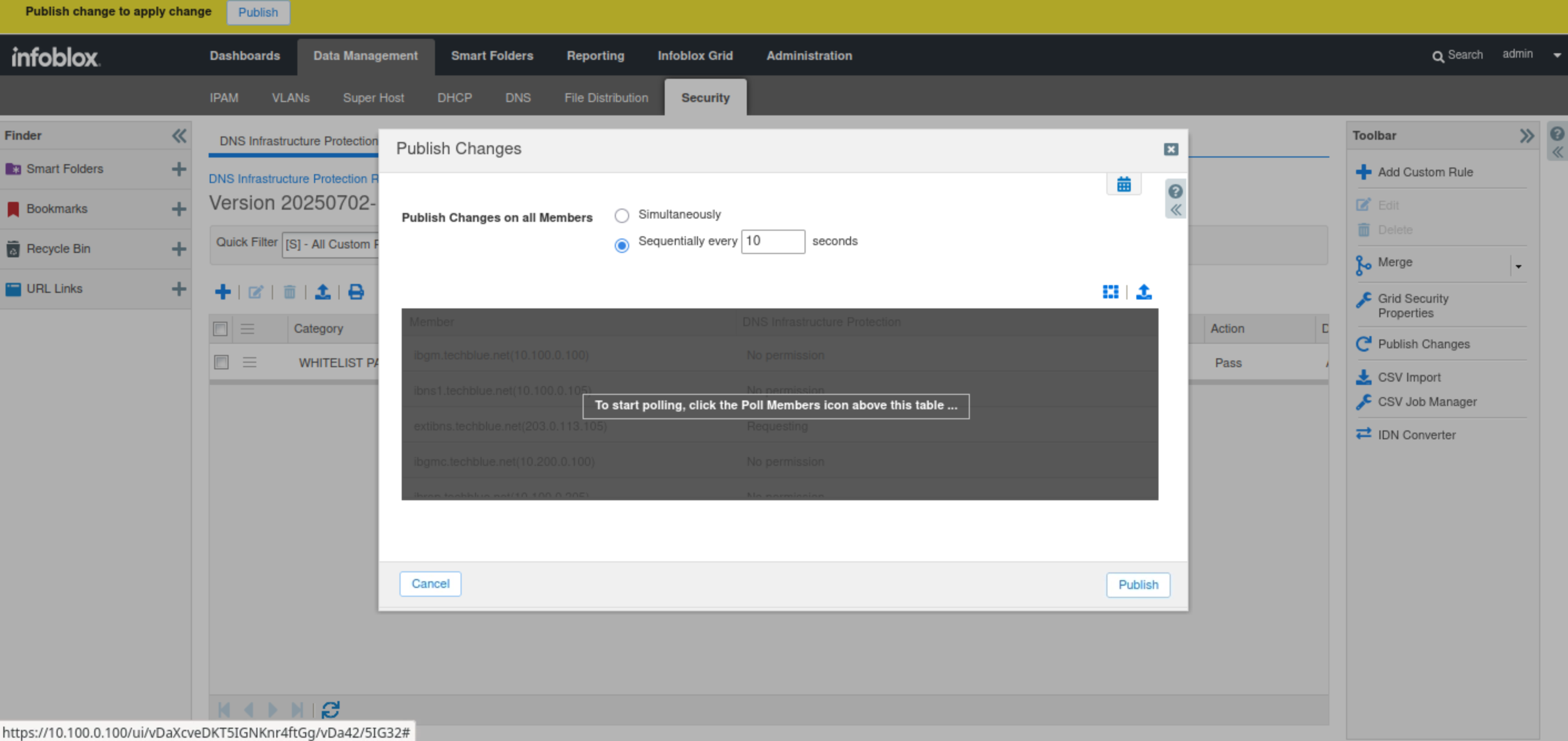
Publish the changes when prompted.
-
Publishing involves applying new or updated rules and configurations, including profiles or downloaded rulesets, from the Grid Master to the Grid members.
-
-
Log in to the support-server VM (training/infoblox).
-
Open the bmon tool.
-
Expand the terminal window so you can see the colored charts that visualize DNS traffic flow during our tests.
-
-
Press the down arrow key on your keyboard to select the eth2 interface.
-
This indicates that you are monitoring traffic on the eth2 interface, which is connected to the 203.0.113.0 network.
-
-
Open another terminal window.
-
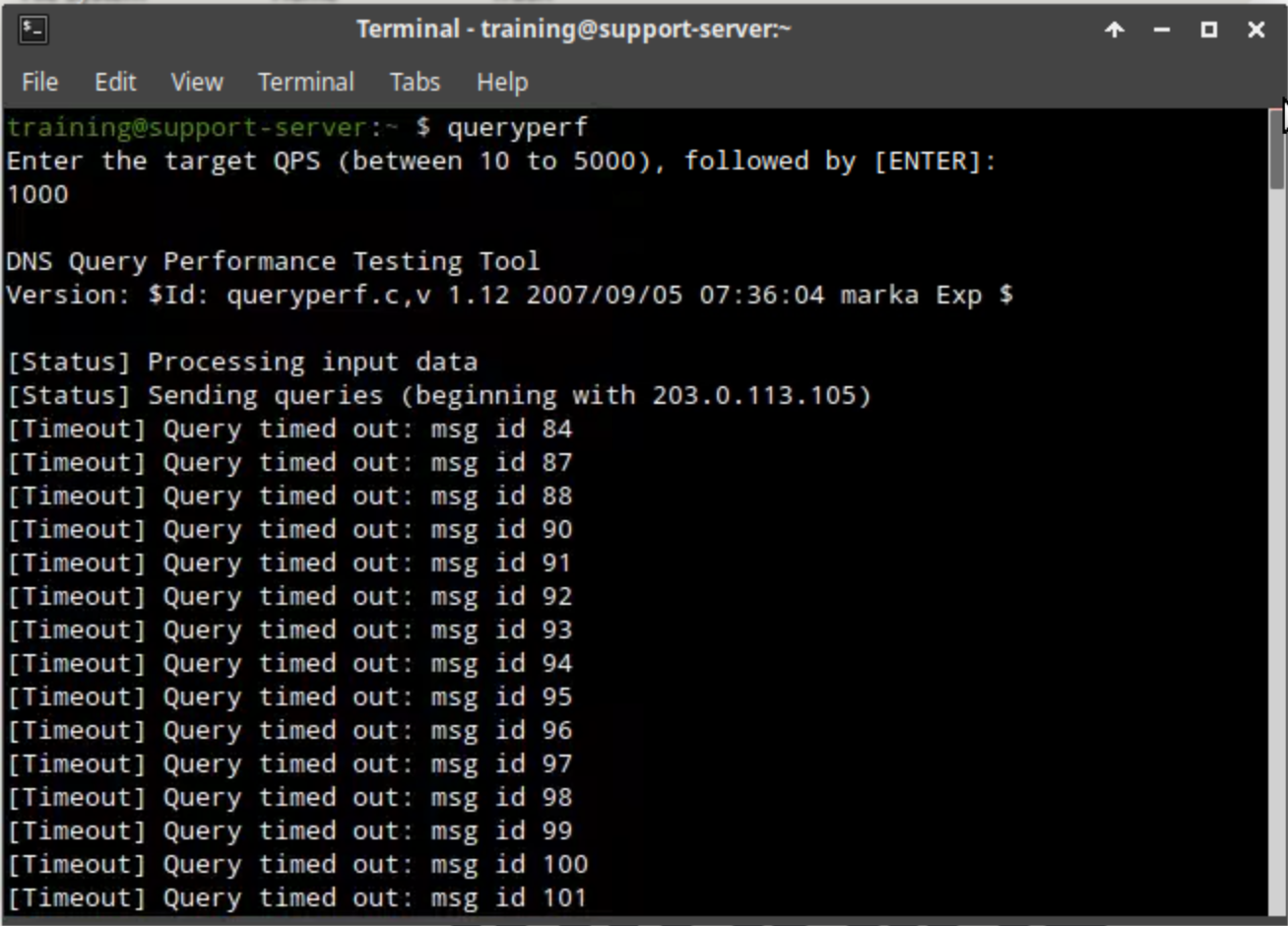
Type the command queryperf.
-
Enter 1000 for the Query Per Second (QPS) value to use.
-
This value exceeds the system rule threshold for rule ID 130000200 (WARN & BLOCK about high rate inbound UDP DNS queries) in the 20250702-16 ruleset and would be blocked without the Allowlist (Whitelist) rule, confirming that our custom rule is working.
-
-
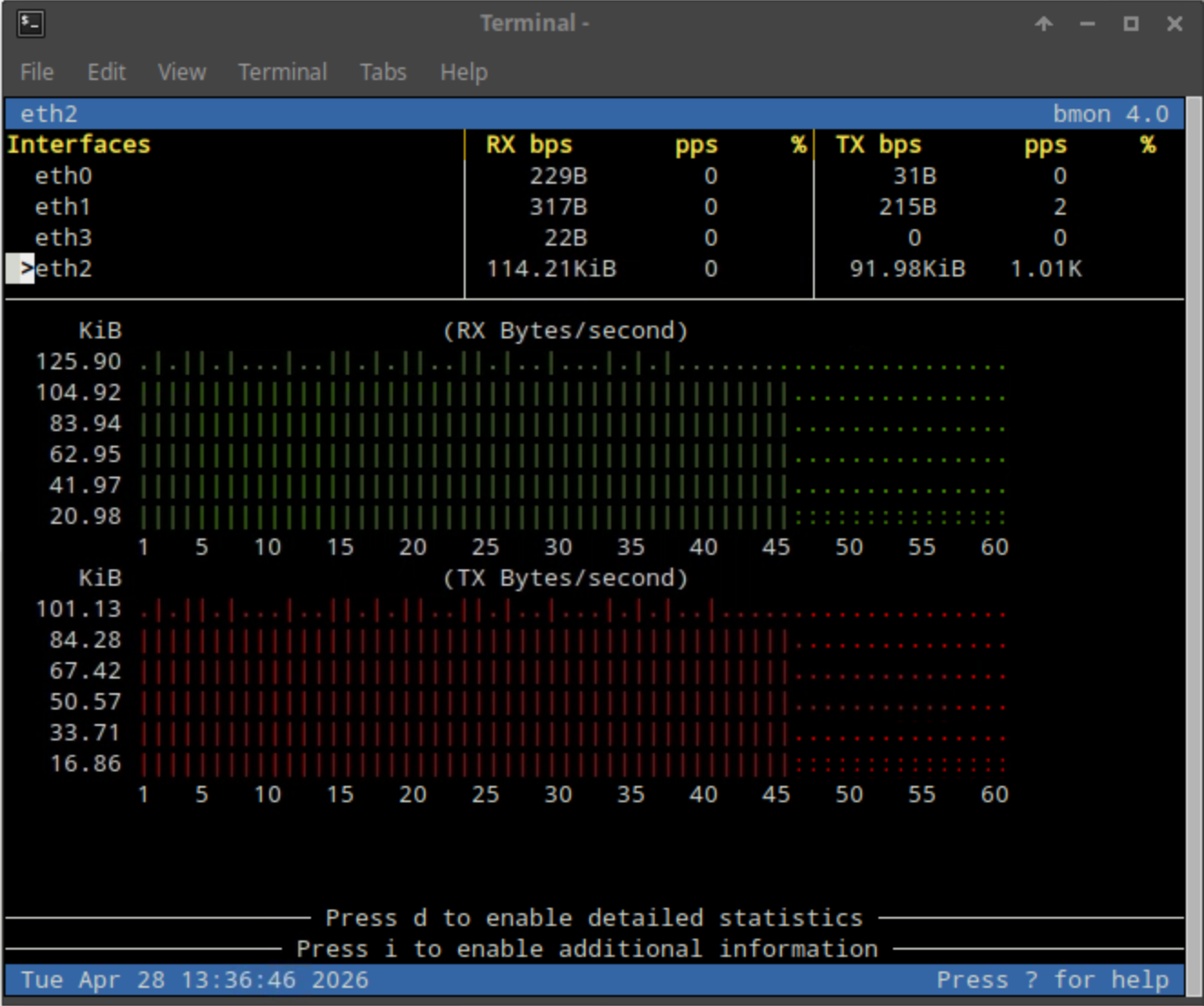
The bmon tool should show a static line of RX (Byte/second) or received traffic at around 1000 QPS, which verifies that our custom rule has been triggered.
-
Since this is an Allowlist (whitelist) rule, its action will be set to PASS and cannot be changed. PASS means that traffic will be allowed and not logged by the Grid. So for this rule we will verify that our rule is working using bmon and by the lack of any logs for the IP address 203.0.113.254.
-
-
Switch back to jump-desktop.
-
On the Grid Manager UI, navigate to Administration → Logs → Syslog.
-
Choose extibns.techblue.net from the Log Viewer drop-down menu.
-
Click the Toggle multi-line view link.
-
Select Threat Detection Event Logs from the Quick Filter drop-down list.

-
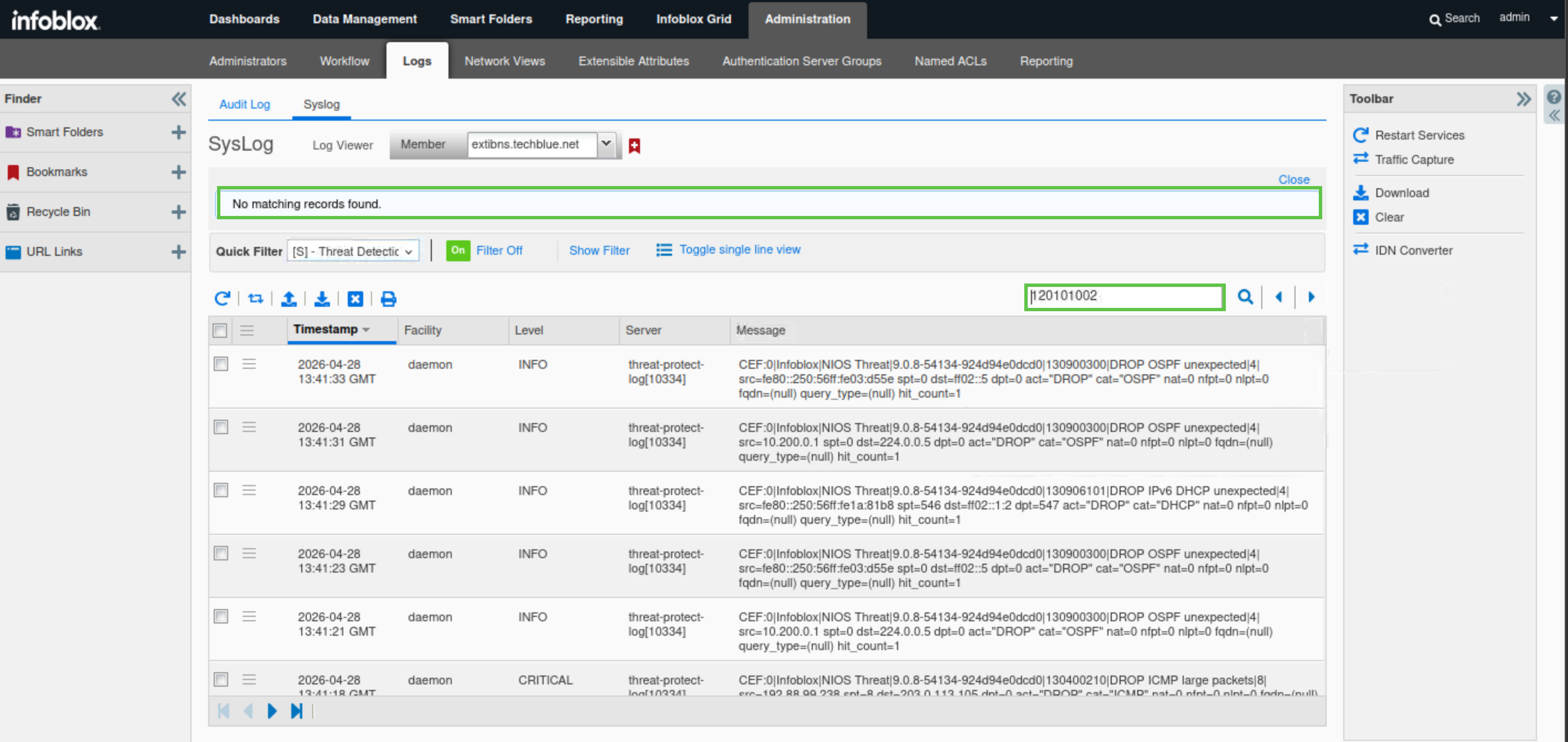
Enter the rule ID for the custom rule you noted earlier (120101002) in the search bar.
-
Note the lack of any recent syslog entries for the IP address, verifying that our rule is working. As it will be otherwise blocked by the system rule ID 130000200 (WARN & BLOCK about high rate inbound UDP DNS queries) in the 20250702-16 ruleset.
-
-
Navigate to Data Management → Security → Profiles.
-
Click on the link for the 20250702-16 ruleset.
-
Click the Quick Filter drop-down list.
-
Select All Custom Rules.
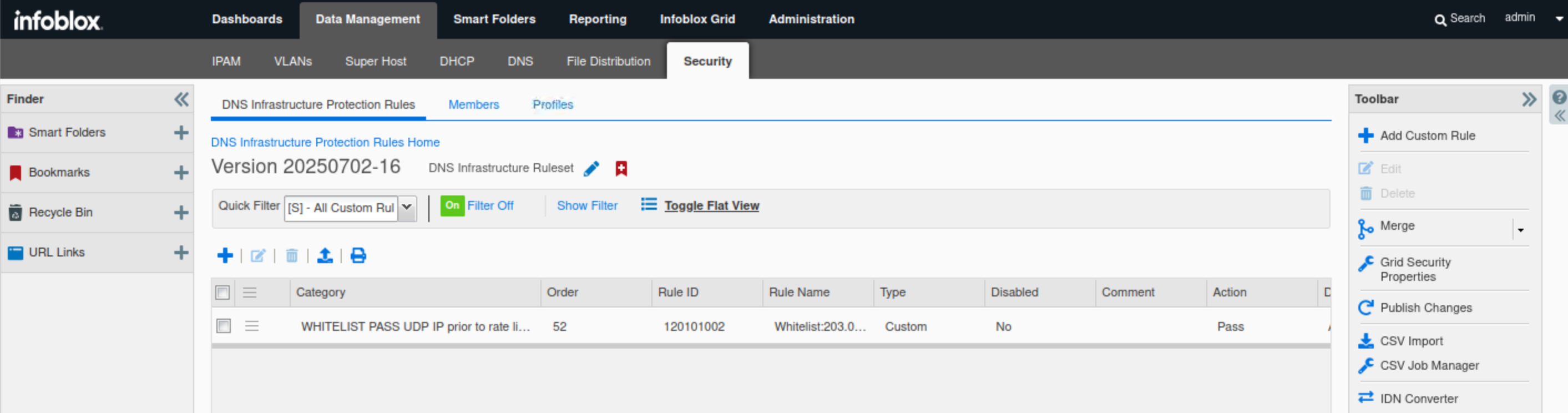
-
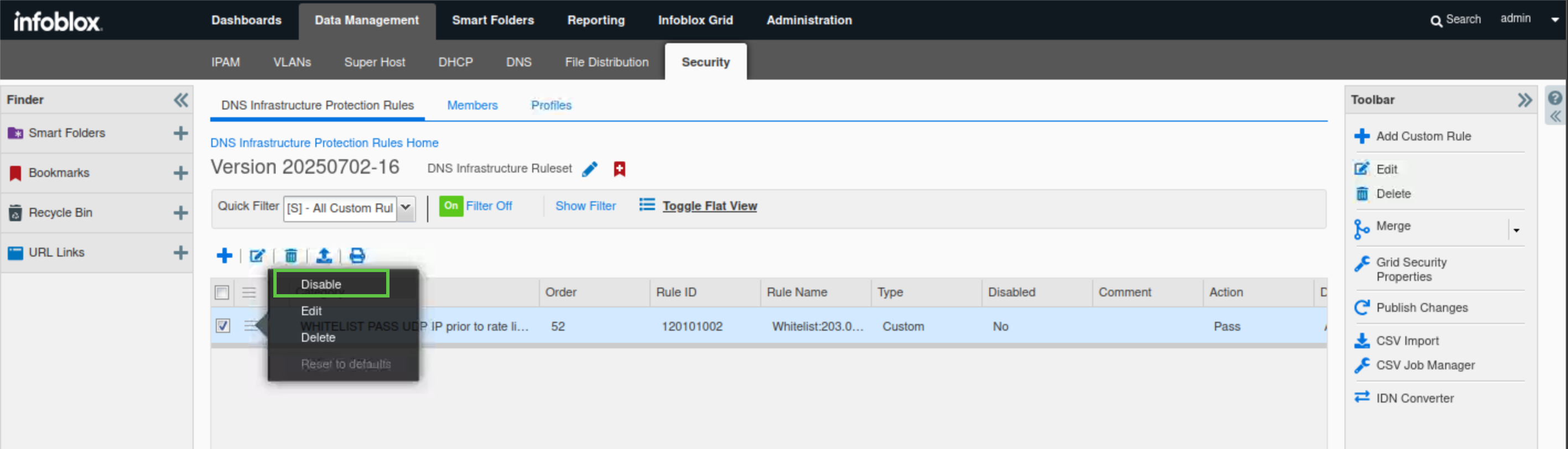
Click the hamburger icon next to the custom ALLOWLIST PASS UDP IP prior to rate limiting rule for 203.0.113.254.
-
Click Disable.
-
We will disable the rule and publish the changes. This is to allow us to test upcoming rules in later steps, as they all affect the same IP address.
-
-
Publish the changes when prompted.
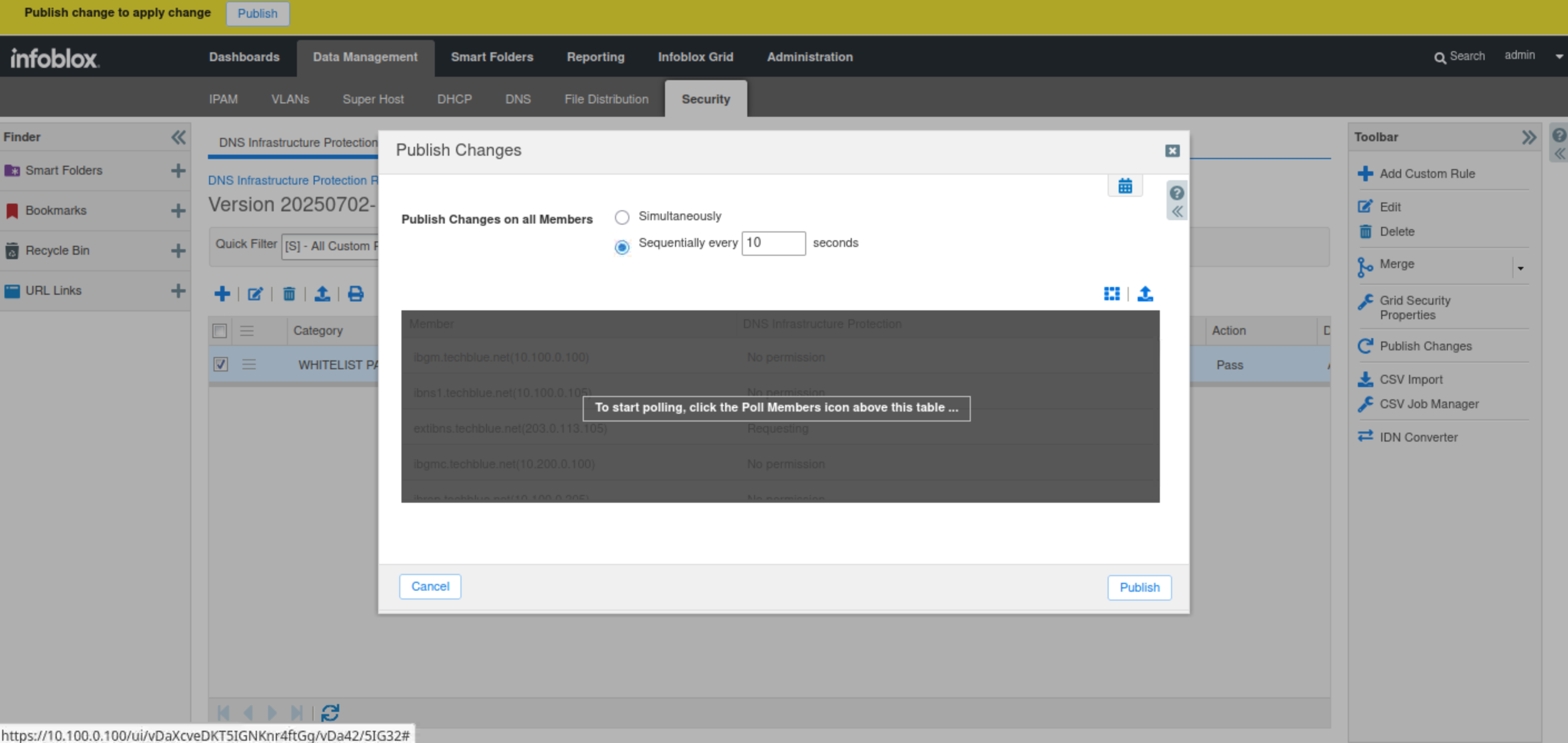
Task 22 Solution: Create and test a custom Rate-Limiting rule
In this task, you will create a custom Rate-Limiting rule for the customer's IP address, 203.0.113.254, to ensure continuous service and prevent potential overload, as you noticed that the customer's IP was generating excessive traffic. You will implement the RATE LIMITED UDP IP rule in a way that will Rate-Limit UDP traffic from the IP address 203.0.113.254 if it exceeds 100 QPS for 5-second intervals. This limit was decided after careful observation and calculations, effectively managing customer flow while avoiding system overload.
This will suffice for testing purposes in a lab environment. However, in a production environment, it is recommended to pair this rule with a RATE LIMITED TCP IP rule, as some DNS traffic uses TCP in addition to UDP.
After creating the rule, you will use the lab’s support-server VM to simulate the client sending DNS traffic using the queryperf tool and monitor the Grid’s behaviour towards the traffic using the bmon tool. The traffic should be allowed to pass.
After completing the task, we will disable the rule and publish the changes. This is to allow us to test upcoming rules in later steps, as they all affect the same IP address.
-
Navigate to Data Management → Security → DNS Infrastructure Protection Rules.
-
Click on the link for the 20250702-16 rule.
-
Click the plus (+) symbol to add a custom rule.
-
Choose RATE LIMITED UDP IP from the drop-down template list.
-
Click Next to configure the rule parameters.
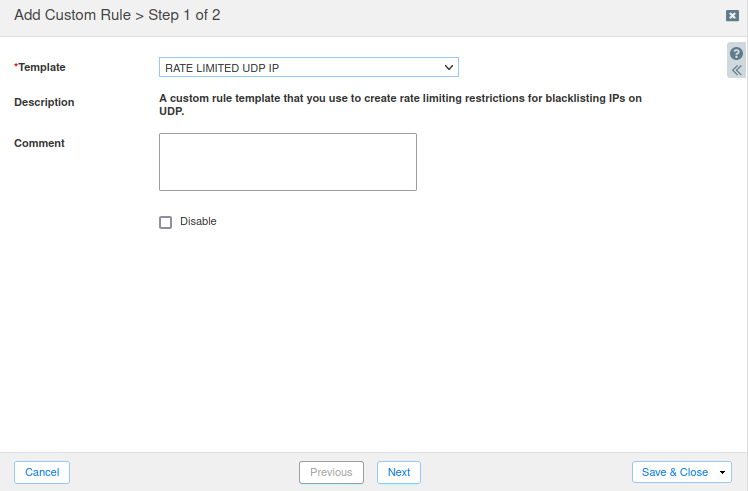
-
Use the following parameters for the rule:
-
Log Severity: Critical.
-
Packets per second: 100.
-
Drop interval: 5.
-
Events per second: 1.
-
Rate limited IP address/network: 203.0.113.254.
-
Rate algorithm: Rate_Limiting
-
-
Click Save & Close.
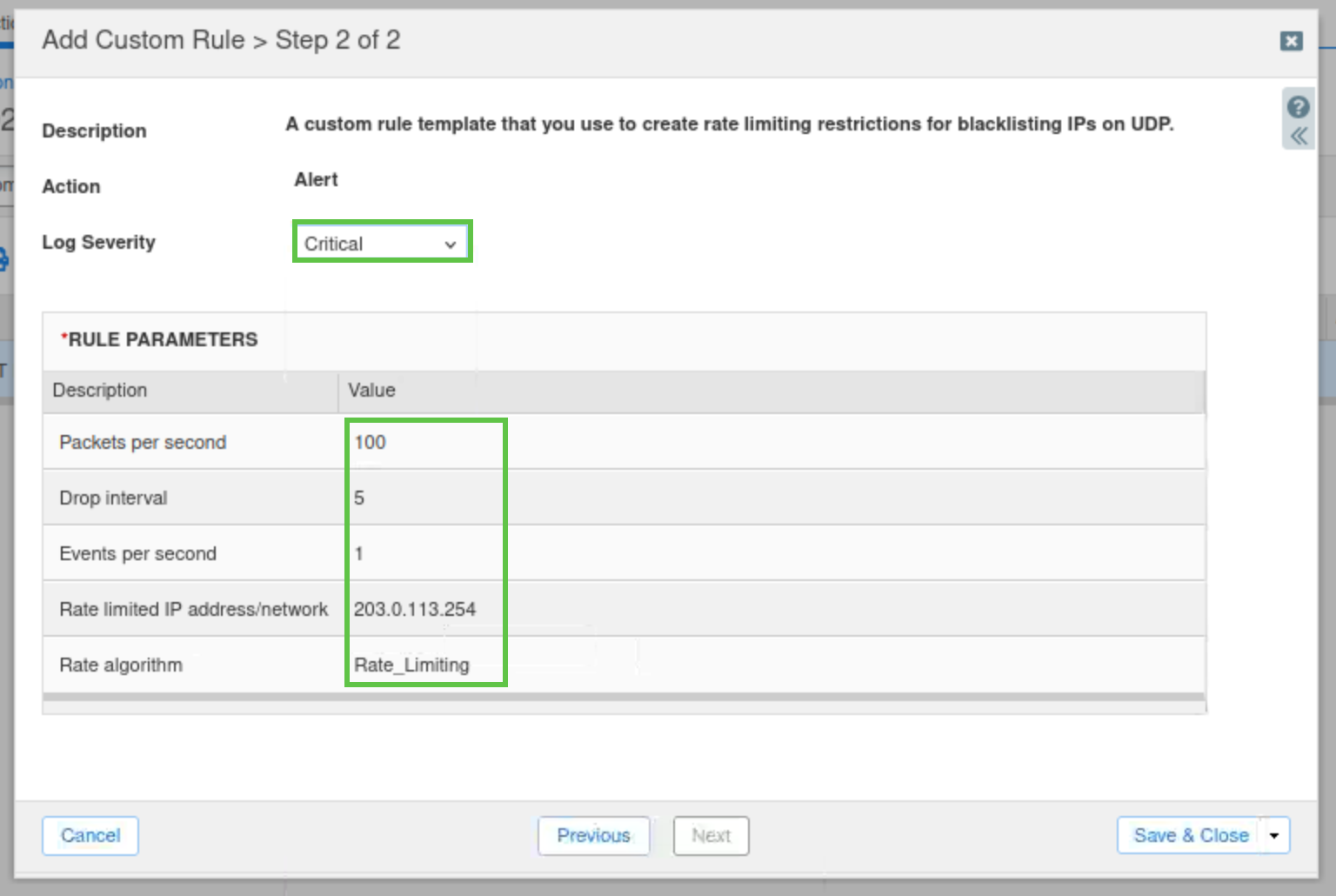
-
Click the Quick Filter drop-down list.
-
Select All Custom Rules.
-
Note the rule ID for the newly created rule (120201001).
-
You can use the text editor Geany under Application List -> Geany on jump-desktop to save your rule ID.
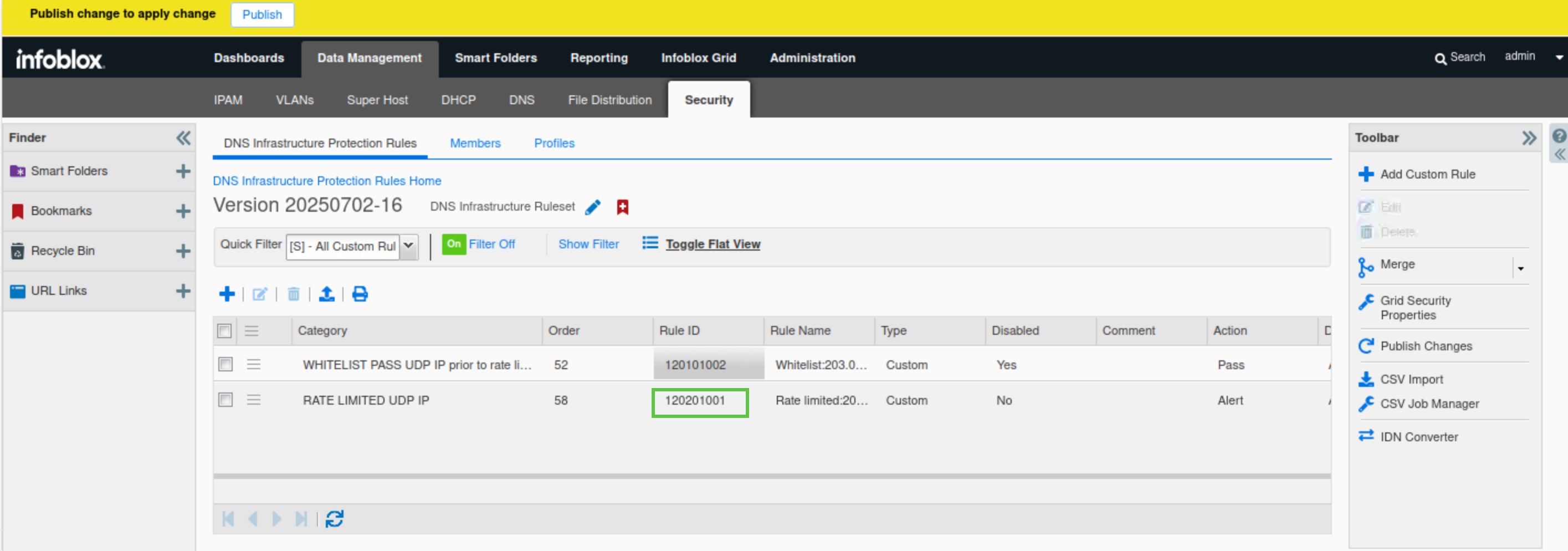
-
-
Publish the rule when prompted.
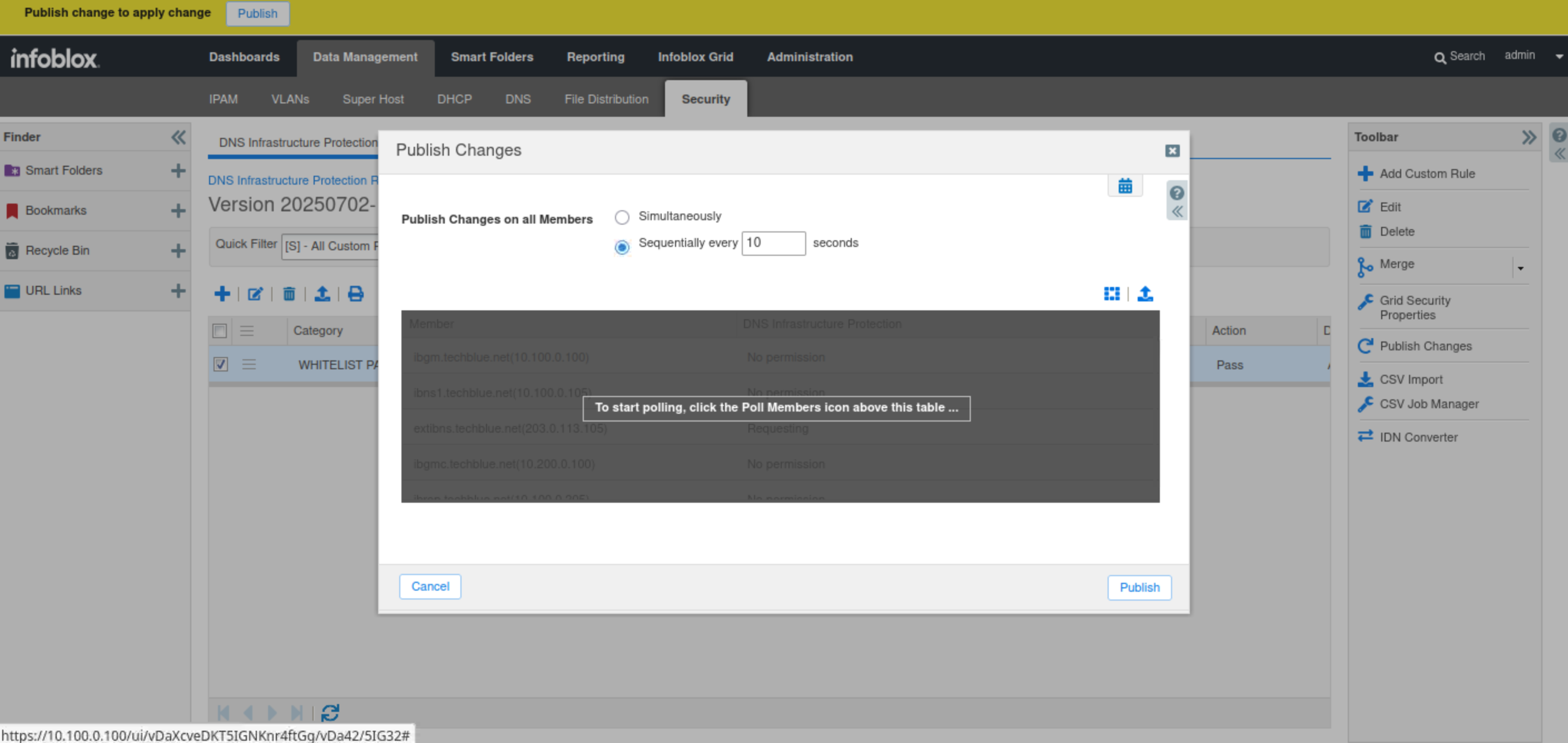
-
Switch back to the support-server VM (training/infoblox).
-
Open the bmon tool.
-
Expand the terminal window so you can see the colored charts that visualize DNS traffic flow during our tests.
-
-
Press the down arrow key on your keyboard to select the eth2 interface.
-
This indicates that you are monitoring traffic on the eth2 interface, which is connected to the 203.0.113.0 network.
-
-
Open another terminal window.
-
Type the command queryperf.
-
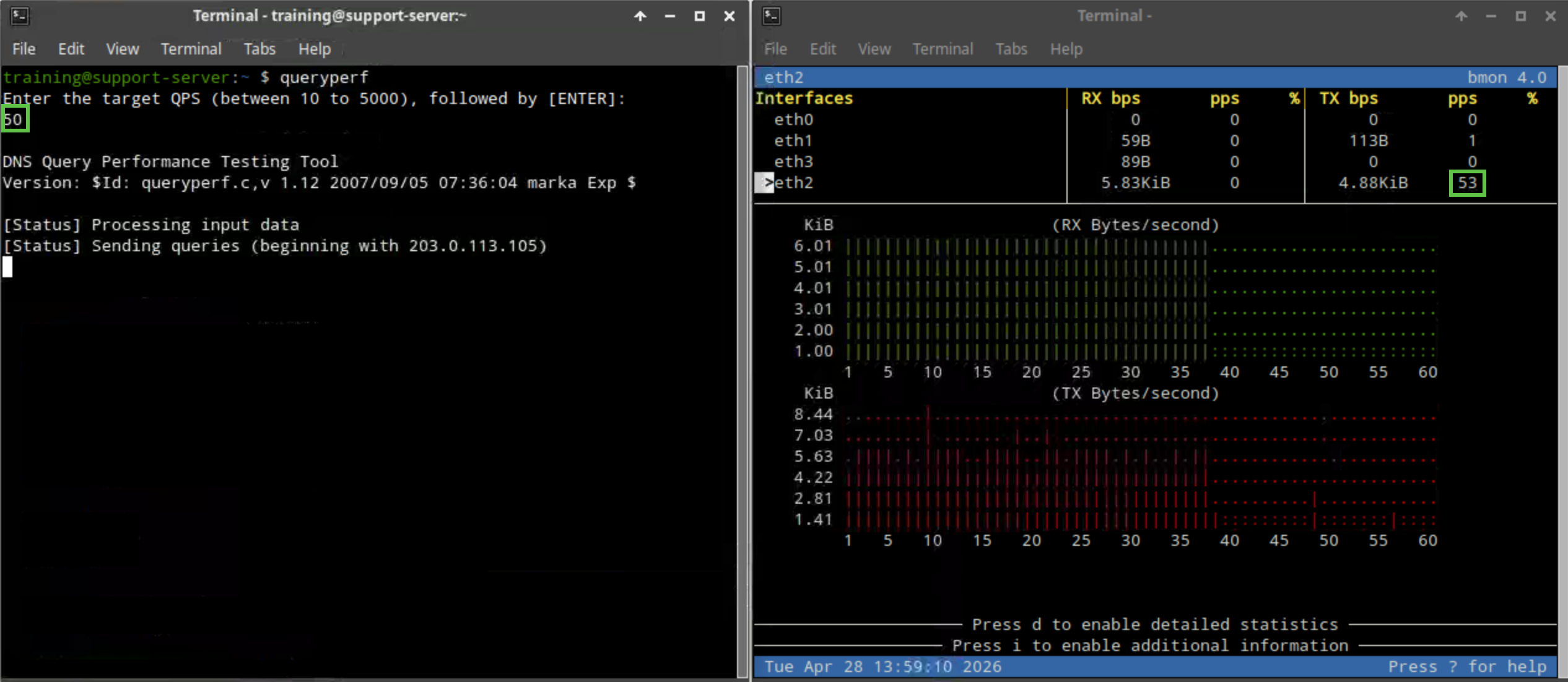
Use 50 QPS.
-
This value is half our Rate-Limiting threshold, so it shouldn’t trigger the rule, and the bmon window should show RX (Byte/second) or received traffic at around 50 QPS.
-
-
Switch back to jump-desktop.
-
On the Grid Manager UI, navigate to Administration → Logs → Syslog.
-
Choose extibns.techblue.net from the Log Viewer drop-down menu.
-
Click the Toggle multi-line view link.
-
Select Threat Detection Event Logs from the Quick Filter drop-down list.
-
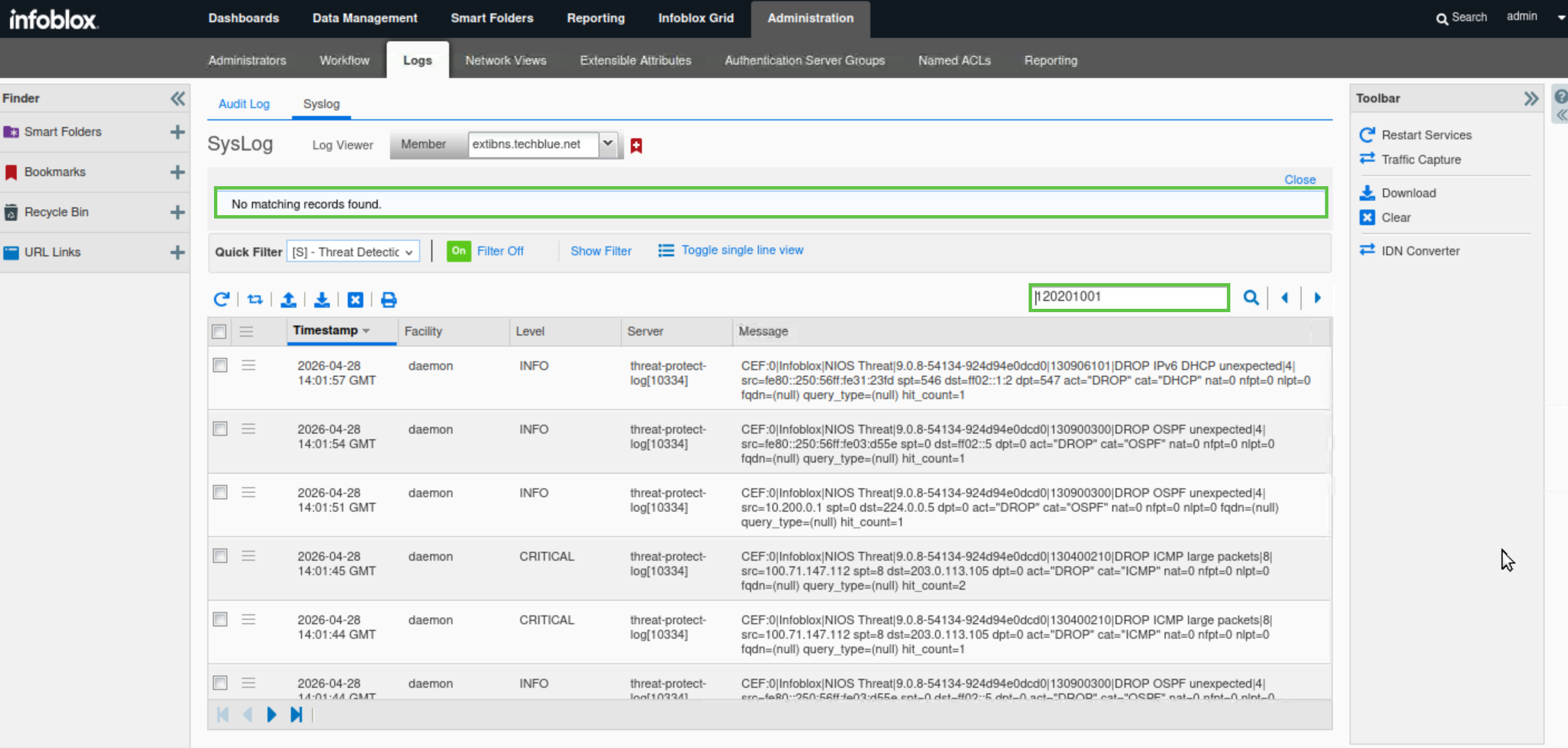
Enter the rule ID for the custom rule you noted earlier (120201001) in the search bar.
-
Note the lack of recent syslog entries for the IP address, since we have not yet triggered the rule.
-
Switch back to the support-server VM (training/infoblox).
-
In a terminal window, type the command queryperf.
-
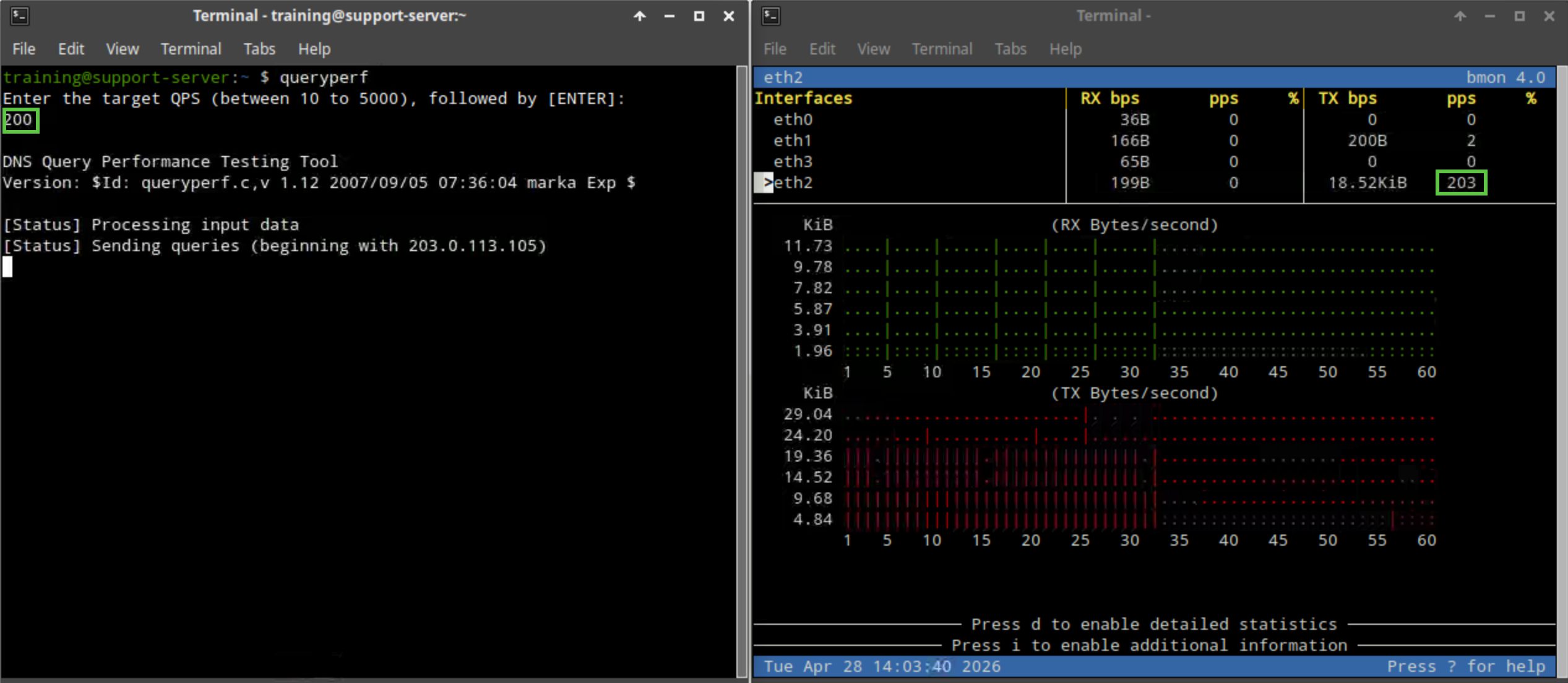
Now, let’s send 200 QPS.
-
This is higher than the allowed custom rule value but lower than the global alert value (250) configured in rule ID 130000100 (WARN about high rate inbound UDP DNS queries) and the drop value (500) configured in rule ID 130000200 (WARN & BLOCK about high rate inbound UDP DNS queries) set in a previous lab.
-
-
The bmon window should show continuous spikes of queries, then drops for 5-second intervals, which verifies that our custom Rate-Limiting rule has been triggered properly.
-
Switch back to jump-desktop.
-
On the Grid Manager UI, navigate to Administration → Logs → Syslog.
-
Choose extibns.techblue.net from the Log Viewer drop-down menu.
-
Click the Toggle multi-line view link.
-
Select Threat Detection Event Logs from the Quick Filter drop-down list.

-
Enter the rule ID for the custom rule you noted earlier (120201001) in the search bar.
-
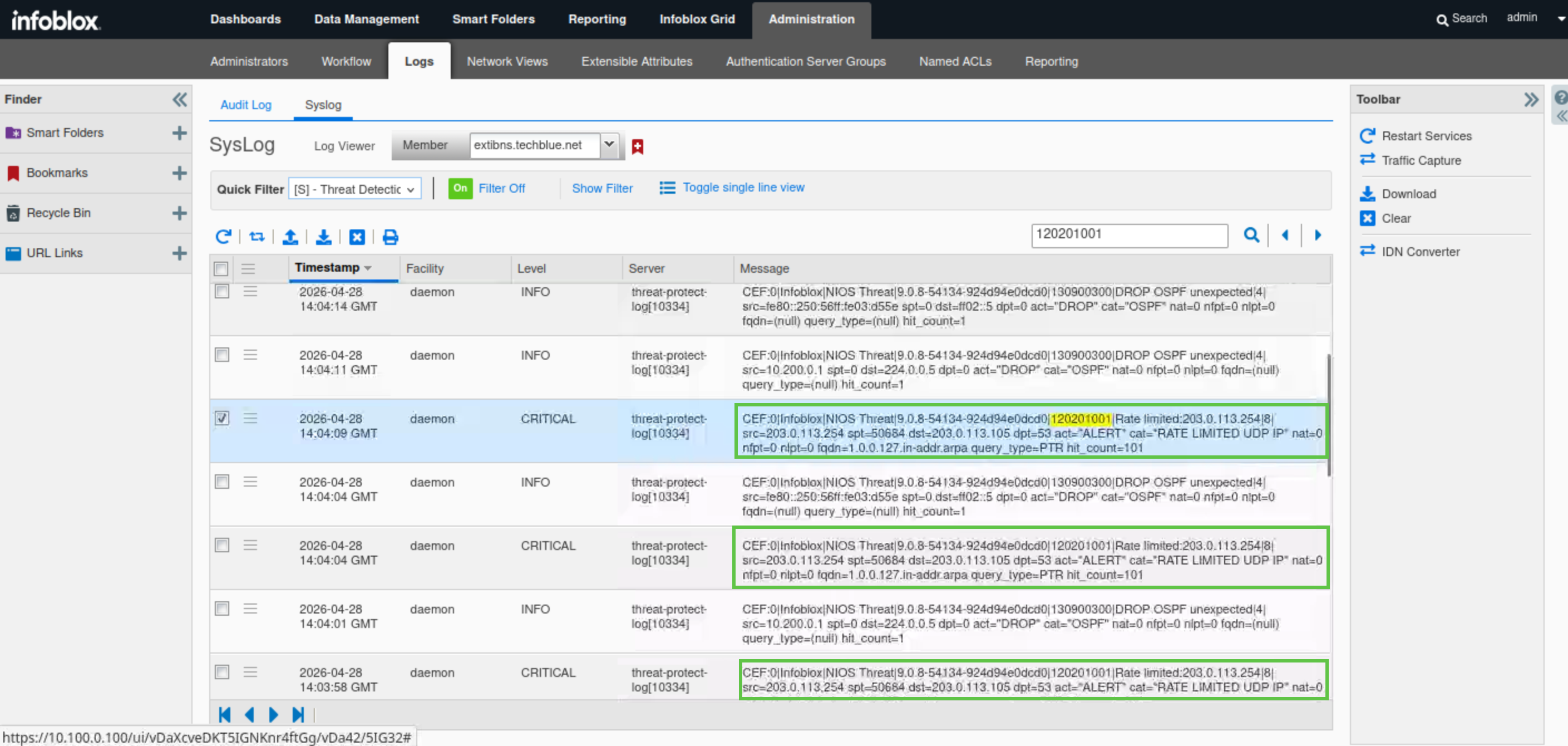
New syslog entries with a rule ID matching the custom rule ID (120201001) should indicate that the rule triggered an ALERT action with category of RATE LIMITED UDP IP, and a 5-second gap between entries, verifying our observations in bmon.
-
Navigate to Data Management → Security → DNS Infrastructure Protection Rules.
-
Click on the link for the 20250702-16 ruleset.
-
Click the Quick Filter drop-down list.
-
to select All Custom Rules.
-
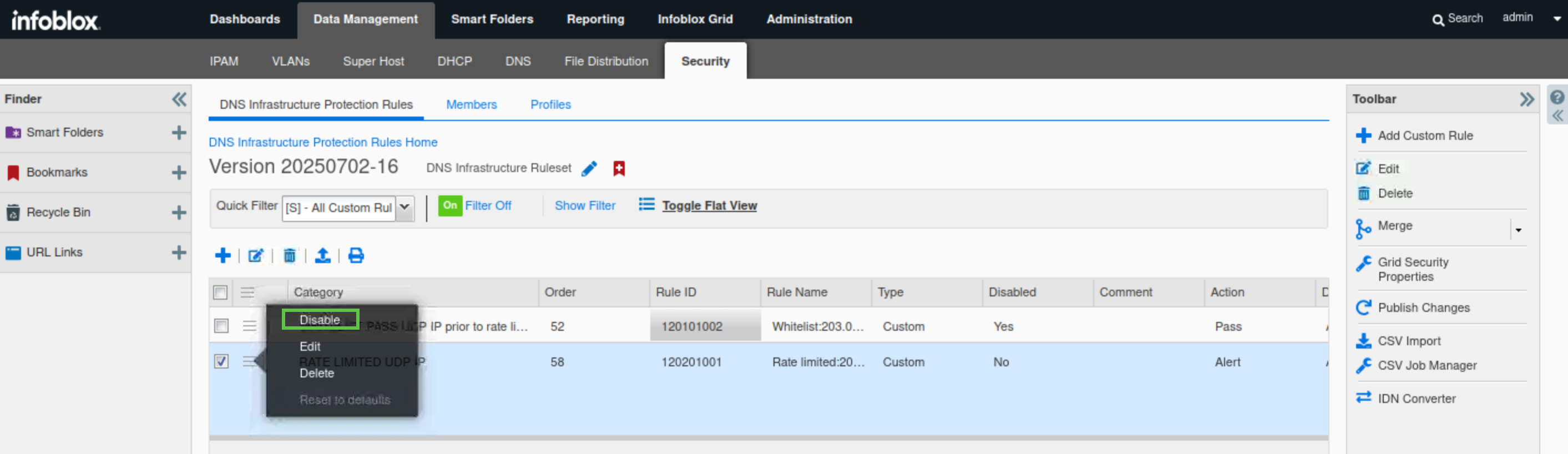
Click the hamburger icon next to the custom RATE LIMITED UDP IP rule for 203.0.113.254.
-
Click Disable.
-
We will disable the rule and publish the changes. This is to allow us to test upcoming rules in later steps, as they all affect the same IP address.
-
-
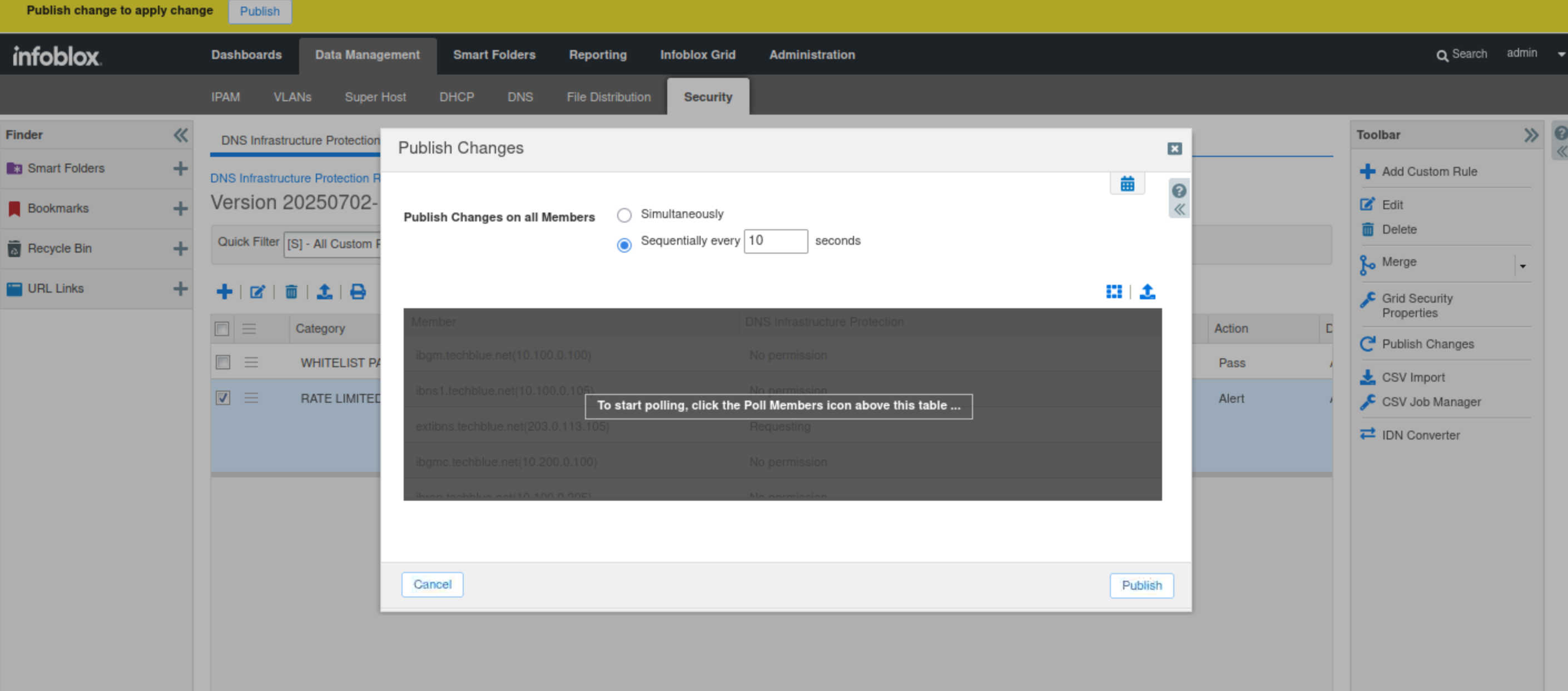
Publish the changes when prompted.
Task 23 Solution: Create and test a custom Denylist (Blacklist) rule
In this task, you will create a custom Denylist (Blacklist) rule for the customer's IP address, 203.0.113.254, as your organization’s security team has informed you that the IP address has been compromised and was attempting to launch an attack on the organization. You will implement the BLACKLIST DROP UDP IP prior to rate limiting rule to block all traffic from the IP address 203.0.113.254.
This will suffice for testing purposes in a lab environment. However, in a production environment, it is recommended to pair this rule with a BLACKLIST DROP TCP IP prior to rate limiting rule, as some DNS traffic uses TCP in addition to UDP.
After creating the rule, you will use the lab’s support-server VM to simulate the client sending DNS traffic using the queryperf tool and monitor the Grid’s behaviour towards the traffic using the bmon tool. The traffic should be allowed to pass.
After completing the task, we will disable the rule and publish the changes. This is to allow us to test upcoming rules in later steps, as they all affect the same IP address.
-
Navigate to Data Management → Security → DNS Infrastructure Protection Rules.
-
Click on the link for the 20250702-16 rule.
-
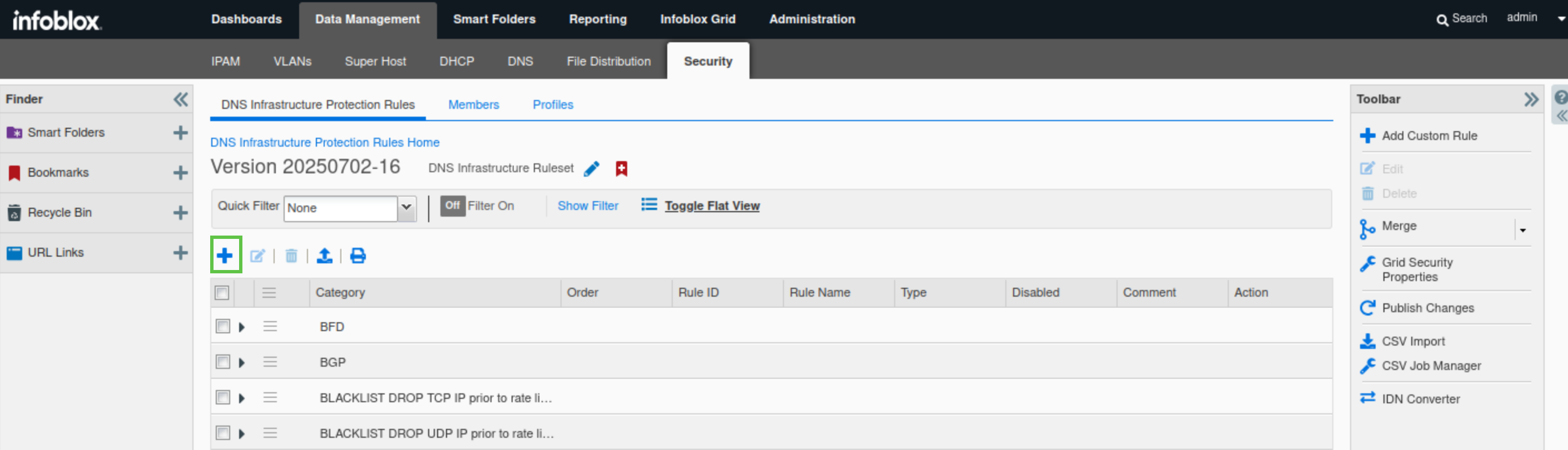
Click the plus (+) symbol to add a custom rule.
-
Choose the Denylist BLACKLIST DROP UDP IP prior to rate limiting from the drop-down template list.
-
Click Next to configure the rule parameters.
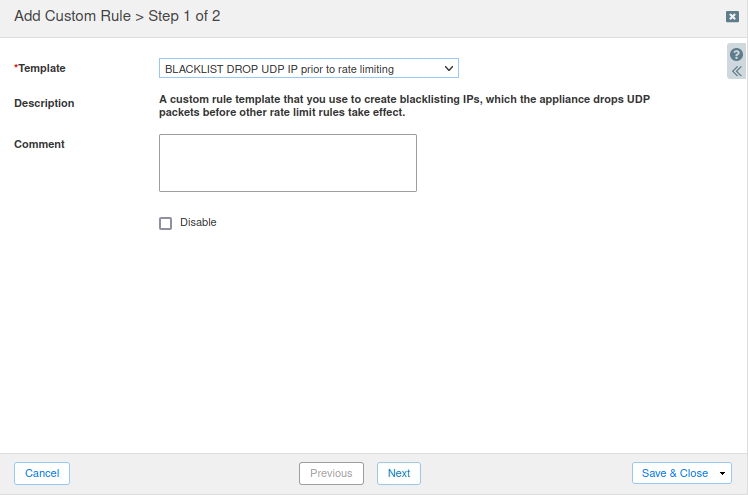
-
Set the Severity Level to Critical.
-
Set the Blacklisted IP address/network to 203.0.113.254.
-
Click Save and Close.
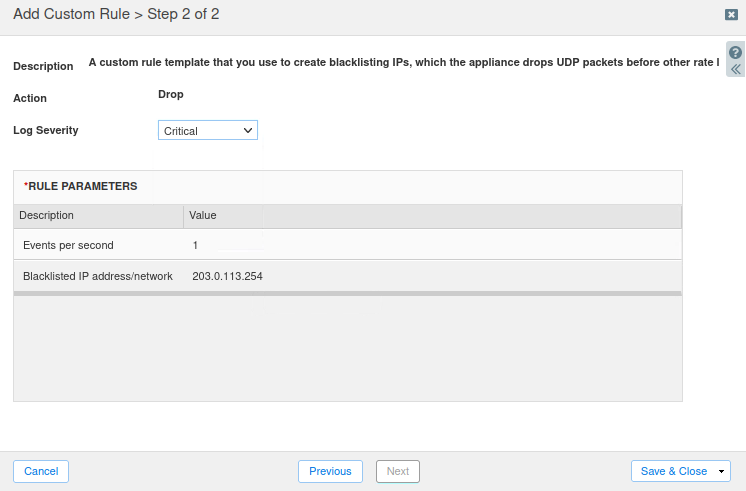
-
Select All Custom Rules.
-
Note the rule ID for the newly created rule (120103001).
-
You can use the text editor Geany under Application List -> Geany on jump-desktop to save your rule ID.
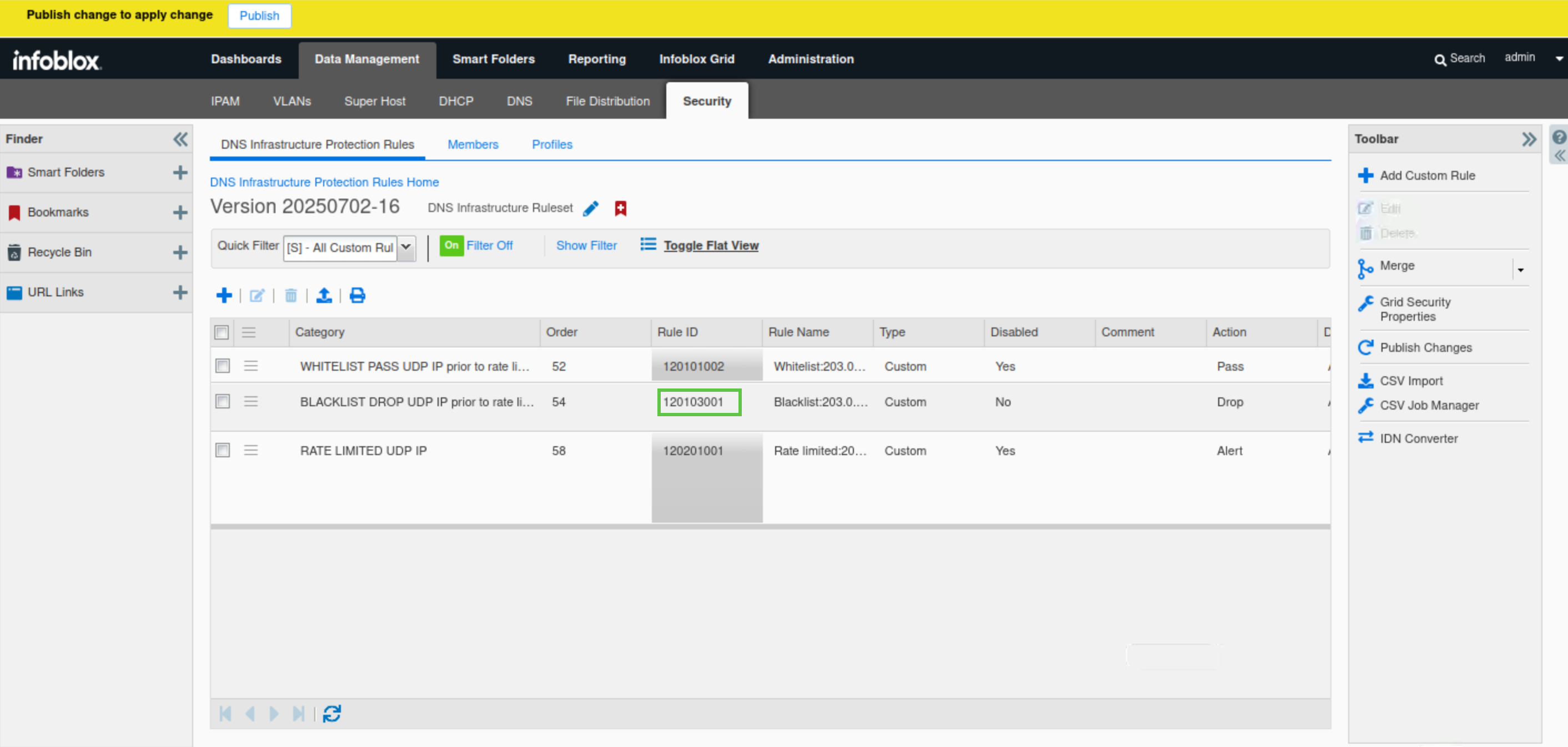
-
-
Publish the rule when prompted.
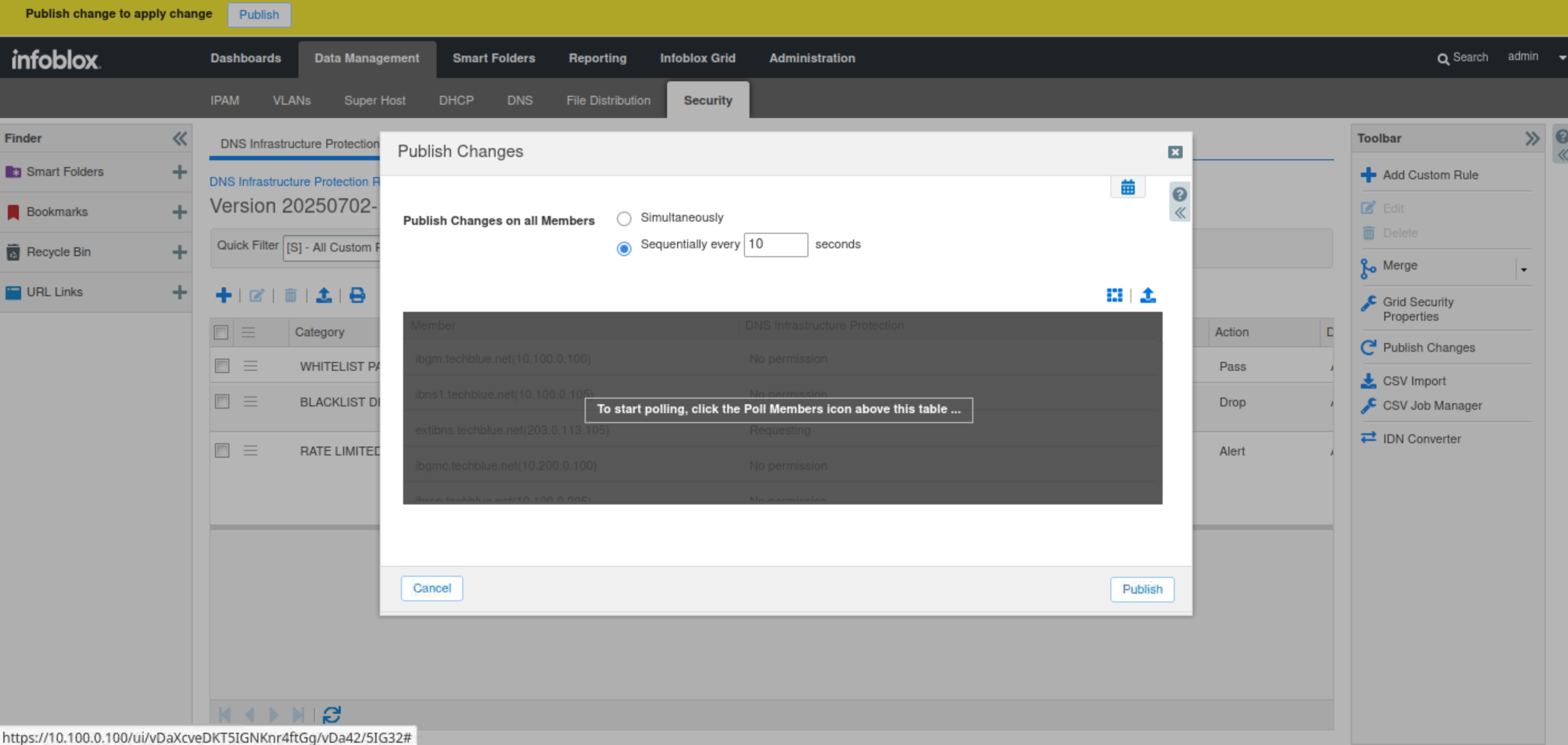
-
Switch back to the support-server VM (training/infoblox).
-
Open the bmon tool.
-
Expand the terminal window so you can see the colored charts that visualize DNS traffic flow during our tests.
-
-
Press the down arrow key on your keyboard to select the eth2 interface.
-
This indicates that you are monitoring traffic on the eth2 interface, which is connected to the 203.0.113.0 network.
-
-
Open another terminal window.
-
Type the command queryperf.
-
Use 1000 QPS.
-
This value is arbitrary; we can use any value we want. Any volume of traffic should be blocked.
-
-
The bmon window should show a very brief spike in queries just before the rule gets triggered, followed by no traffic at all after the rule is triggered, which verifies that our traffic from the malicious IP 203.0.113.254 is being blocked and our custom rule has been triggered properly.
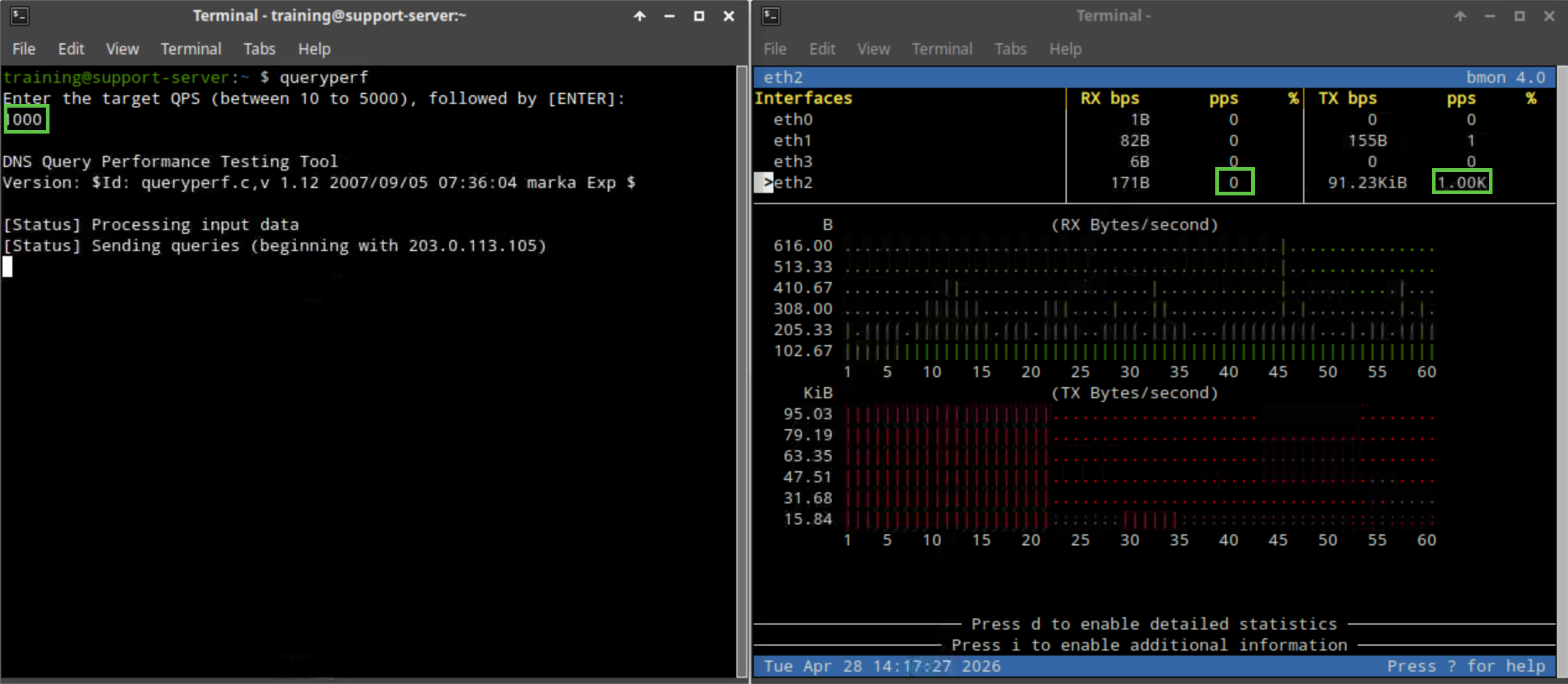
-
Switch back to jump-desktop.
-
On the Grid Manager UI, navigate to Administration → Logs → Syslog.
-
Choose extibns.techblue.net from the Log Viewer drop-down menu.
-
Click the Toggle multi-line view link.
-
Select Threat Detection Event Logs from the Quick Filter drop-down list.
-
Enter the rule ID for the custom rule you noted earlier (120103001).
-
New syslog entries with a rule ID matching the custom rule ID (120103001) should indicate that the rule triggered a DROP action, with category of BLACKLIST DROP UDP IP prior to rate limiting, verifying our observations in bmon.
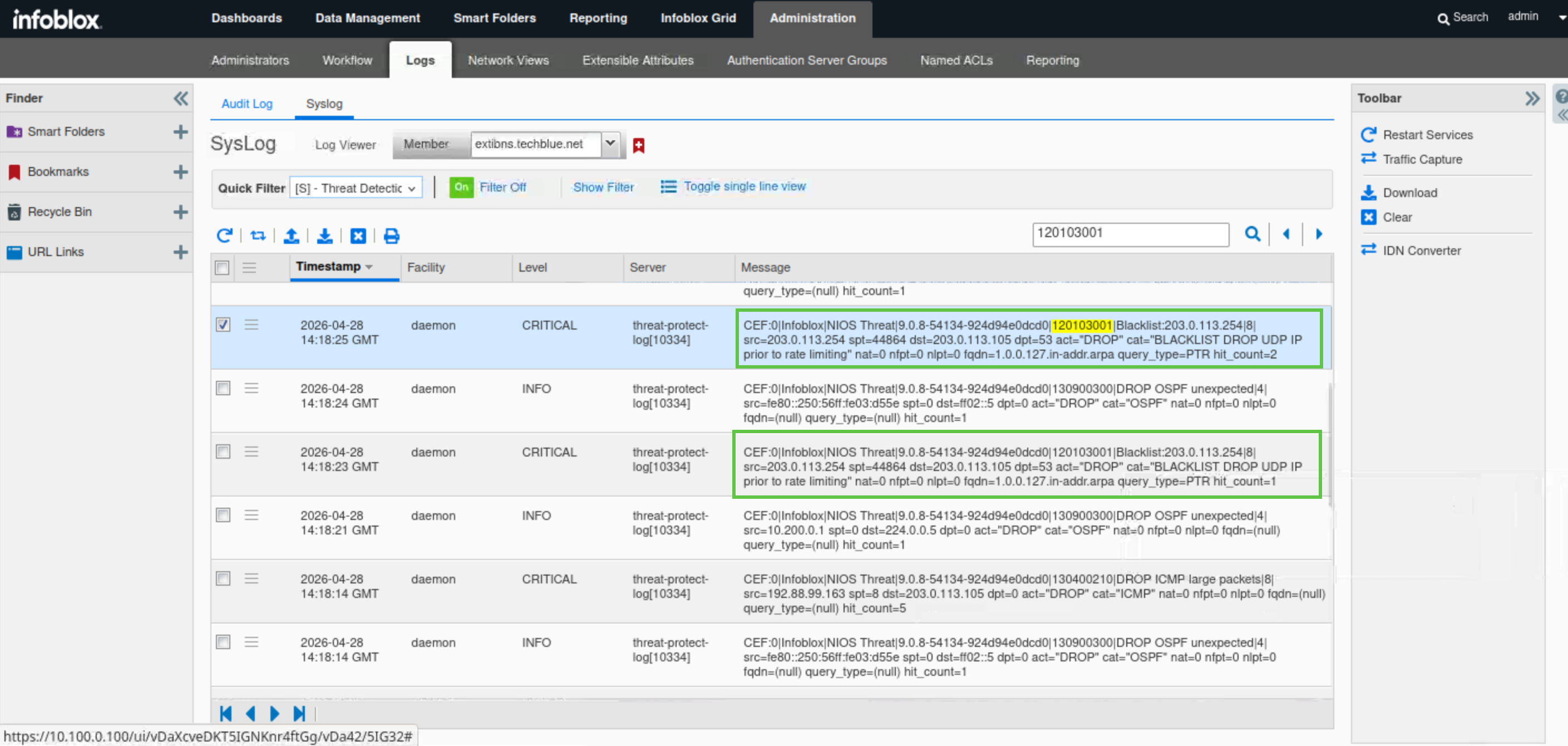
-
Navigate to Data Management → Security → DNS Infrastructure Protection Rules.
-
Click on the link for the 20250702-16 ruleset.
-
Click the Quick Filter drop-down list.
-
to select All Custom Rules.
-
Click the hamburger icon next to the custom BLACKLIST DROP UDP IP prior to rate limiting rule for 203.0.113.254.
-
Click Disable.
-
We will disable the rule and publish the changes. This is to not affect any other labs that might be using the same IP address.
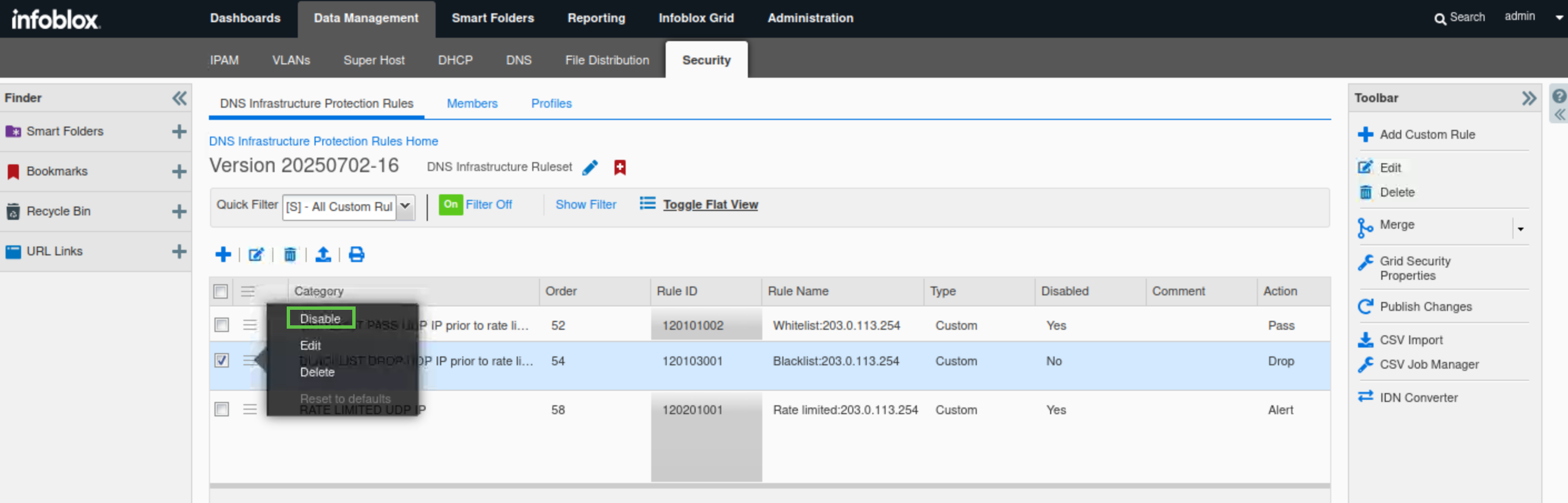
-
-
Publish the changes when prompted.
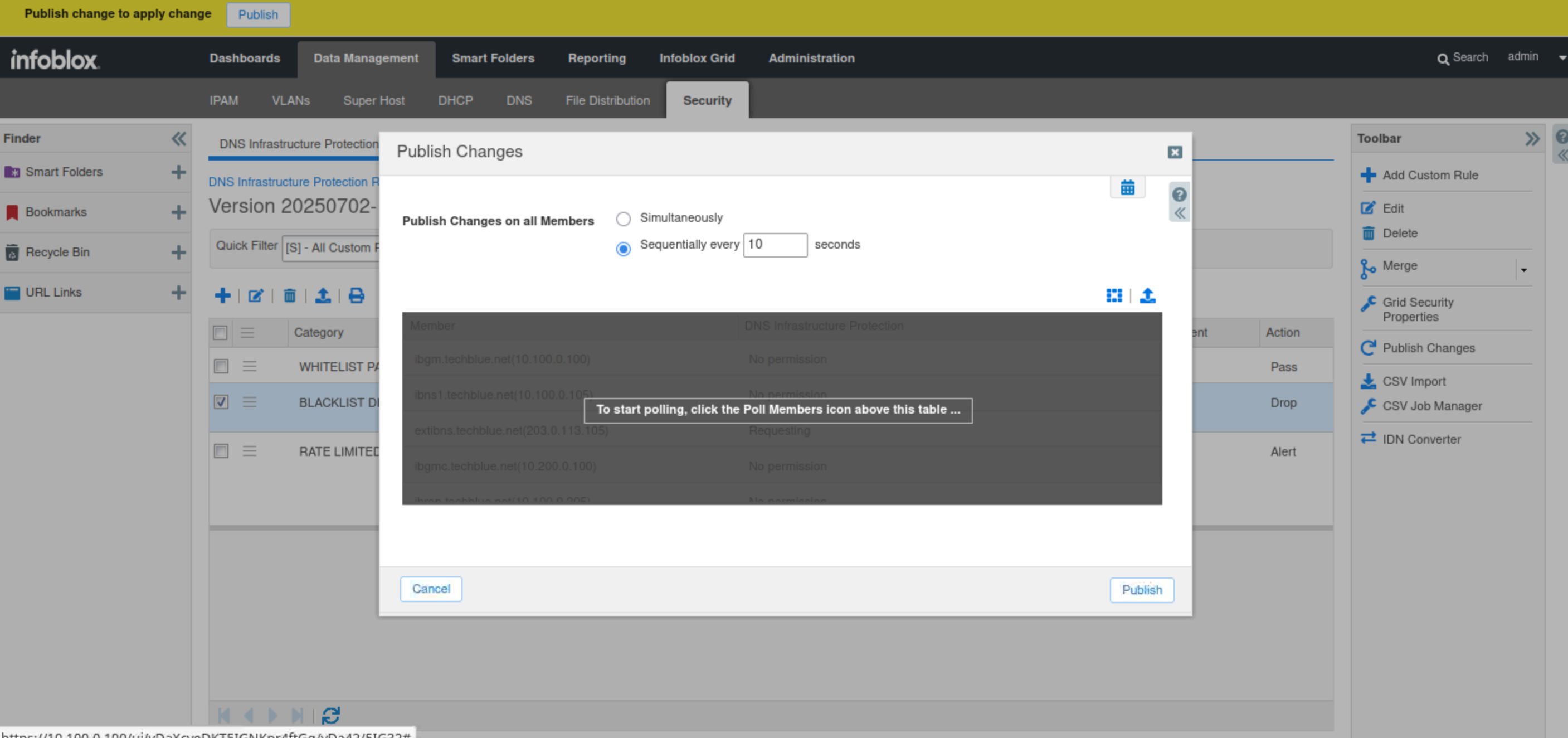
Task 24 Solution: Merge the currently active ruleset 20250702-16 with the new 20251209-16 ruleset
In this task, we are merging the active ruleset version 20250702-16 with the newly released version 20251209-16. We are not simply moving to the latest version because we have significantly tuned our current ruleset and added custom rules. If we switch to 20251209-16 without merging, our custom rules and tuning efforts will no longer apply to traffic.
The best approach is to merge the two rulesets. This will allow us to incorporate the latest updates from Infoblox for DNS Infrastructure Protection, which may adjust thresholds and actions for some system and auto rules, and add or remove rules to address new threats, while preserving our custom rules and tuning efforts
-
Navigate to Data Management → Security → DNS Infrastructure Protection Rules.
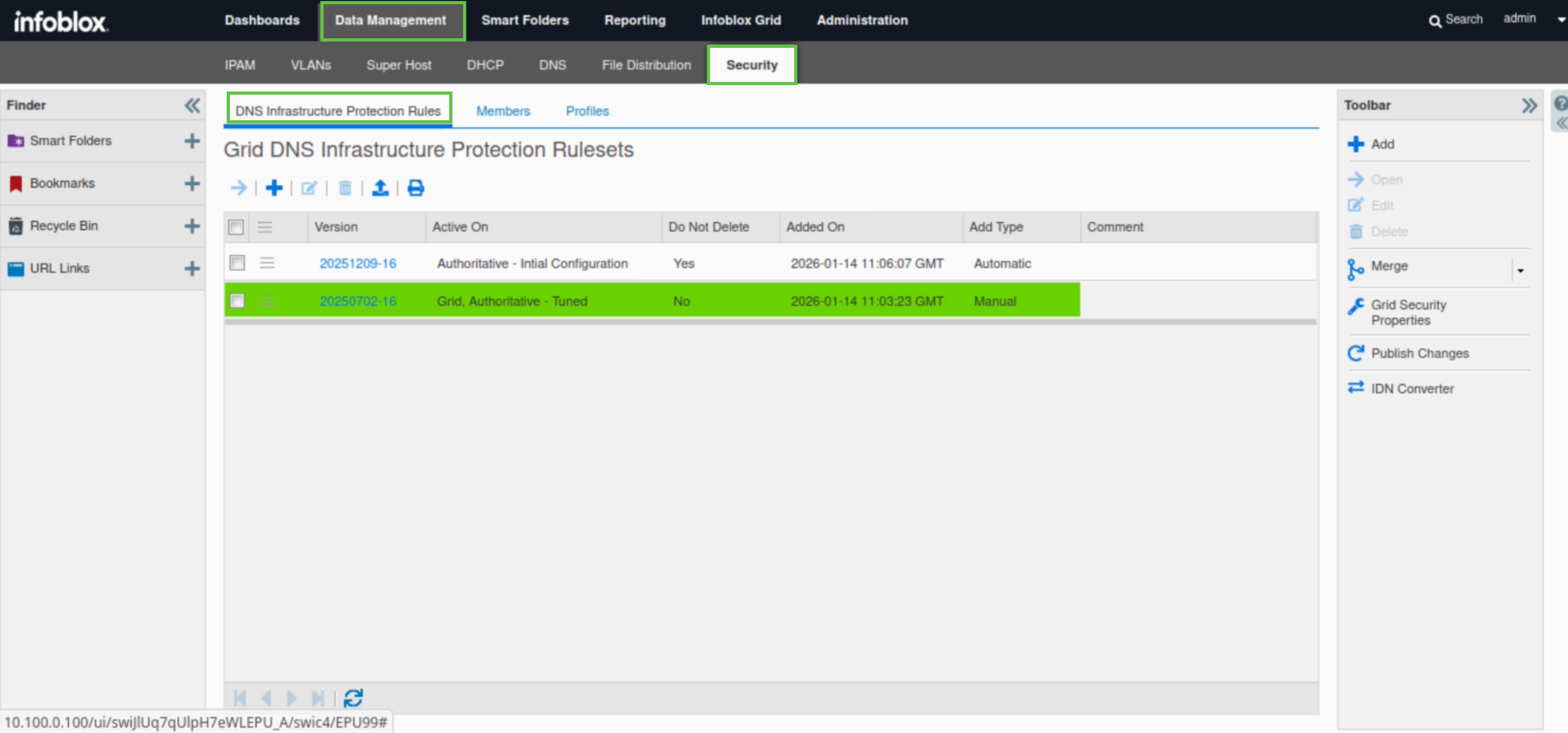
-
On the toolbar, select Merge → Ruleset.
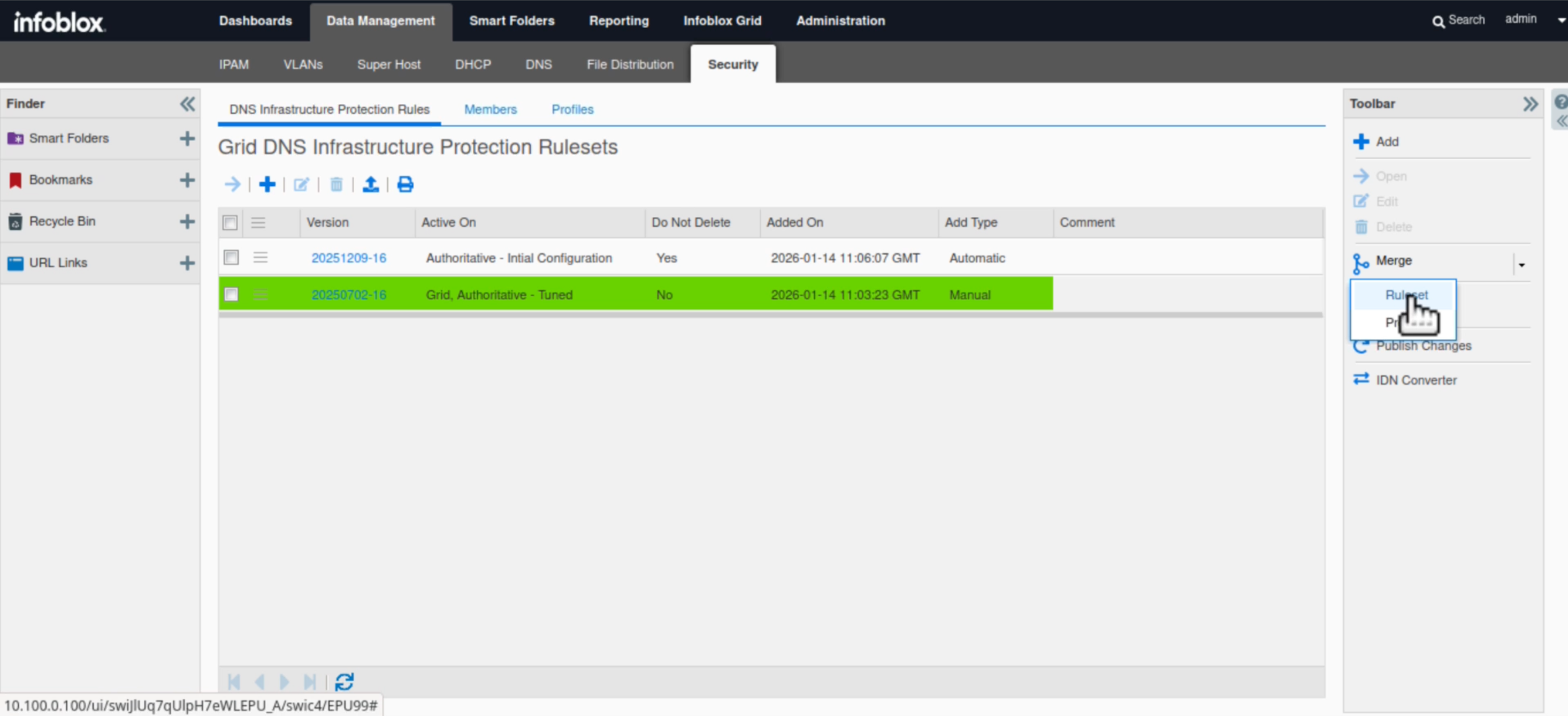
-
Under Merge changes from, expand Old Ruleset and select 20250702 16.
-
This is the ruleset containing your customized and tuned rules.
-
-
Under To, expand New Ruleset and select 20251209 16.
-
This is the latest ruleset released by Infoblox and will serve as the updated base.
-
-
Click Get Differences.
-
The top panel shows differences in system rules between the two versions.
-
The bottom panel lists the custom rules present in the older ruleset but missing in the new one.
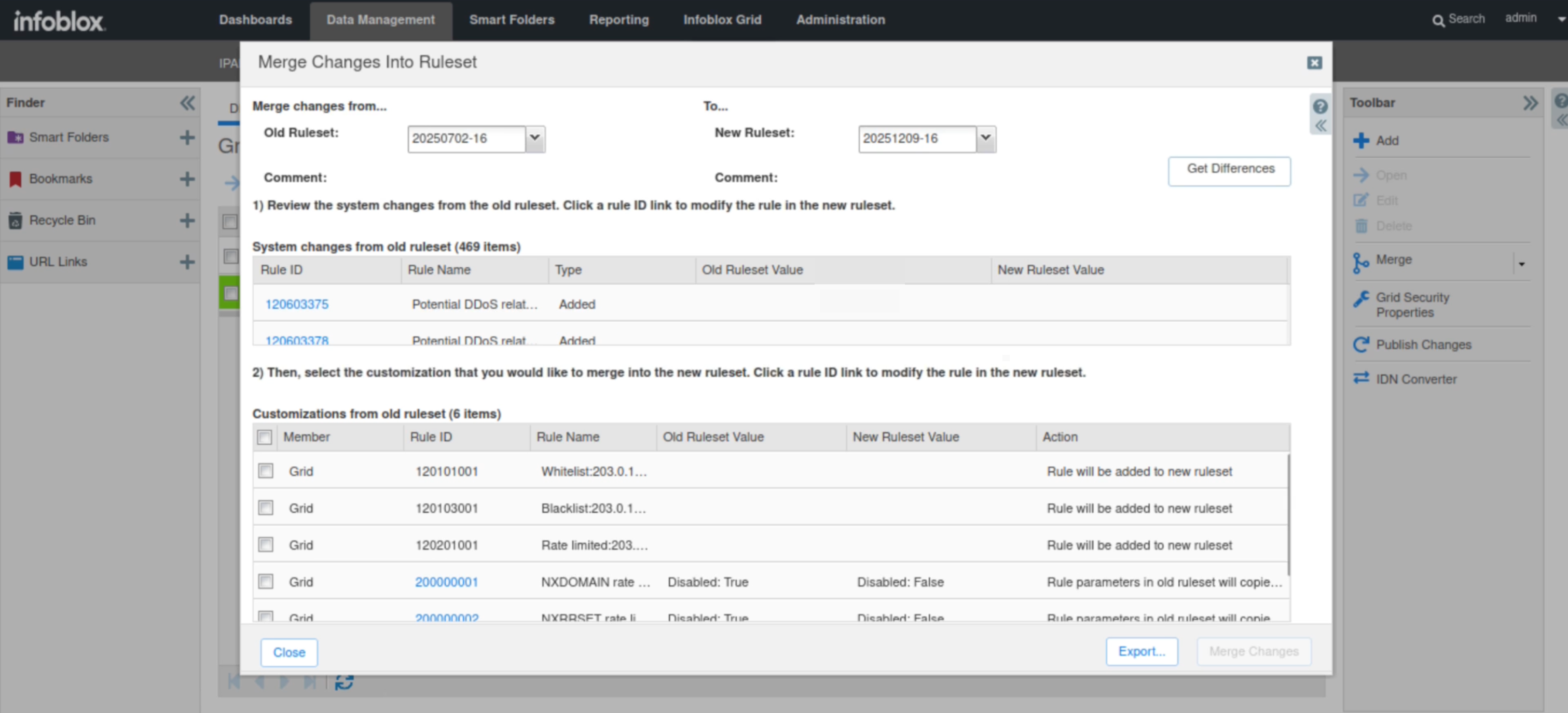
-
-
Click the checkbox next to each custom rule created to include them in the merged ruleset.
-
Click Merge Changes, then choose Yes to confirm.
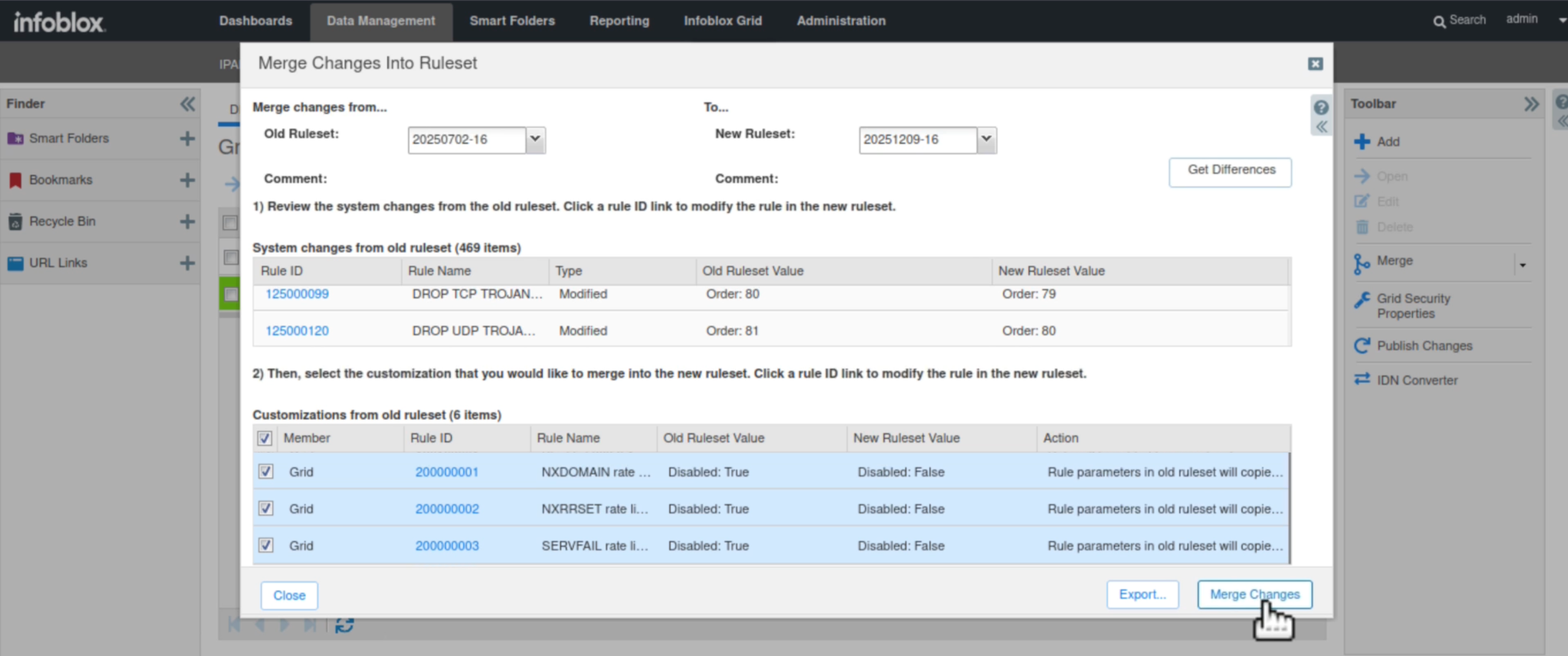
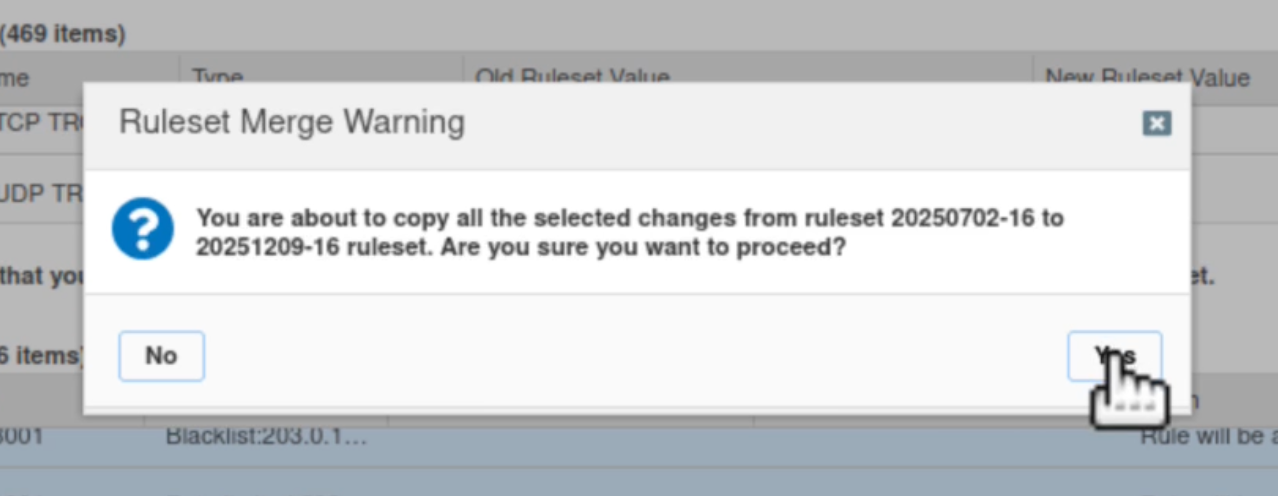
-
Close the Merge Changes into Ruleset window.
-
Click Publish to apply the newly merged ruleset across the Grid.
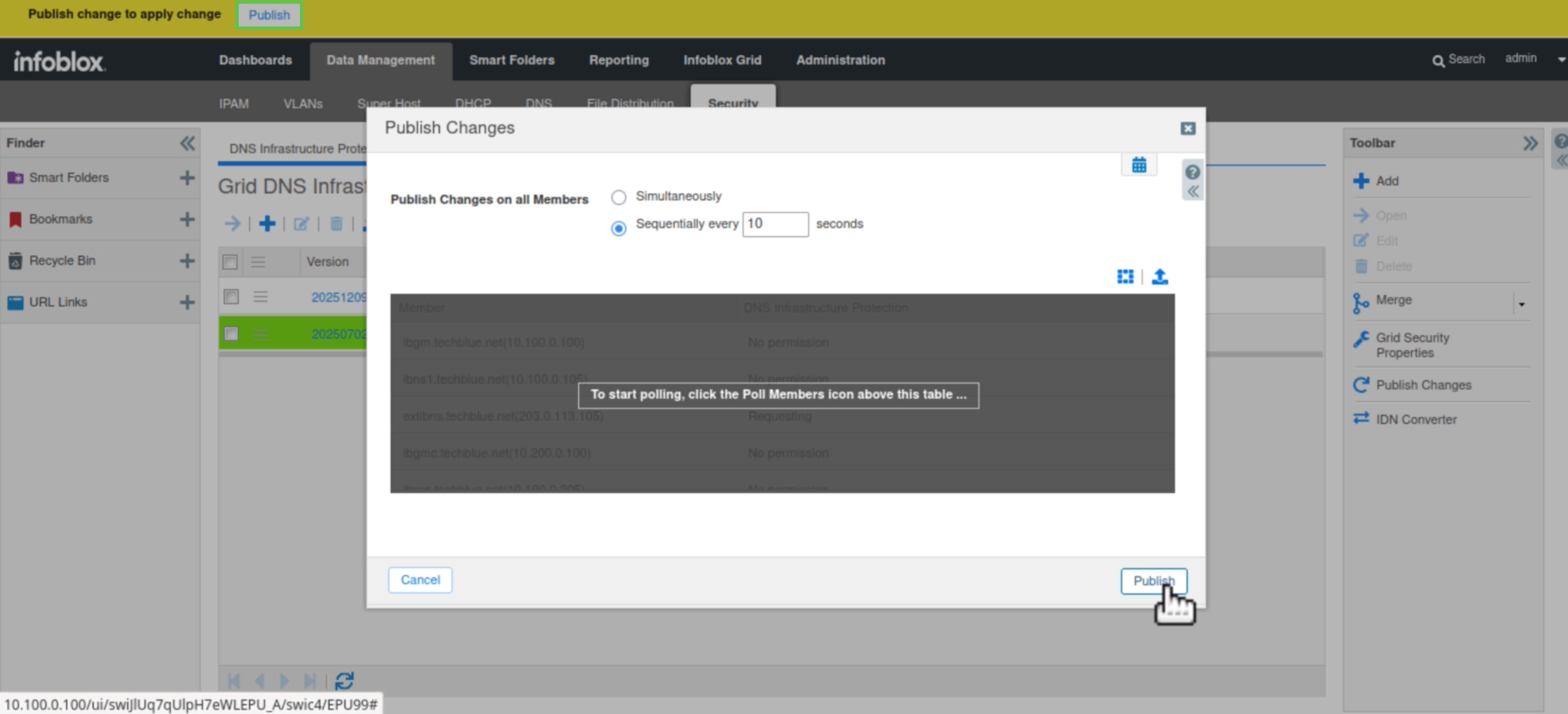
Task 25 Solution: Modify the Authoritative - Tuned profile to use the newly merged 20251209-16 ruleset
In this task, we will modify the Authoritative - Tuned profile to use the newly merged 20251209-16 ruleset instead of the older 20250702-16 ruleset. This profile supports all external-facing authoritative servers running DNS Infrastructure Protection in our organization, created in a previous lab to enable sharing a single tuned DNS Infrastructure Protection ruleset. We will also confirm the successful merge of the two rulesets by checking that all custom rules have merged and that disabled rule categories remain inactive.
-
Navigate to Data Management → Security → Profiles.
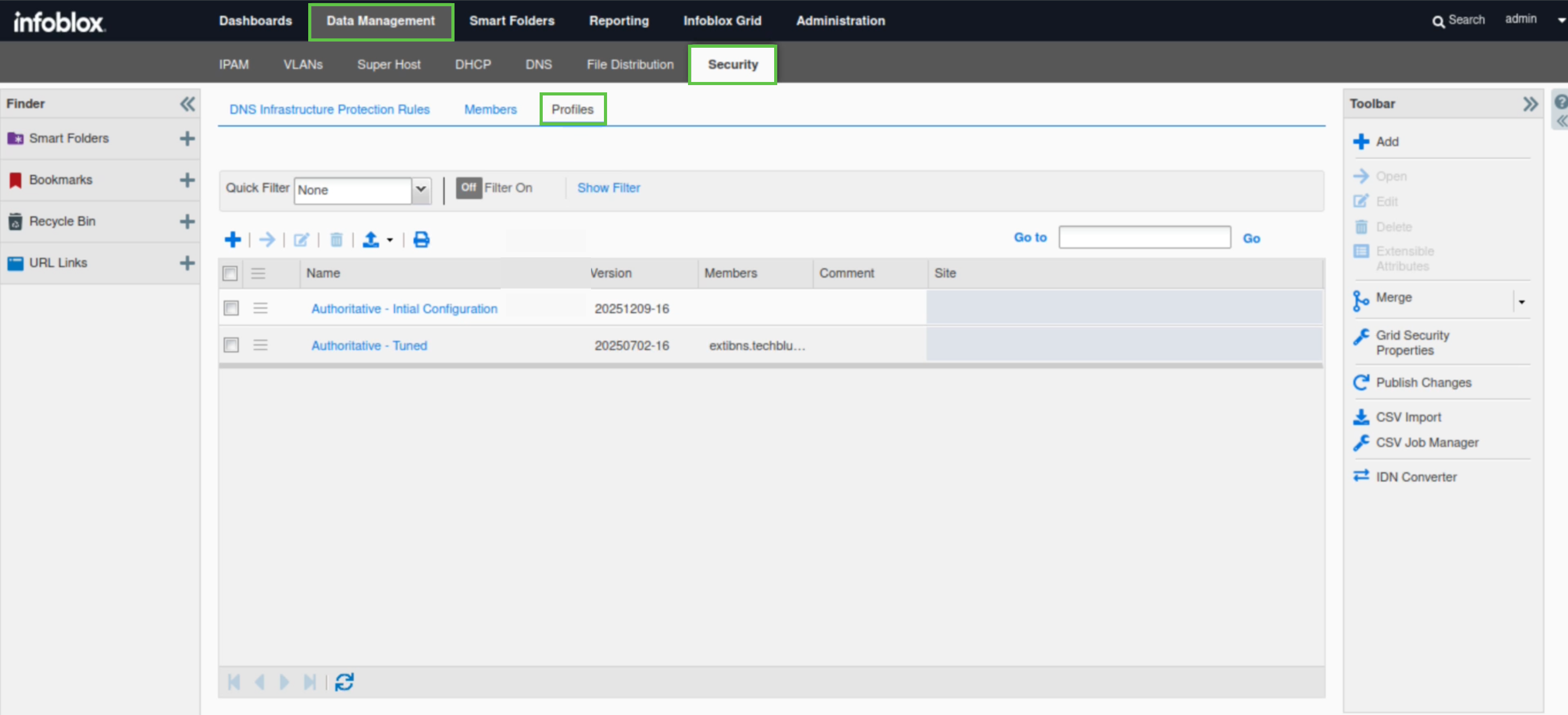
-
Select the Authoritative – Tuned profile.
-
Click Edit.
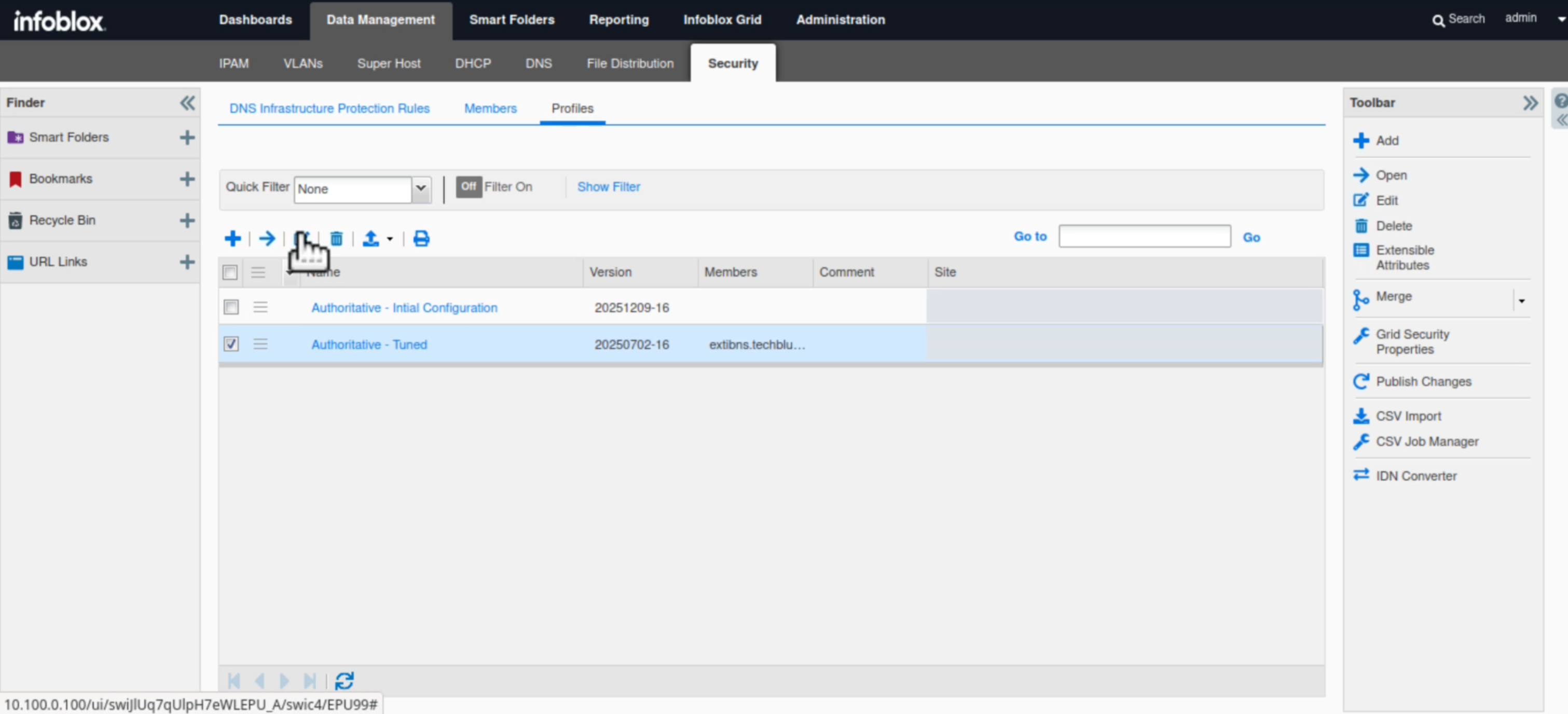
-
Under Active Ruleset Version, select the merged 20251209 16 ruleset.
-
Click Save & Close.
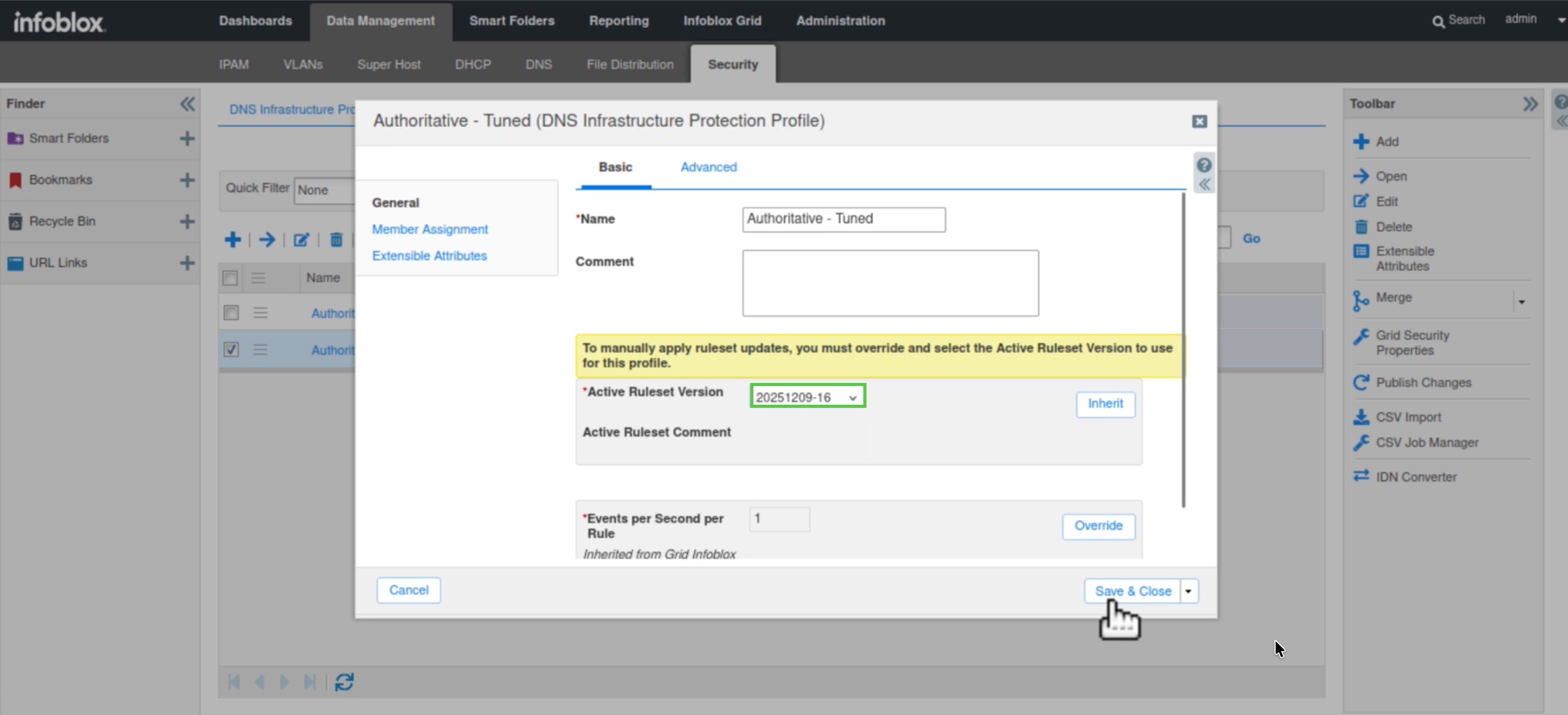
-
Publish the changes.
-
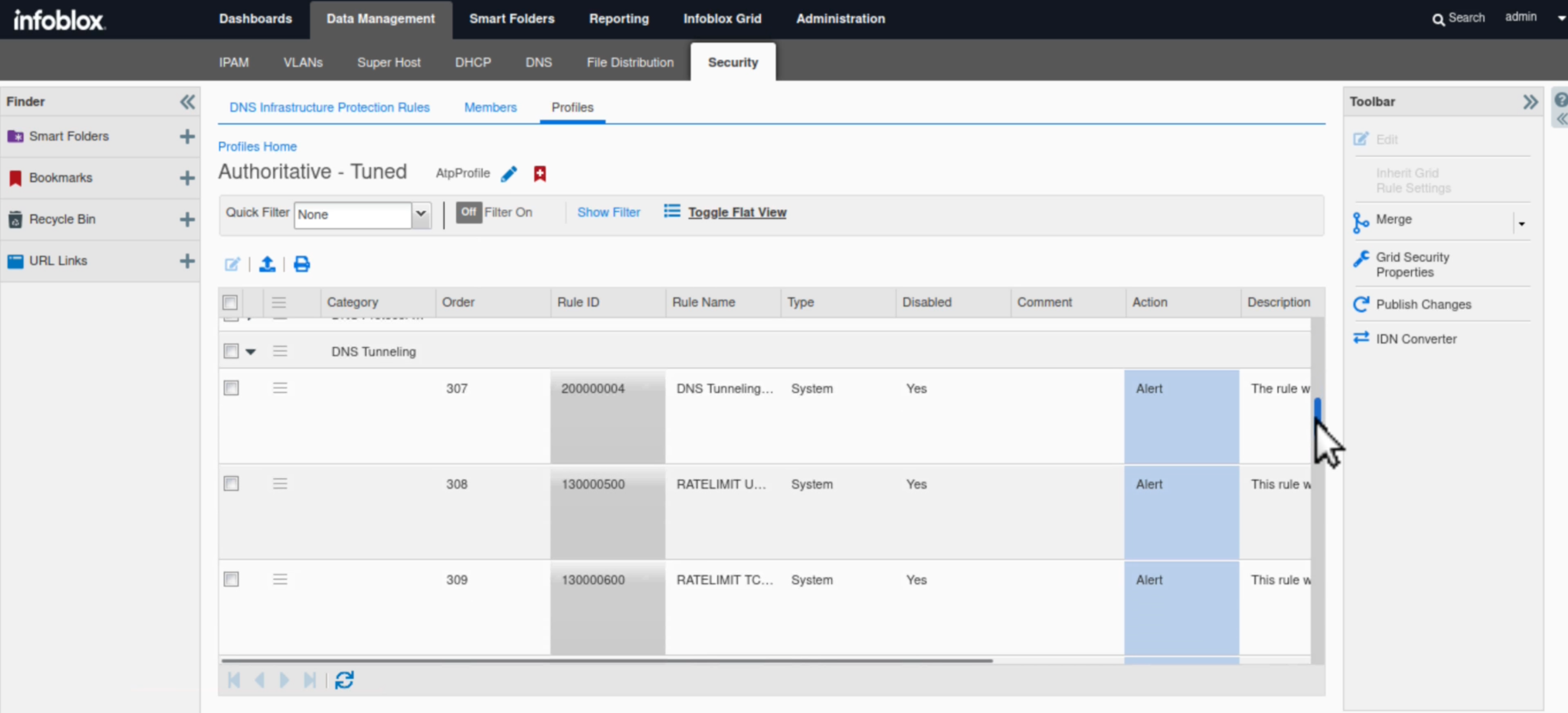
Click on the Authoritative - Tuned profile to reopen it.
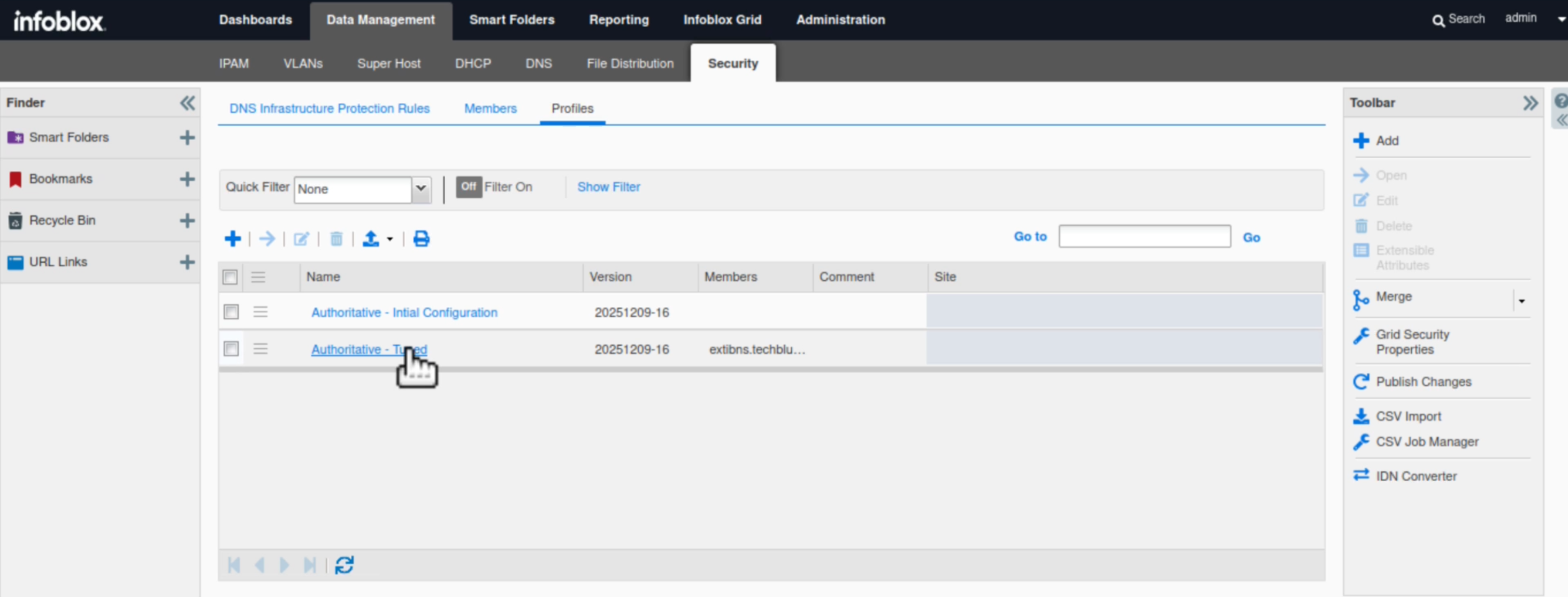
-
Scroll down to the DNS Malware category.
-
Expand the category and confirm that all rules remain disabled as they were before the merge.
-
These statuses were inherited from the previously used 2025070-16 ruleset. Only Auto rules may be enabled, as their activation state is determined by the system and cannot be manually changed or inherited.
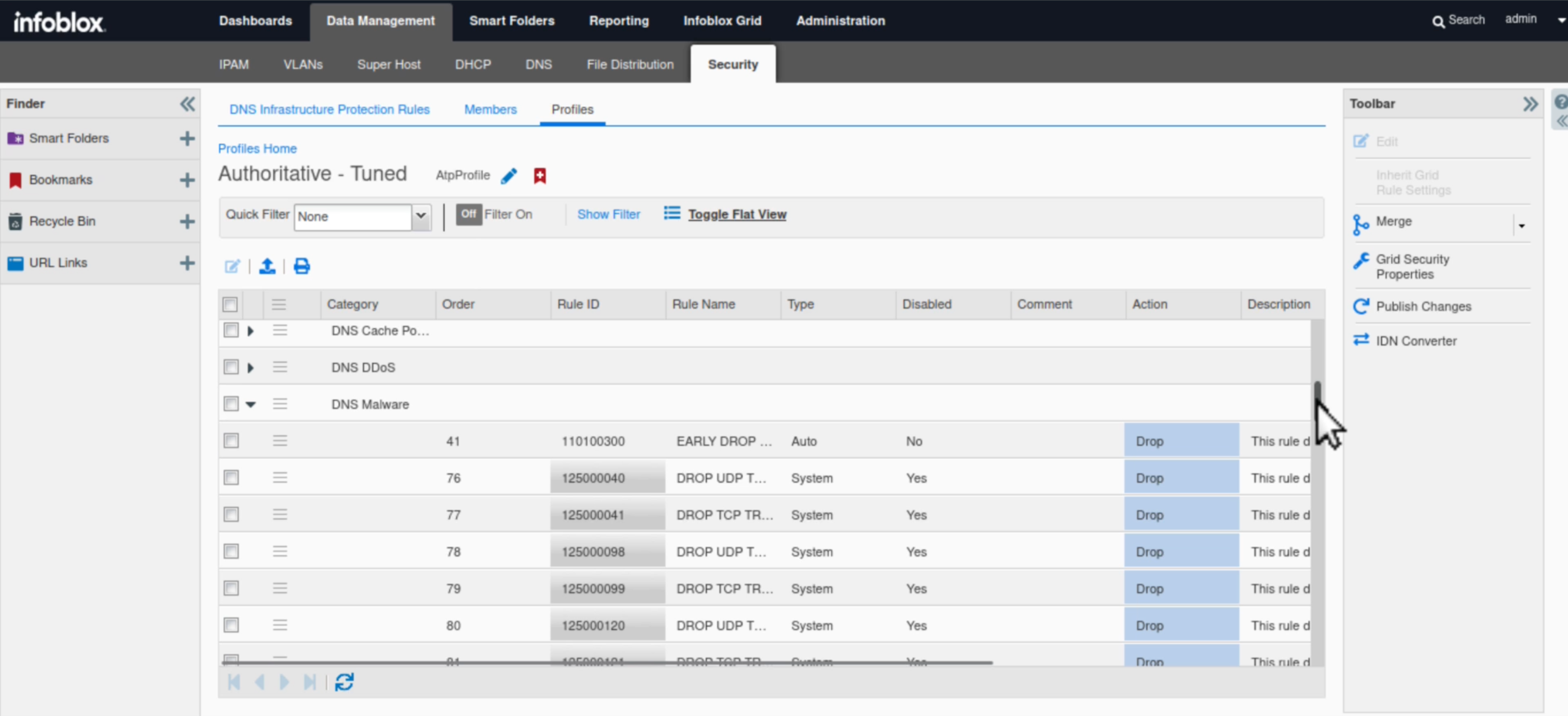
-
-
Scroll down to the DNS DDoS and DNS Tunneling categories to confirm that their rule statuses have also been inherited.
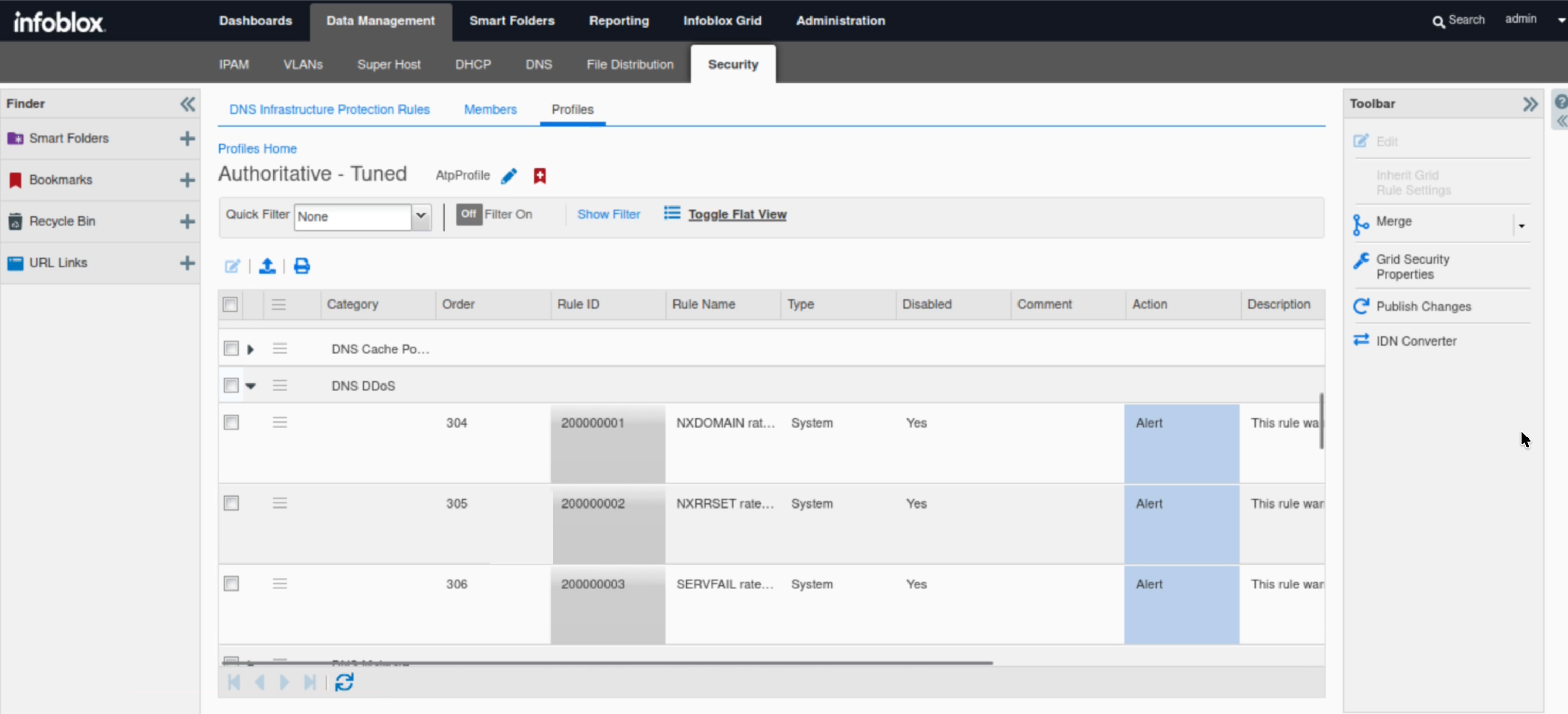
-
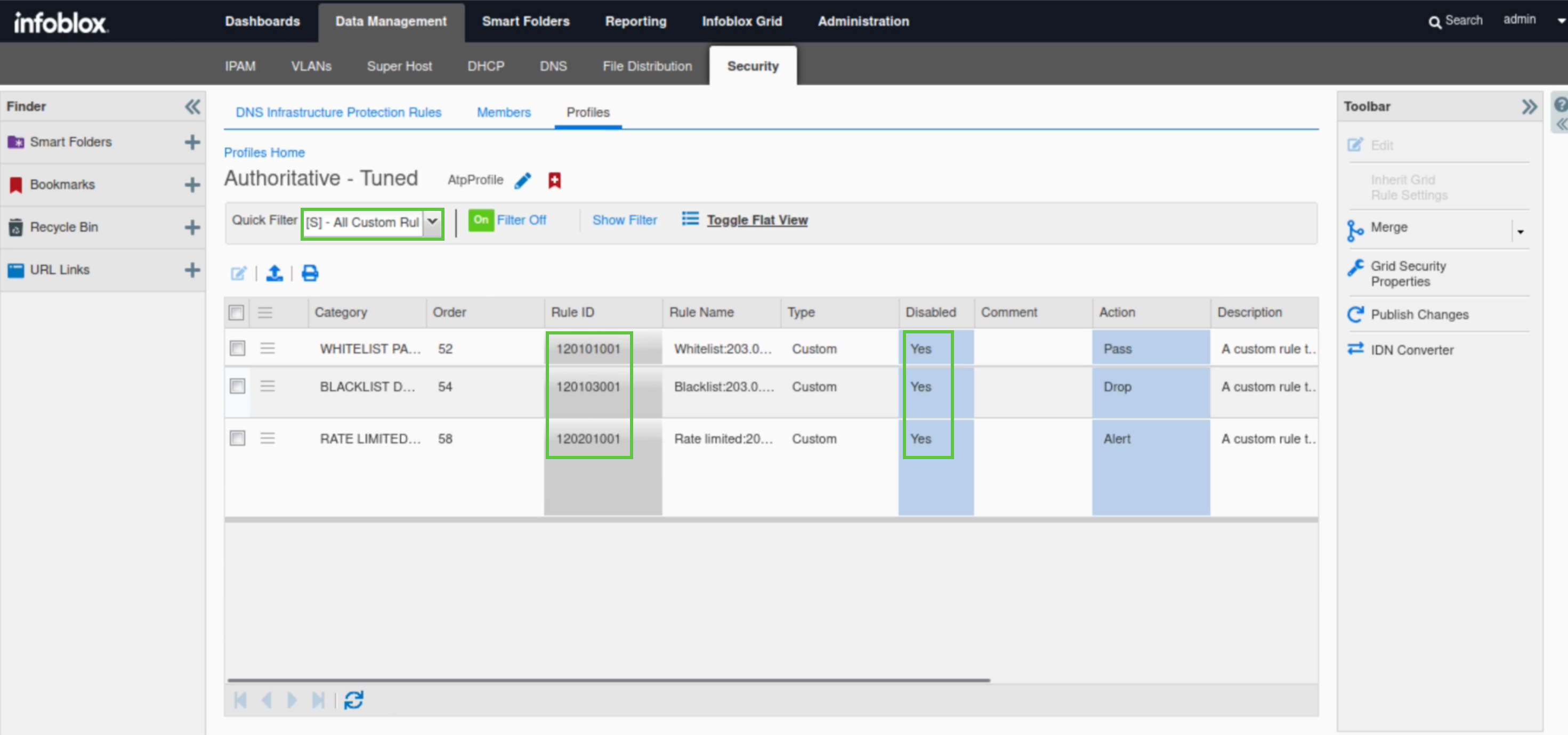
Open the Quick Filter drop‑down.
-
Select All Custom Rules.
-
Verify that all custom rules created in earlier labs appear in the list and remain disabled, as configured prior to the merge.
Task 26 Solution: Simulate a Misbehaving/Infected Client
It can take up to 10 minutes for extibns.techblue.net, to boot up with the DNS Infrastructure Protection service enabled.
In this task, Using the queryperf tool on the support-server VM, we will run three rounds, each with four attempts and 3- to 4-minute breaks between rounds, to send DNS queries to the extibns.techblue.net DNS server with the DNS-IP service enabled. We will use queryperf to set the query rate and simulate a misbehaving or infected client.
A custom Rate-Limiting rule (ID 120201001) was created in a previous lab under the 20250702-16 ruleset and inherited by the Authoritative - Tuned profile used by extibns.techblue.net. This rule controls traffic from the IP address 203.0.113.254 (support-server VM). It ensures continuous service for the customer’s IP, as your organization must provide 24/7 support, while preventing overloads. The rule triggers if the client sends more than 100 queries per second. We will use a query rate of 200.
We will use another tool, bmon on the support-server VM to monitor traffic on the eth2 interface connected to the 203.0.113.0 network to observe how extibns.techblue.net triggers the Rate-Limiting rule (ID 120201001).
-
Switch to the support-server VM (training/infoblox).
-
Open the bmon tool.
-
Expand the terminal window so you can see the colored charts that visualize DNS traffic flow during our tests.
-
-
Press the down arrow key on your keyboard to select the eth2 interface.
-
This indicates that you are monitoring traffic on the eth2 interface, which is connected to the 203.0.113.0 network.
-
-
Open another terminal window.
-
Type the command queryperf.
-
Send 200 QPS.
-
This rate higher than the maximum allowed query rate for the custom Rate-Limiting rule (rule ID 120201001) of 100 and will trigger the rule.
-
-
The bmon window should show continuous spikes of queries, then drops for 5-second intervals, which verifies that our custom Rate-Limiting rule has been triggered properly.
-
Repeat steps 5 to 7 for 3 more times for a total of 4 repetitions.
-
Wait for 2 to 3 minutes.
-
Repeat steps 5 to 7 one more time, for 4 repetitions.
-
Wait again, for 2 to 3 minutes.
-
Then, repeat steps 5 to 7 one last time, for 4 repetitions.
-
We are trying to simulate an infected or misbehaving client periodically sending out an excessive number of DNS queries.
-
Task 27 Solution: Analyze the Grid Status and Health using NIOS Security Dashboard
In this task, we assume an administrator role after the security status for Grid widget on the NIOS Security dashboard turned red, signaling a critical issue.
We use the NIOS Security Dashboard to analyze the issue. Since our investigation has just begun, we start by examining the grid's general security health using the security status for Grid and Security Status for all Members widgets to gather information and context about the incident.
Using these widgets, we identify the issue was triggered by the DNS Infrastructure Protection (DNS-IP) service on extibns.techblue.net. This leads us to analyze the grid member separately to understand which rules triggered, the associated IP addresses, visualize a timeline, and verify whether DNS-IP stopped the incident.
This information helps us understand the recent event. We need to investigate if this incident recurs after verifying with syslog that traffic was rate limited by our organization’s custom DNS-IP rule. We will check extibns.techblue.net’s syslog to confirm the action taken and matched rule, then use the Reporting Server’s dashboards to view historical Grid dashboards.
-
Switch back to the jump-desktop VM and log back into the Grid Manager UI. (admin/infoblox).
-
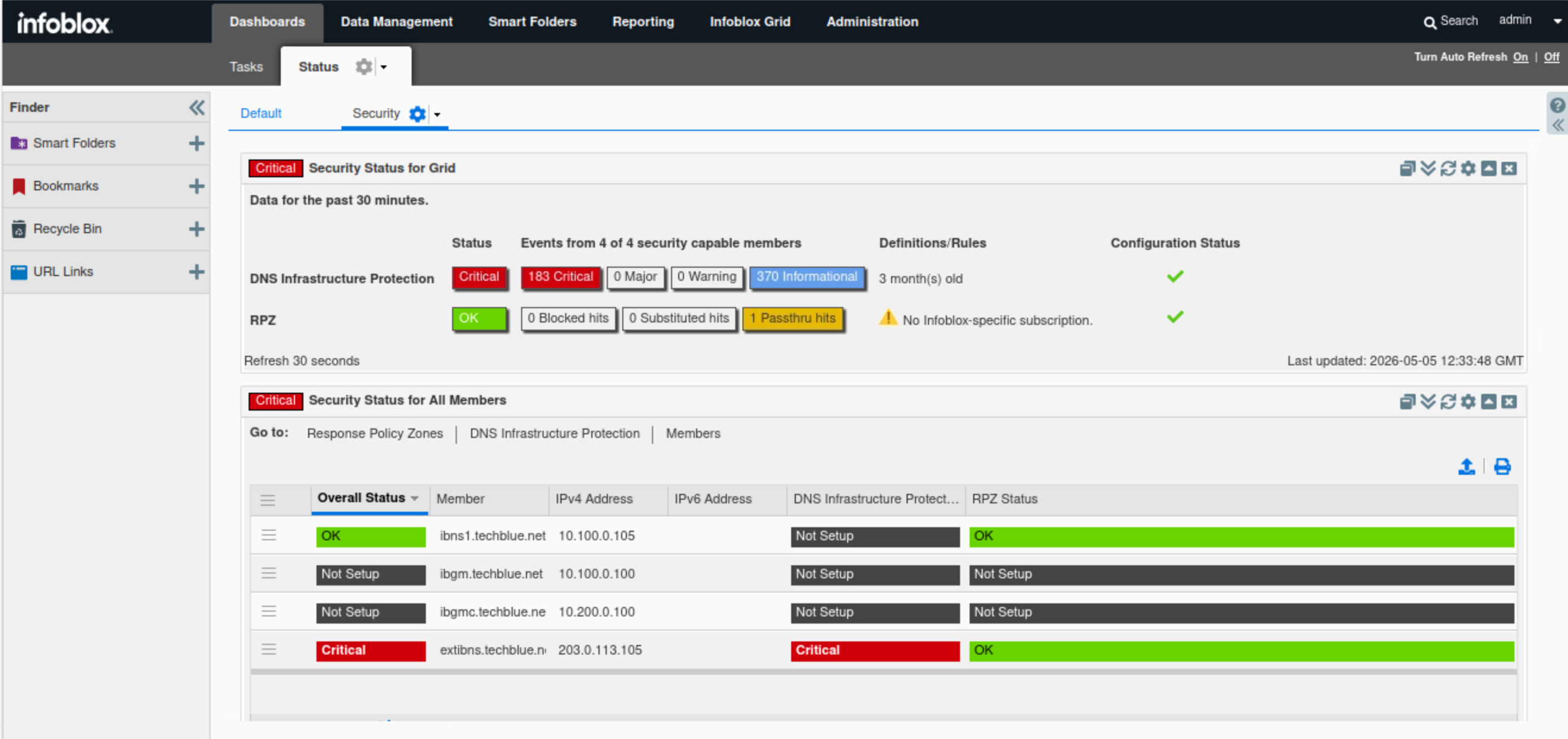
Navigate to Dashboards → Status → Security.
-
Find the Security Status for Grid widget.
-
The widget shows high-level information about the Grid security status, including the status of each enabled security service: RPZ, Threat Insight or DNS-IP.
-
The DNS Infrastructure Protection status is critical. We see a Grid-wide breakdown of the number of events per severity level.
-
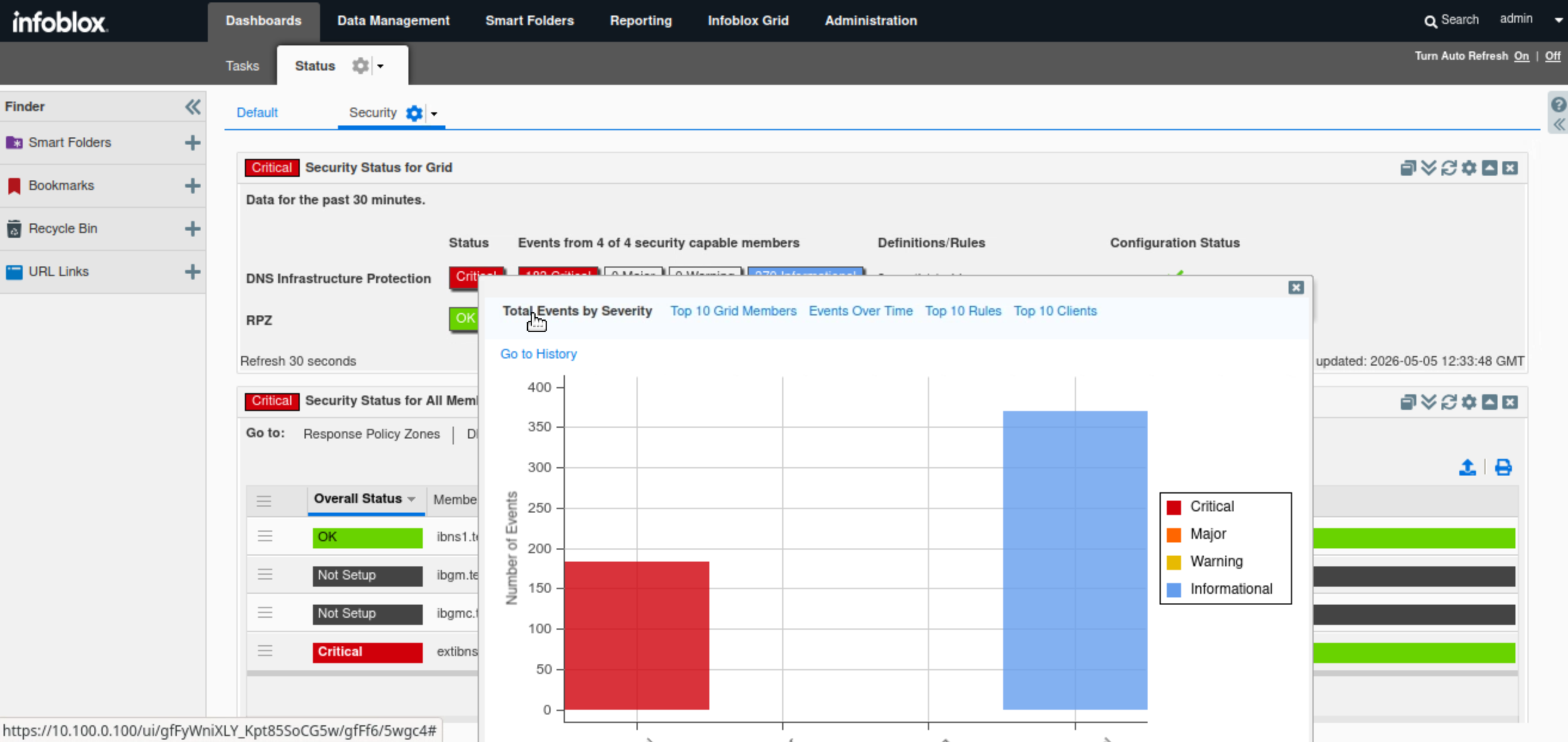
Hovering over the status icon shows a breakdown of the DNS Infrastructure Protection status, including Total Events by Severity, Events Over Time, and Top 10 Rules among others. This information also appears in the DNS Infrastructure Protection status for the Grid widget. We will focus on these details in a later step.
-
-
Find the Security Status for all Members widget.
-
This widget shows a detailed status breakdown for each Grid member. Since the grid member ibns1.techblue.net does not run DNS Infrastructure Protection, it should not be affected by recent events, while extibns.techblue.net is critical because it runs DNS Infrastructure Protection.
-
Hovering over each member's name reveals details about that Grid member, such as enabled services and CPU, memory, and disk usage. Similarly, hovering over the DNS Infrastructure Protection status bar shows a breakdown of the DNS Infrastructure Protection status for that member, including Total Events by Severity, Events Over Time, and Top 10 Rules. This information also appears in the DNS Infrastructure Protection Status for member widget. We will focus on these details in a later step.
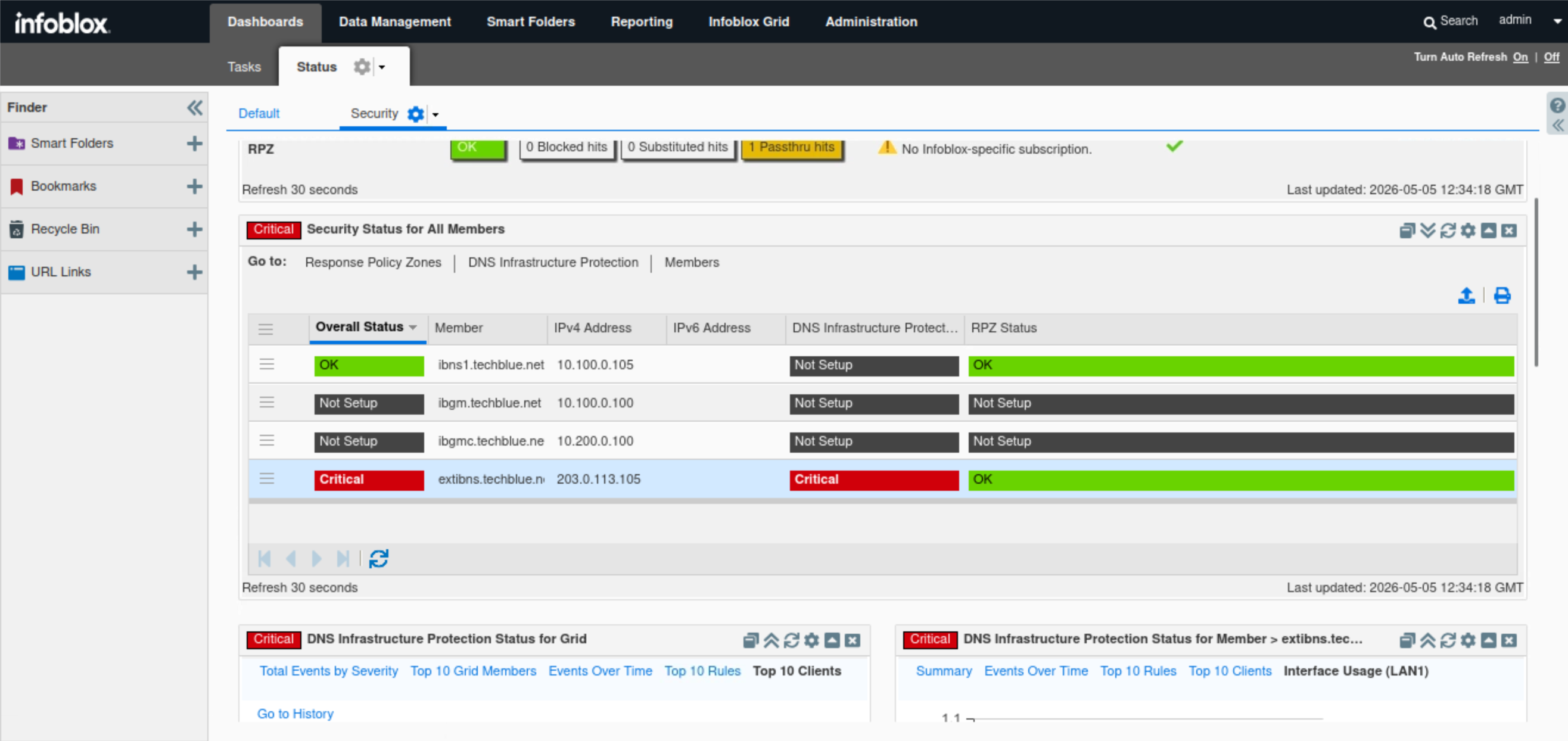
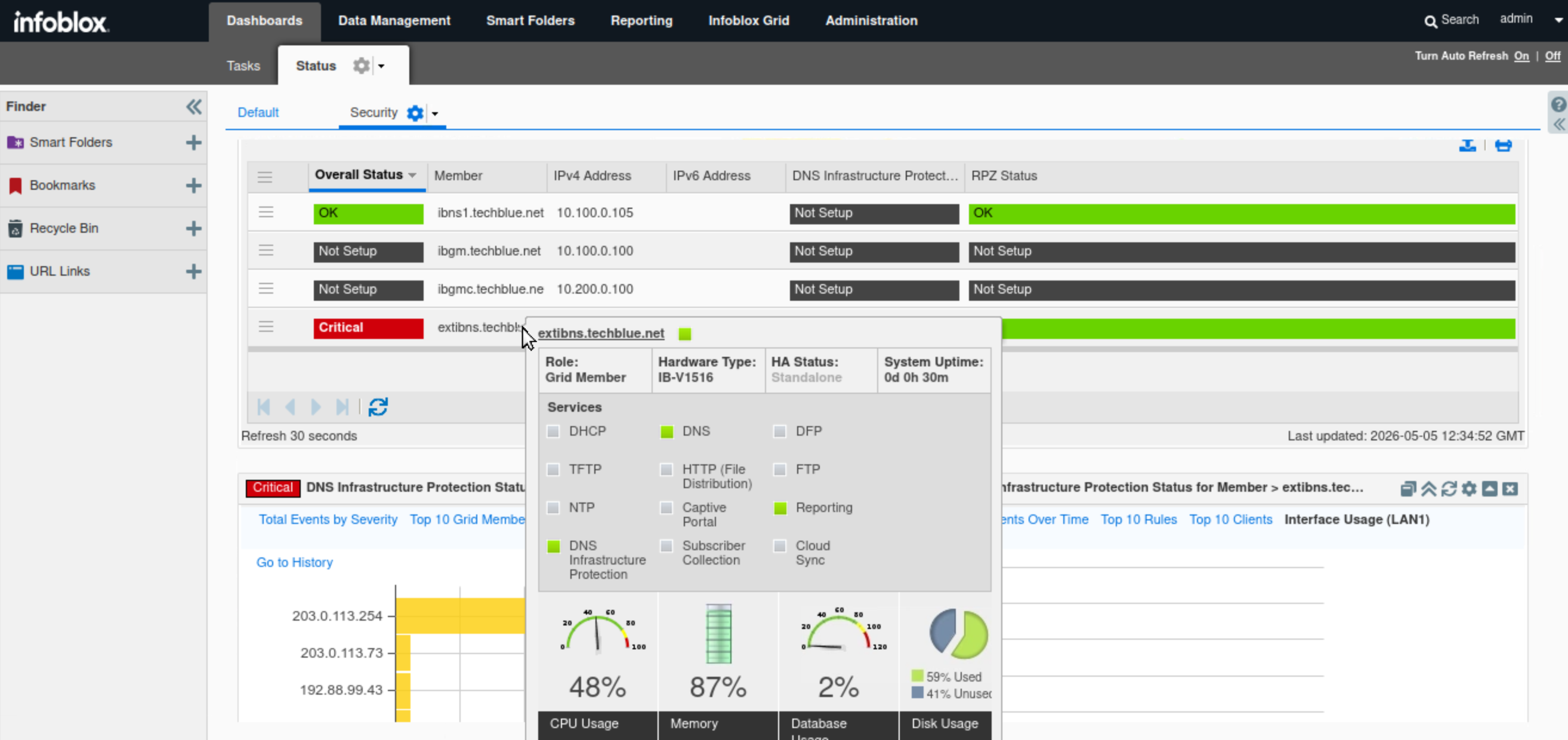
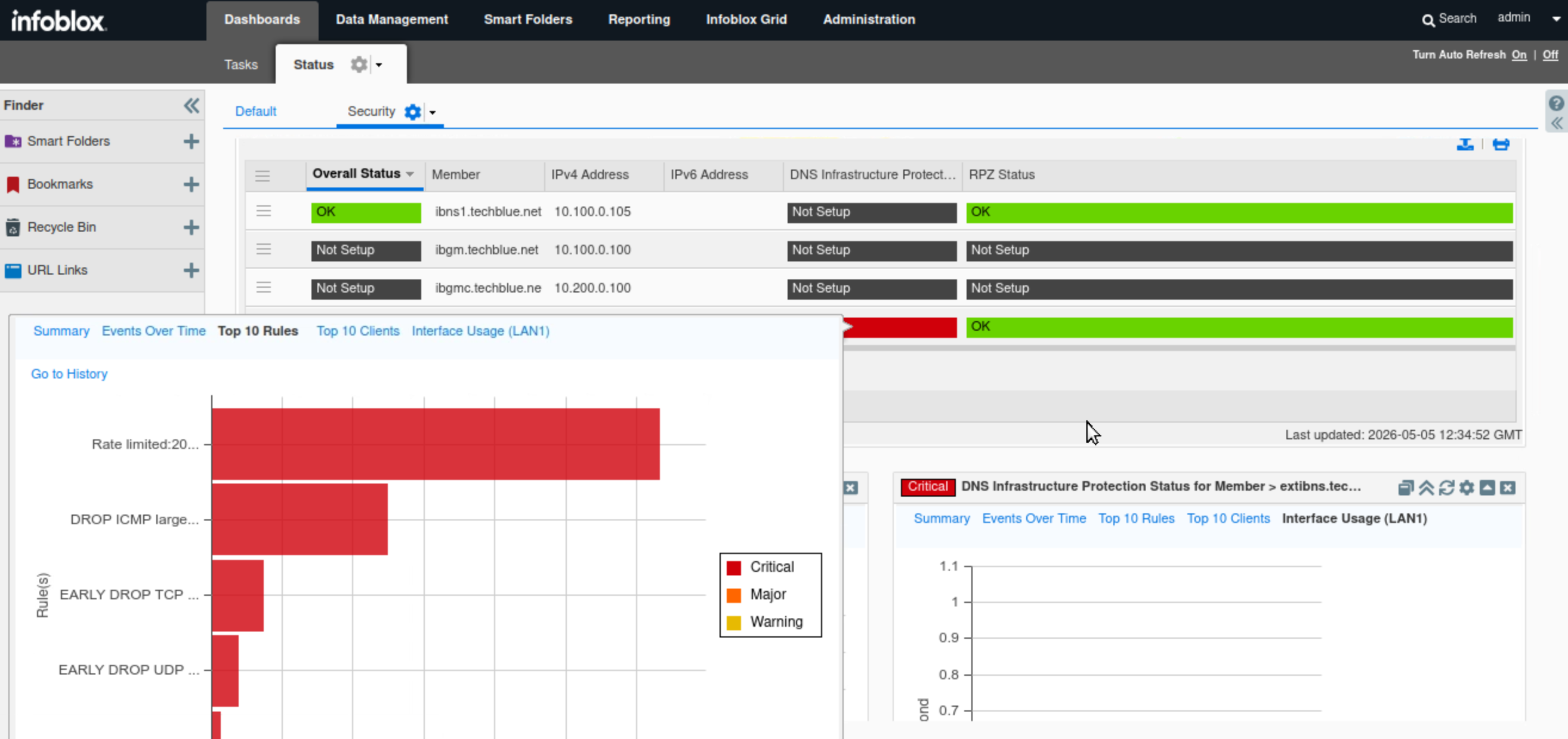
-
-
Find the DNS Infrastructure Protection Status for Grid widget.
-
This widget shows a breakdown of the DNS Infrastructure Protection status, using five tabs: Total Events by Severity, Top 10 Grid members, Events Over Time, Top 10 Rules and Top 10 Clients.
-
Click Total Events by Severity.
-
This tab, in bar chart format, breaks down DNS Infrastructure Protection events into four categories: Critical, Major, Minor, and Informational.
-
We can see only two categories being triggered: Critical and Informational, hover over severity columns to display the event count per column.
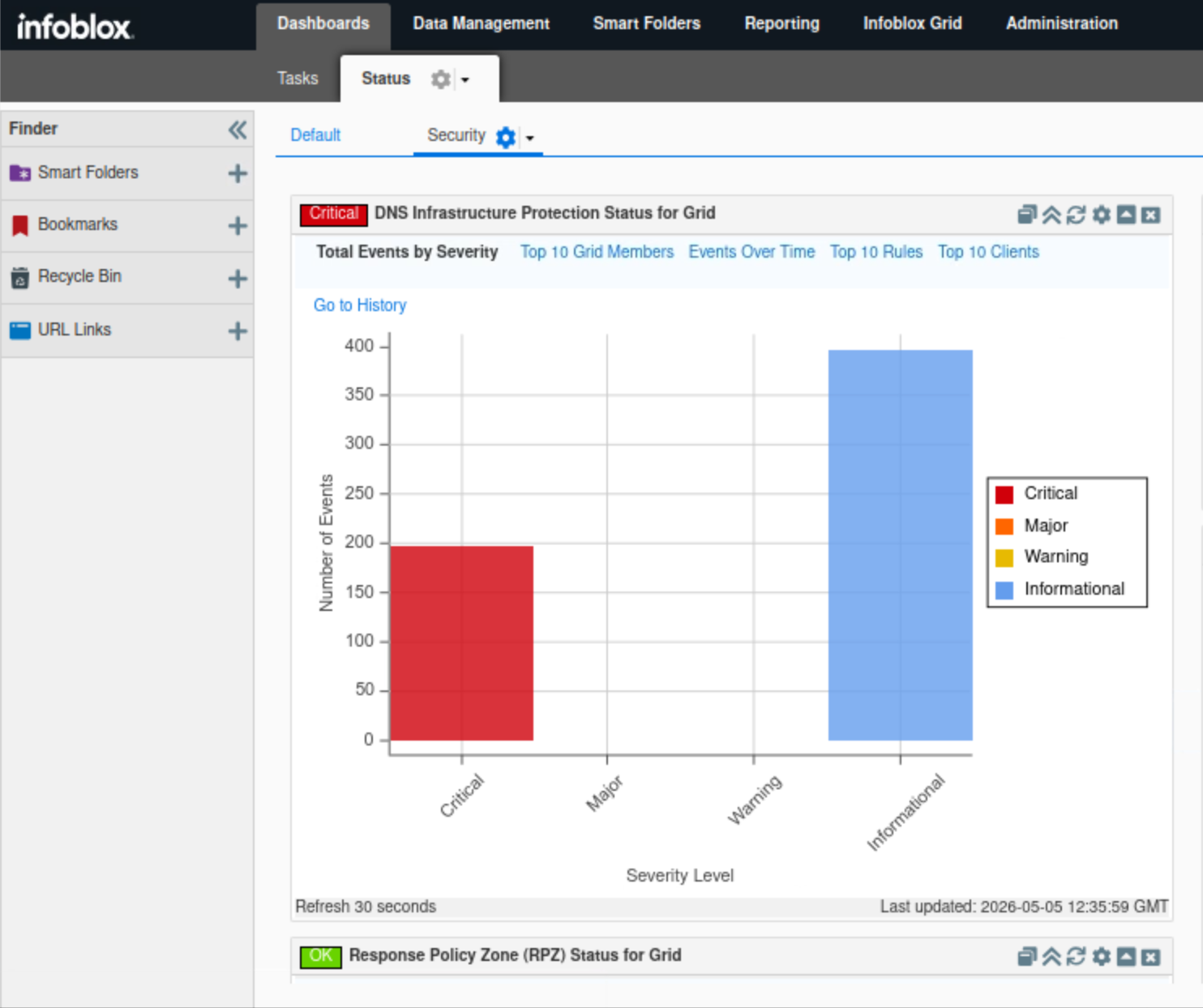
-
-
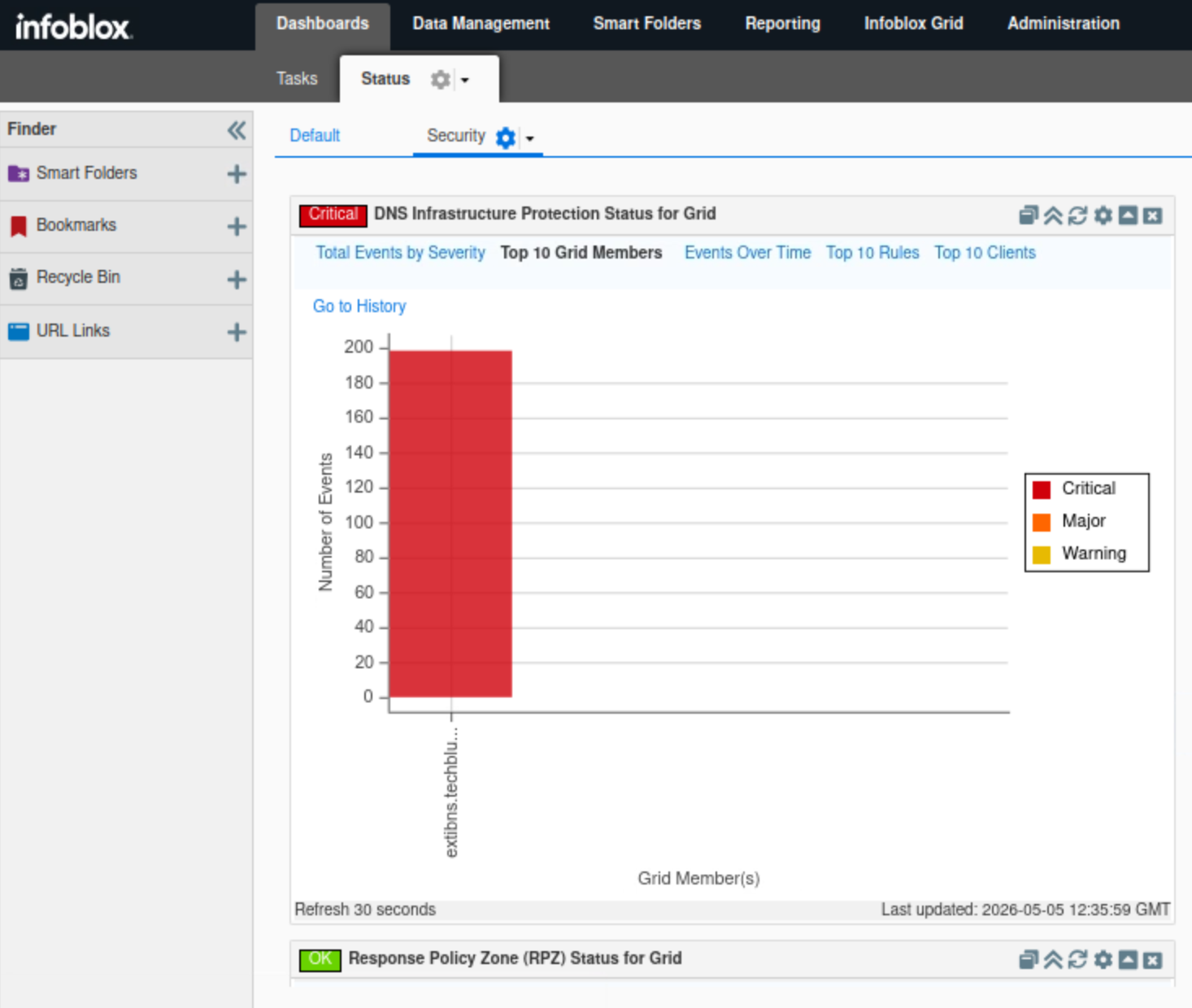
Click Top 10 Grid Members.
-
This tab, in bar chart format, breaks down the number of events triggered by each DNS Infrastructure Protection enabled member.
-
Only extibns.techblue.net is shown since it is the only DNS Infrastructure Protection enabled member, hover over member column to display the event count per member.
-
-
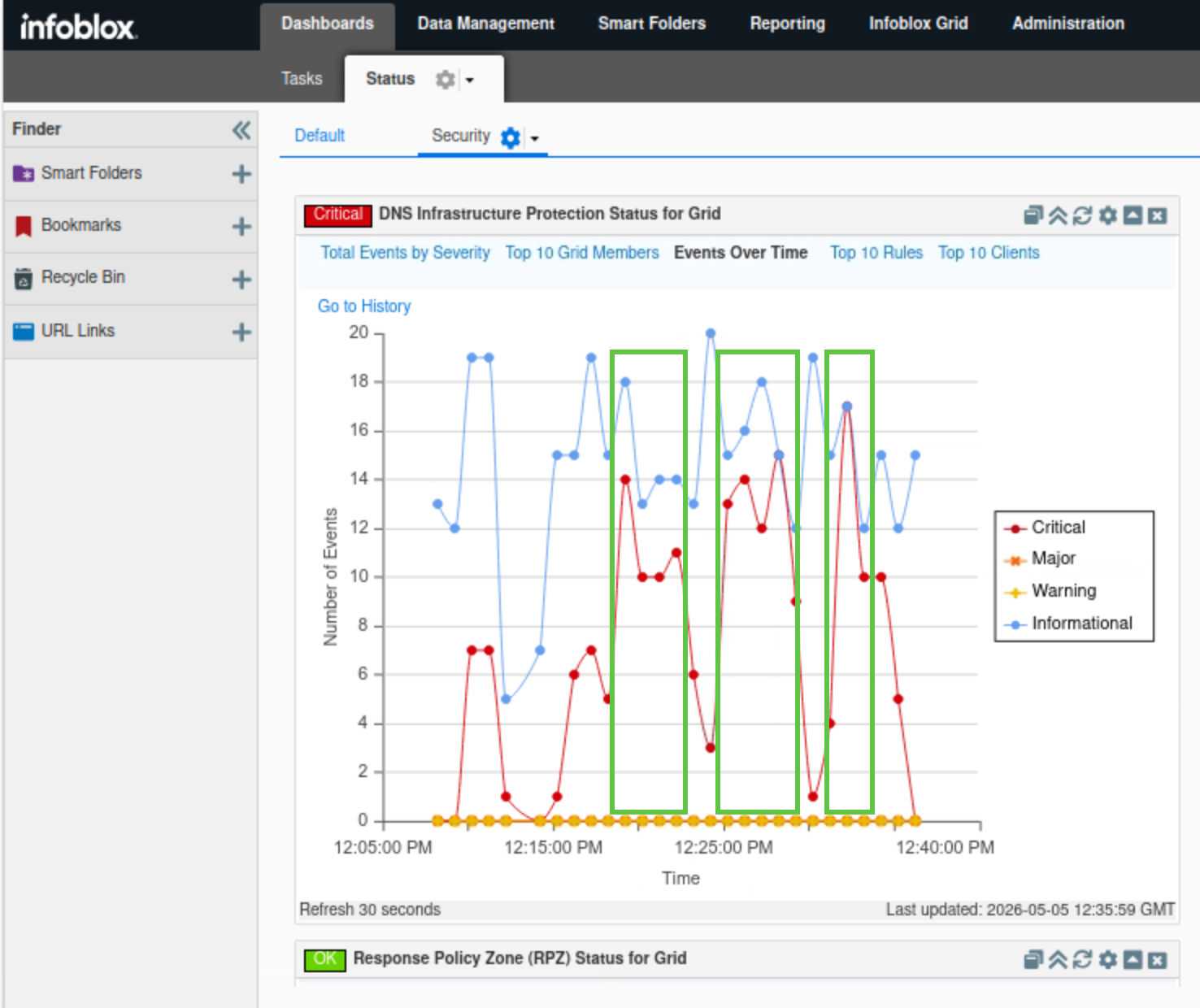
Click Events Over Time.
-
This tab displays a timeline for each event category to help visualize any recent spike of DNS traffic on the Grid.
-
We can visualize the recent DNS spike event starting with a sudden rise in critical events triggered. Multiple spikes should appear within a 15-to-20-minute period, matching what we simulated earlier in the lab with queryperf.
-
-
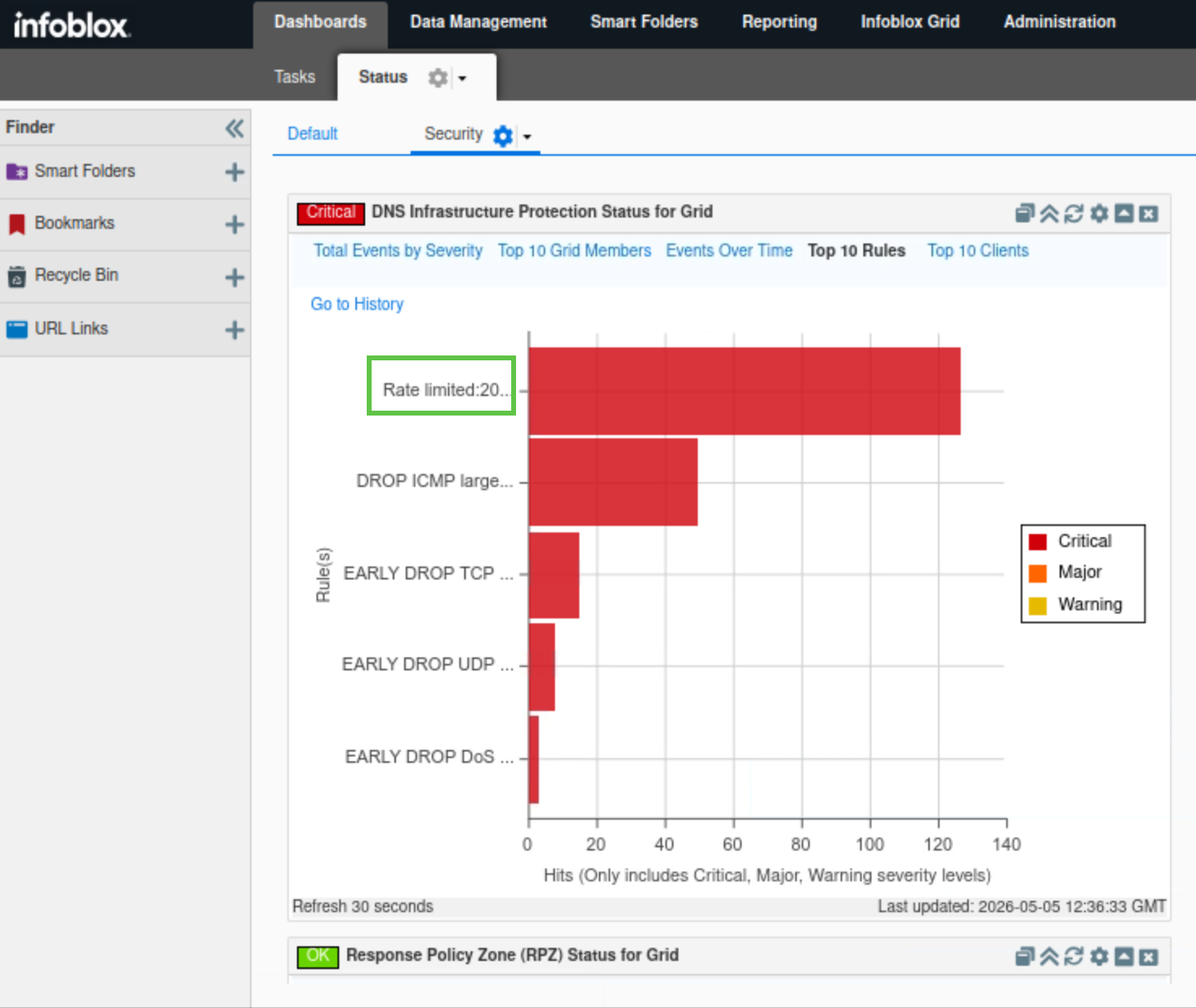
Click Top 10 Rules.
-
This tab, in bar chart format, breaks down the number of events triggered by each DNS Infrastructure Protection rule category.
-
We should see the RATE LIMITED: 203.0.113.254 rule listed, hover over the red bar to view the number of events triggered and read the full name for the triggered rule.
-
-
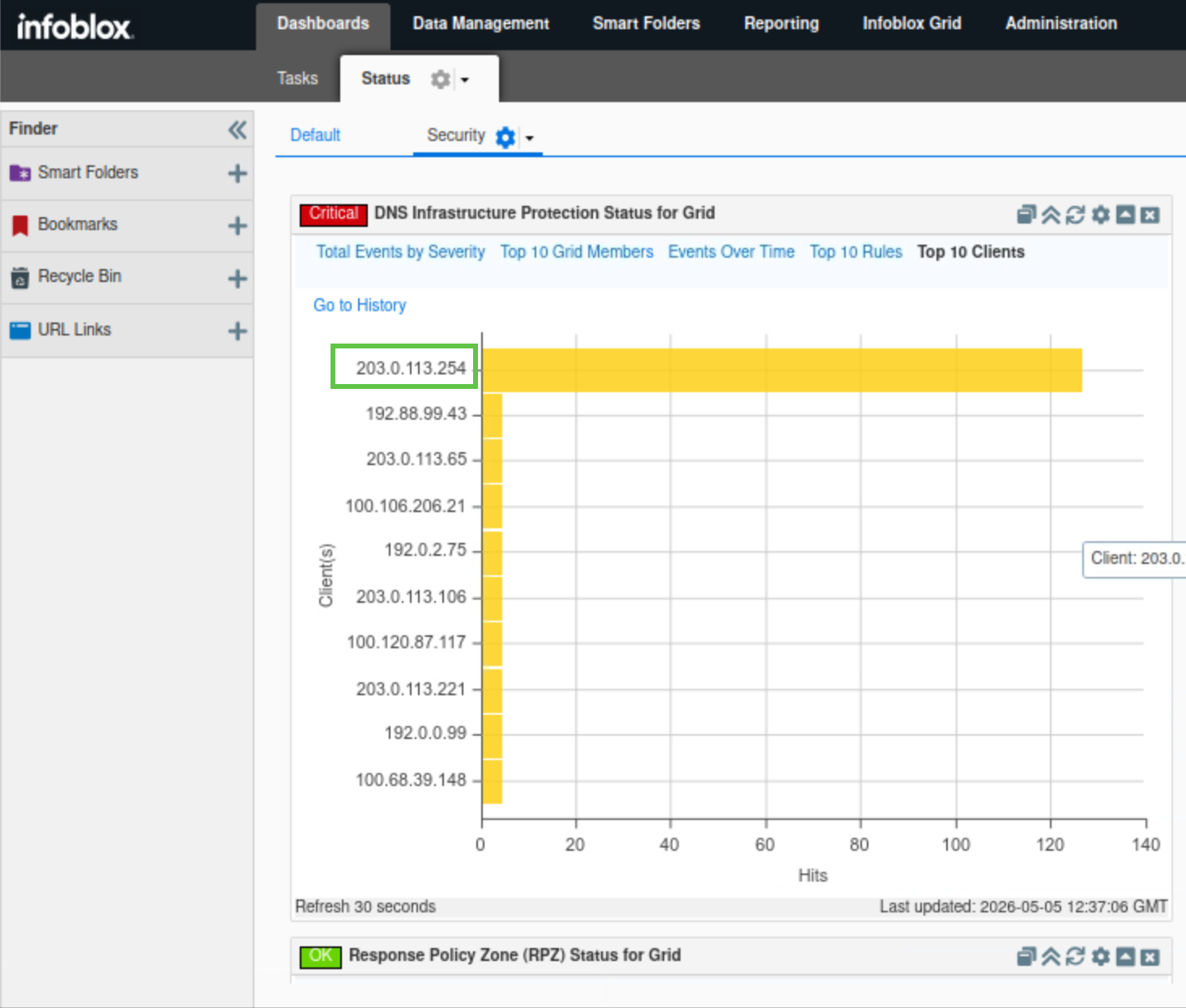
Click Top 10 Clients.
-
This tab, in bar chart format, breaks down the number of events triggered by each source.
-
We should see the 203.0.113.254 IP address listed as a top 10 client, hover over the yellow bar to view the number of events triggered.
-
-
-
-
Find the DNS Infrastructure Protection Status for member widget.
-
This widget shows a breakdown of the DNS Infrastructure Protection status for a manually selected Grid member, using the same five tabs: Total Events by Severity, Top 10 Grid members, Events Over Time, Top 10 Rules and Top 10 Clients.
-
To select the Grid member:
-
Click the cog wheel icon.
-
Select extibns.techblue.net.
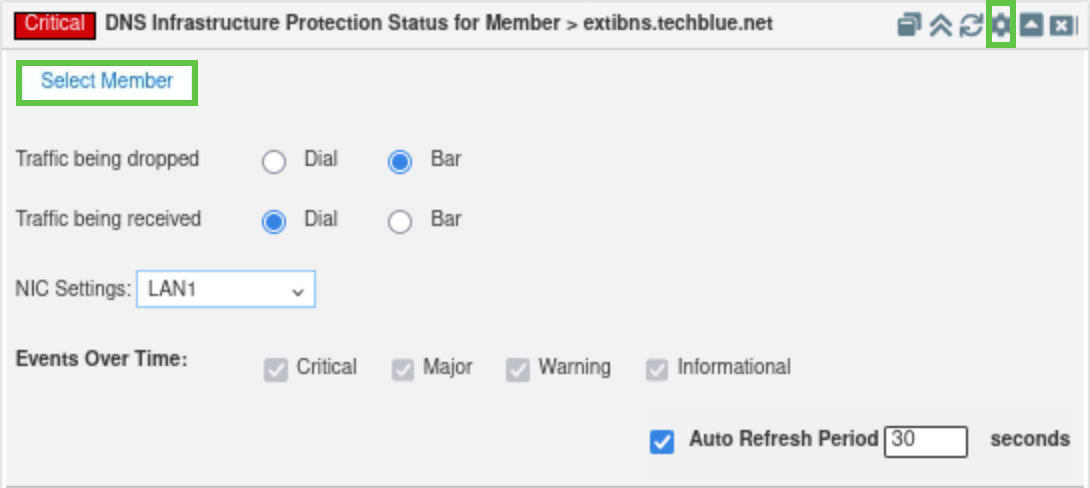
-
-
Since extibns.techblue.net is the only member running DNS Infrastructure Protection, the information in all five tabs will be identical to what was displayed in DNS Infrastructure Protection Status for Grid widget.
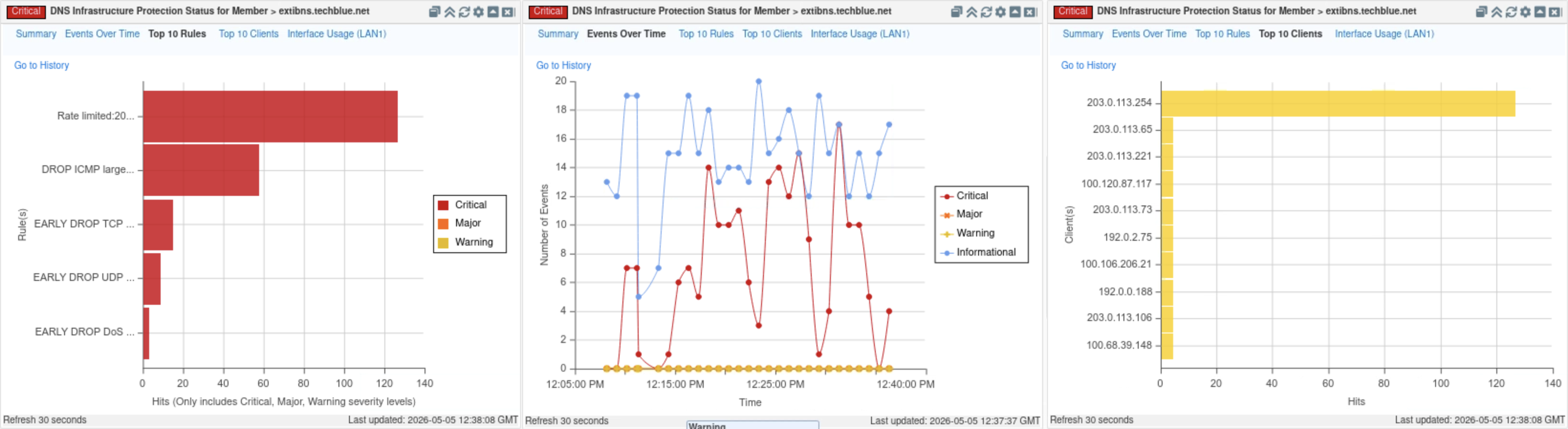
-
Task 28 Solution: Investigate Action Taken and Matched Rule for the Recent Incident Using Syslog
In this task, we want to find which rule was triggered by the traffic spike from 203.0.113.254, so we may adjust its settings.
Acting as the security administrator, you will use the syslog viewer in the Grid Manager to focus specifically on Threat Detection Event Logs for extibns.techblue.net and filter them by the client IP. By reviewing these entries, you will find the custom rule ID (120201001) was matched, that the action taken was ALERT with a RATE LIMITED UDP IP category, and that events occurred in 5-second intervals, demonstrating that DNS Infrastructure Protection successfully rate-limited the misbehaving client while keeping the service available.
-
Navigate to Administration → Logs → Syslog.
-
Choose extibns.techblue.net from the Log Viewer drop-down menu.
-
Click the Toggle multi-line view link.
-
Select Threat Detection Event Logs from the Quick Filter drop-down list.
-
Enter the IP address 203.0.113.254 in the search bar.
-
Review syslog entries with the IP address 203.0.113.254. We are looking for the rate limited rule ID that the simulated behavior has triggered.
-
The screenshot shows two syslog entries, 5-seconds apart. Both of them are in the category of RATE LIMITED UDP IP.
-
We can see the custom rule ID (120201001) in both log entires. This is the rule ID we will investigate next.
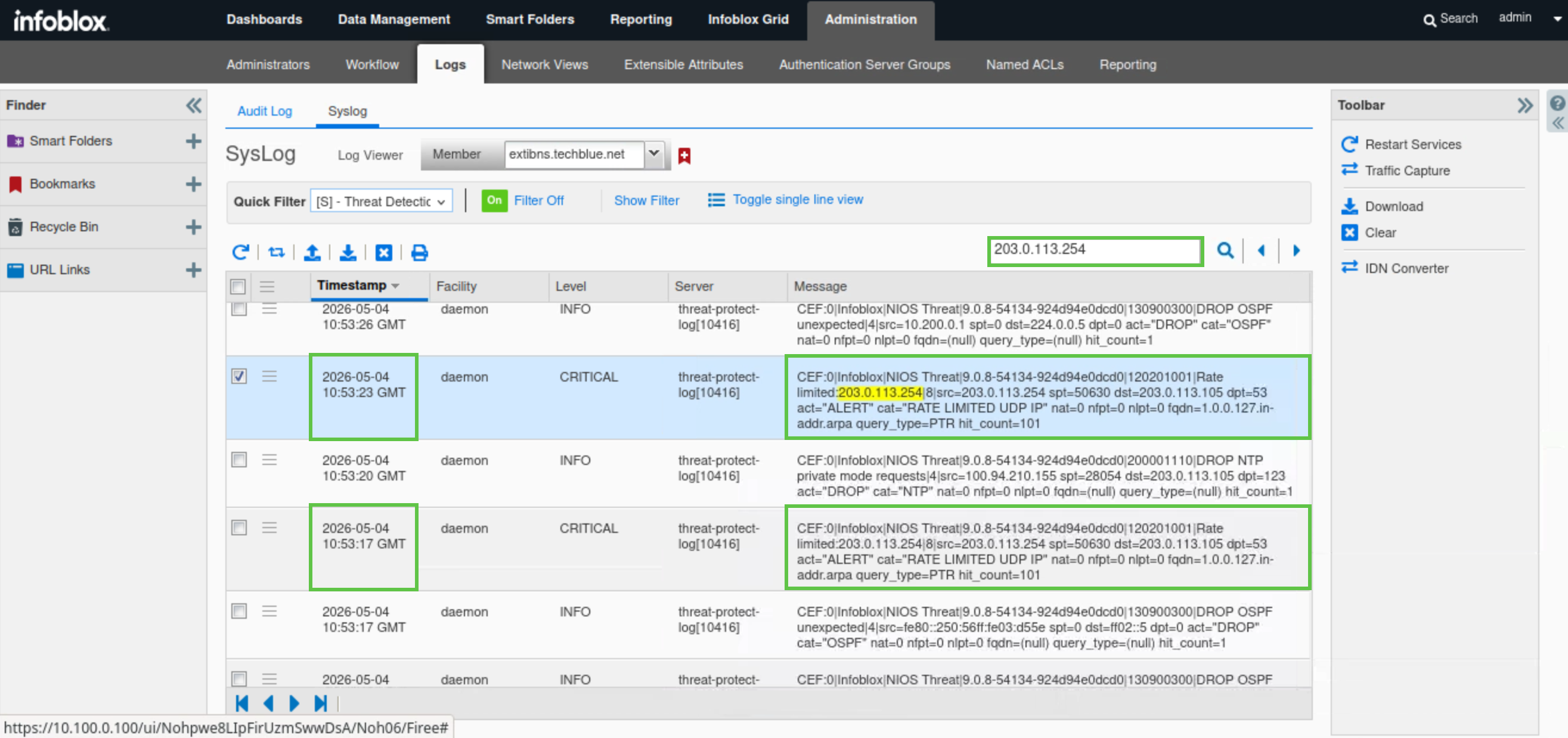
-
Task 29 Solution: Investigate Incident History using Reporting Server Dashboards and Reports
In this task, we will use the Reporting Server to add historical context to the DNS spike identified in the NIOS Security Dashboard and syslog.
After allowing time for data collection, you will explore several DNS Infrastructure Protection reports to confirm that only extibns.techblue.net has DNS-IP enabled, verify that all RATE LIMITED UDP IP events map to your custom rule (Rule ID 120201001), and check whether the suspect client 203.0.113.254 has triggered any additional rules in an unusual or excessive way.
By comparing event counts across Event Count by Member, Event Count by Category, Event Count by Rule, and Top Rules Logged by Source, you will build a complete historical picture of the incident, correlating affected members, categories, rules, and sources.
Finally, you will consolidate your findings using the DNS Infrastructure Protection Event Count Dashboard and export it as a PDF to create a concise, management-ready summary of the investigation.
-
Navigate to Reporting → Reports.
-
There are eight default reports available on the Reporting Server; in this lab, we will focus on five of them:
-
The DNS Infrastructure Protection Event Count by member, allows us to track if other members have had DNS Infrastructure Protection enabled in the past.
-
The DNS Infrastructure Protection Event Count by category, will be used to validate that historically our Grid has rate-limited UDP traffic and to track the total number of UDP rate-limiting events triggered.
-
DNS Infrastructure Protection Event Count by rule, will be used to track that our specific custom rule RATE LIMITED UDP IP (Rule ID 120201001) has been historically triggered for all the rate-limited UDP events and to track the alert count for the custom rule RATE LIMITED UDP IP.
-
DNS Infrastructure Protection Event Count by Source, allows us to historically track all DNS Infrastructure Protection rules triggered by our suspect IP address 203.0.113.254 and validate if the IP has not triggered any other rule excessively or unexpectedly.
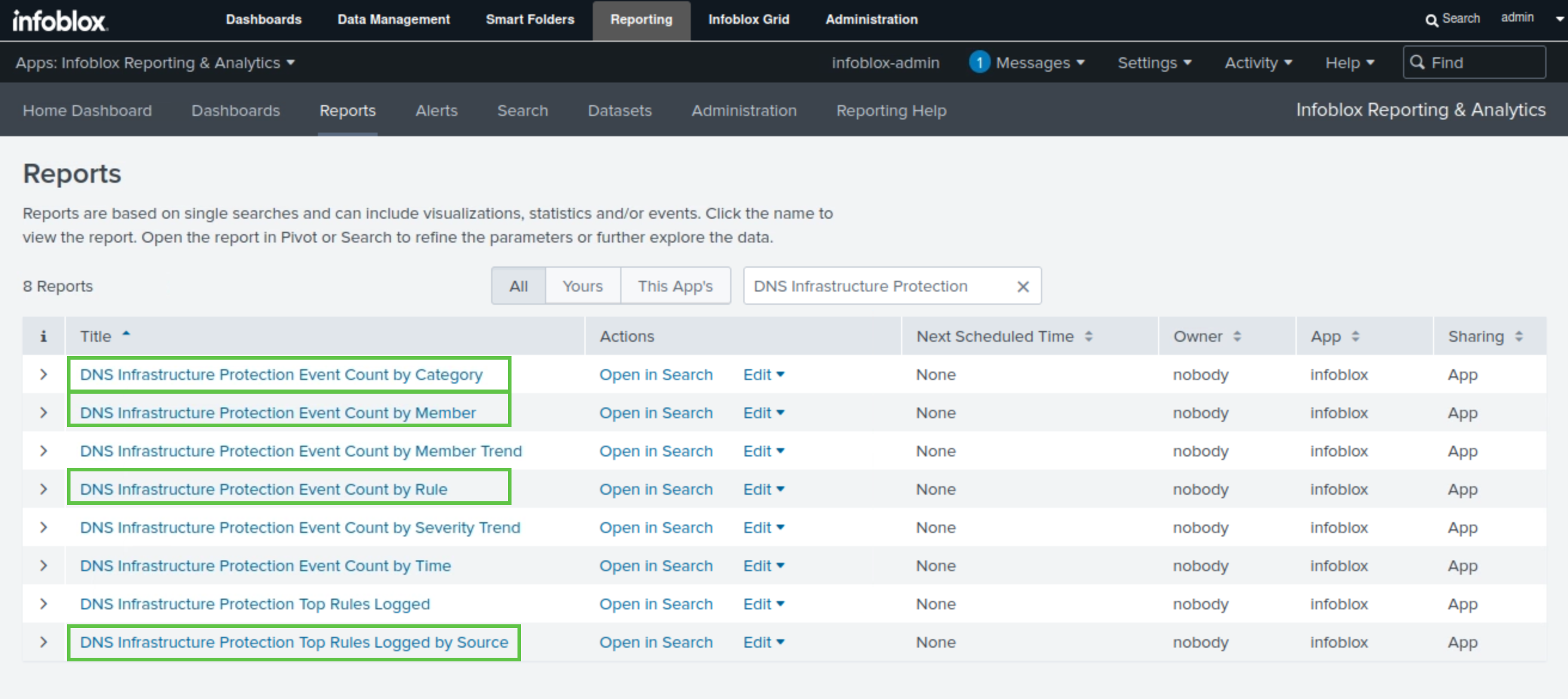
-
-
-
Type DNS Infrastructure Protection in the filter box.
-
Select DNS Infrastructure Protection Event Count by member.
-
This report displays each member's total DNS Infrastructure Protection event count, broken down into severity levels in bar chart and table formats.
-
The graph and table should only display information related to extibns.techblue.net. This indicates that DNS Infrastructure Protection has only been enabled on that member. The whole graph will be dedicated to it, and we can clearly see the total number of events and its breakdown in different severity levels.
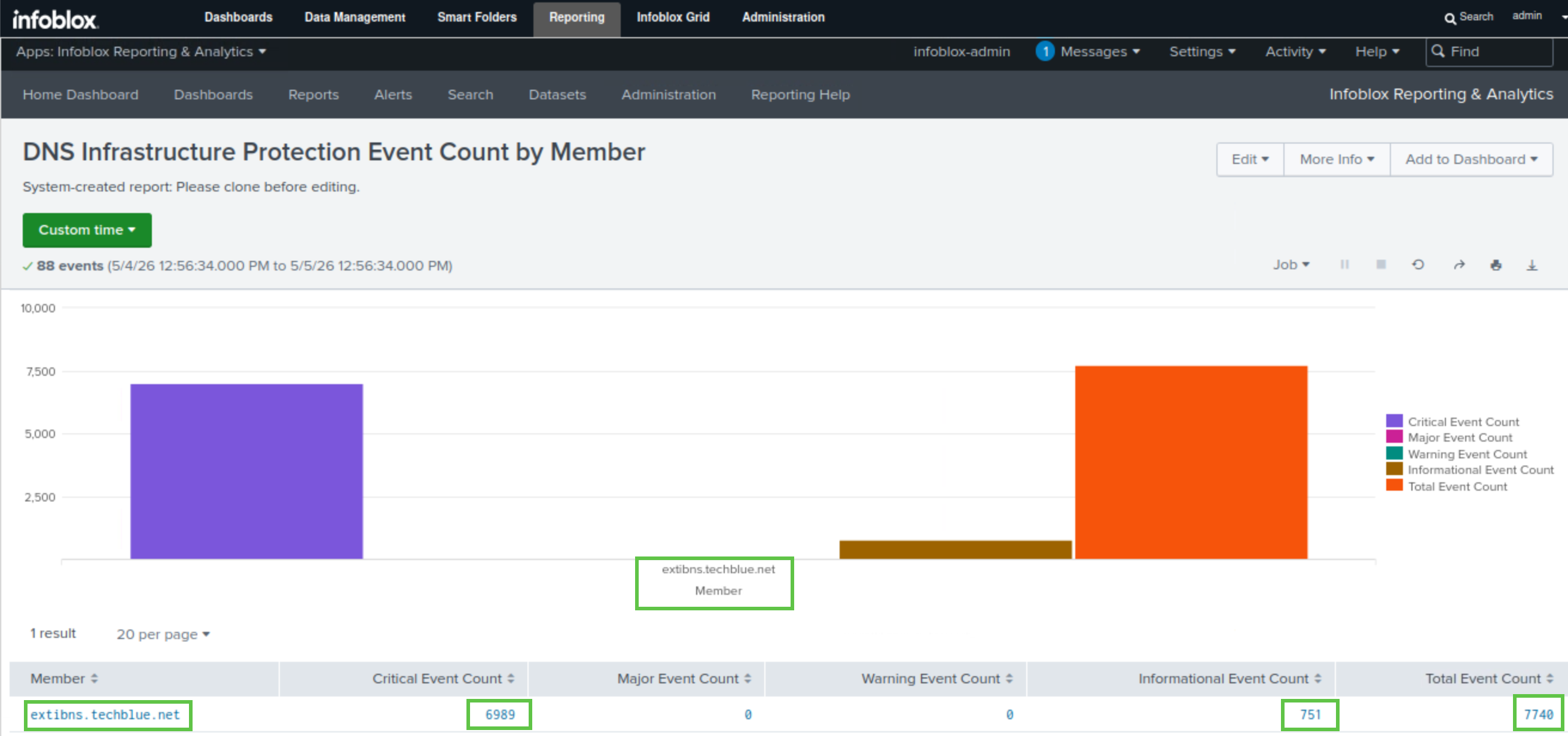
-
-
Click on Reports to navigate back to the main Reports page.
-
Type DNS Infrastructure Protection in the filter box, one more time.
-
Select DNS Infrastructure Protection Event Count by category.
-
This report shows the total number of DNS Infrastructure Protection events and their severity per category in bar chart and table formats.
-
We look for the RATE LIMITED UDP IP category and how its events break down by severity. All events for this category should be Critical, matching findings from the NIOS Security dashboard and syslog.
-
We will track the total number of events triggered for the RATE LIMITED UDP IP category, comparing it to events triggered by the custom rule (Rule ID 120201001) in the next step, to verify if it was the only rule triggered.
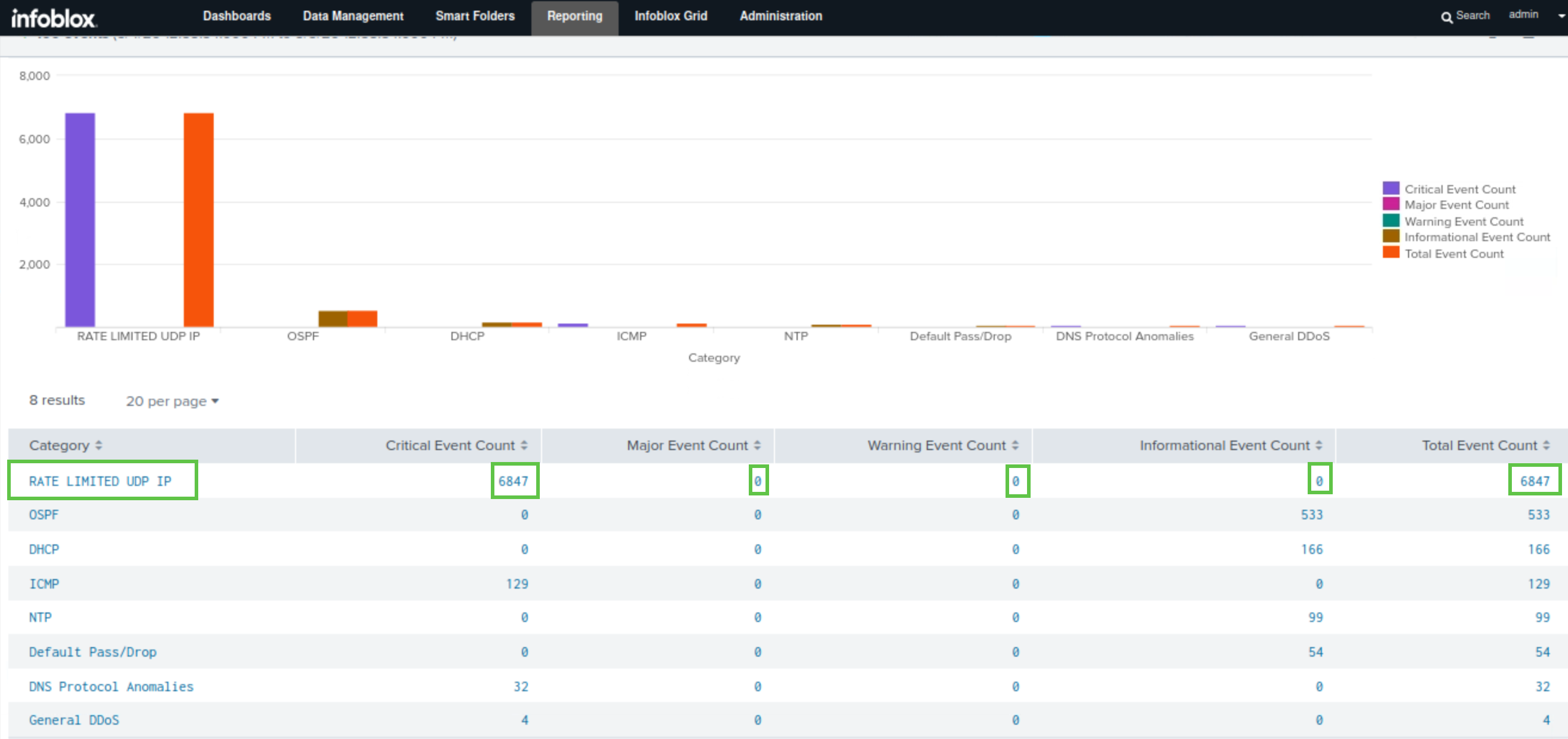
-
-
Click on Reports to navigate back to the main Reports page.
-
Type DNS Infrastructure Protection in the filter box, one more time.
-
Select DNS Infrastructure Protection Event Count by rule.
-
This report displays all DNS Infrastructure Protection rules, the total triggers per rule, and the actions taken, displayed in bar chart and table formats.
-
We will use this report to verify that our custom rule (Rule ID 120201001) triggered for all rate-limited UDP events and to identify any other triggered rules. In our scenario, only the custom rule (Rule ID 120201001) triggered, as its total events match those of the RATE LIMITED UDP IP category from the previous report.
-
Note the Alert Count for the custom rule RATE LIMITED UDP IP, we will compare it to the total number of events triggered by the suspect IP address 203.0.113.254 to check if it has triggered other DNS Infrastructure Protection rules and whether that was unexpected or excessive, in a later step.
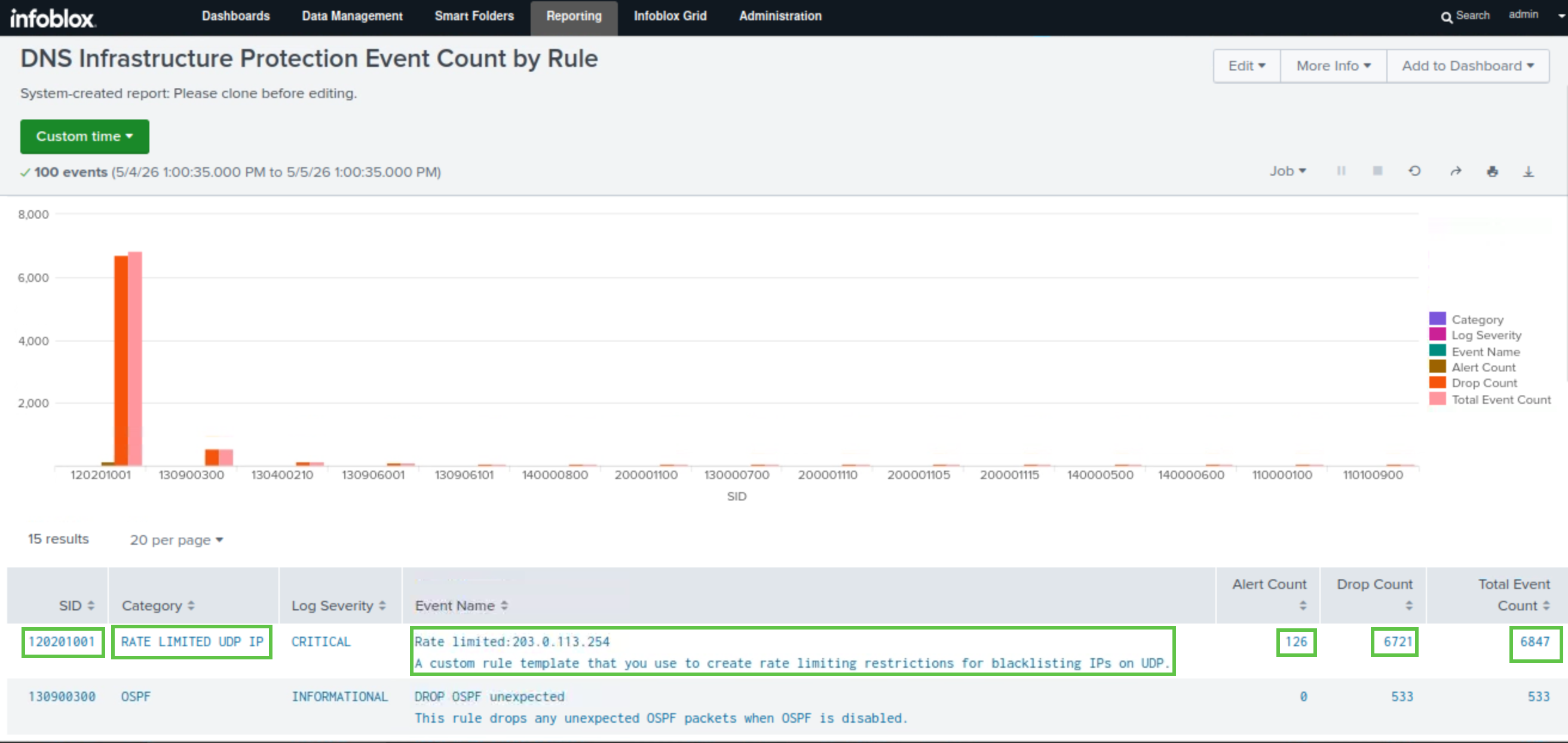
-
-
Click on Reports to navigate back to the main Reports page.
-
Type DNS Infrastructure Protection in the filter box, one more time.
-
Select DNS Infrastructure Protection Top Rules Logged by Source.
-
This report lists all triggered DNS Infrastructure Protection rules per IPv4 and IPv6 addresses that, along with the total number of events for each trigger.
-
We will use this report to check if our suspect IP address 203.0.113.254 triggered other rules and whether those triggers are unexpected or excessive. In our scenario, the total events count for IP address 203.0.113.254 closely matches the alert count we noted earier for our custom rule RATE LIMITED UDP IP from the previous report. Other triggered events like DROP IPv4 DHCP unexpected or EARLY DROP TCP non-DNS query may be present in your report and are common, as they are triggered by other sources, and fall within a reasonable range, confirming this IP has not triggered any other rule excessively or unexpectedly.
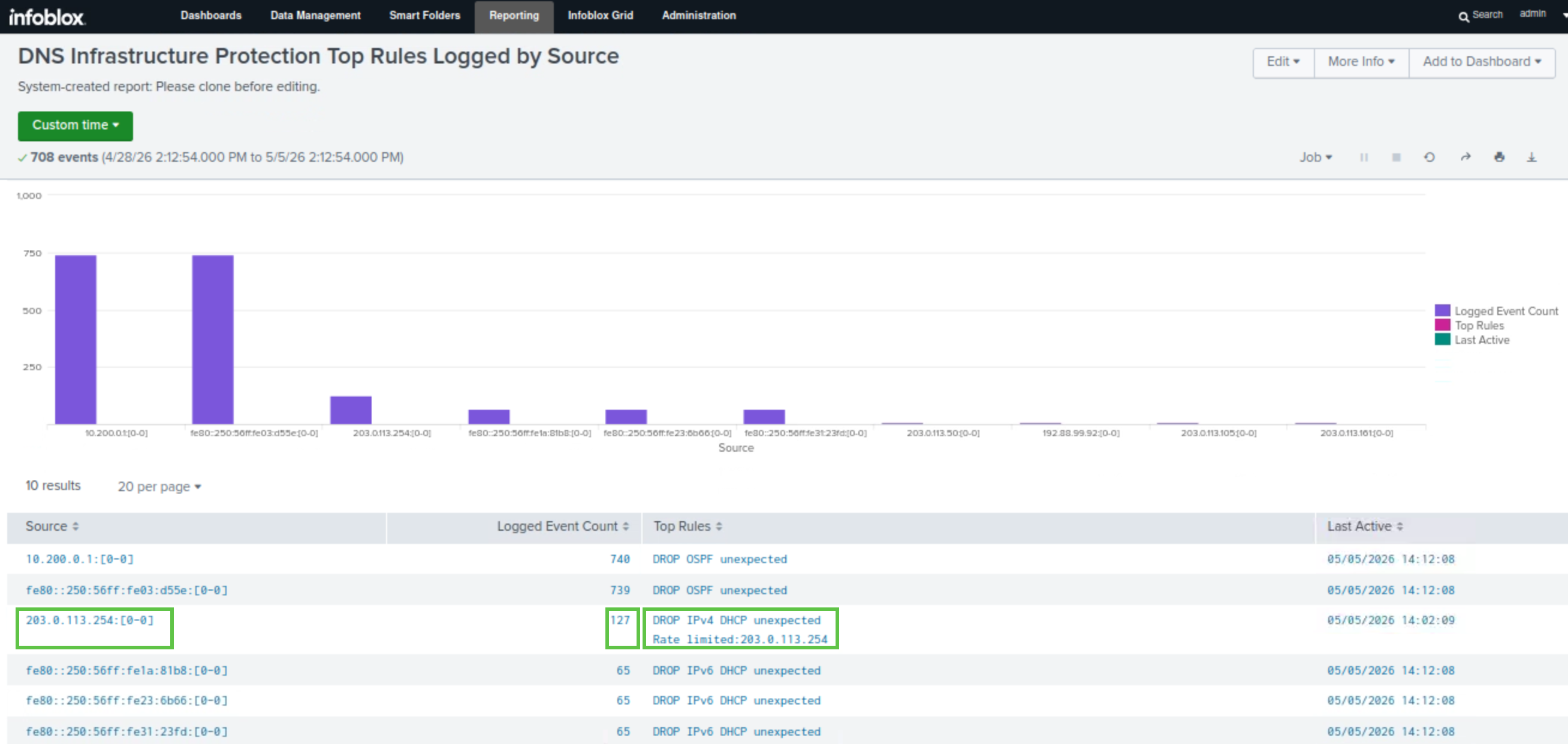
-
-
Navigate to Reporting → Dashboards.
-
Type DNS Infrastructure Protection in the filter box.
-
Find the DNS Infrastructure Protection Event Count Dashboard
-
This dashboard consolidates all gathered information on a single summarized page. It shows event count by category, affected members, event count by rule, and trend graphs of events per member and severity level. This dashboard is ideal for exporting and presenting as a summary to management.
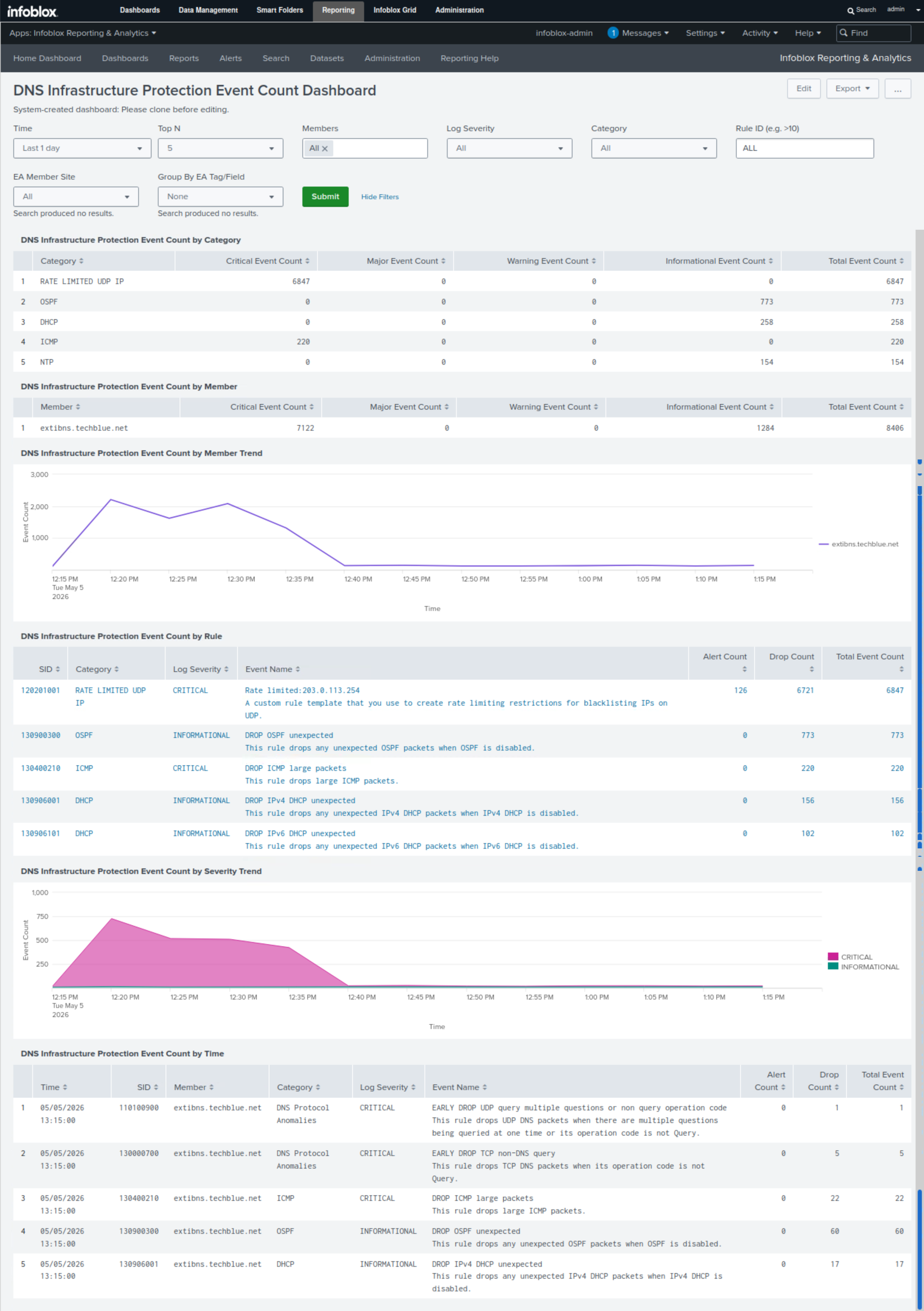
-
-
Click on Export
-
Select Export as PDF