
Scenario
You are the administrator for the domain techblue.net. The development team at Techblue has created a new environment for their internal use and testing. To support this, they set up their own DNS system and asked for full control of the subdomain dev.techblue.net.
The development team has already configured their DNS server support-server.dev.techblue.net (10.100.0.20) with the zone and records. The team has requested that you resolve the record app1.dev.techblue.net to verify that the setup is working properly.
Your task is to delegate the subdomain dev.techblue.net to this server so the development team can manage their own DNS records.
In this lab scenario, we are delegating to only one server, 10.100.0.20. This is uncommon and not advised for production. For a production environment, choose at least two target servers for redundancy.
The example we have in the lab environment is more similar to an internal namespace rather than a public or external namespace. If you are setting this up for an internal or private namespace, you should probably avoid delegation and instead use a forward zone or conditional forwarding.
Estimated Completion Time
-
15 to 20 minutes
Prerequisites
-
Administrative access to the Infoblox Portal
Learning Content
Tasks
-
Pre-delegation Tests
-
Create Delegated Zone
-
Validate Delegation
Task 1: Pre-delegation Tests
From testing-linux, run dig @10.100.0.110 app1.dev.techblue.net. A and dig @10.100.0.20 app1.dev.techblue.net. A before creating the delegation. Confirm that the parent server returns NXDOMAIN with the aa flag, while the child server returns NOERROR with the aa flag. This establishes the expected baseline before delegation.
Task 2: Create the Delegated Zone
Create the delegated zone dev.techblue.net on the parent zone techblue.net and point the delegation to support-server.dev.techblue.net at 10.100.0.20. Also, update the parent zone so delegated-subzone queries are delegated instead of forwarded.
Task 3: Validate the Delegation
Query the parent server again for app1.dev.techblue.net and confirm that the response now reflects delegation to the child zone instead of an authoritative negative answer from the parent.
Solutions
Task 1 Solution: Pre-delegation Tests
If you do not have the zone techblue.net, retrace the steps in Creating a Primary Zone in Universal DDI.
Before you create the delegation, confirm the current behavior of both DNS servers. The parent server should return an authoritative negative response because it does not yet delegate the child namespace, while the child server should already return an authoritative positive response because it hosts the zone and records. This gives you a clean before-and-after comparison for the final validation.
-
Switch to the virtual machine testing-linux and open a terminal window.
-
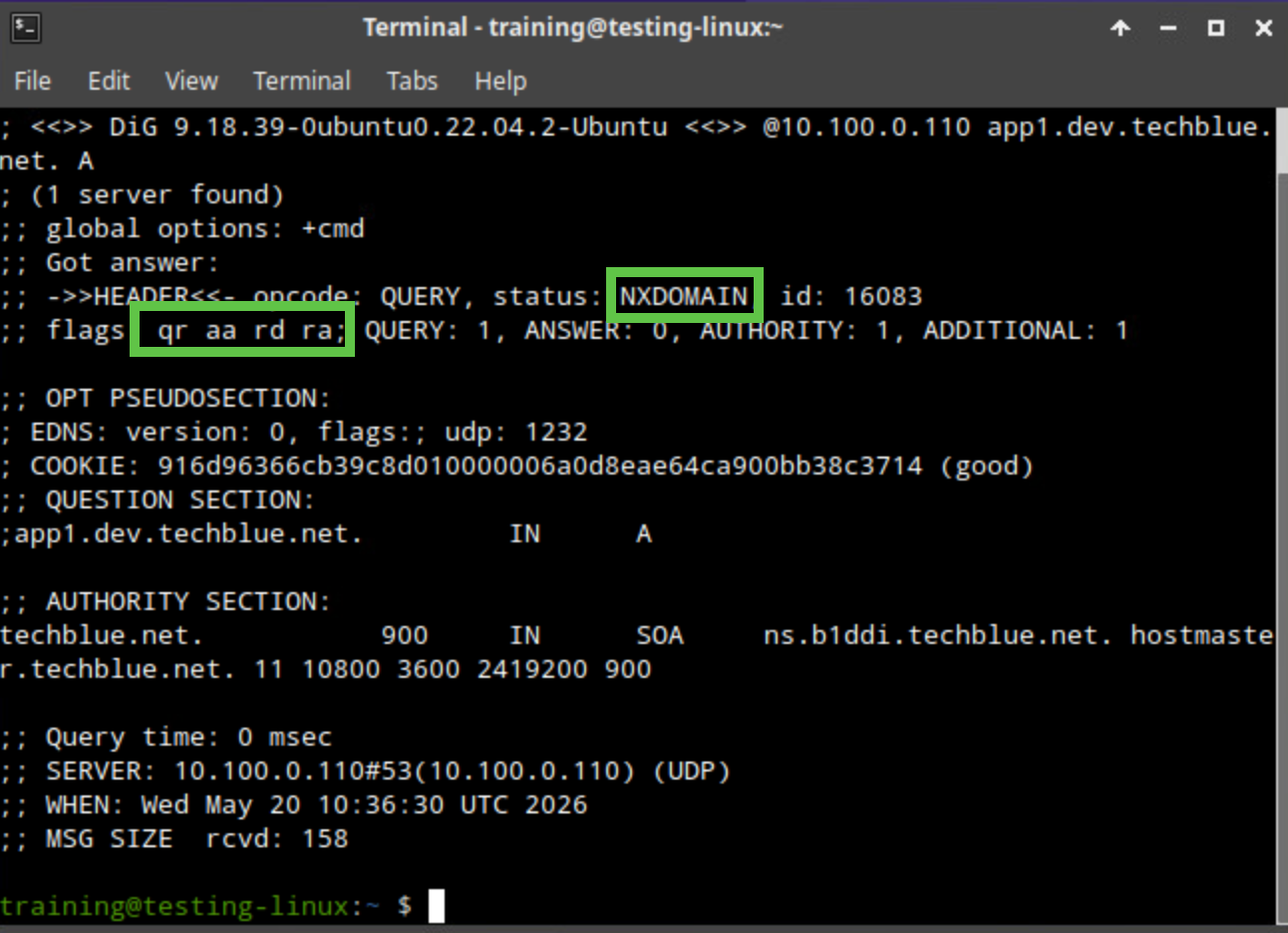
Run dig @10.100.0.110 app1.dev.techblue.net. A.
-
Verify that the response shows NXDOMAIN and includes the aa flag. This means the parent server is authoritative for the current response and does not yet know the delegated name.
-
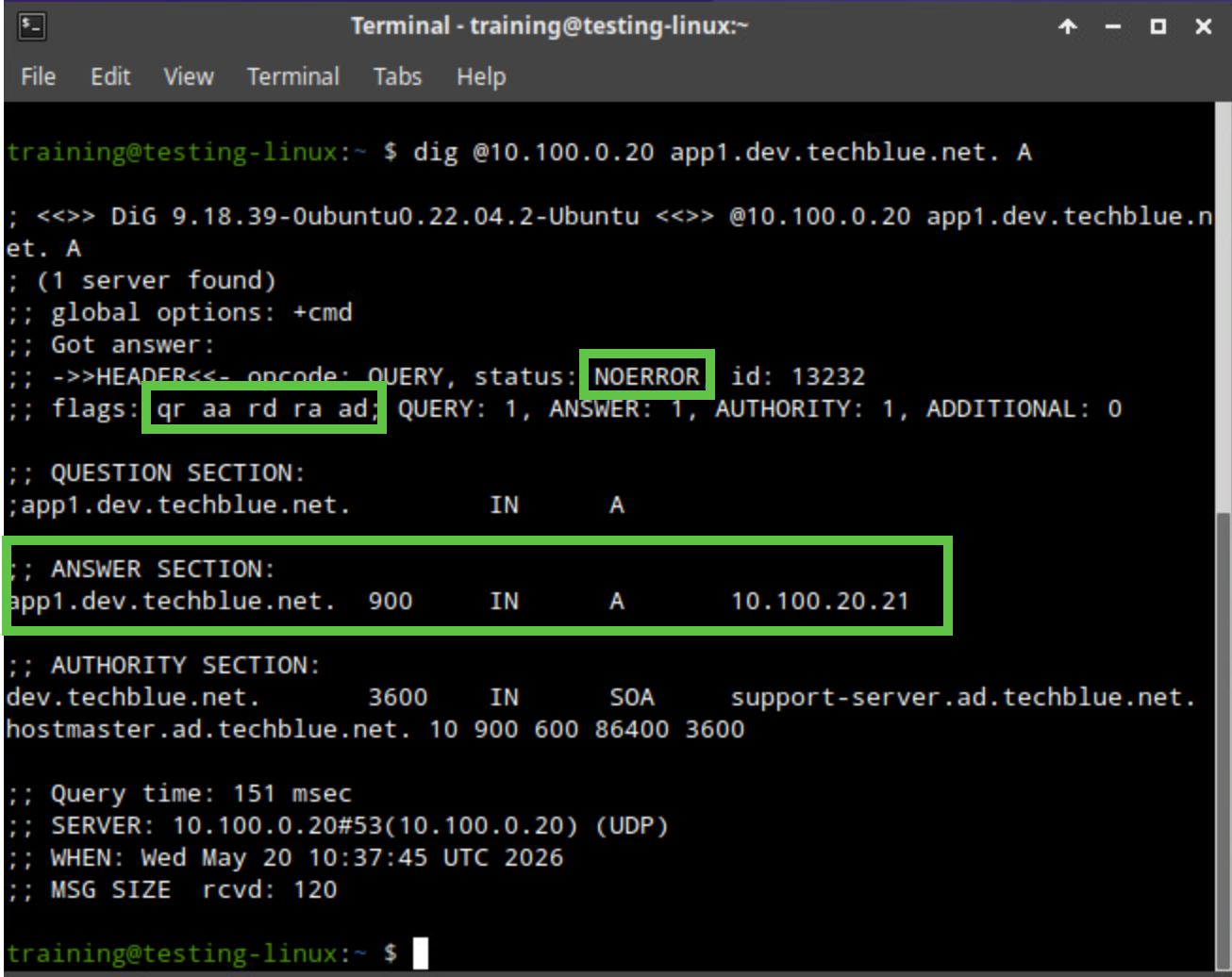
Run dig @10.100.0.20 app1.dev.techblue.net. A.
-
Verify that the response shows NOERROR and includes the aa flag. This confirms the child server is already authoritative for the name.
Task 2 Solution: Create the Delegated Zone
If you do not have the zone techblue.net, retrace the steps in Creating a Primary Zone in Universal DDI.
Now create the delegation in the parent zone so queries for dev.techblue.net are referred to the child server instead of being answered locally by the parent zone. After you create the delegation, you must also disable the parent zone setting that uses default forwarders for delegated subzones. If you skip that change, queries may still resolve by forwarding instead of delegation, which can make the final test misleading.
-
Log in to your lab’s jump-desktop.
-
Use the Education Infoblox Portal credentials to sign in to the Infoblox Portal.
-
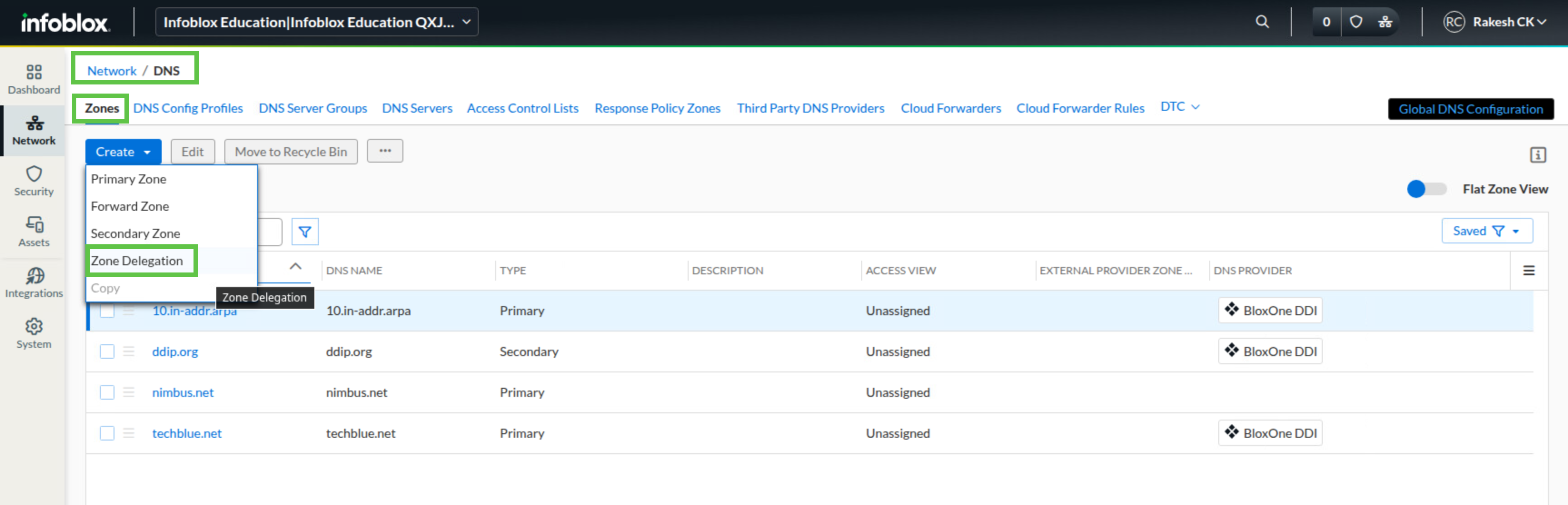
Navigate to Network → DNS.
-
Select the Zones tab.
-
Click the DNS view default.
-
Click Create and select Zone Delegation.
-
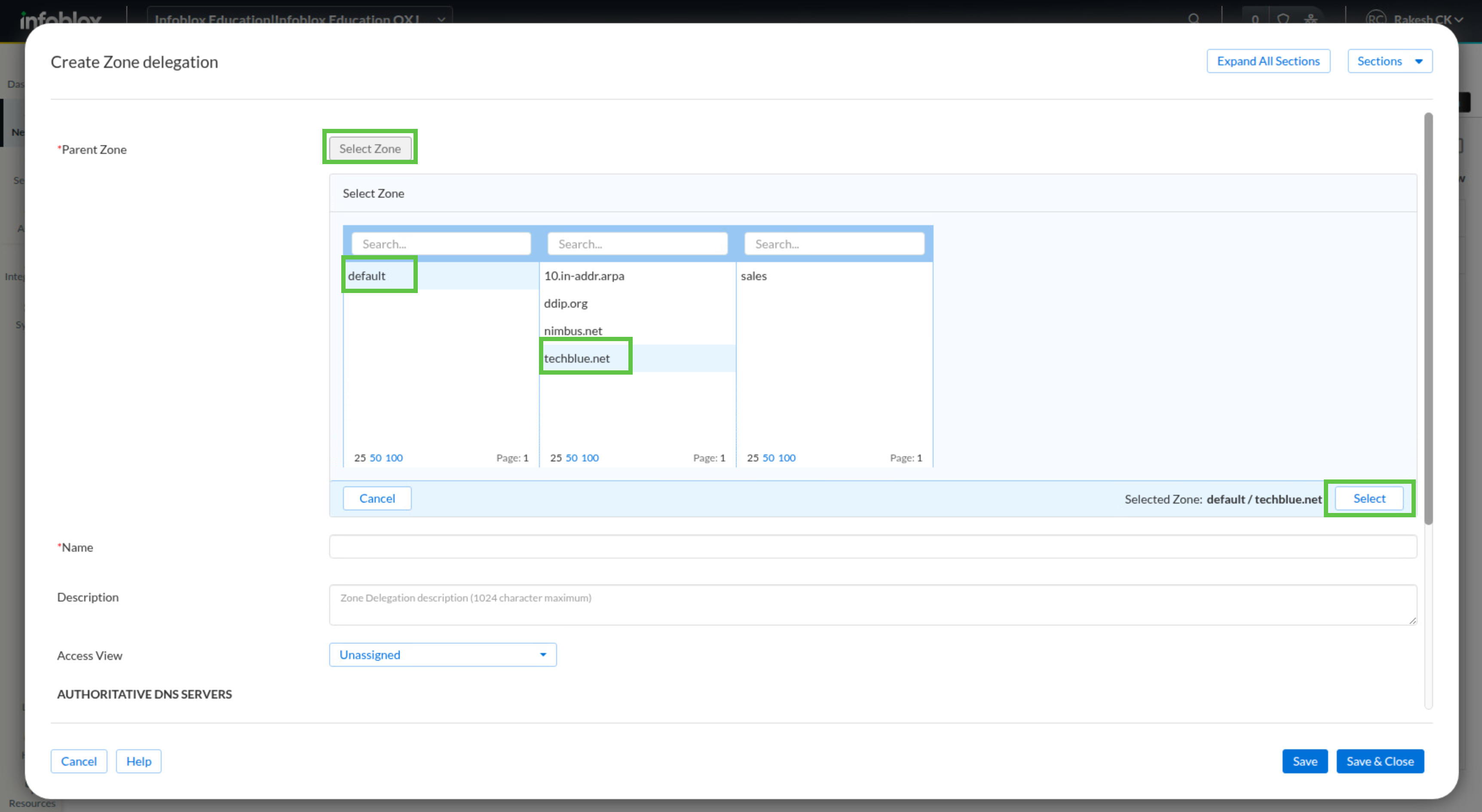
Click Select Zone.
-
Select default → techblue.net and click Select.
-
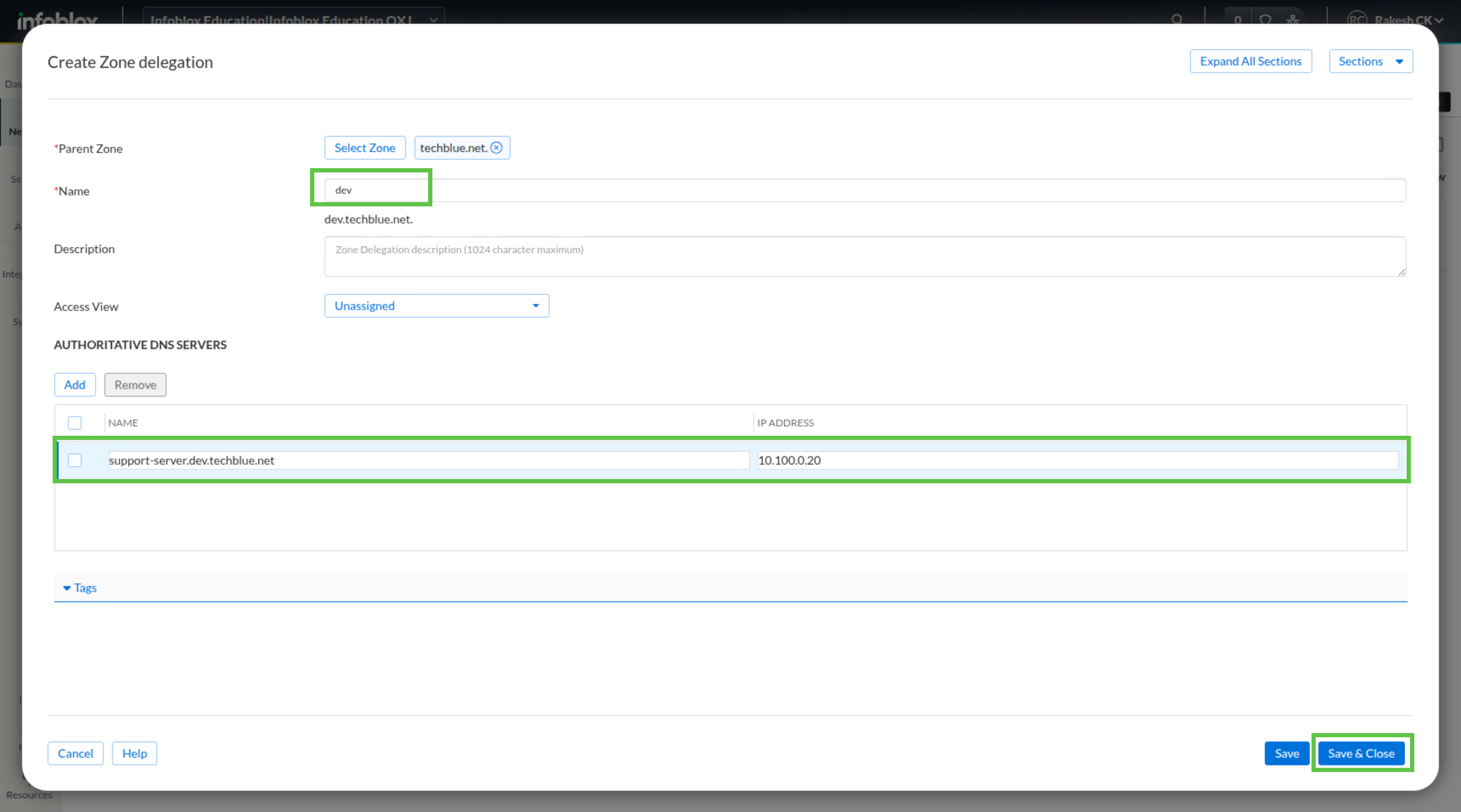
In the Name field, enter dev.
-
Under Authoritative DNS Servers, add an entry with Name support-server.dev.techblue.net and IP Address 10.100.0.20.
-
Click Save & Close.
-
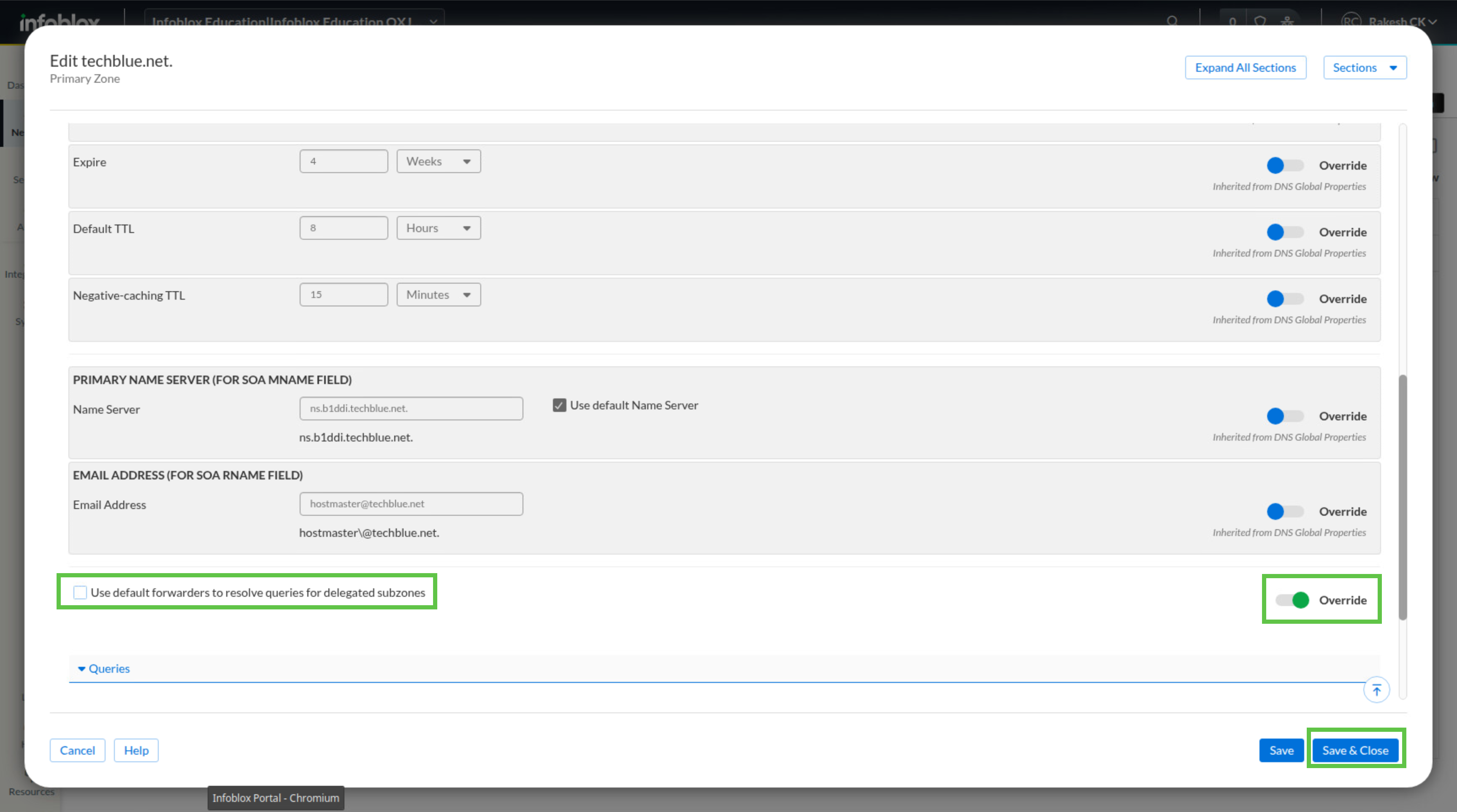
Open the menu next to techblue.net and click Edit.
-
In Zone Setting Defaults, turn on Override and clear Use default forwarders to resolve queries for delegated subzones.
-
Click Save & Close.
If you do not perform the last step correctly to uncheck the box Use default forwarders to resolve queries for delegated subzones, queries for the child domain will be forwarded instead of being delegated. Depending on your configuration, names may still resolve (or maybe not), and there are subtle differences in name server responses and behaviors.
Task 3 Solution: Validate the Delegation
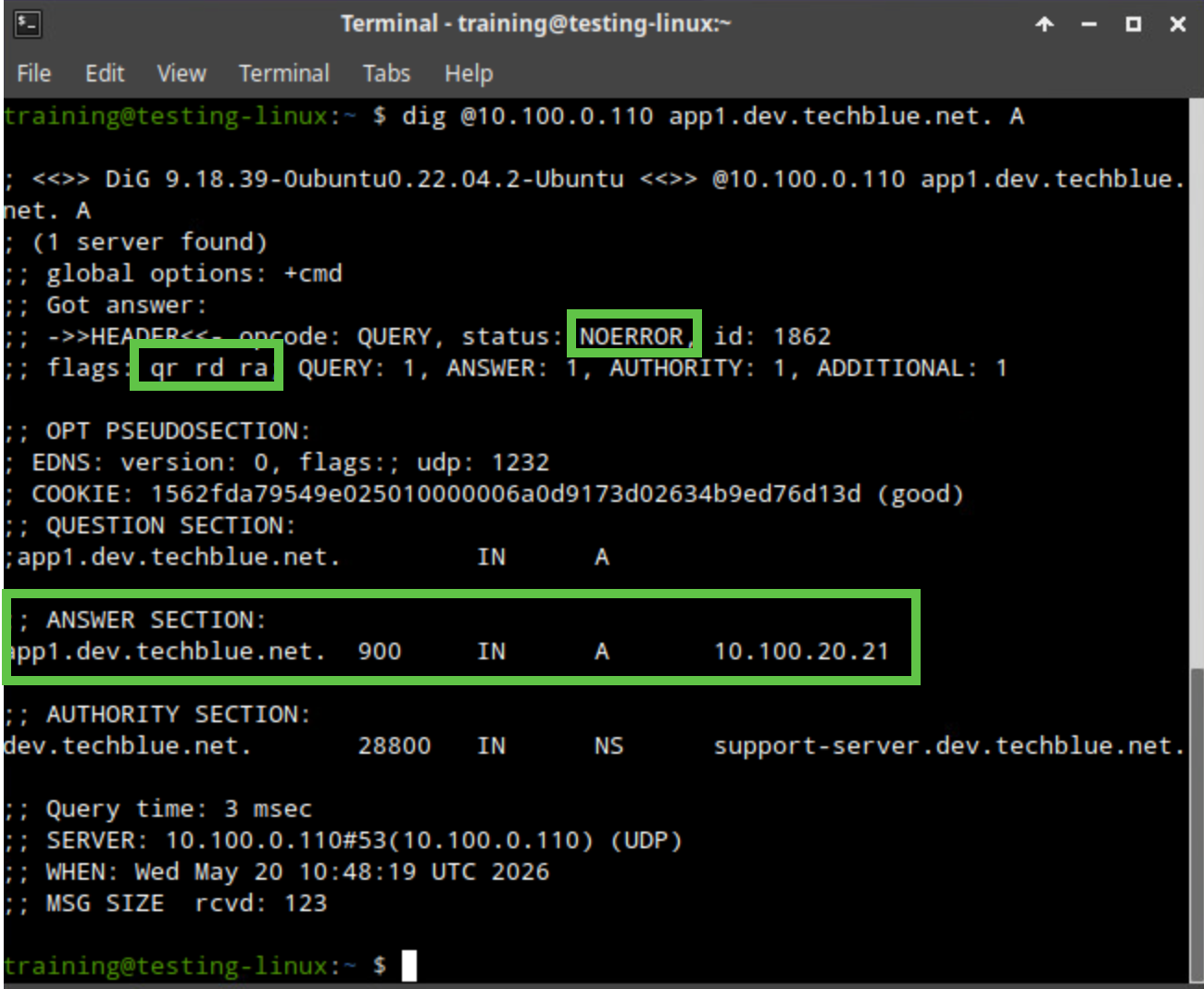
Finish by querying the parent server again. In Task 1, the parent returned an authoritative negative answer. After delegation is configured, the parent should no longer behave as authoritative for the child name. Instead, the result should reflect that the answer was obtained through the delegated child server. Compare the output to Task 1 and notice that the aa flag is no longer present in the parent response.
-
Switch to the virtual machine testing-linux and open a terminal window.
-
Run dig @10.100.0.110 app1.dev.techblue.net. A.
-
Compare the result to Task 1 and confirm that the parent no longer returns the earlier authoritative negative response.
-
Verify that the aa flag is no longer present in the parent response. This indicates the parent is no longer acting as authoritative for the delegated child name.