

Infoblox Portal Navigation – Read First
Do things look different? A temporary toggle in the Infoblox Portal allows you to switch between the new and classic navigation experiences while our content is being updated. The toggle will be available through December 14, 2026. Use the toggle button switch between the classic and new navigation.

Scenario
Your organization wants to publish a web application at www.dtc.techblue.net and distribute client requests across all application servers in both Pool A and Pool B. In this activity, you will configure a Round Robin load balancing policy so the LBDN can return balanced DNS answers across the two pools.
Estimated Completion Time
-
30 minutes
Prerequisites
-
Administrative access to the Infoblox Portal
-
Lab 2606: Creating a Primary Subzone for DTC in Universal DDI
Learning Content
Tasks
-
Create the Round Robin policy.
-
Create the LBDN.
-
Test Round Robin behavior from the client side.
Task 1: Create the Round Robin policy
Create a policy that uses the Round Robin load balancing type and associates both pools so the DTC solution can distribute answers across them.
Task 2: Create the LBDN for the Round Robin policy
Create an LBDN for www.dtc.techblue.net and associate it to the Round Robin policy.
Task 3: Test Round Robin behavior from the client side.
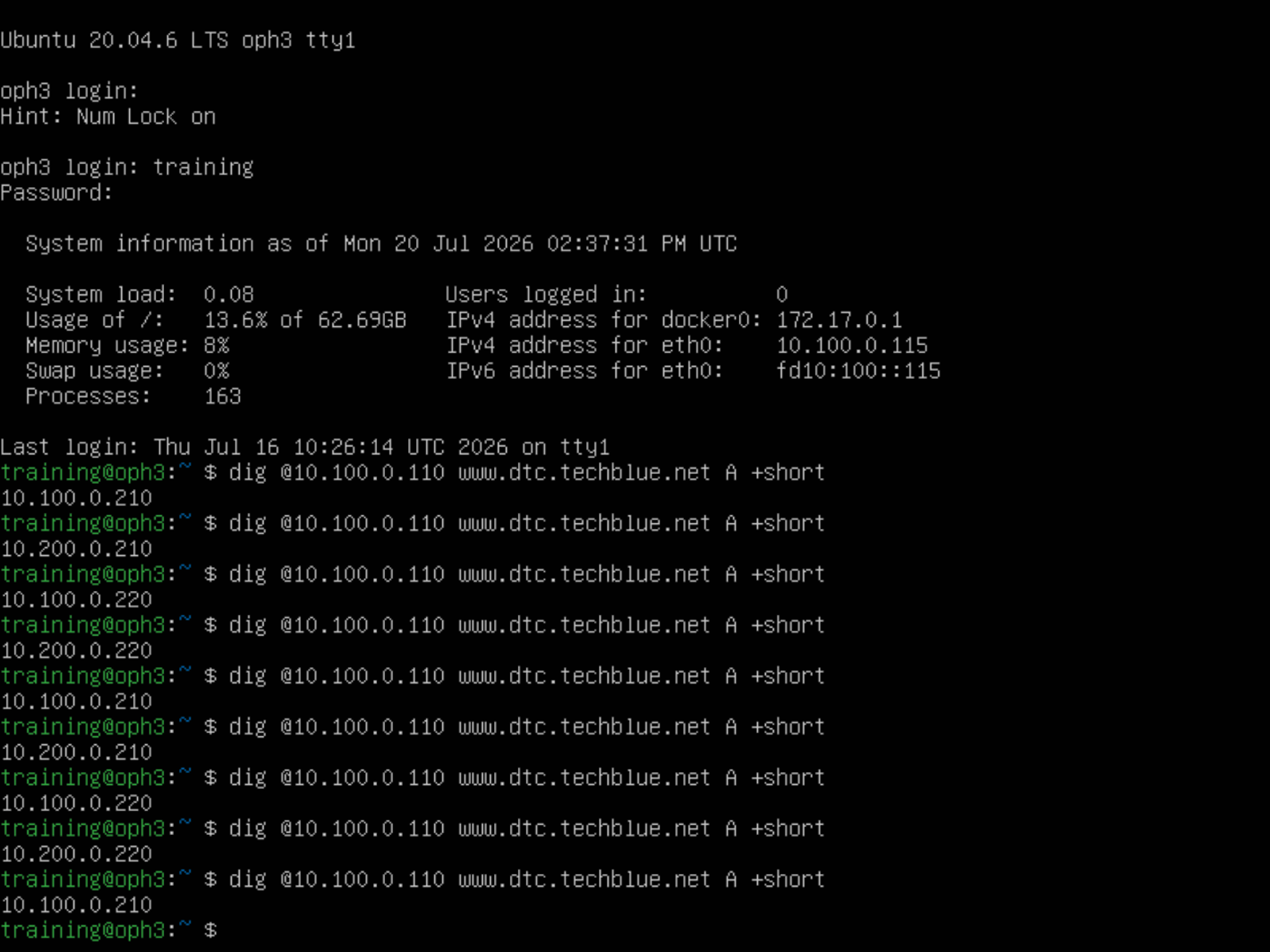
Use oph3, jump-desktop, or testing-linux to test www.dtc.techblue.net and confirm that the answers rotate across all four application servers in both pools.
Solutions
Task 1 Solution: Create a Round Robin policy
This step applies traffic distribution logic to the pools you created. The policy is what tells DTC how to choose between the available pool resources when answering client queries.
-
Log in to your lab’s jump-desktop.
-
Use the Education Infoblox Portal credentials to sign in to the Infoblox Portal.
-
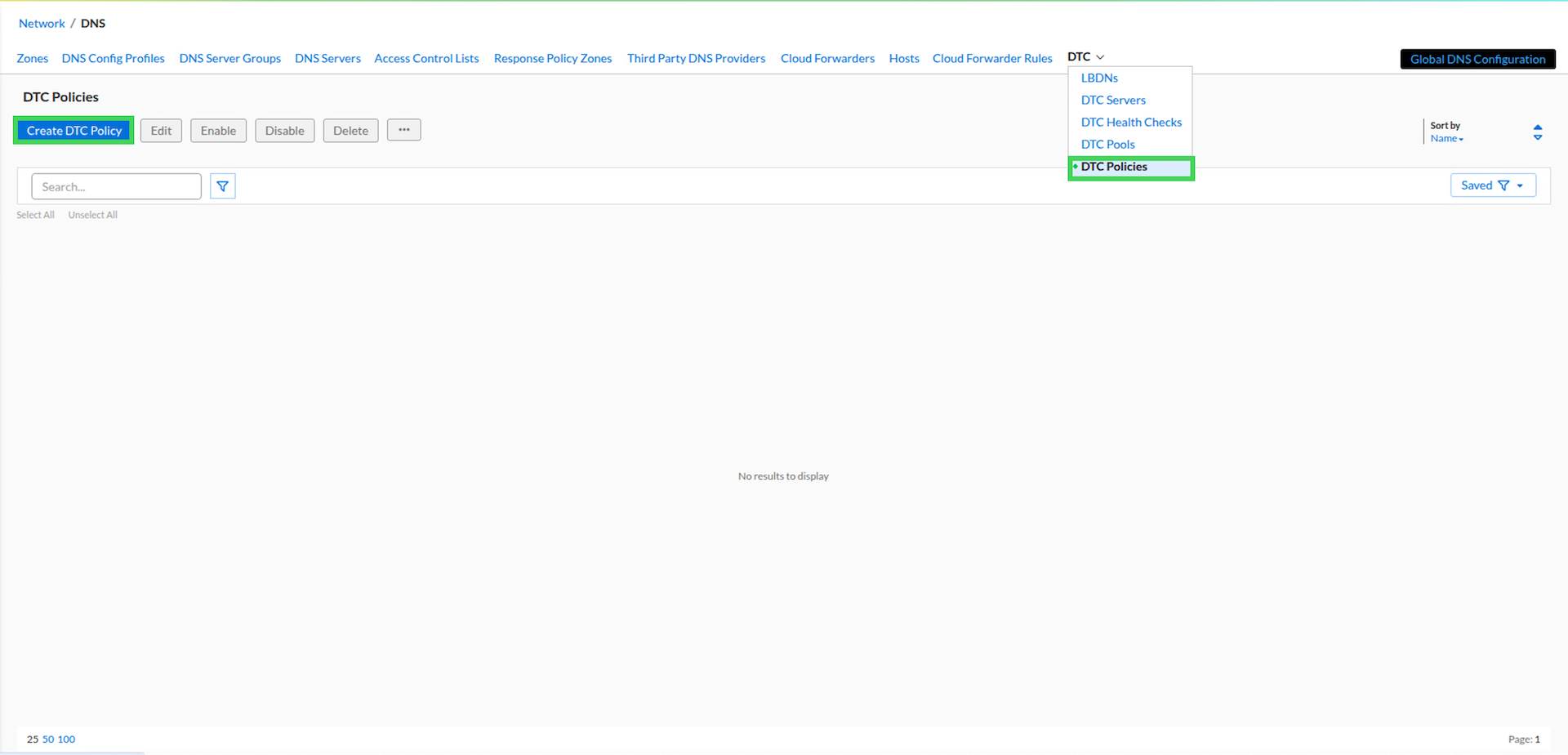
Navigate to Network → DNS.
-
Expand the DTC tab and select DTC Policies.
-
Click Create DTC Policy.
-
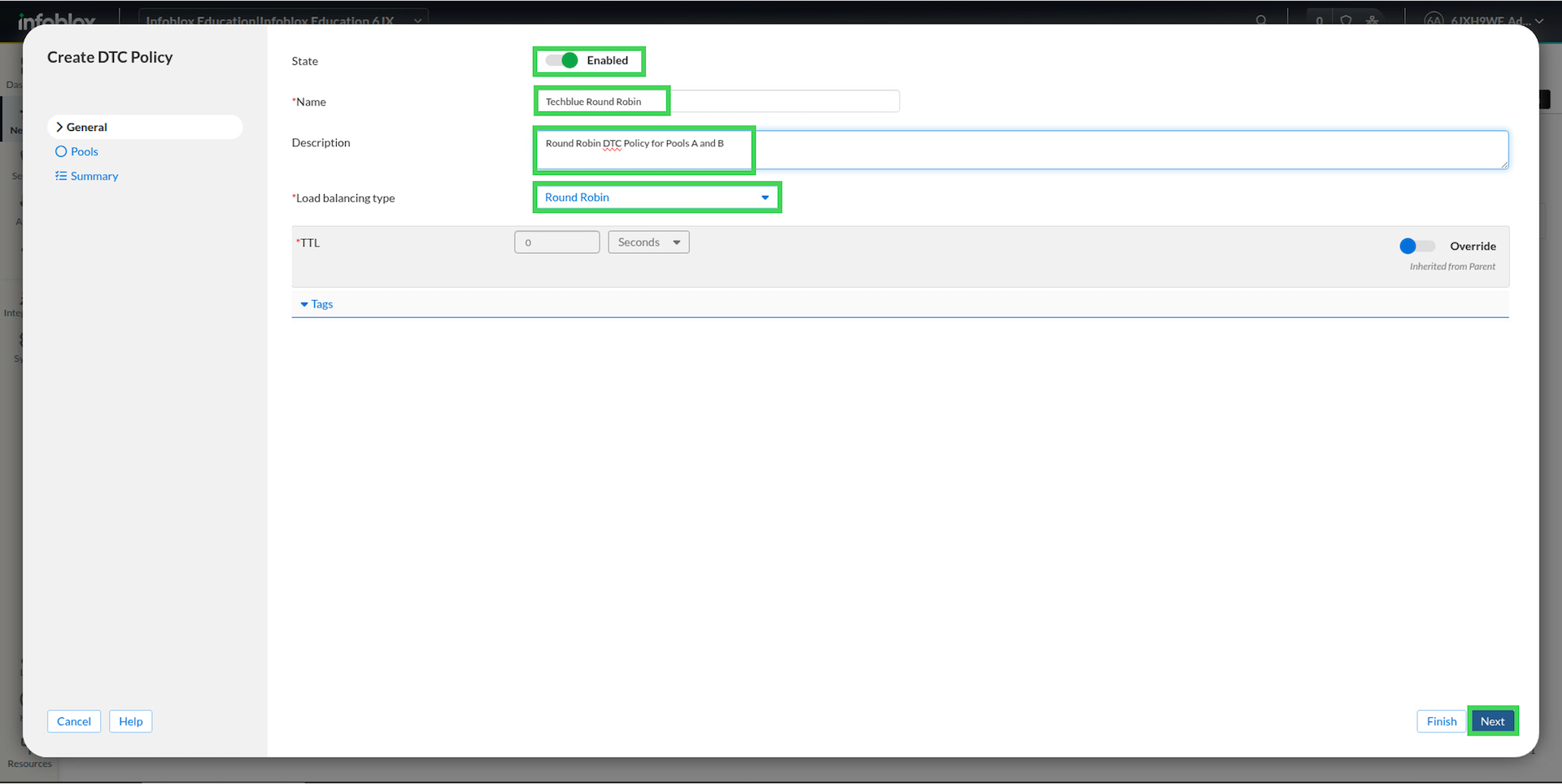
Create the first Policy using these values:
Leave the State as Enabled.
Enter the Name as Techblue Round Robin.
Provide Description as Round Robin DTC Policy for Pools A and B.Leave the Load Balancing Type as Round Robin.
-
Click Next.
-
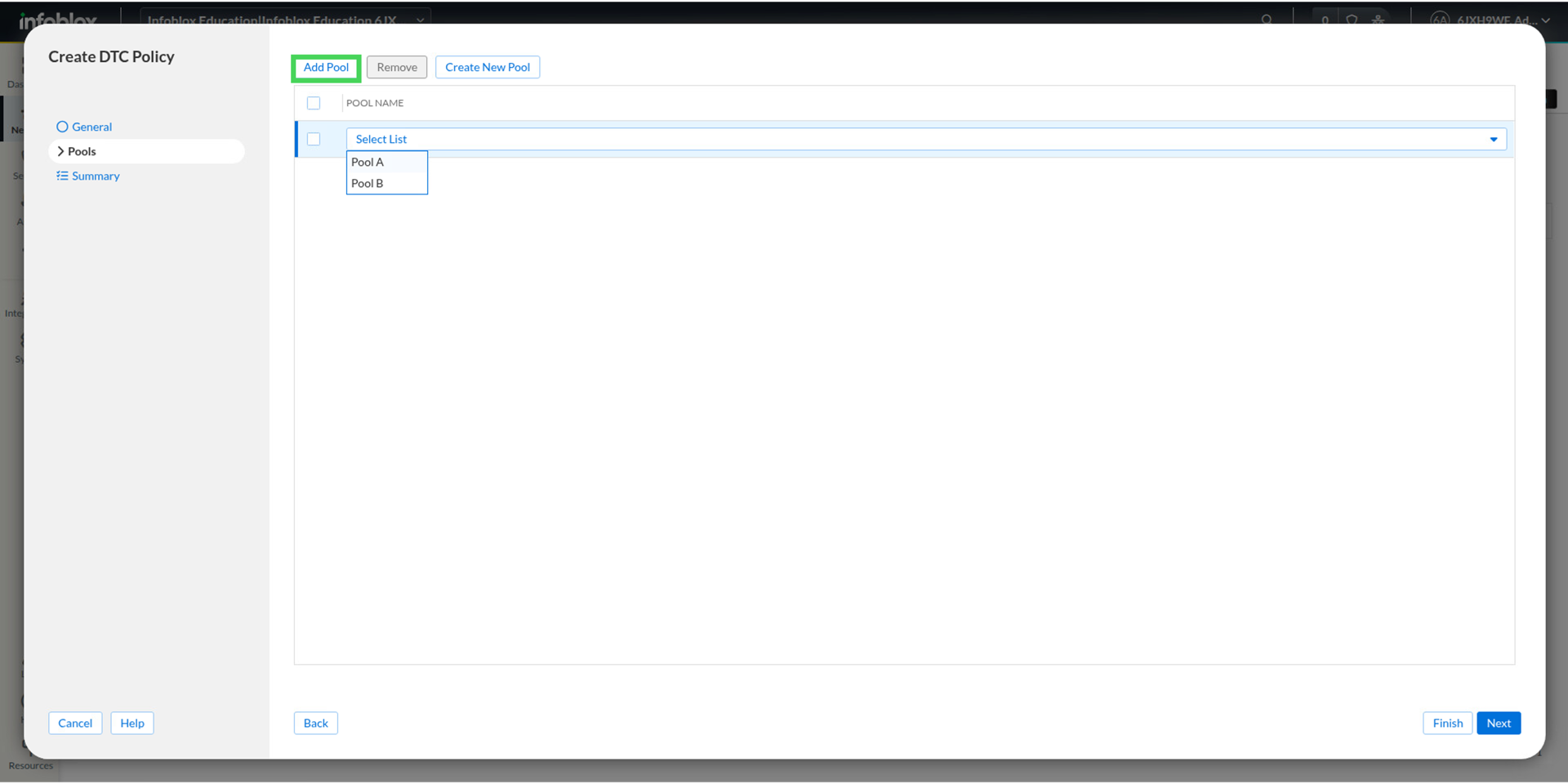
Click Add Pool and choose Pool A.
-
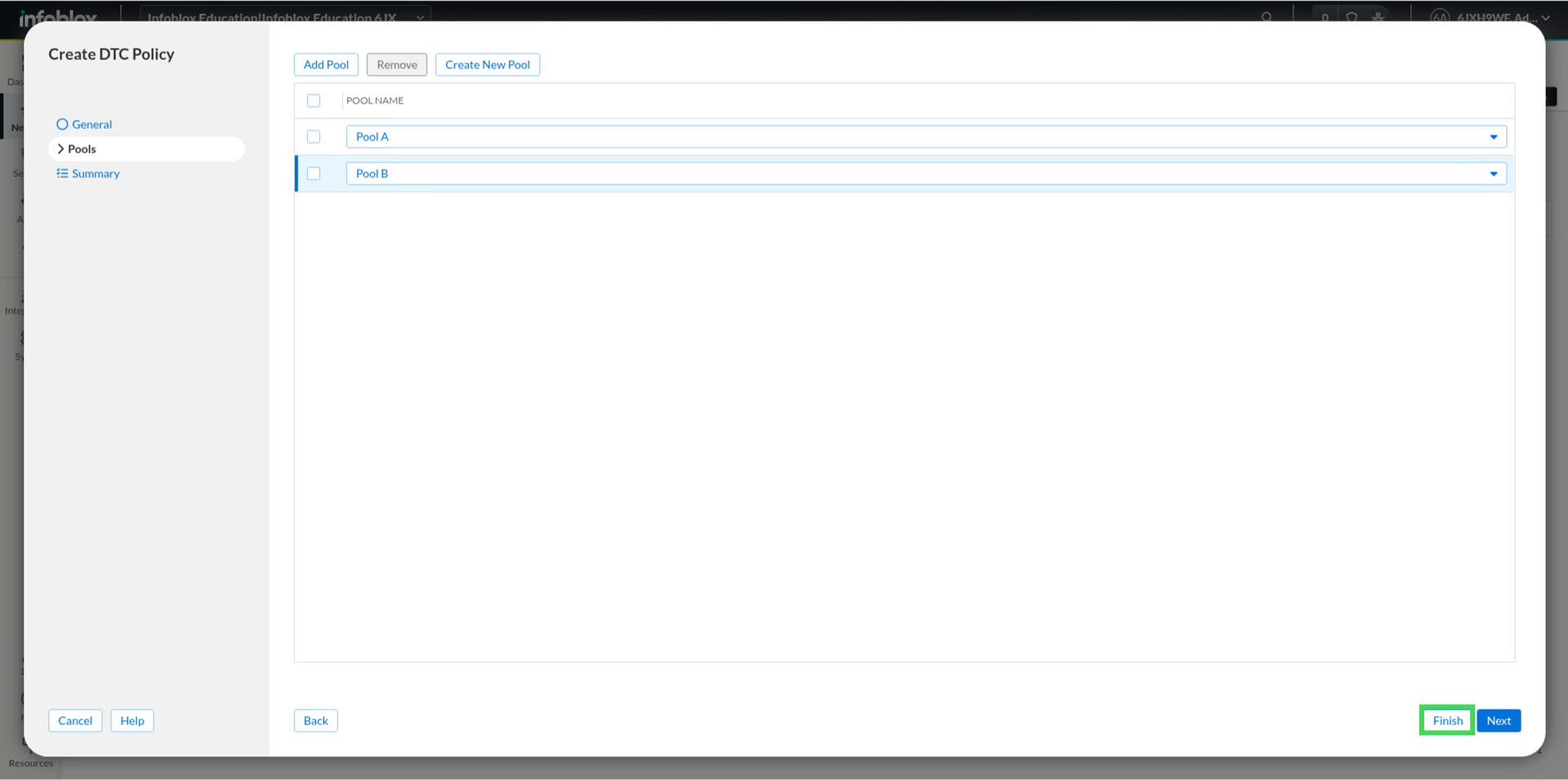
Click Add Pool again and choose Pool B and click Finish and then Save and Close.
Task 2 Solution: Create the LBDN for the Round Robin policy
This step creates the client-facing DNS name www.dtc.techblue.net that ties the DTC configuration together.
-
Log in to your lab’s jump-desktop.
-
Use the Education Infoblox Portal credentials to sign in to the Infoblox Portal.
-
Navigate to Network → DNS.
-
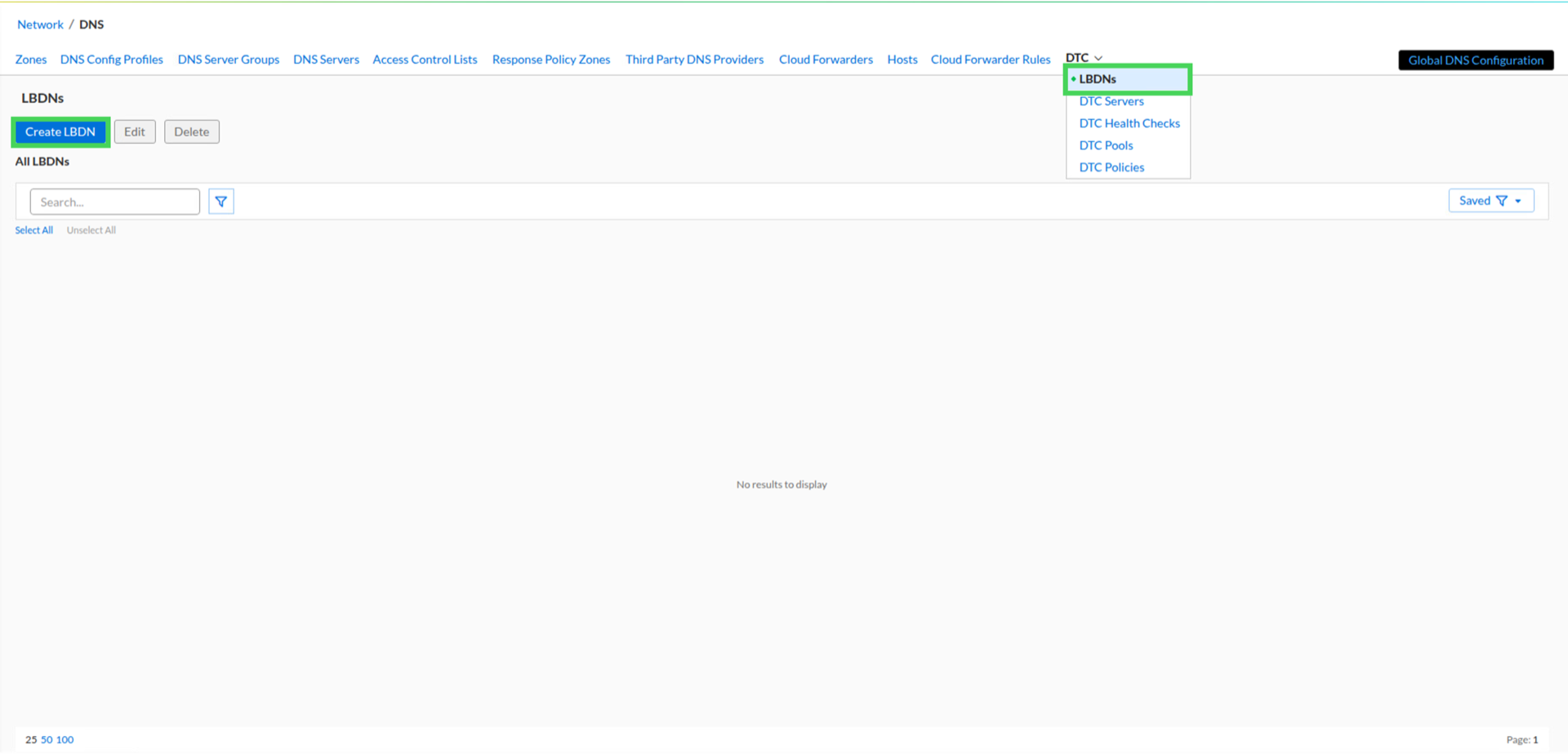
Expand the DTC tab and select LBDNs.
-
Click Create LBDN.
-
Create the LBDN using these values:
For DNS View choose default.
Enter the Name as www.dtc.techblue.net.
Leave the Precedence field blank.
For Load Balancing Policy choose Techblue Round Robin.
For Description add Round Robin for webserver.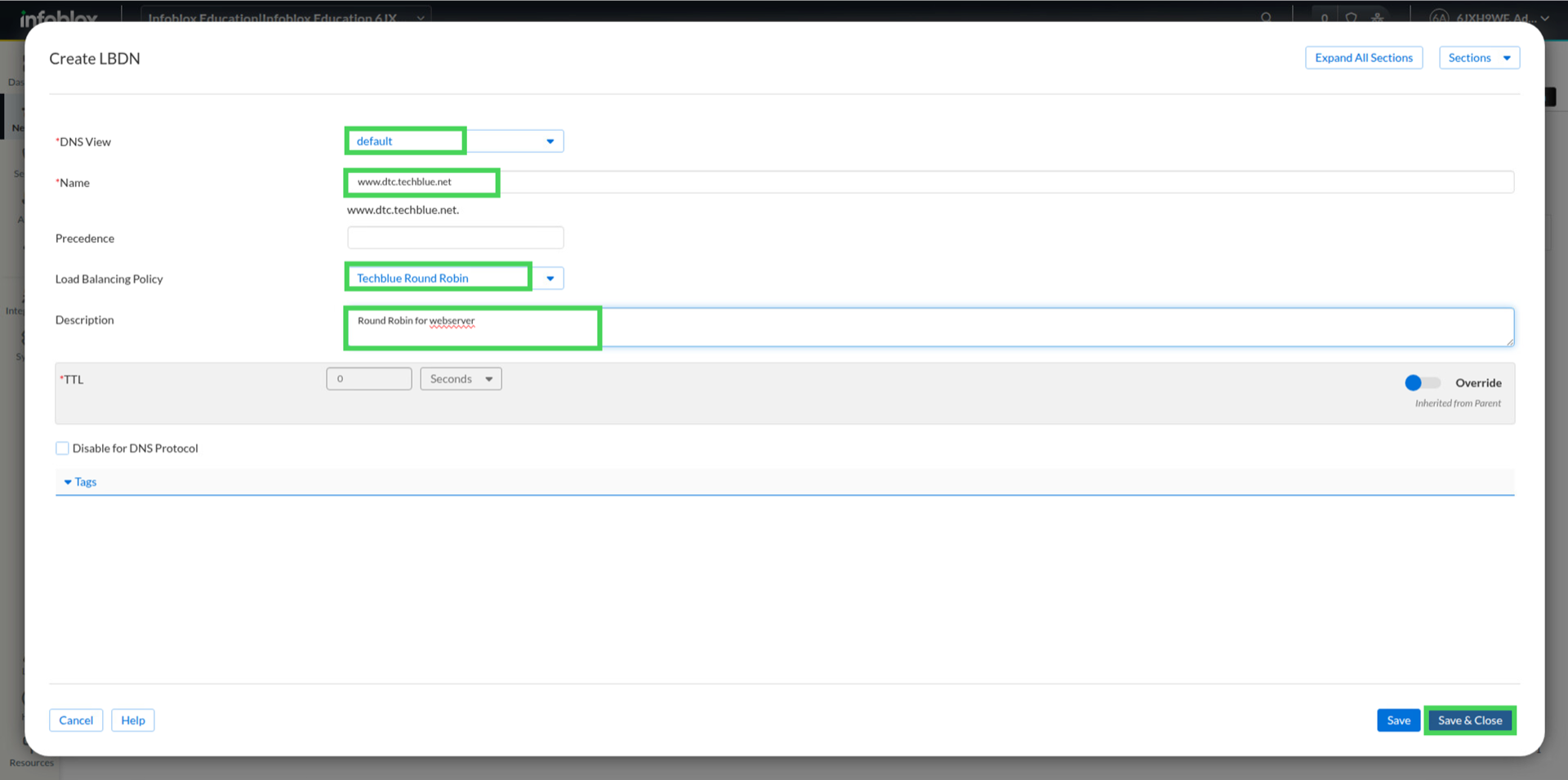
-
Click Save and Close.
Task 3 Solution: Test Round Robin behavior from the client side
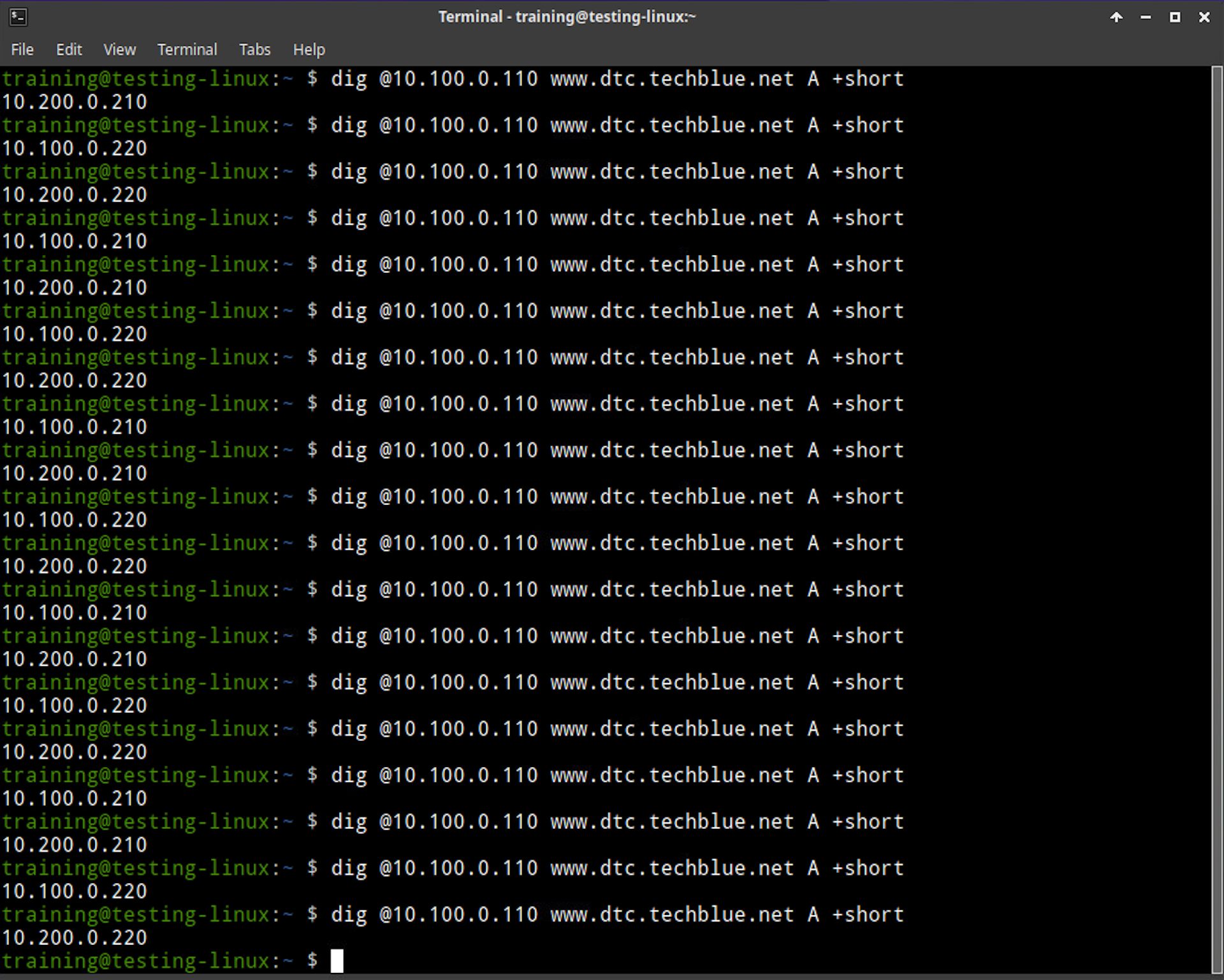
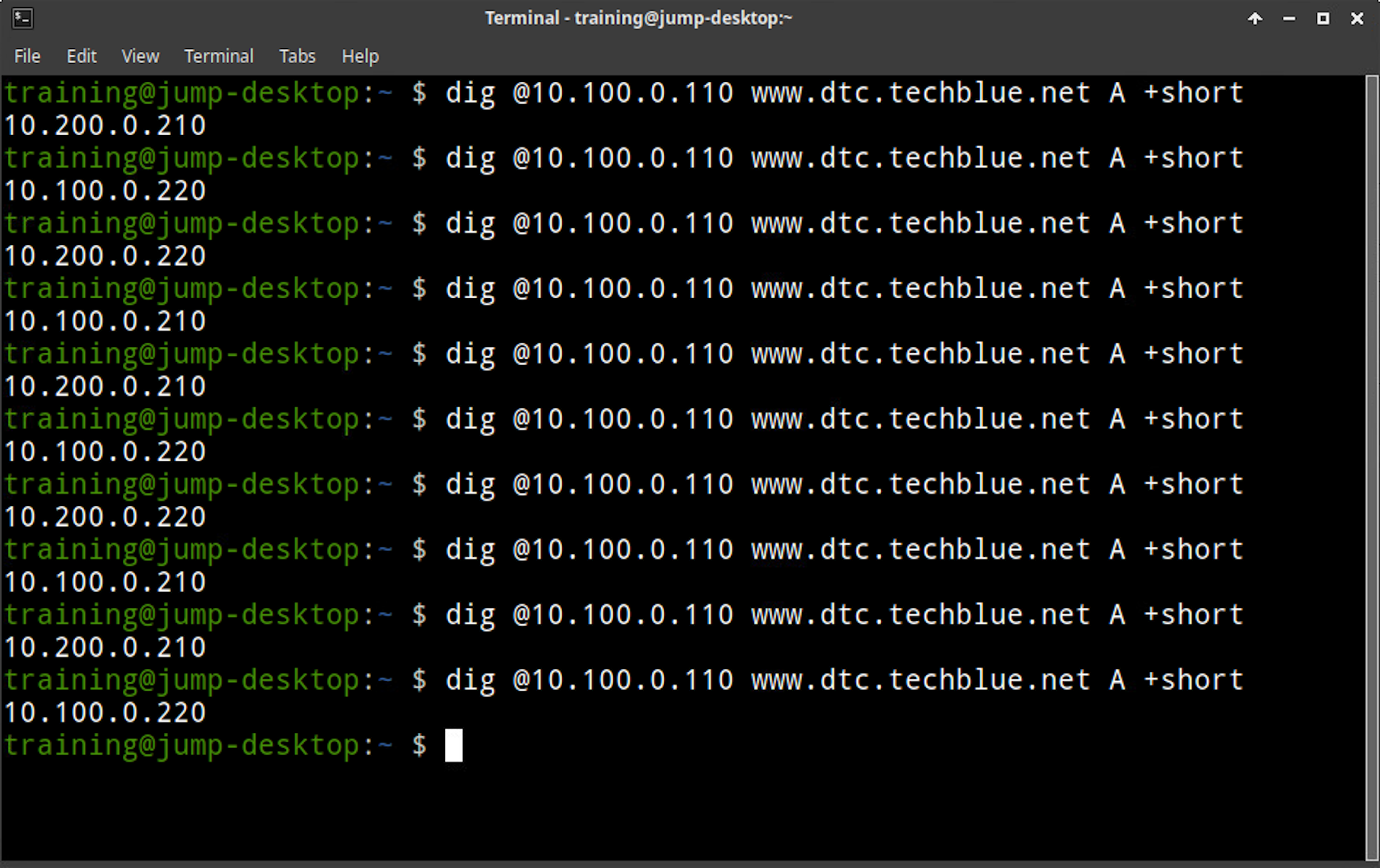
This step validates that the policy is behaving the way it was designed. Because this is a Round Robin policy using both pools, repeated client queries should rotate across all four application server addresses regardless of which client machine is used.
-
Switch to virtual machine testing-linux and open a terminal window
-
Run dig @10.100.0.110 www.dtc.techblue.net. A +short
-
Repeat the query a few times and note the responses
-
Switch to virtual machine jump-desktop and open a terminal window
-
Run dig @10.100.0.110 www.dtc.techblue.net. A +short
-
Repeat the query a few times and note the responses
-
Switch to virtual machine oph3:
username: training
password: infoblox -
Run dig @10.100.0.110 www.dtc.techblue.net. A +short
-
Repeat the query a few times and note the responses